
The significance is easy to underestimate. Archiving has traditionally solved a storage and lifecycle-management problem by moving old collaboration spaces out of day-to-day use. But it can also create a discovery problem: users may remember a project name, document title, or phrase inside a file without knowing that the content now lives in a site that has been archived. Microsoft 365 Archive Search closes part of that gap by making archived content discoverable in the familiar SharePoint and OneDrive search experiences, while preserving the controls that stop users from simply opening an inactive site as if nothing changed.
That is a sensible evolution for organizations trying to balance SharePoint storage costs, long-term retention, security, and employee productivity. It is also a feature that demands careful rollout planning. Search can identify the right content, but it does not eliminate archive states, reactivation delays, permission boundaries, client limitations, or the need for a clear internal escalation path.
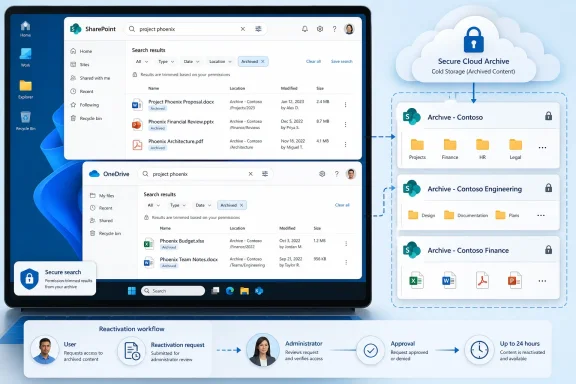 Overview: What M365 Archive Search Changes
Microsoft 365 Archive is Microsoft’s cold-storage-oriented capability for inactive SharePoint files and sites. The service moves qualifying inactive content to a colder tier, removing it from the tenant’s active storage quota while retaining its security, compliance, and search characteristics. Microsoft states that archived material remains searchable through end-user search, Purview Content Search, and eDiscovery, even though users cannot directly access archived content until it is reactivated. Microsoft’s Archive overview also notes that Purview search and eDiscovery exports can take longer for archived content.
The newly visible user benefit is not that archives suddenly become open repositories. They do not. Instead, archived content can appear as a result when a user searches in SharePoint or OneDrive, allowing the user to establish that the document or site exists and identify the location that needs attention. Microsoft’s M365 Archive Search documentation says results remain permission-trimmed and continue to search file contents in the same way active content does.
That design is important. A user searching for a proposal, contract, meeting record, project plan, or engineering document should not need to remember an exact SharePoint site URL from several years earlier. If the user retains permission to see the content, search can expose the archived result. If the result is linked to an archived site, it becomes a precise signal for an administrator or site owner: this is the site that needs reactivation.
Search is discovery, not a bypass
The feature’s central distinction is between finding content and using content. Search helps a user locate archived material, but archive protection still applies after the result is identified.
For an item archived at the file level, a user with read access can reactivate the item through SharePoint or OneDrive. For content contained in an archived SharePoint site, the site needs a SharePoint administrator to reactivate it before the user can access it. Microsoft documents this split explicitly in its archive search overview.
This separation provides a useful operating model:
- Search results identify relevant archived material.
- Permissions determine whether the user can discover that material.
- The archive type determines who can restore access.
- Archive policy and governance determine whether restoration is appropriate.
For Windows and Microsoft 365 administrators, that model is preferable to a blunt “archive means invisible forever” approach. It restores context without undoing lifecycle management.
How Archived Results Appear in SharePoint and OneDrive
The M365 Archive Search experience is embedded in existing Microsoft 365 web search surfaces rather than being presented as a completely separate archive portal. That matters because users already search in SharePoint and OneDrive as part of routine work.
OneDrive web search
In OneDrive on the web, users can select an Archived pill to return archived results. Those results can represent content in a site that has been archived or a file that was individually archived. Microsoft’s guidance distinguishes the follow-on action clearly: a file-level archive can be reactivated by the current authorized user, while content in an archived site remains dependent on a SharePoint administrator’s site-level reactivation process. Microsoft’s documentation describes the filter and behavior.
This is a practical improvement for organizations that use SharePoint document libraries as the underlying store for shared files but whose employees think of file retrieval primarily in terms of OneDrive-style search. The result reduces the chances that archived materials become “lost” simply because their container is no longer active.
SharePoint web search
SharePoint web search can also include archived content through the Archived option in the file-type filter. The user can search normally, include archived items, and see relevant results subject to existing access permissions. Microsoft’s archive search guidance confirms that both site-archived and file-archived results can be returned.
There is a minor wording inconsistency in Microsoft’s published page, where the SharePoint subsection refers to “OneDrive web search” when describing the file-type dropdown. The core behavior is nevertheless clear from the section heading and context: the Archived option is intended to extend SharePoint search visibility for archived material.
The larger point is that M365 Archive Search does not require employees to learn a new query syntax, a separate archive URL, or an administrator-only search console. The user workflow remains familiar:
- Search in SharePoint or OneDrive.
- Include Archived results where needed.
- Identify the document, folder, or site associated with the result.
- Reactivate an eligible file, or request reactivation of an archived site.
That is a much more usable path than asking employees to guess whether an old project was deleted, renamed, moved, or stored under a forgotten SharePoint address.
Why Searchability Matters in a Cold-Storage Strategy
The premise of Microsoft 365 Archive is that not every retained site should remain in active storage. Organizations accumulate completed projects, historical departmental sites, former client workspaces, knowledge bases, event materials, and records that must be retained but are not continuously used.
Keeping every site active can clutter SharePoint administration, complicate lifecycle management, inflate active storage consumption, and make employee navigation less focused. Microsoft positions Archive as a lower-cost storage tier for inactive SharePoint files and sites, while retaining metadata, permissions, searchability, and compliance capabilities. Microsoft’s service overview describes Archive as an option for long-lived inactive data that may still need to be retrieved later.
Without search, however, storage savings can become operational friction. An archive program is effective only if workers can retrieve important information when a legal request, audit, customer issue, operational incident, renewal discussion, or project revival demands it.
The “known unknown” problem
In many real organizations, the problem is not simply locating a particular file. It is determining whether the file exists at all and where it resides.
A user may know that:
- a product launch happened several years ago;
- an account team prepared a statement of work;
- a department maintained a policy pack;
- a migration project generated a test plan;
- an executive committee reviewed a particular presentation.
But the user may not know:
- which SharePoint site hosted it;
- whether the site was renamed;
- whether it became an archived site;
- whether a document was archived individually;
- who currently owns the reactivation decision.
M365 Archive Search addresses this discovery layer. It does not promise immediate access, but it transforms an uncertain search problem into an actionable site reactivation request. That is particularly valuable in large tenants where archived sites may outnumber active project spaces over time.
Retaining security boundaries
Searchable archive content could sound risky at first glance. In practice, Microsoft says results remain permission-trimmed. In other words, archived content is not made discoverable to people who lacked access when it was active; the same authorization logic still constrains what a user can find. Microsoft’s archive search documentation also specifies that file content remains searchable, rather than reducing results to titles and URLs alone.
That is an essential design choice. A search feature that exposed the existence of confidential HR, legal, finance, or security material to unauthorized employees would undermine the archive service’s value. Permission trimming means the feature can improve discoverability while preserving the least-access principle already applied to SharePoint content.
File Archive and Site Archive Are Different Workflows
Administrators should avoid treating Microsoft 365 Archive as a single, uniform storage state. File-level archive and site archive have distinct ownership models, user experiences, and operational consequences.
File-level archive: flexible but potentially noisy
Microsoft says file-level archiving is enabled by default for SharePoint sites when Microsoft 365 Archive is enabled, although SharePoint or Global Administrators can configure it tenant-wide, per site, or for future sites. Users with edit permissions can archive files on enabled sites. Microsoft’s management documentation details the tenant and site controls, including the -AllowFileArchive and -AllowFileArchiveOnNewSitesByDefault settings.
For the user, this can be convenient. Someone with read permission who discovers an individually archived document can reactivate it from the web experience. Microsoft says reactivation of an archived file carries no fee, a useful distinction from site restoration, where the administrative flow can display an estimated reactivation price for archived sites. Microsoft’s archive management guidance documents both behaviors.
The risk is that easy archiving can create inconsistent expectations. Employees may see a document in search yet encounter delays or application behavior that does not make its archive status obvious. A mature deployment should define which kinds of libraries and content are appropriate for user-driven file archiving, rather than enabling it broadly without guidance.
Site archive: stronger lifecycle control
Site archiving is a larger lifecycle event. When a site is archived, its document libraries, files, lists, permissions, folder structure, metadata, and site content enter the archive tier together. Microsoft’s Archive overview says administrators should notify site owners and end users before a site is archived because it will no longer be directly accessible.
The upside is a much clearer governance boundary. A completed project site can leave the active estate without being deleted or stripped of its historical structure. When reactivated, Microsoft says the site returns with its permissions, lists, pages, files, folder structure, policies, and other metadata restored to the pre-archive state, with exceptions for expired recycle-bin content and items deleted by retention policy. Microsoft’s management guidance explains those retention-related exceptions.
The downside is that the search result cannot itself restore the whole site for an ordinary user. This is intentional, but it means the organization needs a responsive reactivation process.
Reactivation Timing Is the Feature’s Most Important Operational Caveat
M365 Archive Search makes archived information visible. It does not make it instantaneously usable in every circumstance.
Microsoft defines a Recently archived state that lasts seven days and supports instant reactivation. Once the site or file moves to the standard Archived state after seven days, reactivation can take up to 24 hours. Microsoft’s archive state documentation applies these states to both sites and files.
That distinction should shape operational policy. If a business team has just closed a project but expects a short period of frequent “one last thing” requests, there is a grace window in which restoration is immediate. Once the content transitions to the archived state, a same-day request may still be resolved quickly, but it should not be presented as an instant-access workflow.
The end-user experience
When a user attempts to access archived content directly, Microsoft says they are shown a message indicating that the site or file is archived. For files, a user with read permission can select a reactivation action; the process can take up to 24 hours and the initiating user receives an email after completion. Microsoft’s end-user Archive guidance also cautions that some applications may not clearly indicate that a file has been archived.
That last limitation matters. A document that fails to open in an app may be mistaken for a corrupted file, a permission problem, a broken sharing link, or a client compatibility issue. The user may only discover its archive status after navigating to the underlying SharePoint site or OneDrive account.
M365 Archive Search helps because it gives users a supported route to identify archived results before they try to open them. Still, organizations should make the archived-state message and reactivation procedure part of user training and help-desk knowledge articles.
Folder-scale actions need careful planning
Microsoft also supports folder-level archive and reactivation actions for all files in a folder and its subfolders. The documented limit is 20,000 items for both folder archive and folder reactivation actions, and a site can process up to 500,000 archive or reactivate actions per day. For large folders, Microsoft warns that the overall reactivation process can take up to 48 hours to schedule and complete. Microsoft’s end-user documentation provides these limits.
Those figures make clear that Archive is not a substitute for on-demand production storage. It is best understood as a managed retention tier. If a team repeatedly reactivates the same large repositories on short notice, the lifecycle policy is probably misclassifying active work as inactive data.
The Benefits for Microsoft 365 Administrators
For Microsoft 365 and SharePoint administrators, Archive Search improves the quality of incoming requests. Instead of receiving “I think an old site disappeared,” support teams can receive a request tied to an actual archived item or site.
That enables more accurate triage:
- Confirm whether the search hit belongs to an archived file or an archived site.
- Verify whether the requester is entitled to access the content.
- Determine whether the request needs a simple file reactivation or formal site restoration.
- Consider potential site reactivation cost before approving a request.
- Track recurring requests that indicate a site should be returned to active storage permanently.
Microsoft’s administration tools expose archived sites and their details, including URL, archive status, and storage information. Microsoft’s Archive management guide also documents PowerShell and Microsoft Graph options for changing a site’s archive state, giving enterprise IT teams the flexibility to build controlled workflows around restoration.
A better service-desk handoff
Microsoft supports a custom URL for archived-site reactivation requests. Administrators can configure an -ArchiveRedirectUrl tenant setting so users see a Request to reactivate button that directs them to a company form, ticketing system, or other internal workflow. Microsoft’s end-user experience documentation notes that the button is not displayed unless a redirect URL is configured, and multi-geo tenants need to set the URL for each geo location.
This is one of the strongest governance features around M365 Archive Search. A search result tells the user what exists; a request button channels them into a predictable approval path.
An effective form should collect:
- the archived site URL or item details;
- the business reason for reactivation;
- the urgency and deadline;
- the requested duration of reactivation;
- the data owner or cost center;
- any legal, compliance, or records-management considerations.
That kind of process prevents an archive tier from becoming a free-for-all restoration queue.
Important Limitations for Windows and Microsoft 365 Environments
Microsoft 365 Archive Search is useful, but administrators should be precise about its boundaries. The feature is part of the web experience described in the roadmap entry, and the broader Archive feature has client and workload limitations that can affect how employees interpret search results.
Microsoft lists several file-level archive limitations, including incomplete support in Word for the web, PowerPoint for the web, Teams, OneDrive and SharePoint mobile apps, macOS OneDrive sync, and older Windows or Office client configurations. Microsoft’s Archive overview advises organizations to use file-level archive thoughtfully because applications may show incorrect errors, fail to load, or fail actions involving archived content.
For Windows administrators, the implication is straightforward: client patch posture is now part of archive usability. An organization with unsupported or infrequently updated Office desktop apps and OneDrive clients is more likely to generate confusing incidents when employees encounter archived material.
Teams-connected sites require extra attention
Teams-connected SharePoint sites are also not a simple all-or-nothing case. Microsoft says sites associated with Teams using only standard channels are supported for archiving. However, when Teams includes private or shared channels, the SharePoint admin center cannot archive the connected site; PowerShell and Graph can archive the main site and standard-channel content, while private and shared channel sites remain active. Microsoft’s Archive management documentation outlines this partial support.
That can create a confusing information architecture if the organization assumes an archived Team equates to every related SharePoint location being archived. Search results may reveal material across a mixture of active and archived containers. The policy should therefore identify Team channel architecture before applying archive automation.
Other limitations matter as well:
- Certain content cannot be file-archived, including OneNote, SharePoint pages, and SharePoint agents. Microsoft’s end-user guidance
- File-level archive applies only to SharePoint sites; copied or moved archived files retain their archived state, though OneDrive may not always visibly represent that state. Microsoft’s Archive overview
- A reactivated file cannot be archived again for 120 days. Microsoft’s Archive overview
- OneDrive accounts cannot be archived by administrators using the site-archive process, although Microsoft notes that the OneDrive service can archive some unlicensed accounts after 93 days or more. Microsoft’s management documentation
These are not reasons to avoid Archive Search. They are reasons to document the feature accurately and align archive policy with the actual behavior of SharePoint, Teams, OneDrive, and Windows desktop clients.
Recommended Deployment Approach
The strongest M365 Archive Search deployments will treat the feature as part of a larger information lifecycle management program rather than as a standalone search enhancement.
1. Define what “inactive” means
A site should not be archived solely because it has not changed recently. Some sites are intentionally quiet but critical for annual planning, legal retention, support history, or business continuity.
Define measurable criteria, such as:
- project completion status;
- lack of meaningful activity over a specified period;
- ownership confirmation;
- absence of active Teams collaboration;
- data retention requirements;
- planned future access patterns.
2. Publish a reactivation service level
The gap between “recently archived” and “archived” changes the expected access experience. Explain that reactivation can be instant during the first seven days but can take up to 24 hours once the object is in the archived state. Microsoft’s archive state guidance
A clear service level prevents users from treating Archive Search as an emergency-access mechanism. High-priority operational data should remain active or have a separately planned restoration process.
3. Configure the request path before broad adoption
Set the custom reactivation redirect URL before users begin relying on search for archived content. A clear Request to reactivate route turns a potentially frustrating dead end into a guided self-service experience. Microsoft’s documentation provides the supported tenant configuration mechanism.
4. Segment file-level archiving
Do not assume every SharePoint site should permit end users to archive files. Use tenant-level and site-level controls to limit file archive to repositories with predictable ownership, well-understood content patterns, and an audience that understands the recovery workflow. Microsoft’s administrative guidance supports disabling the capability across a tenant or selectively by site.
5. Measure reactivation patterns
Repeated search hits followed by site reactivation requests can reveal a lifecycle problem. If a site is restored often, it is not truly archival material. If a particular team regularly searches its historical content, that may justify keeping the site active, refining its information architecture, or publishing a curated knowledge repository.
A More Mature Model for Archived Microsoft 365 Content
M365 Archive Search represents a meaningful improvement in the usability of archived SharePoint and OneDrive content. It preserves the economic and governance advantages of cold storage while avoiding the worst user experience of older archive models: data that technically exists but cannot be found by the people who need it.
Its strengths are clear: familiar web search surfaces, permission-trimmed results, file-content search, direct support for file reactivation, and an administrator-controlled workflow for restoring archived sites. Microsoft 365 Archive also continues to retain the security, compliance, metadata, and permissions context that makes restored SharePoint content operationally useful. Microsoft’s Archive overview
The feature’s constraints are equally important. Search does not grant access, site restoration can require administrator approval and time, some client experiences remain uneven, and Teams-connected site structures can complicate archive decisions. Organizations that communicate those realities, configure a clear reactivation path, and monitor usage patterns will get more value from Microsoft 365 Archive Search than those that view it as merely another filter in SharePoint.
In that sense, the update is not just about better search. It is about making archived Microsoft 365 data discoverable, governable, and recoverable—three qualities that determine whether a low-cost archive becomes a strategic asset or an expensive collection of forgotten content.
