
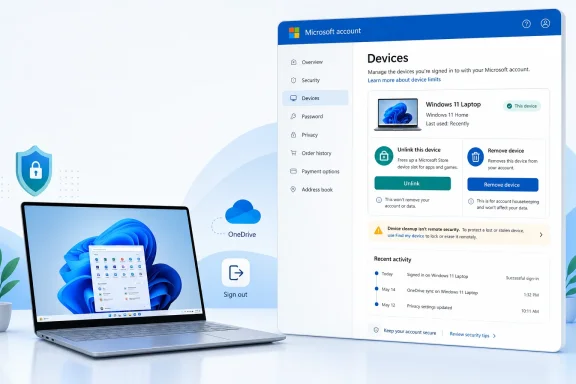
The important detail is that Microsoft uses two different actions for two different jobs. Unlink removes a device from the Store download limit; Remove device clears an old PC from the broader Devices dashboard. Neither instruction says that selecting either option immediately signs an account out of Windows, wipes the computer, or prevents a former owner from accessing data that was left on the machine.
That distinction matters most for anyone selling, donating, recycling, or losing a PC. Clearing an old Windows 11 machine from the account portal is worth doing, but it belongs at the end of a handoff process—not as a substitute for resetting the device and securing the account.
 The 10-device limit applies to Microsoft Store downloads
Microsoft’s support page says Windows 11 PCs are automatically added to a personal Microsoft account’s device list when the user signs in. Over several hardware upgrades, clean Windows installations, and temporary PCs, the list can fill with machines that are no longer in use.
The limit is narrower than it may first appear. It governs the number of devices that can download Microsoft Store apps and content using the account; it is not a cap on all Windows PCs an individual can own or sign into. A person with 11 old systems listed in the Devices dashboard has not necessarily lost access to Windows, OneDrive, Outlook, or Microsoft 365. The immediate symptom is more likely a Microsoft Store download failure.
Microsoft directs users who need to free a Store slot to the Content devices page, where they can select Unlink beside an obsolete device. Microsoft explicitly says an unlinked device no longer counts toward the 10-device total. If that same device later downloads an app or game again, however, it will consume a slot again.
This is the part of the advice that has a direct operational payoff. If Store downloads suddenly fail on a new PC after years of upgrades or test installations, unlinking unused hardware is the supported fix. Removing a computer only from the general Devices page may make the account look cleaner, but Microsoft’s documentation identifies Unlink as the Store-limit remedy.
Removing a PC is not the same as revoking access
The Devices dashboard has a separate Remove device option for a PC the account holder no longer owns or uses. That clears the device’s association from the personal Microsoft account dashboard, where Microsoft also surfaces details such as warranty, support, and repair information for eligible hardware.
Microsoft’s instructions do not describe removal as a remote wipe, a forced Windows sign-out, or a revocation of every existing browser and application session. The company provides a different security control—“Sign out everywhere”—for cases where an account holder suspects unauthorized access. Microsoft says that action signs the account out of browsers, apps, and other sign-in locations within up to 24 hours, with Xbox consoles handled separately.
That separation is more than terminology. A retired device listed under an account is a records-management problem; a stolen laptop that may still contain an active Outlook, OneDrive, Edge, or Microsoft Store session is a security incident. The first calls for removing or unlinking the device. The second calls for account-security action as well.
Microsoft also advises users to review Recent activity when they see sign-ins they do not recognize. That page can show the time, rough location, sign-in method, operating system or device type, and—on expanded entries—the IP address involved. If the activity is in Microsoft’s Unusual activity section, the account owner can identify it as unauthorized and begin the account-protection flow.
A safe retirement sequence for a personal Windows 11 PC
For a PC that is being handed to another person, Microsoft’s device-list guidance needs to be paired with the more basic Windows retirement steps. Removing a device association after the fact cannot reliably recover files, cached credentials, local browser data, or cloud content that was deliberately synced to an old machine.
A sensible sequence is:
- Back up personal files and confirm that any OneDrive folders needed on the replacement PC have finished syncing.
- Reset the Windows 11 PC and choose the option that removes personal files before transferring ownership.
- Verify that the old machine is no longer signed into browsers, email clients, OneDrive, Microsoft Store, or password managers.
- Use the Microsoft account Devices page to remove the retired PC, and use the Content devices page to unlink it if a Microsoft Store slot must be recovered.
- Review account Recent activity and use Microsoft’s sign-out-everywhere option and a password change if the PC was lost, stolen, or exposed before it could be reset.
The order is practical. Resetting the machine protects the data on the machine; removing it from the dashboard cleans up the account record; unlinking it releases Store capacity. These are complementary actions rather than interchangeable ones.
Users should also avoid assuming the personal-account workflow applies to corporate devices. Microsoft says PCs managed or owned by an organization should not be registered to a personal Microsoft account. Work and school accounts use Microsoft Entra device management, where users and administrators may have different controls, including the ability to disable a lost device from organizational resources. A personal Microsoft account’s Devices page is not an IT administrator’s inventory or endpoint-management console.
“Trusted device” is convenience with a security cost
Neowin also pointed to Microsoft’s advice on trusted devices. Microsoft describes this setting as a way to avoid repeated security-code prompts when accessing sensitive account information. On a device designated as trusted, the user can sign in and edit account information without being asked for another verification code each time.
That is reasonable on a single-user desktop or laptop protected with Windows Hello, a strong local sign-in method, current patches, and physical control. It is a poor fit for a shared household PC, a workplace computer, a machine accessible to a repair shop, or any system a user expects to sell, return, or lend out.
A trusted-device choice should therefore be reviewed alongside old device associations, rather than regarded as an unrelated sign-in convenience. Microsoft’s own account-security materials recommend two-step verification and support passkeys, which avoid relying on a reusable password alone. A passkey stored in a device or credential manager is still only as safe as the device, account, and recovery methods protecting it.
The actionable takeaway is straightforward: clean out obsolete Store links before the 10-device ceiling becomes a problem, remove retired PCs from the account dashboard, and do not confuse either action with securing a machine that may still be signed in. For a Windows 11 system that has left your possession, reset the PC if possible; for a Microsoft account that may have been exposed, use the security dashboard to sign out broadly and investigate the sign-in record.