

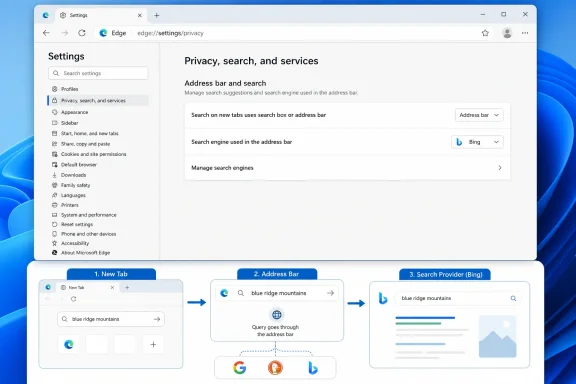
The Microsoft Support article describes a familiar route: first run a search with the desired provider, then open Edge Settings, go to Privacy, search, and services > Search and connected services > Address bar and search, and choose it from the “Search engine used in the address bar” menu. Microsoft says this discovery process works with sites supporting OpenSearch, including search-capable sites such as wikis.
Microsoft positions Bing as the default because of its direct Windows app links, Windows answers, and work or school suggestions. Those are product claims, and they describe why Bing remains the out-of-box choice. The practical result of the setting, however, is narrower: it controls queries entered into Edge’s omnibox, not every visible search field in the browser.
Petri’s July 24 walkthrough of the current desktop interface independently confirms the menu location and shows the larger issue: a user can select another engine for the address bar and still get Bing results from the search box on Edge’s New Tab Page.
The New Tab Page Keeps Its Own Bing Path
Edge treats the search box displayed in a new tab differently from the address bar. Microsoft’s policy documentation calls the two choices “Search box (Recommended)” and “Address bar.” When the search-box option remains selected, text entered in the large New Tab Page field performs a Bing search, even when Google, DuckDuckGo, or another provider is the address-bar default.
That is the missing step in Microsoft’s consumer-facing article. Once a non-Bing provider is selected, return to Address bar and search and find the option labeled “Search on new tabs uses search box or address bar.” Choose Address bar. Edge then redirects text entered in the New Tab Page field into the omnibox, where the user’s chosen default provider handles it.
The distinction is not cosmetic. The New Tab Page can continue displaying Microsoft’s search presentation, but selecting “Address bar” changes where the submitted query goes. Petri’s testing describes the same behavior: the visible new-tab search field does not become a Google or DuckDuckGo-branded field; instead, the query is handed off to the address bar.
Microsoft Learn’s NewTabPageSearchBox policy documentation corroborates the mechanism. It says that when Bing remains the address-bar default, the New Tab Page uses its search box. When a different default provider is configured, Edge can offer the address-bar redirect option. For managed desktop deployments, the documented policy values are bing for the search-box behavior and redirect for address-bar behavior.
For a home user, this is a one-time preference change. For IT departments, it is a configuration detail worth checking during Edge rollouts, because employees can otherwise report that an approved search provider “didn’t stick” even though the address-bar policy applied exactly as intended.
OpenSearch Discovery Is Convenient, but It Is Not the Only Constraint
Microsoft’s published instructions emphasize discovery: visit a search engine or searchable site, make a query through the address bar, then select it from Edge’s list. The requirement is OpenSearch support, a web standard that lets browsers identify a site’s searchable endpoint and construct queries for it.
That makes the process easy for mainstream providers. It is also useful for internal knowledge bases, documentation portals, issue trackers, and wikis that expose compatible search descriptions. A team could make an intranet search engine available without asking users to memorize a long URL, provided the site is detectable by Edge or defined through policy.
But Microsoft’s support page is slimmer than the current interface. Petri reports that Edge’s Search engines page also includes an Add search engine control, allowing a user to specify a name, keyword, and query URL containing %s as the search-term placeholder. That is important when discovery fails or when the target service does not advertise itself cleanly through OpenSearch. Microsoft’s article describes the automated path but does not explain this manual fallback.
For technical users, the difference is material. “The engine did not appear after I searched its site” does not necessarily mean Edge cannot use it. It can mean the site did not expose the metadata Edge expects. A manually configured query URL may still work, assuming the service accepts ordinary URL-based searches.
Microsoft Learn’s enterprise documentation makes the same architecture explicit. The DefaultSearchProviderSearchURL policy uses a URL template containing {searchTerms}, which Edge replaces with the user’s query. Microsoft’s own example for a hypothetical internal service uses a conventional query-string URL. The browser does not need a special Microsoft integration to send a search term to a compatible endpoint.
Managed Edge Can Override the User’s Choice
The consumer instructions presume an unmanaged Edge profile. That assumption should be stated more plainly, because it changes the troubleshooting path for business devices.
Microsoft’s DefaultSearchProviderEnabled policy can prevent users from changing or overriding the default search provider when it is configured as mandatory. DefaultSearchProviderSearchURL supplies the search endpoint, while DefaultSearchProviderName and DefaultSearchProviderKeyword can define how it appears and how it can be invoked. The policy refresh is dynamic, so administrators can change the provider without waiting for a broad browser redeployment.
For organizations that need a controlled list rather than one locked default, Microsoft provides ManagedSearchEngines. The policy supports a defined set of search providers and can designate one default. When mandatory, it prevents users from adding, removing, or altering the managed entries, although users may select another engine from the approved list.
That approach is more practical than forcing Bing or one internal provider everywhere. A company can retain a corporate knowledge-search shortcut, allow an external engine for general web research, and keep users from installing dubious search redirects through extensions or bundled software. Microsoft’s extension support guidance separately warns that some extensions can alter default search settings, which is a useful first check when a provider unexpectedly changes.
Administrators should also note a limitation in Microsoft’s policy reference: the default-search-provider policies are marked as not applying to profiles signed in with a Microsoft personal account. In mixed-profile environments, that matters. A machine-level deployment may appear correct in a work profile but not control a separately signed-in personal Edge profile in the way an administrator expects.
Microsoft’s Windows 8.1 Applicability Tag Is Years Out of Date
There is one clear documentation discrepancy in the July 29 support article. Its “Applies To” line still lists Windows 11, Windows 10, and Windows 8.1. Microsoft’s own Lifecycle record says Edge version 109 was the last release supported on Windows 8.1, and that support ended when Edge 110 arrived in February 2023. Microsoft also states that Edge 110 requires Windows 10 or later.
Windows 8.1 itself reached end of support on January 10, 2023. By August 2026, a Windows 8.1 installation can still run an old Edge 109 build and may be able to follow some version-appropriate settings steps, but it is not a supported Edge environment and does not receive the current browser’s security or feature updates.
The stale platform tag does not invalidate the instructions for supported Windows 10 and Windows 11 systems. It does mean readers should not interpret the page as renewed compatibility or security support for Windows 8.1. Microsoft’s lifecycle documentation says the opposite.
What Users and Admins Should Actually Verify
The shortest reliable validation is to test both search entry points after changing the provider:
- Search from the address bar and confirm the results page belongs to the selected provider.
- Open a new tab, enter a query in its central search box, and confirm whether Edge redirects the query to the address bar or sends it directly to Bing.
- If the New Tab Page continues to use Bing, set “Search on new tabs uses search box or address bar” to Address bar.
- If the provider is unavailable, visit its site and search once to trigger discovery; if that fails, check Edge’s Search engines management page for a manual entry option.
- On a work-managed PC, inspect the Edge policy state before resetting settings or blaming profile sync. A mandatory
DefaultSearchProviderEnabled,DefaultSearchProviderSearchURL, orManagedSearchEnginesconfiguration can deliberately block the change.
Microsoft has not announced a new search-provider capability here; it has published a concise explanation of an existing one. The useful takeaway is the part the article does not spell out: selecting another provider changes the omnibox, while redirecting New Tab Page searches to that omnibox is a separate, necessary setting.