

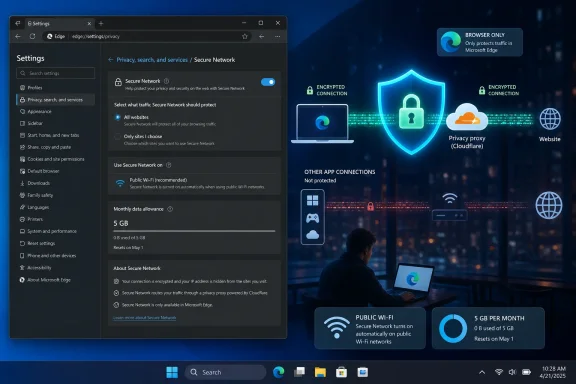
The practical fix is straightforward for eligible personal Edge profiles. In Edge, open Settings > Privacy, search, and services > Security, enable Use Secure Microsoft Edge Network, and select All websites rather than the optimized option. PCWorld highlighted the setting on August 3, based on security researcher Sooraj Sathyanarayanan’s analysis; German technology publication heise online independently reported the same default behavior in February.
That setting improves consistency for Edge browsing. It does not turn Edge into a device-wide VPN, and Microsoft’s own documentation makes clear that the service is unavailable on managed devices and in some regions. That is the important boundary: the option is useful for browser-specific privacy, but it should not be mistaken for protection of the Windows PC’s entire network connection.
Edge Secure Network is a browser proxy, not Windows networking
Microsoft markets Secure Network as a built-in VPN, while Cloudflare’s technical description is more precise. The system is a privacy proxy that uses HTTP CONNECT-based tunneling and privacy-preserving authentication tokens. In normal use, a site sees a Cloudflare exit IP rather than the user’s public IP, while the ISP or local Wi‑Fi operator sees an encrypted connection to the proxy rather than the browsing session itself.
That architecture is valuable, especially on a hotel, airport, café, or other network the user does not administer. It can reduce IP-address-based tracking in the browser and provide another encrypted hop for web traffic. It also gives Edge users a privacy tool without installing an extension, accepting an unfamiliar VPN client, or manually selecting a server.
But it is scoped to Edge. Outlook, Teams, Steam, OneDrive synchronization, Windows Update, Remote Desktop, third-party browsers, game launchers, and any other application traffic do not gain protection merely because Secure Network is on. A user can open a private Edge tab with Secure Network active while the rest of the machine continues to use the ordinary connection.
That limitation is not a defect in the narrow sense. Microsoft does not promise a Windows-wide tunnel, and Cloudflare describes the underlying product as a forward proxy. The problem is expectation: “VPN” is a term most Windows users associate with a client that changes routing for the operating system, not a browser feature that applies only to selected browsing traffic.
For an IT administrator, the distinction also explains why Secure Network has no place as an enterprise remote-access control. Microsoft says it is unavailable on managed devices. It cannot replace an always-on corporate VPN, Microsoft Global Secure Access client, secure web gateway, DNS filtering policy, endpoint protection, or Conditional Access controls.
The default favors a 5 GB allowance over continuous coverage
The feature provides 5 GB of free data per month to users signed into Edge with a personal Microsoft account. Microsoft has used that allowance to justify the optimized default: routing every page, download, and media request through the service would consume the quota much faster.
In its optimized mode, Secure Network turns on for public or unsecured Wi‑Fi and for unencrypted HTTP pages, according to the reporting by PCWorld and heise online. It does not generally tunnel ordinary HTTPS browsing from a recognized home network. That means the default tries to concentrate the limited protection around the situations Microsoft considers riskier.
There is sound reasoning behind that choice. HTTPS already encrypts the content exchanged between the browser and the website. Someone observing the local network should not be able to read a properly implemented HTTPS session simply because the user is at home. For most routine browsing on a maintained home router, an additional browser tunnel is not a mandatory security requirement.
However, HTTPS is not the whole privacy story. A browser’s direct connection ordinarily exposes the user’s IP address to every site visited, and an ISP can still observe destination information and traffic patterns even when it cannot read HTTPS page contents. Secure Network changes the visible IP address for Edge traffic, which can make correlation and precise IP-based location harder. Users who want that protection consistently must select All websites.
The trade-off is significant. At 5 GB per month, a user who routes large downloads, cloud-storage transfers, video, or extended streaming through the browser can exhaust the allowance in days rather than weeks. Microsoft also says popular streaming services are excluded from the tunnel under its data-saving behavior unless the user selects coverage for all sites.
Selecting All websites therefore solves the coverage gap, but it converts the feature from an occasional safety net into a metered service. The setting is sensible for travel, public-network use, research that benefits from IP masking, or users who want a browser-level privacy layer. It is a poor fit for someone expecting unlimited video, downloads, or constant full-PC protection at no cost.
The setting does not protect against the threats users often mean by “security”
A tunnel can conceal traffic from the local network and reduce IP exposure. It cannot make a malicious page safe, repair a compromised router, stop a browser extension from reading data it is permitted to access, or prevent a user from entering credentials into a phishing site. It also does not replace malware protection, Windows updates, multi-factor authentication, or a password manager.
This is where the advice to use a paid VPN needs more precision than a product recommendation. A reputable full-device VPN client can route traffic from Windows applications as well as Edge, typically offers more data, and may include an always-on mode or kill switch. That addresses the browser-only limitation of Secure Network.
It does not, by itself, solve every risk associated with public Wi‑Fi. A full-device VPN does not verify that a hotel captive portal is genuine, stop a bad actor from tricking a user into installing remote-control software, or protect a device that is already compromised. For company resources, users should rely on the organization’s approved VPN or zero-trust access client rather than installing a consumer VPN independently.
A properly patched Windows 11 PC using HTTPS sites, a firewall, phishing-resistant sign-in where available, and a trusted home network is already protected from the main passive snooping scenario that VPN advertising often emphasizes. The more concrete reason to use Secure Network at home is privacy from direct IP disclosure and some ISP-level visibility, not an assumption that every ordinary HTTPS connection is otherwise exposed in plain text.
Microsoft and Cloudflare still become part of the trust model
Secure Network requires a personal Microsoft account, which is the mechanism used to allocate the monthly data allowance. Cloudflare’s implementation uses authentication tokens intended to separate the account check from the web destinations ultimately visited. Cloudflare says its Privacy Proxy design is intended to separate user identity from browsing activity, and that destination websites receive Cloudflare IP addresses rather than the customer’s original IP.
That design is better than simply handing a browsing log, account identity, and public IP to a single intermediary. Still, it is not anonymity in the broad sense. Microsoft administers access to the feature; Cloudflare supplies the proxy infrastructure; and the user is placing traffic in the hands of both companies rather than sending it directly from their ISP connection.
Microsoft also preserves approximate geography for websites. This is intentional: local search results, regional services, and nearby business listings should continue to work. It means Secure Network is not designed for choosing an exit country, bypassing geographic restrictions, or presenting the user as if they were browsing from a different region. Users seeking those functions will find that Edge Secure Network lacks the server-selection controls of conventional commercial VPN services.
The service may also be unavailable even on a personal PC. Microsoft says availability varies by market, device type, and browser version, and it excludes managed devices. The interface has changed over several Edge releases as well, with Secure Network appearing through Browser Essentials or the More Tools menu in addition to the Privacy, search, and services page. If the setting is absent, forcing it through policy is not a supported enterprise workaround.
A useful toggle, with a narrow job
Edge users who already have Secure Network available should select All websites when they specifically want every Edge session routed through Cloudflare’s proxy, then monitor the 5 GB quota. Before a long download, cloud upload, or streaming session, they should remember that this is a small monthly allowance rather than an unlimited subscription.
For everybody else, the more important conclusion from PCWorld’s report is one of scope. Edge Secure Network is useful as a browser privacy control for personal profiles, particularly away from home. It is not a full-device VPN, it is not an enterprise security product, and its optimized default is designed to conserve data rather than provide continuous coverage.
The setting changes what Edge does. It does not change what Windows, every other installed application, or the user’s broader security practices do.