
That distinction is important for Windows users because Microsoft’s own password and passkey tooling has changed quickly. Microsoft Password Manager, built into Edge, can now save and sync passwords and passkeys through a personal Microsoft account, while Microsoft Authenticator’s former password-autofill role has been retired. The easy path on a Windows PC is no longer “save it somewhere in Windows”; it is to decide which credential manager will be the authoritative store across Edge, Chrome, Firefox, Android, iPhone, and any work devices.
PCWorld is right to frame that choice as a chance to be lazy in a productive way. The best password is the one you never create from memory, never type into a fake site, and never reuse. The practical mistake is assuming that installing a password manager ends the security work.
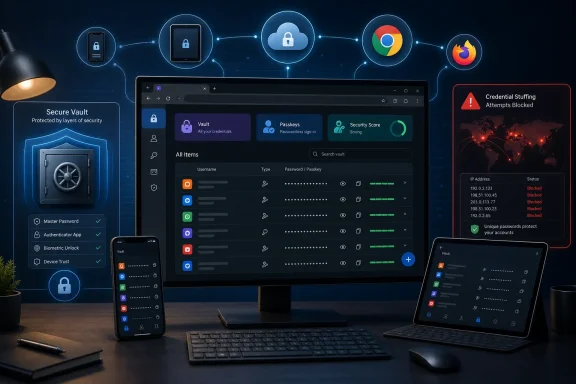 Password reuse is what makes an old breach newly dangerous
A stolen password database is not automatically a disaster for every account listed in it. If the password was unique to the breached service, an attacker may gain access to that service—but cannot simply replay it at other sites. If it was reused, a breach from years ago can become a fresh attack against services that were never breached at all.
This is credential stuffing: attackers take email-and-password pairs obtained from breaches, malware logs, phishing kits, or criminal marketplaces and test them at scale on other popular services. The individual passwords do not need to be guessed or cracked. They are tried because victims have already supplied them somewhere else.
NIST’s current digital identity guidance explicitly describes distinct passwords as the defense against password stuffing. CISA likewise recommends password managers because they make long, random, unique credentials practical rather than aspirational. That is the real value proposition: a manager removes the memory limit that causes people to recycle passwords with small, predictable edits.
A password manager also changes the aftermath of a breach. If a retailer reports that account passwords were exposed, a user with a unique generated password has one credential to replace. A user who has adapted the same password across dozens of accounts has an incident-response project: identify every reuse, change them all, and hope an attacker has not moved first.
The newsletter’s recommendation is therefore more than generic hygiene. It is containment. Unique passwords keep one company’s failure from becoming a master key to the rest of a user’s online life.
A password manager does not make a breached account harmless
There is a limit to what uniqueness solves. If the attacker obtains a current password for a specific service—through phishing, infostealer malware, a compromised browser profile, or a breach that includes usable credentials—the account at that service can still be at risk. The password’s uniqueness prevents lateral movement to other sites; it does not revoke the stolen password.
This is where the “safe from the next credential stuffing attack” line is too broad. A password manager sharply reduces exposure to attacks based on password reuse. It does not defeat targeted phishing, malicious browser extensions, remote-access malware, SIM-swap attacks against SMS recovery, or a criminal who gains access to the password-manager vault itself.
NIST makes the same uncomfortable point in more formal language: passwords are not replay-resistant. They are secrets repeatedly presented to a website. A thief who captures the secret can attempt to replay it until it is changed or the service rejects the login.
For accounts that matter—primary email, Microsoft account, Apple account, Google account, financial services, password-manager account, and employer identity—users should enable multifactor authentication and preferentially use a passkey when the service offers one. A passkey is cryptographically bound to the legitimate site’s domain. A fake login page cannot use it in the way it can capture and relay a typed password.
That does not mean passwords are disappearing this year. Too many sites, desktop applications, older enterprise systems, and account-recovery flows still depend on them. It means the sensible model is layered: unique generated passwords for everything, plus passkeys and strong multifactor protection on the accounts that can reset or unlock everything else.
Microsoft’s built-in option is now more capable, but still browser-centered
PCWorld suggests that Windows users can rely on Edge for password storage while the operating system handles credentials such as passkeys. That was once an oversimplification, but Microsoft’s 2026 changes make the advice more defensible for people who live in Edge.
Microsoft says its Password Manager supports saved passwords, password-health checks, passkeys, and passkey syncing for users signed into Edge with a personal Microsoft account. Microsoft’s support documentation identifies Edge version 142 and later as the threshold for the newer Microsoft Password Manager passkey capabilities. The credentials sync through the Microsoft account and are unlocked with the device’s PIN, fingerprint, or facial recognition.
This matters because Windows Hello passkeys have historically been easy to create on one PC but awkward to carry to another. Microsoft’s Edge-based sync makes a Windows desktop replacement or second computer less likely to become a passkey recovery event.
But it also reveals the platform boundary. Microsoft’s current consumer solution is principally an Edge and Microsoft-account experience, rather than a full Windows-wide credentials service that transparently fills every app and every browser. Edge can sync its stored passwords and other browsing data to Edge on Windows, macOS, iOS, and Android. That is useful if Edge is the user’s primary browser everywhere. It is less tidy for someone who uses Firefox at work, Chrome on Android, Safari on an iPhone, and Edge only on a Windows desktop.
Microsoft’s withdrawal of password autofill from Authenticator makes that choice more consequential. Users who formerly treated Authenticator as a cross-platform password manager were moved toward Edge’s manager or another provider. The migration did not make saved credentials disappear, but it did make browser choice part of the password-management decision.
For a Windows-only household using Edge on every device, Microsoft Password Manager is now a credible low-friction starting point. For a mixed-browser or mixed-platform household, it may create the very split credential setup that leads people back to manual passwords and reuse.
Built-in managers are convenient; one source of truth is more important
Apple Passwords and Google Password Manager both cover passwords and passkeys inside their respective platforms. Their biggest strength is that they are already present on the devices people use, integrated into browser prompts and mobile autofill. A person who consistently uses Chrome and Android, or Apple hardware and Safari, can achieve solid password hygiene without subscribing to another service.
The problem begins when credentials are scattered. A passkey saved to one platform manager may not appear where a user expects it on another. A password changed on a phone may be missing from the browser used on a Windows workstation. A user then creates a second login, retains an old password “just in case,” or saves a secret in a note so it is reachable everywhere. Each workaround undermines the system.
Independent managers such as Bitwarden and Dashlane exist largely to make the vault follow the user rather than a device vendor or browser. Both support browser extensions and cross-platform applications; both also support passkeys, though support can vary by browser, operating system, and the site attempting the registration. Bitwarden documents Windows desktop support and browser-manager imports, while Dashlane says its passkey support spans Android, iOS, and browser-based use.
The key operational decision is simpler than the product comparison charts make it appear: pick one primary manager for new passwords and passkeys, configure it on every personal device and browser, and stop accepting save-password prompts from competing stores unless a particular device genuinely requires one.
That does not require deleting every old credential immediately. It does require knowing where the live copy is. A password changed in one vault but not another is a support ticket waiting to happen—and a common reason users decide a memorable reused password is “easier.”
The five-minute setup has a security catch
Password managers concentrate valuable information. NIST calls them high-value targets and advises users to protect the vault’s master secret; CISA similarly warns that cloud-synced managers require careful account security even as they provide major practical benefits.
The correct response is not to avoid managers. It is to secure the manager more carefully than an ordinary website account. Use a long, memorable master passphrase if the provider uses one. Turn on multifactor authentication for the manager itself. Prefer an authenticator app, passkey, or hardware security key over text-message codes where available. Save recovery codes offline in a protected location, not in the same vault they recover.
Users should also review the manager’s security dashboard, duplicate-password report, or breach alerts after importing old browser credentials. Importing a decade of saved logins preserves convenience, but it also imports every old reuse pattern. Start by replacing passwords for email, financial accounts, cloud-storage providers, social platforms, shopping accounts holding payment details, and any account that can reset another account.
The goal is not to memorize a more elaborate password formula. It is to stop treating memory as the security system. On Windows, that means choosing whether Edge’s Microsoft Password Manager is sufficient for the devices and browsers actually in use, or whether a cross-platform vault is the cleaner fit—and then protecting that vault as the account that holds the keys to everything else.
