
For someone watching Netflix on a Windows 11 desktop or laptop, a Dolby Vision badge beside Stranger Things, The Sandman, or another supported title is therefore evidence that the title has a Dolby Vision version available for the current device. It is not proof that every Dolby Vision-capable monitor, TV, GPU, browser, or HDMI arrangement will receive that signal.
Netflix’s requirements make the immediate action clear: start by establishing whether the PC can achieve 4K HDR at all. Then narrow the problem to Dolby Vision support in the display and its Windows driver path, rather than assuming an expensive cable or a Premium subscription will overcome a hardware limitation.
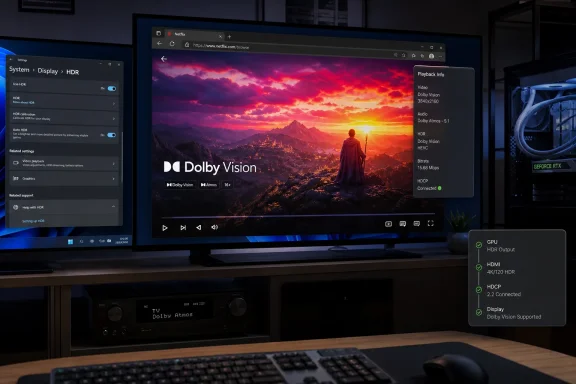 Netflix’s Windows requirements stop at HDR
Netflix’s current Windows support page says Windows PCs can stream up to 4K in Google Chrome, Microsoft Edge, or the Netflix app, but identifies Microsoft Edge and the Windows app as the HDR-capable options. Firefox and Opera top out at 1080p in Netflix’s own compatibility table. Chrome can reach 4K, but Netflix does not list it as an HDR path on Windows.
The baseline Netflix requires for Ultra HD and HDR is substantial:
- A Netflix plan that supports Ultra HD or HDR streaming, with playback quality set to Auto or High.
- A stable connection of at least 15 Mbps.
- Windows 11 with current updates installed.
- A supported GPU path: Nvidia GeForce GTX 1050-series or newer, AMD Radeon RX 400-series or newer, Intel seventh-generation Core or newer, or an AMD Ryzen processor.
- A 4K 60Hz internal panel or external display for 4K, with HDCP 2.2-compatible connectivity when an external screen is used.
- HEVC decoding support, which may require Microsoft’s HEVC Video Extensions on some Windows 11 systems.
Those conditions are more exact than the usual advice to “use a premium HDMI cable.” A cable matters only if the PC is attached to an external display and the entire negotiated path needs it. The television or monitor input, AVR or soundbar passthrough port, graphics output, cable, display firmware, HDCP handshake, and Windows display mode each have a role. Replacing a cable cannot make an older receiver HDCP 2.2-compliant, nor can it give an HDR10-only monitor Dolby Vision decoding.
Netflix also warns that every active display must meet its 4K requirements on a multi-monitor Windows setup. That is a detail many desktop users miss. A second display that is lower resolution or uses an incompatible protection path can be enough to prevent the primary TV or monitor from receiving Netflix’s highest-quality stream.
Dolby Vision adds a certification layer beyond ordinary HDR
HDR10 is the common HDR baseline on Windows displays, but Dolby Vision is a separate Dolby format that uses dynamic metadata. In theory, that lets the mastering instructions vary by scene or frame rather than applying one static HDR treatment through an entire film.
That advantage only applies when Netflix sends Dolby Vision and the endpoint is prepared to display it. A Windows PC that reports ordinary HDR support in Settings is not automatically a Dolby Vision PC. Microsoft’s own HDR guidance separates the two: Windows can play HDR video on supported displays, while Dolby Vision is selected automatically only for Dolby Vision-certified monitors when it is available.
Dolby’s PC material says Netflix supports Dolby Vision and Dolby Atmos on PCs that are enabled for both technologies. The company’s wording puts the focus where it belongs: enabled means the panel or external display, OEM implementation, driver, operating system, browser DRM path, and Netflix client all need to cooperate.
Netflix does not publish an exhaustive current list of Windows laptop and monitor combinations certified for Dolby Vision streaming. Its consumer-facing Windows page uses the broader term “HDR,” even though the company’s general video-quality guide recognizes Dolby Vision labels on titles when the device supports the format. The practical consequence is that Windows buyers should not infer Netflix Dolby Vision support from a laptop’s “HDR” badge, its OLED panel, or its ability to play a local Dolby Vision test file.
The safest buying and troubleshooting signal is documentation from the PC maker or monitor maker that specifically says Dolby Vision is supported in Windows, rather than vague references to HDR or Dolby Atmos. Dolby Atmos is audio; it does not establish Dolby Vision video support.
Edge is the sensible first test on Windows 11
A Windows user trying to determine whether Netflix is actually reaching Dolby Vision should begin with Microsoft Edge, not the browser they happen to use for everything else. Netflix explicitly lists Edge for 4K HDR playback. The current Netflix app for Windows also depends on Edge being installed, further reducing the value of treating the app as an independent playback stack.
Before starting a title, open Settings > System > Display > HDR and select the display that will play Netflix. Windows should report that “HDR video streaming” is supported. If it does not, Netflix HDR is already off the table regardless of plan level or title availability.
For an external television or monitor, check the display’s on-screen information panel while playback is running. This is generally more reliable than judging the picture by eye. Netflix can advertise a Dolby Vision title but adapt down to a lower quality when the device, connection, or network does not qualify. Netflix says it will play the highest quality that the weakest link allows.
The title details page is the next check. Netflix says that if a title is available in both 4K and Dolby Vision and the connected device supports Dolby Vision, it may show only the Dolby Vision label rather than separate 4K and Dolby Vision markers. The absence of that label on a known Dolby Vision title is useful diagnostic information: it points to device capability or the current playback path, not necessarily to Netflix removing the title’s higher-grade version.
Engadget recommends the Ctrl + Alt + Shift + D shortcut to inspect a Netflix session on a computer. It can expose technical playback data, but it should be used as supporting evidence, not as a substitute for the display’s own format indicator. A browser’s reported resolution and bitrate do not, by themselves, establish the exact HDR format being rendered by the display.
The receiver or second screen can silently downgrade the stream
The most frustrating failures occur when each component appears modern on its own. A Windows 11 gaming PC may have an HDR-capable GPU, a Premium Netflix plan, and a Dolby Vision television, yet still receive only SDR or ordinary HDR because its route passes through an older AV receiver or because another monitor remains active.
Netflix specifically says that a TV, streaming stick, and audio receiver all need to support 4K or HDR for the service to deliver 4K or HDR through that chain. The same principle applies to a PC connected through an AVR, HDMI switch, capture device, or display adapter. The signal does not skip the weakest device.
This is why a direct connection is the best diagnostic step. Connect the Windows PC directly to the Dolby Vision-capable display using the port the display manufacturer designates for its full HDMI feature set. Disable or disconnect secondary displays temporarily. Use Edge, confirm HDR streaming support in Windows, and test a known Netflix Dolby Vision title. Only after that works should an AVR, soundbar passthrough connection, dock, or switch be reintroduced.
Windows laptop owners face another limitation: many internal panels are HDR-capable but not Dolby Vision-certified, while an external TV may support Dolby Vision. The reverse can also occur with a Dolby Vision laptop panel attached to an ordinary SDR or HDR10 monitor. Windows must be configured for the display actually showing Netflix, and the active output determines the available format.
The useful conclusion is narrower than “buy every premium component.” Netflix Dolby Vision on Windows is achievable, but it is a validated playback path, not a general PC feature. Confirm Windows 11 HDR streaming support, use Edge or the Netflix app, verify HDCP 2.2 and HEVC requirements for 4K, and look for explicit Dolby Vision support from the PC or display manufacturer. If the television’s information panel never switches into Dolby Vision during playback, the subscription is not the missing piece—the hardware chain is.
