
That does not mean every toggle should be switched on indiscriminately. These tools consume GPU resources, have hardware and software requirements, and occasionally produce results that look less convincing than their marketing demos. But used with reasonable expectations, they can make a Windows 11 PC more capable in ways that are easy to miss if Nvidia’s software is treated solely as a driver-updater.
 The modern Nvidia GPU is a collection of specialized processors
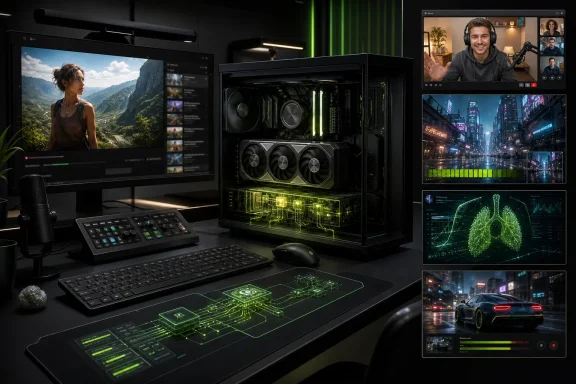
The conventional description of a graphics card—hardware that renders 3D images—remains true, but it is incomplete. Modern GeForce RTX GPUs contain different execution resources intended for different classes of work: conventional shader cores for rendering, Tensor Cores for AI inference, and dedicated encode/decode hardware for handling video.
That distinction matters. A feature such as RTX Video Super Resolution is not merely a sharpen filter applied by the CPU. It uses Tensor Core-powered AI processing to clean up and upscale compatible video. Likewise, NVENC is a dedicated video encoder, designed so recording or streaming can avoid competing as directly with a CPU-bound game workload. Nvidia describes this hardware encoder as a means of capturing and streaming with minimal impact to CPU or GPU performance, although “minimal” should never be read as “zero.” Nvidia’s NVENC guide also notes that newer GPU generations support more efficient codecs.
For Windows users, the larger point is straightforward: the GPU often has unused specialist hardware while a game is running, while a browser is playing video, or while a webcam call is underway. Nvidia’s software ecosystem attempts to make that hardware accessible through relatively approachable switches rather than a professional video-editing pipeline or a stack of third-party utilities.
The five most useful examples fall into two categories:
- Media and communications tools, including video enhancement, microphone cleanup, webcam effects, recording, and encoding.
- Gaming and control tools, including DLSS overrides, frame interpolation, overlay metrics, automatic tuning, and the experimental Project G-Assist assistant.
Understanding the boundary between those categories—and their limitations—is essential. AI upscaling cannot restore detail that never existed, frame generation cannot reduce input latency in the same way as rendering more native frames, and voice cleanup cannot replace a good microphone placed close to the speaker.
1. Make low-resolution web video look better with RTX Video
AI upscaling is more practical than it sounds
The first underappreciated feature is RTX Video Super Resolution, or RTX VSR. It is designed to improve lower-resolution or heavily compressed video played through supported browsers and VLC. Nvidia says the feature applies AI processing to remove blocky compression artifacts, sharpen edges, and upscale video toward the display’s native resolution. It supports video inputs from 360p through 1440p, making it especially relevant for users with 1440p, 4K, or higher-resolution screens watching streams delivered at 720p or 1080p. Nvidia’s RTX Video FAQ confirms compatibility with current Chrome, Edge, Firefox, and VLC releases.
This can be surprisingly useful on a Windows desktop. A Twitch broadcast, archived YouTube video, older tutorial, or low-bitrate clip can look noticeably cleaner when expanded across a 4K display. The improvement is most apparent when the original image is softened by compression: foliage, text overlays, hair, thin geometry, and rapid motion are all areas where low-bitrate video commonly reveals ringing, blockiness, and unstable edges.
RTX VSR does not transform a 720p stream into true native 4K footage. It estimates detail from adjacent pixels and learned image patterns. That can improve perceived clarity, but it can also introduce over-sharpening, texture shimmer, or artificial-looking detail in difficult scenes. It is best thought of as a high-quality reconstruction step, not a replacement for a higher-bitrate source.
RTX Video HDR brings an SDR source into an HDR workflow
Alongside VSR, RTX Video HDR attempts to map standard dynamic range video into an HDR presentation. When paired with an HDR10-capable display and Windows HDR enabled, Nvidia’s feature uses Tensor Cores to convert compatible SDR video into a brighter, more expansive image with stronger highlight and shadow separation. Nvidia’s explanation of RTX Video HDR describes it as real-time SDR-to-HDR enhancement for supported browser playback.
The appeal is clear. A vast amount of online video is still delivered in SDR, even to users with HDR monitors. In theory, RTX Video HDR lets that display do more of what it was purchased to do. Nvidia says the feature is available for GeForce RTX GPUs and requires an HDR10-compatible display, supported software, and HDR enabled in Windows. The company’s support documentation also identifies DRM-protected streams and already-HDR content among the types of video that may not be enhanced.
The caveat is color accuracy. Algorithmic HDR is not the same as a movie or show graded by its creators for HDR delivery. The result may be pleasing, but it can also be too bright, overly saturated, or inconsistent from scene to scene. Users who care about reference presentation should leave it off for critical viewing. For casual web video, game streams, and older clips, however, it can be a compelling display upgrade that costs nothing beyond the hardware already installed.
A sensible Windows setup
The most practical approach is conservative:
- Install an up-to-date Nvidia driver and use the current Nvidia App.
- In Windows, enable HDR only if the display handles HDR well; a weak HDR monitor can look worse with Windows HDR active.
- In Nvidia App, visit System > Video and enable RTX Video Super Resolution or RTX Video HDR.
- Leave Super Resolution on Auto initially so the driver can adjust quality according to available GPU resources.
- Test it with a known 720p or 1080p video on a high-resolution panel before deciding whether the visual trade-off is worthwhile.
That last step matters because RTX Video uses Tensor Cores and can reduce gaming or creative-app performance when both workloads compete for the GPU. Nvidia explicitly warns that concurrent GPU-intensive use may result in a slight performance reduction. Its RTX Video FAQ also notes that some Nvidia display-scaling features can prevent RTX VSR from activating.
2. Turn an ordinary webcam and microphone into a more usable studio setup
Nvidia Broadcast is not only for streamers
Nvidia Broadcast is one of the most immediately useful RTX features for remote workers, students, podcasters, Discord regulars, and streamers. The application creates virtual microphone, speaker, and camera devices that other Windows apps can use. Behind the scenes, the GPU applies AI effects to the incoming audio and video before Zoom, Teams, OBS Studio, Discord, or another program receives them.
Nvidia’s current Broadcast feature set includes:
- Noise Removal for background sounds such as keyboard clatter, fans, and air conditioners.
- Room Echo Removal for reducing reverb from bare walls and hard floors.
- Studio Voice processing intended to improve microphone presentation.
- Virtual Background removal, blur, and replacement.
- Video Noise Removal for cleaner webcam images in poor light.
- Auto Frame to crop and track a moving speaker.
- Eye Contact, an AI effect that adjusts apparent gaze when a person looks away from the lens. Nvidia’s Broadcast overview details these effects and the app’s virtual-device workflow.
This is a better proposition than buying acoustic foam for every home office or treating every webcam as disposable. A basic USB microphone in a room with a loud PC can sound dramatically more usable once keyboard noise and fan hum are reduced. A standard webcam can also look more presentable when the software reduces low-light noise or removes an untidy background.
The feature’s biggest strength is flexibility
Broadcast works because it is positioned between physical equipment and communication software. Once the user selects Microphone (NVIDIA Broadcast) or Camera (NVIDIA Broadcast) inside an app, the same improved input can be used across multiple services. Nvidia’s setup guide lists configurations for major applications including Discord, OBS Studio, Zoom, Teams, Slack, Skype, and Chrome. The official Nvidia Broadcast setup guide recommends disabling duplicate noise-cancellation effects in conferencing software to avoid processing the voice twice.
That is a critical best practice. Stacking Discord’s suppression, Teams’ suppression, a USB microphone’s onboard processing, and Nvidia Broadcast can make speech sound underwater, clipped, or strangely metallic. The better route is to pick one primary cleanup system, test it, and use lighter processing where possible.
AI cannot fix every recording problem
Broadcast is impressive, but it is not magic. Strong echo can be reduced but not eliminated in every room. A microphone placed several feet away will still capture more room sound than one placed close to the speaker. Background removal can struggle with fine hair, fast hand movements, poor lighting, and visually complicated scenes. Eye Contact is potentially helpful for presentations, but its synthetic gaze correction can look unnatural if pushed too far.
There is also a resource cost. Broadcast effects use Tensor Cores, and Nvidia’s own setup guidance advises enabling only the effects needed in order to avoid unnecessary GPU utilization. Nvidia’s setup documentation makes that recommendation explicitly. On a desktop GPU with ample headroom, this may be negligible. On an RTX laptop trying to run a demanding game, a webcam pipeline, browser tabs, and a video call at once, the performance compromise is more real.
Still, for anyone regularly using Windows 11 for calls or live content, Nvidia Broadcast is arguably the clearest example of an RTX GPU doing useful work outside games.
3. Use Project G-Assist as a local system and gaming helper—carefully
An experimental assistant with real PC controls
Project G-Assist is Nvidia’s attempt to turn local AI inference into a practical PC assistant. Instead of functioning as a broad cloud chatbot, it is built to understand Nvidia-specific controls, report system information, adjust settings, offer diagnostics, and perform supported actions through text or voice prompts.
Nvidia describes G-Assist as an experimental feature that runs locally on the GeForce RTX GPU using a small language model. It can optimize performance and power settings, modify game settings, chart performance metrics, configure supported peripherals, and surface diagnostics. Nvidia’s Project G-Assist page says the assistant can run offline and is intended for focused system-assistance tasks rather than general-purpose conversation.
That local-first design has practical strengths:
- It can remain available when a PC is offline.
- It does not require sending every system question to a cloud-hosted model.
- It can expose settings that users may otherwise never find in the Nvidia App.
- It may reduce the need to leave a game, search the web, open multiple utilities, and manually compare performance data.
For a gamer trying to determine why a title is stuttering, the ability to ask for system status, GPU utilization, temperature information, and potential configuration adjustments from an overlay is more useful than a generic chatbot that cannot see the local machine.
Its limitations matter more than the novelty
G-Assist should not be treated as an unquestionable authority. Nvidia itself calls the product experimental, and that label is appropriate for any tool that can interpret ambiguous natural-language requests and potentially alter performance settings. The assistant may misunderstand a request, provide a generic answer, or recommend a change that does not fit a specific game, laptop power profile, mod configuration, or driver issue.
The feature also consumes resources while operating. Nvidia explains that when G-Assist is prompted, the GPU allocates part of its compute capacity to AI inference. The Project G-Assist documentation frames this as a brief allocation, but a competitive player already close to a GPU limit should avoid invoking it during a performance-sensitive moment.
Hardware eligibility should also be checked before users go looking for a missing option. Nvidia says later G-Assist updates expanded availability across RTX desktops and laptops with 6GB or more of VRAM, while voice commands have more limited GPU support. Nvidia’s release notes remain the sensible place to verify present compatibility and supported functions.
Treat it like a guided control panel
The best use of G-Assist is not asking it to play a game or solve every gameplay puzzle. Its value is in reducing friction around common PC-management tasks:
- Check performance metrics and hardware status.
- Ask for supported graphics or power-setting adjustments.
- Diagnose obvious configuration issues.
- Control supported devices and plug-ins.
- Use its answers as a starting point, then confirm consequential changes manually.
That approach captures the benefit without pretending that a local AI assistant has perfect context. It is a promising interface for Nvidia’s expanding ecosystem, but it remains a tool to supervise rather than a replacement for understanding Windows settings, game menus, and driver behavior.
4. Improve compatible games through DLSS overrides and Smooth Motion
“Force DLSS everywhere” is an oversimplification
The most technically consequential feature in Nvidia’s current software stack is the set of DLSS Overrides available in the Nvidia App. These controls can update selected, compatible games and applications to newer DLSS models or modes without waiting for the original developer to ship a patch.
But this capability is frequently overstated. It does not mean a user can add every DLSS feature to any random older game. The overrides generally require relevant DLSS support in the target application. For example, Nvidia says its Multi Frame Generation override works when in-game Frame Generation is already enabled, allowing GeForce RTX 50-series users to add Multi Frame Generation in titles that lack native support for that particular implementation. Nvidia’s DLSS override documentation is specific about these compatibility conditions.
That nuance is more valuable than a broad promise. A driver override can modernize a game that already has a suitable integration point. It cannot reliably rewrite a game engine’s rendering architecture from outside.
What the Nvidia App can change
For supported titles, Nvidia lists several useful override paths:
- DLSS Multi Frame Generation Override for RTX 50-series GPUs when a game already has Frame Generation enabled but lacks native Multi Frame Generation.
- DLSS Frame Generation Model Upgrade for RTX 40- and RTX 50-series cards in games that already support Frame Generation.
- DLSS Transformer Model Upgrade for supported Super Resolution, Ray Reconstruction, and DLAA implementations across GeForce RTX hardware.
- DLAA and Ultra Performance mode changes where a game has DLSS Super Resolution active but lacks those menu options. Nvidia’s feature breakdown explains the available driver-level upgrades.
The benefits can be tangible. A newer DLSS model may improve image stability, reduce visible ghosting, or produce better detail in motion. Multi Frame Generation can push reported frame rates higher on hardware that supports it. DLAA can improve image quality for users who have performance to spare, while Ultra Performance can help owners of very high-resolution displays who are prioritizing a playable frame rate.
However, the core rule remains: test the game, not the marketing claim. A higher FPS counter is not automatically equivalent to a better experience. Frame generation can improve fluidity, but it cannot make the game simulation run faster, and it can reveal artifacts around HUD elements, particles, rapid camera movement, or thin geometry. Starting with a stable native frame rate and sensible latency settings produces better results than using AI frame creation to mask a fundamentally overloaded system.
Smooth Motion is the broader fallback
For games that do not offer DLSS Frame Generation, Nvidia also provides Smooth Motion on supported RTX 40- and RTX 50-series GPUs. Nvidia calls it a driver-based AI model that infers an additional frame between two rendered frames, making gameplay appear smoother in compatible DirectX 11, DirectX 12, and Vulkan titles. The Nvidia App update announcement says it can be enabled from a game’s Driver Settings and can work alongside native resolution or other upscaling methods.
This is genuinely useful for older titles, emulators, and games that will never receive modern rendering patches. Yet it should be approached with the same caution as any driver-level frame interpolation. It is best suited to games where smoothness matters more than twitch responsiveness, and where the base frame rate is already reasonably consistent.
For competitive shooters, rhythm games, or titles with very fast UI movement, users should compare it with and without the feature rather than assuming the setting belongs permanently on. The cleanest implementation is not always the highest-numbered FPS result.
5. Use the Nvidia App as more than a driver downloader
The control center has become the feature
The fifth overlooked capability is less glamorous, but it is the hub that makes the other four easier to use: the Nvidia App. Nvidia has steadily combined functions that were previously scattered across GeForce Experience, the Nvidia Control Panel, separate broadcast utilities, and overlay components.
The app now acts as a unified control center for driver updates, graphics settings, per-game configuration, overlays, recording, system information, video enhancements, tuning, DLSS overrides, and the discovery of related Nvidia software. Nvidia’s official app page describes controls for game and GPU settings, real-time performance statistics, recording tools, DLSS Override, Smooth Motion, and automatic GPU tuning.
The practical benefit is reduced fragmentation. A user can update a Game Ready or Studio Driver, review what changed, adjust a program profile, enable RTX Video, inspect performance metrics, and access Broadcast or G-Assist without maintaining a mental map of multiple legacy utilities.
Nvidia has also made account sign-in optional for core use, reserving login requirements for optional functions such as rewards and bundle redemption. Nvidia’s Nvidia App announcement explicitly describes the login as optional. That is a meaningful improvement over the account friction that frustrated many GeForce Experience users.
Recording and performance monitoring deserve more attention
The Nvidia Overlay remains a substantial part of the package. It can provide live metrics such as FPS, GPU and CPU utilization, system latency, and 1% lows, helping users distinguish between a GPU limitation, a CPU bottleneck, a thermal issue, and a bad game setting. Nvidia’s app documentation identifies the customizable performance overlay as a core feature.
For content capture, Nvidia’s ShadowPlay tools support manual recording, screenshots, and Instant Replay, which can save the previous stretch of gameplay after something worth keeping has already happened. Nvidia says compatible systems can record as high as 4K HDR at 120 frames per second, while RTX 40-series and newer hardware can use AV1 for more efficient capture. The Nvidia App feature page outlines those options.
AV1 is especially relevant for users building a recording library or uploading gameplay clips. A more efficient codec can preserve comparable quality with less storage or deliver better quality at the same bitrate. Nvidia’s encoder guidance lists AV1 encode support for RTX 40- and RTX 50-series GPUs, while older RTX 20- and RTX 30-series cards support H.264 and HEVC encoding but not AV1 encode. Nvidia’s NVENC guide provides the codec support breakdown.
Consolidation has limits
The Nvidia App is a major usability improvement, but it has not entirely erased the Nvidia Control Panel. Some advanced settings remain more familiar or more accessible through the older interface, and long-time enthusiasts may prefer it for granular driver configuration. That is not a failure; it is a reminder that Windows GPU configuration still spans decades of software history.
The larger risk is over-optimization. Global driver overrides, automatic tuning, filters, capture features, and overlays can all be useful, but enabling every option at once makes troubleshooting harder. The best configuration is usually deliberate:
- Keep drivers current, but do not install them blindly in the middle of a stable project or tournament.
- Apply DLSS overrides per game before enabling broad global changes.
- Use overlays when diagnosing performance, then disable unnecessary monitoring.
- Record with NVENC or AV1 when appropriate, but confirm that the target platform supports the selected codec.
- Enable RTX Video and Broadcast effects only when their benefits outweigh their GPU cost.
The real value is already inside the GPU
The most interesting aspect of Nvidia’s software ecosystem is not that it promises a new use for every RTX GPU owner. It is that it makes visible how much specialized hardware has been sitting idle inside many Windows PCs.
RTX Video can improve imperfect streams and web clips. Nvidia Broadcast can make a modest home-office setup sound and look more professional. Project G-Assist offers an emerging local-AI route into diagnostics and settings. DLSS Overrides and Smooth Motion can extend compatible games beyond the feature set they originally shipped with. And the Nvidia App brings those functions closer to a single, usable control center.
None of these tools eliminates the need for good source material, sensible game settings, reliable drivers, decent audio hardware, or careful testing. But they do reinforce a valuable conclusion: a modern Nvidia GPU can be a media processor, AI accelerator, capture device, communication enhancer, and gaming optimization engine at the same time—not merely the component responsible for drawing the next frame.
