
That distinction matters when a file appears in File Explorer, Teams, a browser, and an Office desktop app at once. The apparent simplicity is deliberate: Microsoft wants the same document to remain accessible and current regardless of which device or app opened it. But it also means that storage location, account type, permissions, syncing, and recovery policies determine much more than whether a blue cloud icon appears beside a filename.
HP’s explainer correctly frames OneDrive as both personal cloud storage and organizational infrastructure. Microsoft’s own documentation fills in the operational details: AutoSave, live co-authoring, Teams file sharing, version history, and increasingly Copilot-powered workflows all depend on files residing in OneDrive or SharePoint rather than solely on a PC’s local disk.
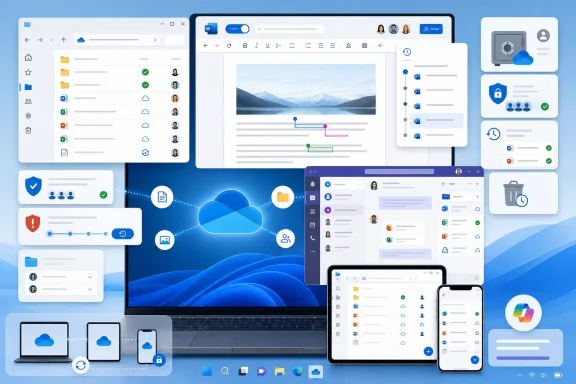 File Explorer Is the Front End, Not the Whole Product
On a Windows PC, OneDrive is most visible in File Explorer. Users can work with cloud-backed folders much as they would local folders, while the sync client reconciles additions, edits, renames, and deletions with Microsoft’s cloud service. That is the everyday value proposition: edit a document on a work desktop, pick it up on a laptop, and have the same current copy available from the web or a mobile device.
The experience should not be confused with traditional backup, however. Sync is designed to mirror changes. A mistaken deletion, a damaged file, or an unintended edit can propagate to other signed-in devices. OneDrive’s recycle bin and versioning can mitigate that risk, but they do not make the service a substitute for a separately managed backup strategy—particularly for business data with regulatory retention, long-term archive, or recovery-point requirements.
The Windows integration also creates a useful distinction between files kept locally and Files On-Demand placeholders. A file marked as online-only appears in File Explorer but downloads when opened; a file marked “Always keep on this device” is retained locally. For PCs with small SSDs, that can be the difference between a practical sync setup and an unexpectedly full system drive.
For administrators, the key takeaway is that OneDrive is a user-facing client and a cloud service with policy implications. Folder backup for Desktop, Documents, and Pictures can protect common user data and simplify device replacement, but it also changes where data lives, how much is synchronized, and which sharing and retention controls apply.
AutoSave Changes the Meaning of “Save”
The most consequential Microsoft 365 benefit is not simply that a document is accessible elsewhere. It is that cloud storage changes the editing model.
Microsoft says AutoSave in Word, Excel, and PowerPoint works when files are stored in OneDrive or SharePoint and opened through the Microsoft 365 apps. Changes are saved continuously rather than waiting for the familiar Ctrl+S moment. That is the foundation for co-authoring: multiple people can work on the same cloud-resident file and see updates without passing around attachments called “Final_v7_revised_reallyfinal.docx.”
But there are important caveats that make the storage location more than a cosmetic detail. Microsoft notes that AutoSave can be unavailable for older formats such as .doc, .xls, and .ppt; it also will not work normally if OneDrive sync is paused, a file is stored only on a local disk, or a user opens a local path from File Explorer rather than the online location within the Office application. CSV files are also excluded from AutoSave support.
That last point can surprise Windows users. Seeing a OneDrive folder in File Explorer does not guarantee that every workflow is using the cloud copy in the way Microsoft 365 expects. If AutoSave is disabled, checking the document’s path and whether it was opened from OneDrive or SharePoint is often a more useful first troubleshooting step than toggling the switch repeatedly.
Version history is the corresponding safety net. Rather than treating every continuous save as irreversible, OneDrive and SharePoint retain earlier versions that users can restore. It is particularly valuable in collaborative work, where a technically valid edit can still be the wrong decision.
Teams Uses Two Different Storage Models
HP’s guide highlights one of the most important distinctions for Teams users: files shared in chat and files shared in a channel do not live in the same place.
Microsoft documentation confirms that Teams uses OneDrive and SharePoint to store and share content. For one-to-one and group chat file sharing, the uploaded file is associated with a user’s OneDrive for work or school storage. If that user lacks the necessary OneDrive storage or licensing, chat file sharing can fail even though Teams messaging itself remains available.
Channel files work differently. A standard Teams channel maps to a folder in the parent Team’s SharePoint document library. Private and shared channels each have their own connected SharePoint site and document library. In practical terms, Teams is the collaboration interface, while SharePoint provides the team-oriented repository behind the channel’s Files tab.
That architecture explains a few common helpdesk mysteries:
- A file shared in a Teams chat may be owned and governed through an individual’s OneDrive rather than a departmental SharePoint site.
- A channel file may remain accessible through SharePoint even when users primarily interact with it in Teams.
- Moving a project from chat-based sharing into a Teams channel can change ownership, lifecycle, retention, and access-management expectations.
- A OneDrive provisioning or permissions issue can prevent Teams chat attachments from uploading.
The distinction becomes more important in offboarding and governance. A business should not assume a file’s presence in Teams tells the full story about its storage location, owner, retention policy, or access path. Teams makes the boundary intentionally unobtrusive; IT administrators still need to know it exists.
Copilot Makes Permissions More Valuable—and More Sensitive
OneDrive’s place in Microsoft 365 has expanded as Microsoft pushes Copilot deeper into daily productivity workflows. Cloud files are not simply a convenience for AI features: they are the content Microsoft 365 Copilot can use to ground responses, provided the signed-in user has permission to access that content.
Microsoft’s architecture documentation says Copilot does not access content beyond the user’s existing permissions. That is an important security boundary, but it shifts the practical question toward information hygiene. If a broadly shared OneDrive folder or SharePoint library already exposes sensitive material too widely, Copilot does not create that permission problem—it can make its consequences more visible and easier to act on.
For Windows users, the lesson is straightforward: cloud storage is now part of the data plane for collaboration and AI, not a passive off-device vault. Sharing links, guest permissions, inherited access, sensitivity labels, and stale project folders all deserve the same attention they would receive in a conventional file server environment.
This is also why moving data to OneDrive solely to activate AutoSave or Copilot should be an intentional decision. The productivity gain may be real, but the document then becomes subject to cloud sharing settings and organizational policy rather than remaining an isolated local file.
Recovery Features Help, but They Are Not Magic
HP points to Personal Vault, version history, ransomware detection, and recovery as reasons to consider OneDrive more than ordinary file storage. Each is useful, but each has a boundary.
Personal Vault adds an additional identity-verification step for sensitive personal documents such as tax records, identity documents, and contracts. It is designed for consumer protection and should not be mistaken for a complete enterprise information-protection program. Corporate users generally need to consider organizational controls, device management, sensitivity labels, data-loss prevention, retention, and access reviews alongside individual file protection.
Microsoft’s ransomware recovery workflow is also practical but conditional. If Microsoft 365 detects a ransomware attack affecting OneDrive files, it can notify the user and guide them through identifying affected files, cleaning every connected device, and restoring OneDrive to an earlier point. The sequence matters: restoring files before removing malware from every syncing device risks having the restored files encrypted again.
That makes sync an amplifier of both convenience and incident impact. A malicious process on one PC can quickly alter files that are synchronized elsewhere. Version history and restore options can reduce the damage, but endpoint protection, patching, MFA, and sensible least-privilege sharing remain the first line of defense.
For a Windows household, OneDrive can make device loss or replacement far less disruptive. For an organization, it can reduce reliance on local PCs as the authoritative location for working documents. In both cases, the benefit arrives only when users understand where the files are stored and how the service behaves when something goes wrong.
The practical next step is not simply to install OneDrive—it is already part of the Windows experience for many users. It is to decide which folders should sync, which files should remain local, whether Desktop/Documents/Pictures backup is appropriate, and where collaborative work belongs: a personal OneDrive, a Teams chat, or a SharePoint-backed channel. Once Microsoft 365, Teams, and Copilot enter the picture, that storage choice becomes a decision about collaboration, governance, recovery, and access—not just disk space.
