

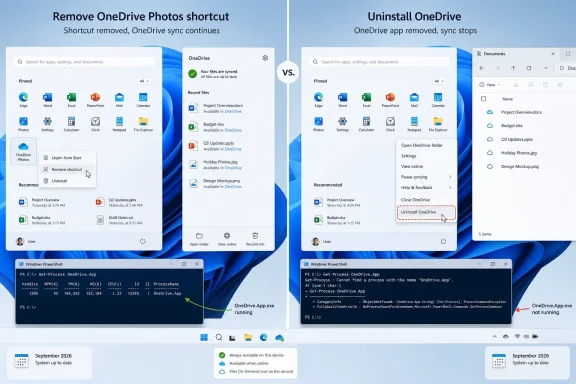
That is the practical conclusion behind a rollout Microsoft has acknowledged went wider than intended. Microsoft Apps and Agents executive vice president Jeff Teper said the company was incubating a new OneDrive photo experience that “went more broadly than it should have in Windows,” as reported by Windows Central. Microsoft says it is fixing the rollout, but the app is still visible on affected Windows 11 PCs today.
The important correction to much of the advice circulating online is simple: deleting a Start menu entry does not uninstall OneDrive Photos. It removes the most obvious way to launch it. The executable remains in the OneDrive program directory and can return to Start after a OneDrive update or repair.
OneDrive Photos is bundled with the sync client
Windows Latest identified OneDrive Photos as OneDrive.App.exe, a distinct executable alongside the main sync engine, OneDrive.exe. In a typical machine-wide installation, it is located under C:\Program Files\Microsoft OneDrive\; per-user OneDrive installations can instead place it under the user’s local app-data directory.
That arrangement explains why searching Settings > Apps > Installed apps for “OneDrive Photos” produces no uninstall entry. Windows has not registered it as an independent installed app. The visible OneDrive Photos label in Start is a shortcut to a component carried by the installed OneDrive package.
The distinction matters particularly to administrators. OneDrive Photos may look like another preinstalled Windows app, but it is not an Appx/MSIX package that can be cleanly handled with the usual Remove-AppxPackage or provisioned-app removal workflows. It is an executable shipped with the OneDrive desktop client. A script that only removes .lnk files changes the user interface, not the installed component.
To see whether the executable exists on a PC, PowerShell can search the normal OneDrive locations:
Get-ChildItem "$env:LOCALAPPDATA\Microsoft\OneDrive","$env:ProgramFiles\Microsoft OneDrive","${env:ProgramFiles(x86)}\Microsoft OneDrive" -Filter OneDrive.App.exe -ErrorAction SilentlyContinue | Select-Object FullName,@{n='Version';e={$_.VersionInfo.FileVersion}}
No returned path means the command did not find the component in those standard locations. A returned path confirms that OneDrive Photos is still installed, regardless of whether its Start menu shortcut is visible.
Removing the Start shortcut is cosmetic, but useful
For a personal PC where the goal is simply to stop the item appearing in Start search and the desktop, removing the shortcuts is the least disruptive workaround. It leaves file synchronization running and does not affect cloud files, Files On-Demand, Known Folder Backup, or the OneDrive folder in File Explorer.
The following elevated PowerShell command removes shortcuts named OneDrive Photos.lnk from common machine-wide and per-user Start-menu and desktop paths:
"$env:ProgramData\Microsoft\Windows\Start Menu\Programs","$env:APPDATA\Microsoft\Windows\Start Menu\Programs","$env:PUBLIC\Desktop","$env:USERPROFILE\Desktop" |
ForEach-Object {
    Get-ChildItem $_ -Filter "OneDrive Photos.lnk" -ErrorAction SilentlyContinue
} |
Remove-Item -Verbose
Run PowerShell as administrator if the shortcut is in the all-users Start menu or Public Desktop. The command’s -Verbose output should identify each deleted shortcut.
This is a sensible temporary response for users who rely on OneDrive sync but do not want a second photo viewer promoted in Windows Search. It is also the least risky fleet workaround for IT teams that cannot remove the sync client without disrupting a sanctioned backup or collaboration workflow.
But it should be documented accurately: it does not remove OneDrive.App.exe, does not prevent someone from launching that executable directly, and does not prove the experience cannot be restored by a subsequent client update. It is a presentation-layer cleanup, not an application-removal control.
Uninstalling OneDrive is the only complete removal available now
If the goal is to remove the OneDrive Photos executable itself, uninstalling Microsoft OneDrive is the supported practical route currently available. The command-line form is:
winget uninstall --id Microsoft.OneDrive
The same action is available through Settings > Apps > Installed apps > Microsoft OneDrive > Uninstall. Because OneDrive Photos ships in the OneDrive installation, removing the parent client removes the photo executable as well.
That choice has a consequential trade-off: local OneDrive synchronization stops. Files already stored in Microsoft’s cloud are not erased merely because the Windows client is removed, but files that are online-only under Files On-Demand will no longer be available offline. Users who need local copies should first mark important OneDrive folders or files as Always keep on this device and wait for the downloads to complete.
This is especially important for PCs using OneDrive folder backup. Desktop, Documents, and Pictures may have been redirected into OneDrive without the user thinking of those folders as cloud-managed. Before uninstalling, verify where the files live, whether their status icons show cloud-only availability, and whether critical data has a usable local copy or a separately tested backup.
After uninstalling, rerun the PowerShell detection command. If it finds no OneDrive.App.exe, the bundled photo experience has been removed from the standard installation paths. If an executable remains, check for another OneDrive installation context, including a per-user install or another Windows profile on the device.
For managed environments, the operational point is sharper. Removing OneDrive as a reaction to OneDrive Photos may be unacceptable where the client is used for SharePoint libraries, Teams-backed files, endpoint migration, or folder backup. It may solve the unwanted icon while breaking the business workflow the client was installed to support. Shortcut removal is therefore the safer interim remedy for most organizations, even though it is incomplete.
September is the real removal milestone, not a solution available today
Microsoft’s Microsoft 365 Roadmap now lists a plan to let people uninstall the OneDrive Photos experience independently. According to the roadmap description reported by Windows Central, removing it will not uninstall OneDrive, interrupt file synchronization, or delete photos and files. The roadmap’s target is September 2026.
That is the change users actually need: separate servicing and separate removal. It would turn OneDrive Photos from a bundled executable into a manageable component from the user’s perspective, even if Microsoft retains shared code underneath.
There are two qualifications. First, a Microsoft 365 Roadmap date is an estimated rollout start, not a guarantee that every consumer or managed Windows 11 PC will receive the option on the first day of September. Microsoft’s roadmap explicitly warns that dates and plans can change. Second, Microsoft has not yet published the exact UI path, command-line method, package identity, supported Windows versions, or Intune management mechanism for the independent removal option.
That missing administration detail matters. Microsoft’s roadmap also describes planned administrative controls for OneDrive Photos, including controls related to personal Microsoft account sign-in. Those controls are relevant to governance, but they are not automatically equivalent to a removal control. Admins should avoid assuming that blocking sign-in, hiding shortcuts, or suppressing access will delete the executable from endpoints.
What users and admins should do now
For a Windows 11 PC that uses OneDrive, remove the shortcuts if the immediate problem is Start-menu clutter and wait for Microsoft’s planned September removal feature. Do not delete OneDrive.App.exe manually from Program Files: OneDrive updates, repair routines, and application integrity checks are likely to recreate or react to the file, while the client may be left in an unsupported state.
For a PC that does not use OneDrive at all, uninstalling Microsoft OneDrive removes both the sync client and OneDrive Photos. Confirm local access to needed files before doing so, particularly if Desktop, Documents, or Pictures have been backed up to OneDrive.
For IT teams, inventory the executable and the shortcuts separately. Removing only the shortcut can reduce user confusion without disrupting sync, but it should be recorded as a temporary mitigation. Before September’s promised control arrives, there is no clean supported way to remove OneDrive Photos independently while retaining the OneDrive sync client.
Microsoft’s error was not merely that a preview-style photo interface appeared in Start menus. It was that the experience reached Windows 11 devices before customers had a supported way to decline it without giving up a core file-sync service. Until the promised independent uninstall arrives, the honest answer to “what can I remove?” is: the shortcut, or all of OneDrive.