
This is not a brand-new utility suddenly appearing in the Microsoft 365 era. Onetastic has existed for more than a decade, created independently by Omer Atay, a longtime OneNote developer. Microsoft itself profiled the add-in in 2013, describing its macro engine, calendar view, Favorites, custom styles, and image tools. What has changed is the context: after years in which OneNote for Windows 10 was positioned as the future, Windows users are again centered on the traditional desktop application—the version of OneNote that can actually host Onetastic.
That distinction matters. Onetastic is built for OneNote for Windows desktop, including Microsoft 365 installations and OneNote 2010 or later. It does not run in OneNote for Windows 10, nor on macOS, iOS, Android, or the web. The developer’s current download page lists Onetastic 8.5.1, released July 5, 2026, alongside OneCalendar 1.22.0, released June 27.
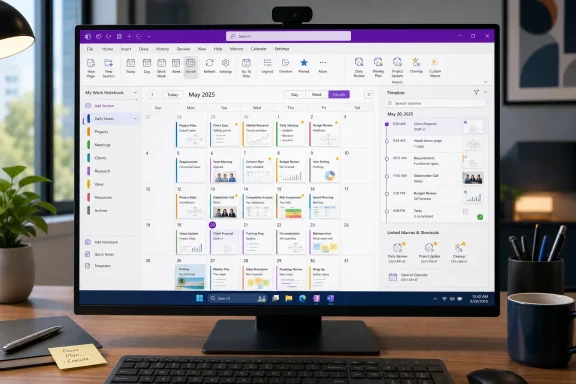 OneCalendar Treats Notes as a Work Log
OneNote’s search is useful when a user remembers a phrase, title, or tag. It is less useful when the only reliable memory is temporal: I took those notes during the vendor call last Tuesday, or the troubleshooting steps were added shortly after the July patch rollout.
OneCalendar provides that missing route back into information. It indexes pages across open notebooks by their creation date or last-modified date, placing page titles into day, week, or month views. Hovering over an entry shows a preview, and selecting it opens the page in OneNote. The feature can also be used as a separate desktop application, allowing users to pin it to the taskbar without making OneNote’s ribbon their starting point.
That sounds modest, but it changes the retrieval model. A technical notebook tends to contain recurring meeting records, incident notes, deployment checklists, copied support cases, and one-off research. Such information often becomes hard to find precisely because titles are inconsistent and individual pages carry little context once they disappear into a deep notebook structure.
For an administrator, OneCalendar can function as a lightweight operational timeline. A page edited on the day a certificate renewal failed, a network change was approved, or an endpoint issue began is suddenly discoverable through chronology rather than keywords. For a student, project manager, or researcher, it is a way to reconstruct when work was done without requiring a rigid daily-note system from the start.
PCWorld previously identified this calendar-based organization as Onetastic’s standout capability, while Office Watch has similarly emphasized that OneCalendar remains valuable for serious OneNote users. Neither observation makes the tool a replacement for a real task or calendar platform. OneCalendar does not turn a note into an Outlook appointment, synchronize deadlines, or provide a two-way schedule. Its value is retrospective: it helps users find the notes they already made.
The Add-In Is More Than Its Best-Known Feature
Calling Onetastic a calendar add-in understates its scope. The suite bundles several desktop-only functions that feel like the sort of practical refinements Office power users traditionally expect from a mature Win32 application: Favorites and shortcuts for frequently opened pages, custom text styles, image cropping and rotation, printout rotation, selected-text extraction from images, batch file import, and search-and-replace tools.
Favorites may be the understated winner for anyone who has a handful of OneNote pages that act as personal dashboards. A shopping list, shift handover page, active project log, or family reference page can be surfaced from a menu or turned into a desktop shortcut instead of being repeatedly navigated through notebook hierarchies. That is a small quality-of-life improvement, but it is precisely the kind of friction that accumulates in a note-taking tool used every day.
Custom Styles fill another longstanding gap. OneNote includes its own preset styles, but it is not Word, and users cannot normally build a reusable style library around their organization’s preferred heading hierarchy, callout formatting, or documentation conventions. Onetastic’s style tools let a user save formatting and reapply it, helping a large notebook look less like a sequence of improvised text boxes.
The same applies to image and printout cleanup. Teams that use OneNote to hold scanned forms, screenshots, slide printouts, or annotated documents know that small visual corrections matter. Cropping a screenshot, rotating a badly oriented printout, or extracting a selected region of OCR-recognized text removes the need for a detour through another application.
Microsoft’s own 2013 overview documented many of these capabilities. That historical endorsement is useful context, but it should not be mistaken for Microsoft shipping or supporting Onetastic as part of OneNote. It remains an independently maintained product, with its own installer, update cadence, licensing model, and compatibility responsibility.
Macroland Gives OneNote Its Missing Automation Layer
The most powerful—and most consequential—part of Onetastic is Macroland, its macro ecosystem. The add-in includes a macro processor and editor, while Macroland provides a catalog of downloadable automations. The examples are telling: sort pages or sections, build a table of contents, insert a monthly calendar, add a horizontal line, perform search and replace, or manipulate page content in bulk.
This is the layer that makes Onetastic more than a collection of ribbon buttons. OneNote is unusually flexible in how it lets users place and structure information, but its native workflow tools remain limited compared with Excel’s formulas, Word’s document automation, or Outlook’s rules. A macro can impose repeatability on an application designed around freeform notes.
A knowledge-base maintainer could use a table-of-contents macro to make a sprawling notebook more navigable. A user maintaining daily logs can standardize page titles or insert a predictable template. Someone importing material from email, meetings, or support systems can reduce repetitive formatting work. The gains are not glamorous; they are the incremental reductions in manual cleanup that make a personal documentation system sustainable.
There is an important licensing nuance. Onetastic’s downloadable installer and its built-in tools are free, but the developer says some features—including macro downloads beyond a trial period—may require a Pro account. That means the accurate pitch is not that every part of the Onetastic ecosystem is permanently free. Rather, OneCalendar and the suite’s core built-in functionality are available at no charge, while heavy Macroland use can move into paid territory.
The Desktop App’s Return Keeps This Class of Tool Alive
The broader significance of Onetastic is inseparable from OneNote’s uneven Windows history. Microsoft spent years steering users toward the streamlined OneNote for Windows 10 app, a UWP version that could not host traditional third-party add-ins such as Onetastic. The company ultimately reversed course, making the desktop application the primary OneNote experience on Windows again and moving that app into the Microsoft Store.
That decision preserved a real differentiator. Microsoft’s current developer documentation supports web-based OneNote add-ins built with HTML, CSS, and JavaScript, but Onetastic belongs to a richer class of desktop integration that the Windows 10 app did not accommodate. The difference is not academic: tools that add ribbon commands, operate on local application content, expose deep page manipulation, and provide standalone companion utilities depend on the desktop application model.
For Windows enthusiasts, this is a reminder that feature parity is not just a checklist of pens, dark mode, and cloud sync. Extensibility changes what an application can become in the hands of a committed user. A simplified cross-platform client can be easier to maintain and easier to distribute, but it can also sever the ecosystem of utilities that made its predecessor more useful.
Microsoft does still maintain an official OneNote add-in platform, and its support pages even list Onetastic among useful resources for educators. But the Microsoft 365 marketplace is not the whole story for OneNote users. The most capable extensions may sit outside it, particularly where legacy desktop integration offers functions the web-based model does not replicate.
Convenience Needs the Same Governance as Any Other Add-In
Onetastic is a sensible option for individual Windows users who understand what it does, but organizations should not treat it as an automatic deployment. Its macro system is powerful because it can create and alter OneNote content, and macros downloaded from a community catalog deserve the same review discipline applied to scripts, Office templates, Power Automate flows, or browser extensions.
IT teams should test the correct 32-bit or 64-bit installer against their deployed OneNote build, validate update behavior, and decide whether locally installed add-ins fit their endpoint-management policy. The developer specifically warns that installing the wrong architecture can lead to failures when launching OneCalendar from OneNote. A pilot group is preferable to mass rollout, especially where notebooks contain regulated, confidential, or incident-response information.
For everyone else, the immediate practical choice is simpler. If your OneNote habit involves regularly asking, “When did I write that down?”, install the standalone OneCalendar first. If it becomes part of the daily workflow, the full Onetastic suite adds the automation and navigation tools that explain why this old desktop add-in continues to command attention in 2026.
