
./docker-setup.sh, ~/.clawdbot, or public-port instructions verbatim on a new VPS. Use the current OpenClaw Docker workflow, keep the gateway private, and treat the management UI as an administrative service rather than a web app to expose directly.Hostinger’s August 6 tutorial correctly identifies the main trade-off: running OpenClaw yourself means owning Docker, provider credentials, logs, backups, updates, and the availability of every connected channel. Its recommended baseline—an Ubuntu VPS, Docker Compose, 2 GB of RAM at minimum and 4 GB preferred—is reasonable for a small personal deployment. But “manual” needs to mean more than cloning a repository and opening a firewall port: OpenClaw can hold AI-provider credentials, messaging-channel tokens, agent state, and access to tools that act outside the chat window.
The tutorial itself acknowledges that the project was previously called Clawdbot, but it leans too heavily on that historical naming. Current OpenClaw documentation and Hostinger’s newer support material use the OPENCLAW_ variables and .openclaw configuration paths. Legacy labels may remain in an upgraded installation, but they should not be used as the assumed source of truth for a fresh deployment.
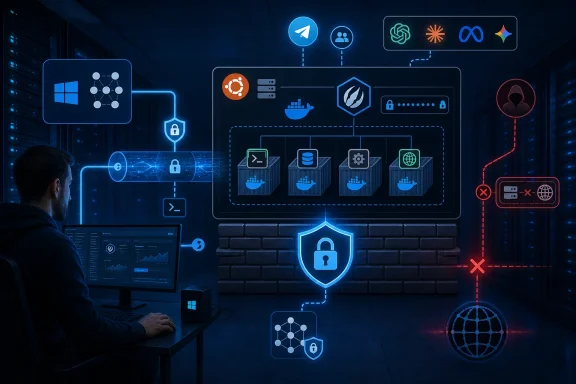 The Docker setup command has moved
The first breakage is in the command that actually installs the containerized gateway. Hostinger’s tutorial tells readers to clone the OpenClaw repository and run:
./docker-setup.sh
OpenClaw’s current Docker documentation instead identifies the setup script as:
./scripts/docker/setup.sh
That is more than a cosmetic path correction. The current script runs onboarding, collects provider authentication, creates the gateway token, prepares the secret-key directory used for stored authentication profiles, and starts the gateway with Docker Compose. A reader following the Hostinger article’s root-level command against the current repository could simply get a “file not found” error before OpenClaw has built anything.
The current project documentation also makes an important distinction missing from the Hostinger walkthrough: Docker is an optional installation model, not a universal prerequisite for OpenClaw. It remains a sensible choice for a headless VPS because it isolates the gateway runtime and makes lifecycle management predictable, but OpenClaw’s standard installer and native Node-based deployment options exist as well. Administrators should choose Docker because they want a container-managed service—not because an older guide makes it appear to be the only supported route.
For a fresh Docker deployment, the safer sequence is to verify Docker Engine and Compose v2, clone the official repository, review the compose files and mounted paths, then use the current scripts/docker/setup.sh script. Do this from a dedicated non-root administrative account where possible. Root access is useful for initial server provisioning, firewall work, and Docker installation; it is not a reason to make every subsequent OpenClaw administration command root-owned.
The Control UI should not be an internet-facing port 18789 service
Hostinger’s article says to reach the OpenClaw dashboard directly at [url]http://your-vps-ip:18789[/url] and later recommends allowing inbound TCP port 18789 through UFW when the interface cannot be reached. That is the guide’s most consequential omission.
OpenClaw’s current security guidance says administrators should prefer Tailscale Serve or another private access method, keep the gateway on loopback where possible, and avoid broad port forwarding. If a LAN bind is necessary, the project recommends a tight source-IP firewall allowlist rather than exposing the gateway to the internet. The reason is obvious from the product’s role: the gateway is not a static dashboard. It is the control plane for an AI agent that may be connected to messaging accounts, provider billing, browser automation, files, scheduled jobs, and command-capable tools.
OpenClaw’s own project discussions documented hundreds of exposed instances on port 18789 during the early Clawdbot period, before authentication protections matured. The project has since fixed multiple gateway and session-related vulnerabilities, including a March advisory affecting session-history access in versions through 2026.3.24. The lesson is not that current OpenClaw authentication is useless; it is that a generated gateway token should be one layer of protection, not the sole thing standing between an administrative endpoint and the public internet.
A manual deployment should start with one of these access patterns:
- Keep the gateway bound privately and use an SSH tunnel from an administrator workstation for occasional dashboard access.
- Use Tailscale Serve for authenticated private-network access without opening the gateway directly to the internet.
- Place the service behind a correctly configured HTTPS reverse proxy, with OpenClaw’s trusted-proxy and allowed-origin settings explicitly configured.
- If direct exposure is unavoidable, restrict ingress to specific trusted source addresses, use HTTPS, retain gateway authentication, and document the exception as an operational risk.
Opening 18789/tcp globally to make the dashboard appear is a troubleshooting shortcut, not a production configuration. It also creates a trap for newcomers: the UI may load over plain HTTP, but modern OpenClaw builds apply stricter controls around non-loopback and insecure WebSocket connections. A dashboard that becomes reachable is not necessarily a dashboard that is correctly secured.
Current configuration uses OpenClaw names, not Clawdbot paths
The Hostinger tutorial instructs users to retrieve a gateway token with:
cat ~/.clawdbot/.env | grep CLAWDBOT_GATEWAY_TOKEN
That may help someone maintaining an older installation, but it is stale guidance for a fresh build. Current OpenClaw Docker documentation says the setup script writes the generated token to the project’s .env file, while persistent configuration is mounted under .openclaw. The current variable name is OPENCLAW_GATEWAY_TOKEN.
Hostinger’s own newer VPS support page confirms the shift. It tells customers using the Docker Manager deployment to log in with OPENCLAW_GATEWAY_TOKEN and retrieve it from the project environment if necessary. That creates a direct inconsistency between Hostinger’s recently modified tutorial and its more current support documentation.
For administrators, the difference matters because the token is not a convenience string to paste into a browser and forget. It is a credential. It should not appear in shell history, screenshots, public support tickets, copied terminal output, Git repositories, or backup bundles stored without access controls. If it does leak, rotate it and assume any provider or channel credentials stored alongside it require review as well.
The same caution applies to AI provider keys. Anthropic, OpenAI, Google and other provider credentials can create immediate billable usage and may provide access to models connected to sensitive agent context. A setup wizard confirming that an API key is syntactically valid is not the same as validating usage limits, billing controls, organization permissions, or a key’s intended scope.
Telegram setup now uses channels, not providers
Hostinger’s example for adding Telegram calls an older-style command inside the gateway container:
docker compose exec openclaw-gateway node dist/index.js providers add --provider telegram --token YOUR_BOT_TOKEN
OpenClaw’s current Docker documentation uses the openclaw-cli sidecar and calls Telegram a channel:
docker compose run --rm openclaw-cli channels add --channel telegram --token "<token>"
The terminology change reflects a real product distinction. An AI model vendor is a provider; Telegram, WhatsApp, Discord and similar services are channels through which people interact with the gateway. OpenClaw’s release notes have also recorded compatibility work for older provider-oriented configuration keys, but a new deployment should follow the current channel syntax rather than rely on migration compatibility.
After adding Telegram, test the channel from an untrusted account before treating it as ready for everyday use. Confirm that direct-message pairing behaves as expected, that a stranger cannot automatically operate the agent, and that group privacy is changed only if the bot genuinely needs to read group traffic. Disabling Telegram group privacy broadens what the bot can see. That may be necessary for a group automation workflow, but it should be a deliberate authorization decision, not an unexplained checkbox in a setup guide.
A git pull is not a complete Docker update
Hostinger’s ongoing-maintenance advice says to update a manual installation with:
git pull
docker compose down
docker compose up -d
That sequence can restart a deployment, but it is incomplete for the same guide’s stated architecture. Hostinger says the setup process builds the Docker image locally from the repository. Pulling newer source code does not automatically rebuild a local Docker image; restarting the existing container can leave the old image running.
OpenClaw’s current Docker documentation explicitly separates source checkout state from image state and describes image upgrades as a migration-aware process. It also warns that if a startup upgrade cannot safely repair configuration or plugin state, the container may exit and appear to restart repeatedly. In that situation, deleting volumes—as the Hostinger troubleshooting section suggests for a restart loop—can turn an upgrade problem into a data-loss problem.
The correct operational rule is: back up persistent state before changing an image, and do not remove volumes until you know precisely what they contain. OpenClaw stores configuration, authentication profiles, the gateway token, workspace material, installed plugin state, agent databases, media, sessions, and logs across its persistent paths. A disposable test deployment can be rebuilt from scratch. A working assistant connected to a real mailbox or messaging account should be updated like a small production service.
Administrators should also pin and record the OpenClaw version they deploy. The project’s release cadence is fast, and “latest” trades predictability for convenience. Before upgrading, review the release notes, preserve the existing image reference or image ID, capture a backup of mounted state, then verify the gateway health endpoint, dashboard authentication, agent response, and connected channels after the upgrade.
Manual hosting is viable, but the guide needs a security-first reading
Hostinger is right that a managed OpenClaw option removes several moving parts. Its managed service handles the initial environment and presents deployment through hPanel, while the VPS path gives administrators root access and more control over images, configuration, logs and lifecycle. Those are legitimate choices for different users.
But self-hosting does not become safe merely because Docker Compose reports an Up status. A healthy deployment must also have current software, retained persistent storage, protected gateway credentials, controlled messaging access, backups stored separately from the VPS, and no casually exposed Control UI. For Windows administrators using a VPS from a Windows workstation, that means treating the server as a managed Linux service: use SSH keys, keep the dashboard private, and use a secure tunnel or private overlay network rather than an open browser port.
The immediate fix for anyone using Hostinger’s August 6 instructions is to replace the stale root-level setup and legacy configuration assumptions with OpenClaw’s current Docker documentation, then review firewall rules before connecting WhatsApp, Telegram, email, browser tools, or any automation with access to real accounts. The gateway token is the key to the console; port 18789 should not become the front door.
