
For Windows gamers, the story is less about a miraculous replacement for virtual reality and more about solving a familiar immersion problem intelligently. A monitor can show a detailed cockpit, but a fixed viewpoint makes it awkward to check a mirror, look into a racing apex, inspect a dashboard control, or lean around an aircraft canopy frame. Webcam head tracking gives those small, natural head movements an in-game consequence.
That makes it a compelling middle ground. The hardware requirement can be as modest as a USB webcam already sitting above a monitor, while the software can run alongside the games many enthusiasts already own. It is not quite VR, and it has real limitations, but it can make conventional monitor-based simulation feel substantially less static.
 Overview: What Webcam Head Tracking Actually Changes
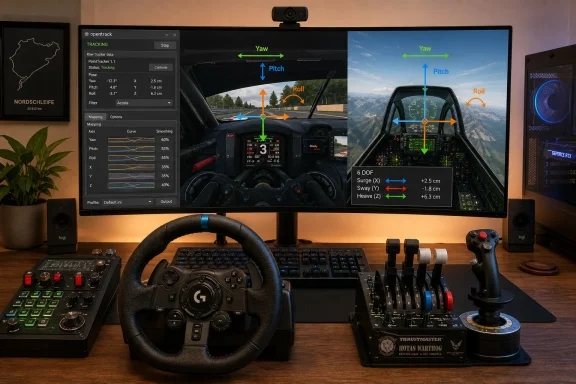
The most important distinction is that head tracking is not eye tracking, and it is not simply a webcam-controlled mouse. A head-tracking application estimates the orientation and, depending on configuration, the position of a player’s head. It then passes that data to a game as camera movement.
The rotational portion is usually described through three axes:
- Yaw — turning the head left and right.
- Pitch — looking up and down.
- Roll — tilting the head toward either shoulder.
Position tracking adds another three axes:
- X translation — moving left and right.
- Y translation — moving up and down.
- Z translation — moving closer to or farther from the camera.
In a racing simulator, yaw is the star feature. A slight real-world turn of the head can make the virtual driver look toward an apex, side window, or wing mirror. In a flight simulator, yaw and pitch become far more valuable because a cockpit contains instruments above, below, behind, and alongside the pilot’s normal forward view.
The effect works because the movement is intentionally amplified. No one wants to rotate their neck 80 degrees just to look at a virtual side mirror. Instead, the application maps a relatively small physical movement to a larger in-game turn. A player may move their head only a few centimeters or rotate it a few degrees, yet the in-game camera can sweep across an entire cockpit.
This is why head tracking often feels more useful than it sounds on paper. It preserves a conventional monitor setup and conventional controls, but restores a degree of spatial awareness that static camera views cannot reproduce.
Why OpenTrack Is Central to the Setup
OpenTrack has long been a familiar name among flight-simulation and military-simulation communities because it acts as a flexible layer between tracking hardware and game-compatible output protocols. The project describes it as software for tracking the user’s head movement and relaying that information to games and flight-simulation software, with tools for output shaping, filters, and multiple input and output methods. The official OpenTrack repository also lists Windows installers and portable archives as official download options.
Historically, webcam-based tracking often meant assembling a small software stack. A separate face-tracking application would analyze the camera feed and then send position data to OpenTrack, which in turn would translate that information into the protocol expected by a game.
That workflow could work well, but it introduced more points of failure. Users had to keep two tools configured, ensure that they agreed on axes and camera sources, and troubleshoot one application when the real issue lived in the other.
The more modern approach is simpler. OpenTrack includes a NeuralNet Tracker input option, which the project identifies as AI-based head-pose estimation using webcams. OpenTrack’s official feature list confirms the tracker’s webcam role, while the project’s source tree contains a dedicated NeuralNet Tracker module. That built-in option reduces the barrier for Windows users who want to experiment without constructing a multi-application pipeline.
A Free Tool Does Not Mean an Unsupported Toy
OpenTrack is not a single-purpose webcam novelty. Its official repository lists an unusually broad collection of tracking inputs, ranging from point-based optical systems and joysticks to UDP relays, Tobii hardware, mobile-device pathways, and camera-driven neural-network tracking. It also offers outputs including FreeTrack, SimConnect, virtual joystick functions, mouse-style output, FlightGear integration, and legacy flight-simulator interfaces. The project’s documented input and output list illustrates why it has remained useful even as tracking hardware has evolved.
That flexibility is both an advantage and a warning. It makes OpenTrack adaptable, but it also means the interface can feel technical to newcomers. It is software designed around configuration rather than a one-click consumer experience.
For enthusiasts, that is usually an acceptable trade. The same setup page that looks intimidating initially is what allows one player to build a restrained racing profile and another to create a wide-ranging flight-sim profile.
The Hardware Reality: A Webcam Is Enough, but It Still Matters
The attractive claim behind this approach is that a standard webcam can be enough. The hands-on report used a 640 × 480 camera mode at 60 frames per second successfully and emphasized that an exotic infrared unit is not required for webcam head tracking. The MakeUseOf test also notes that an Android phone used as a webcam can serve as an alternative for people without a spare USB camera.
That does not mean every webcam will produce identical results. Head tracking is a real-time computer-vision workload. Image quality, frame rate, exposure behavior, field of view, camera placement, processor capacity, and room lighting all influence the experience.
Resolution Is Not the Same as Tracking Quality
It is tempting to select the maximum resolution offered by a camera, especially when a 1080p or 4K option is present in the settings list. For head tracking, that decision can be counterproductive.
The tracker does not need cinematic video. It needs a consistent, clean representation of the player’s face at a sufficiently responsive frame rate. A lower resolution can reduce processing load and may improve responsiveness, provided the tracker can reliably identify the face and estimate head pose. The reported 640 × 480 and 800 × 600 examples are sensible starting points rather than universal rules. MakeUseOf’s configuration walkthrough recommends using the lowest setting that continues to track dependably.
A practical starting hierarchy is:
- Start at 640 × 480.
- Use 60 FPS if the webcam and system can sustain it reliably.
- Try 30 FPS if CPU usage, camera stability, or image quality becomes a problem.
- Increase resolution only when the face is not being tracked consistently.
- Test with the actual game running, not just with the OpenTrack preview window.
The last point matters. A profile that looks smooth on the desktop can feel different once a simulator, overlays, voice chat, telemetry tools, browser windows, and background services all compete for CPU and GPU resources.
Field of View Can Work Against You
A wide-angle action camera can appear ideal because it captures a large area. In practice, a very wide field of view can make the face occupy fewer pixels, which may reduce tracking stability when the player leans back or shifts away from center.
The MakeUseOf test encountered exactly this trade-off using a DJI Osmo Action 4 as a webcam: its image quality was strong, but its wide view made it easier for the tracker to lose the user’s face during larger movements. The reported experience is a useful reminder that camera framing matters at least as much as a webcam’s headline specifications.
A more conventional webcam positioned roughly at eye level is often the most practical choice. The goal is simple:
- Keep the face visible.
- Avoid extreme angles.
- Place the camera close enough that the face has clear detail.
- Make sure the user can lean naturally without leaving the image.
- Avoid pointing the lens so high or low that normal posture creates an awkward tracking angle.
Configuring OpenTrack for a Windows Gaming Setup
The basic OpenTrack workflow is relatively straightforward. The difficult part is not launching it; the difficult part is tuning it for your seating position, camera, monitor size, game, and personal tolerance for movement.
The official project provides Windows releases in both installer and portable forms, and its repository directs users to GitHub releases for downloads. The official releases page currently identifies opentrack 2026.1.0 as the latest release and notes improvements including a new NeuralNet model, additional NeuralNet resolutions and frame rates, camera-offset support, and gamepad shortcut input.
Core Settings to Establish First
For a webcam-only configuration, the essential choices are generally the tracking input, the output protocol, the selected camera, and a reliable recenter command.
A sensible initial configuration looks like this:
- In Input, select NeuralNet Tracker.
- Use the configuration control beside the input field to choose the correct webcam and a conservative capture mode.
- In Output, select the protocol required by the game or sim ecosystem. The hands-on report used FreeTrack 2.0 Enhanced, a common compatibility choice for supported titles. MakeUseOf’s setup guide details this arrangement.
- Assign a Center or Recenter hotkey before starting a game.
- Start tracking, look at the center of the monitor naturally, and recenter.
- Confirm movement in OpenTrack’s preview before launching the game.
The recenter command is not optional polish. It is a core usability feature. Webcam tracking is relative to a player’s position and pose at the time tracking is initialized or centered. If someone leans forward to pick up a phone, moves the chair, shifts monitor position, or returns to the desk at a slightly different angle, the in-game “forward” direction can become uncomfortable.
A keyboard binding on an accessible but hard-to-hit-by-accident key works well. A wheel button, throttle button, or gamepad control can be even better for sim users who do not want to reach for the keyboard while driving or flying.
Camera Offset Is a Useful Refinement
Many webcam setups place the camera directly above the center of the main display. That is ideal, but it is not always physically possible. Ultrawide monitor arms, triple-monitor bezels, desk-mounted cameras, and microphone booms can force a camera off to one side.
OpenTrack’s 2026.1.0 release added camera-offset support intended for trackers mounted off center, according to the project’s release notes. The official release entry makes this a particularly useful enhancement for multi-monitor sim rigs where putting the camera exactly in front of the player may be impractical.
The benefit is not merely visual neatness. Correcting the relationship between the camera and the player can make movements feel more symmetrical and reduce the need to compensate manually with awkward curve adjustments.
Mapping Curves: The Difference Between a Demo and a Daily Driver
The most valuable lesson from webcam head tracking is that the default profile is rarely the final profile. OpenTrack’s Mapping page lets users define how much virtual movement should result from a given physical movement. This is where tracking becomes tailored rather than merely functional.
The software allows separate response curves for yaw, pitch, roll, and positional axes. Users can create dead zones, increase sensitivity progressively, limit extreme movement, or effectively disable an axis that creates more annoyance than immersion. The MakeUseOf hands-on report correctly identifies curve tuning as the step that transforms rough tracking into something more natural.
Start With a Small Dead Zone
A small center dead zone is usually helpful. It allows a player to make tiny, unconscious posture adjustments without making the game camera constantly wobble.
The dead zone should not be large enough that the player has to “break through” a stiff inactive region before the camera moves. That creates a distracting on-off feeling. It should simply prevent minor sensor noise and natural fidgeting from becoming visible camera motion.
A good test is to sit normally, breathe, adjust posture slightly, and watch the in-game view. If the cockpit floats around while the player is trying to hold still, increase filtering or the dead zone. If the view feels locked until the head moves too far, reduce the dead zone or make the initial part of the curve more responsive.
Use Progressive Sensitivity
A smooth curve usually feels better than a straight, linear one. The first few degrees of head movement should translate to subtle camera movement. As the player turns farther, the virtual camera can accelerate more dramatically.
This is especially important on a single monitor. The player needs to look far enough to inspect a side window or rear mirror while still facing the display rather than physically staring away from it.
A useful conceptual setup is:
- Near center: low sensitivity for stability.
- Moderate movement: enough response to follow corners and instruments.
- Outer movement: steeper response for mirrors, side views, and rearward glances.
- Maximum movement: a hard cap that prevents accidental extreme camera angles.
The exact numbers are personal. Neck range, monitor distance, physical desk layout, and game camera behavior are all different. The right profile is the one that disappears from the player’s awareness during a race or flight.
Do Not Enable Every Axis Just Because It Exists
Six-axis tracking sounds superior to three-axis tracking, but more movement is not automatically better. In racing games, positional movement can make the virtual camera respond when a player shifts in the chair, reaches for a control, or reacts to force-feedback steering.
For many drivers, a simple profile using primarily yaw, modest pitch, and perhaps restrained roll is more comfortable than a fully enabled six-axis setup. The original test similarly recommends keeping movements subtle for racing simulations and considering a reduced set of axes if nausea or instability appears. MakeUseOf’s recommendations are sensible because a race cockpit typically requires quick glances, not large exploratory movement.
Flight simulation has different needs. Looking above an instrument panel, scanning an overhead switch bank, checking a wing, or clearing a turn can justify broader yaw and pitch ranges. Translation can also be useful when leaning toward gauges or looking around cockpit pillars.
The rule is simple: enable only the motion that adds value in the specific game.
Filtering, Latency, and the Jitter Problem
Tracking precision and tracking comfort are not the same thing. A camera may detect every small movement, but unfiltered responsiveness can become jittery and unpleasant. Conversely, aggressive smoothing can make the view lag behind a head turn and feel disconnected.
OpenTrack includes multiple filtering options, and its documentation highlights the role of filters in shaping the output. The official project overview describes support for output shaping and filtering, while the project maintains technical guidance for its Alpha Spectrum filter parameters.
For practical configuration, think in terms of a trade-off:
- Too little smoothing: jitter, tremor, sensor noise, and distracting micro-movements.
- Too much smoothing: delayed view movement, a “rubber-band” feeling, and reduced situational awareness.
- Too much sensitivity: exaggerated movement and difficult control.
- Too little sensitivity: uncomfortable physical head rotation and insufficient virtual range.
A racing setup should normally prioritize stability and instant, modest response. A flight setup can tolerate slightly broader motion but should still avoid visible lag during scanning.
The correct approach is iterative. Change one parameter, drive or fly for several minutes, then decide whether it improved the experience. Trying to solve sensitivity, curves, smoothing, dead zones, and camera placement all at once is the fastest route to confusion.
Lighting and Background Control Are Not Minor Details
Webcam head tracking depends on what the camera sees. That seems obvious, but it is often overlooked by users who focus entirely on software settings.
The reported test found that dim lighting could lead the NeuralNet Tracker to jitter or latch onto a background object rather than the face. In that case, a 3D-printer filament spool in the camera view became a false point of interest. The MakeUseOf article highlights a problem that can affect any camera-based system: computer vision works best when the intended subject is clear and the background is not competing for attention.
The answer is not necessarily buying studio lights. Usually, a modest and stable light source is enough.
Better Lighting Practices
- Put light in front of the face, not only behind it.
- Avoid bright windows directly behind the player.
- Keep the face evenly lit rather than split between darkness and glare.
- Remove visually distracting objects directly behind the head where possible.
- Avoid rapid lighting changes from RGB effects, television screens, or sunlight passing through blinds.
- Check the live camera preview before launching the game.
A dim room may look immersive for a late-night simulator session, but it may produce less stable pose estimation. A low-cost desk lamp aimed indirectly at the wall or placed beside the monitor can be more useful than a higher-resolution webcam.
Compatibility: The Game Must Accept the Output
One of the crucial caveats is that OpenTrack does not magically add head-tracking support to every game. The application supplies movement through various output methods, but the game must recognize the chosen protocol or accept an alternative input path.
The OpenTrack project lists FreeTrack, SimConnect, virtual joystick, mouse-style output, UDP, FlightGear, and FSUIPC among its output options. The official output-protocol documentation demonstrates the breadth of integration paths, but it also explains why users must choose the correct output for the specific title.
For sim-racing and flight-sim players, this normally means checking the game’s controls or camera settings for terms such as:
- TrackIR
- FreeTrack
- OpenTrack
- Head tracking
- Camera tracking
- SimConnect
- NaturalPoint
- VR head movement
If a game recognizes one of these interfaces, webcam tracking can often provide a clean result. If it does not, mouse emulation may exist as a workaround, but that is generally a compromise. Mouse input can conflict with menus, camera controls, or standard gameplay actions.
The best experience is native-style protocol support. The second-best is a carefully configured fallback. The worst approach is assuming that a working OpenTrack preview guarantees a game will respond correctly.
What This Setup Does Better Than Expected
The appeal of a webcam head-tracking setup is not only the price. It is the way it fits into an existing Windows gaming environment without forcing a wholesale platform change.
It Preserves the Monitor Workflow
VR can be transformative, but it changes the entire interaction model. Players may need to manage headset comfort, battery or cabling, controller access, overlays, text readability, heat, and the task of finding physical hardware controls without seeing them.
Webcam head tracking leaves the monitor visible. A keyboard, wheel, throttle, button box, stream deck, phone, and second display remain easy to use. That matters for simulation players with complex desks.
It Makes Single-Monitor Driving Less Constrained
On a single display, looking into the corner of a track is often the most immediately satisfying benefit. Instead of relying only on a fixed field of view, a player can naturally turn toward an apex as a car enters a bend.
The same goes for mirror checks. Even subtle head-tracking integration can make a virtual mirror feel more like a spatial object in the cockpit rather than a tiny HUD element that must be checked through fixed camera controls.
It Encourages Per-Game Profiles
OpenTrack can associate profiles with individual games through its game-detection functionality, according to the hands-on report. MakeUseOf’s profile discussion points to a major usability advantage: there is no reason to force one global sensitivity curve on every simulation.
A good racing profile can be calm, low-amplitude, and mirror-focused. A flight profile can offer far more pitch, yaw, and positional range. A space sim may need a third variation entirely.
The Risks and Limitations That Matter
The “free webcam head tracking” concept deserves enthusiasm, but not overstatement. It is a budget-friendly immersion upgrade, not a universal substitute for dedicated tracking hardware or VR.
It Cannot Deliver VR’s Stereo Depth or Full Presence
Head tracking changes viewpoint. It does not put the game world around the player’s eyes, create stereo depth, or eliminate the monitor bezel. A single display still occupies a fixed physical space in front of the player.
That distinction is significant. Looking toward a virtual left mirror while still viewing it on a center monitor is clever and useful, but it is not the same as turning one’s head and seeing a world rendered across a headset’s field of view.
Webcam Tracking Can Be Less Consistent
Dedicated head-tracking hardware is designed around the task. A standard webcam is not. It may struggle more with low light, difficult angles, motion blur, reflections, face occlusion, or an overly busy background.
Even the newest OpenTrack release should be approached as actively evolving software rather than a polished turnkey appliance. The project’s release history shows both ongoing NeuralNet development and past warnings about bugs in particular builds; for example, the 2024.1.1 pre-release explicitly advised users to fall back to 2023.3.0 if errors occurred. The official release notes reinforce the practical rule of testing a specific version with one’s own hardware before treating it as permanent.
Free and Open Source Still Requires Basic Caution
OpenTrack’s source is openly available and the project provides official Windows releases, but users should still download it from the project’s official GitHub repository or release page, not from random “driver download” sites.
The project also explicitly disclaims warranty in its repository documentation, as is common with open-source software. OpenTrack’s licensing and warranty section makes that status clear. That does not make the software suspect; it simply means users should create a restore point if they are cautious, avoid unverified repacks, and be prepared to test another release if a camera driver or game integration behaves unexpectedly.
A Better Way to Think About the Upgrade
The most productive way to evaluate webcam head tracking is not to ask whether it beats VR. That comparison creates the wrong expectation.
Instead, ask whether an existing Windows gaming setup would benefit from a more natural camera-control method for the cost of an hour of configuration. For players already using a webcam, the answer can be emphatically yes.
The setup’s strongest qualities are clear:
- No mandatory new hardware purchase if a suitable camera is already available.
- Free, open-source software with Windows installer and portable release options. OpenTrack’s repository documents both formats.
- Meaningful immersion gains in cockpit-based racing and flight titles.
- Flexible profiles for different games and input preferences.
- A less isolating alternative to VR for players who prefer physical controls and visible monitors.
- An extensible platform that can later be paired with other tracking inputs if a webcam stops being enough.
Its weaknesses are equally clear:
- Setup is not entirely plug-and-play.
- Lighting, camera framing, and CPU load matter.
- Some titles will need a different output selection or may not support tracking natively.
- Poorly tuned curves can cause jitter, excessive motion, or discomfort.
- It cannot reproduce VR’s depth, field of view, or full headset presence.
Those limitations are not reasons to dismiss the idea. They are reasons to configure it deliberately.
Conclusion
Webcam head tracking with OpenTrack is one of those Windows gaming upgrades that sounds niche until it is experienced in the right game. A slight turn toward a corner, a glance at a mirror, or a lean around a cockpit frame does not seem transformative in a settings menu. In motion, those interactions can make a static single-monitor sim feel dramatically more alive.
The current OpenTrack release continues to develop its NeuralNet webcam tracker with new models, additional capture modes, and camera-offset support, showing that this is not a forgotten workaround but a maintained and evolving option for PC enthusiasts. OpenTrack’s 2026.1.0 release notes underline that progress.
For sim racers and virtual pilots who already own a decent webcam, the proposition is unusually strong: use hardware already on the desk, install software from the official project, create a recenter shortcut, keep the room well lit, and spend time on mapping curves. The result will not replace a dedicated TrackIR-style system or a quality VR headset, but it can deliver a highly credible—and genuinely immersive—head-tracking experience for effectively zero dollars.
