
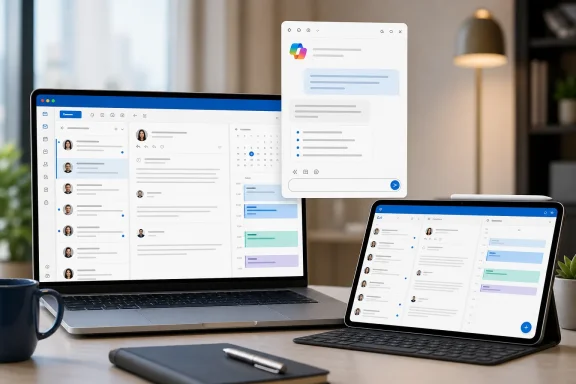
 Overview: Copilot Chat Gets a More Flexible Outlook Workspace
Until now, Copilot Chat in Outlook has largely followed the familiar in-app assistant model: it sits alongside the mailbox, calendar, or message view. That makes sense for quick questions, but it can become restrictive when a user needs to compare Copilot’s response against a lengthy email thread, work through calendar details, or continue an AI-assisted task while navigating to another part of Outlook.
The forthcoming Copilot Chat pop-out for Outlook changes that interaction model. Users will open Copilot Chat normally, select the new pop-out control, and have the chat appear separately above the primary Outlook window. Microsoft describes the purpose plainly: the separate surface is intended to let people switch contexts more easily, create more room for the work at hand, and control the size and form Copilot Chat occupies on screen. Microsoft’s roadmap entry
This is not an announcement of a standalone Copilot application replacing Outlook’s native AI integration. The roadmap language indicates that Copilot remains tied to the Outlook session while gaining a more flexible presentation. In practical terms, the feature should preserve the assistant’s Outlook context while avoiding the permanent side-pane trade-off that has become common across productivity applications.
For Mac and iPad users in particular, that distinction matters. Outlook is often used in constrained layouts: a MacBook screen shared between mail and browser windows, or an iPad in Split View with Teams, OneNote, Safari, or a document app. A movable Copilot window can turn an assistant from a fixed destination into a temporary working companion.
Background: What Copilot Chat Already Does in Outlook
Microsoft positions Copilot Chat in Outlook as a contextual assistant that can work alongside email and calendar activity. The company says users can ask about their inbox, upcoming meetings, organizational information, and web information, while also taking selected actions directly in Outlook. Microsoft’s Copilot Chat documentation
That scope makes Copilot Chat different from narrower AI buttons that appear only within a single message. Summary by Copilot, for example, focuses on extracting the key points from an email conversation. Draft with Copilot helps create a message, while Coaching by Copilot evaluates tone, sentiment, and clarity in a draft. Copilot Chat is the broader conversational layer that can bridge inbox, calendar, meetings, and—in eligible work environments—other enterprise context. Microsoft’s Outlook Copilot FAQ
Microsoft’s own examples show why a persistent chat surface could be useful. A user may ask Copilot to summarize messages related to a project, locate an upcoming one-to-one meeting, draft a customer escalation update, set up an automatic reply, or flag unread email from a manager. Microsoft’s Copilot Chat documentation
With a Microsoft 365 Copilot add-on license, the assistant can be used for more extensive, cross-work queries. Microsoft cites examples such as identifying the most important unread messages while synthesizing related chats and documents, preparing an agenda from current projects, or drafting a new-hire welcome email informed by organizational material. Microsoft’s Copilot Chat documentation
The pop-out feature does not expand those underlying capabilities on its own. Instead, it improves the ergonomics of using them. That may sound incremental, but user-interface decisions can determine whether an AI tool becomes a regular part of a workflow or an occasional, disruptive destination.
Why a Floating Copilot Window Matters
Less forced context switching
The main advantage is straightforward: users should no longer have to choose between giving Copilot Chat enough room and preserving a usable view of Outlook. A fixed pane consumes permanent horizontal space, which can leave a message reading area, message list, or calendar grid feeling squeezed—especially on smaller displays.
A floating chat window can be positioned where it is useful at a particular moment. Someone reviewing a complex email thread could keep Copilot’s summary and suggested response in view while scrolling through the original correspondence. Someone scheduling a meeting could keep a draft agenda visible while checking availability in Outlook’s calendar.
This could be especially useful in a desktop-style macOS workflow, where users frequently stack and arrange windows instead of relying on a single maximized application. A chat window that floats above Outlook is more consistent with that window-management behavior than a side pane that permanently reshapes the application.
More practical space for substantial prompts and answers
Copilot queries in Outlook are not always one-line requests. Asking the assistant to reconcile a mailbox, extract actions from a meeting history, or prepare a detailed briefing can produce longer answers with multiple references, suggestions, and follow-up actions.
A larger, independent Copilot panel should make these responses easier to review. Users can expand the chat when investigating a topic, then reduce or reposition it when the focus returns to routine mail triage. That is a tangible improvement over treating every AI interaction as a narrow sidebar exchange.
The benefit is not merely cosmetic. Better room for a prompt can encourage users to supply more useful instructions, while better room for a response makes it easier to inspect what Copilot has produced before copying, acting, or sending anything. In email workflows, where an AI-generated draft can carry professional consequences, that review space is valuable.
Better support for multitasking on iPad
The iPad version may be the more interesting half of this announcement. Outlook on iPad has always operated within the practical limits of a touch-first, tablet-sized canvas. A fixed assistant pane can quickly become intrusive when a user is reading a thread, reviewing a meeting invite, or scanning a dense calendar.
Microsoft’s description does not spell out the exact iPadOS behavior—such as whether the pop-out will act like a resizable overlay, support specific multitasking modes, or retain its size between sessions. Those implementation details will matter. Still, the stated goal of allowing people to control Copilot Chat’s “space and form” strongly suggests Microsoft recognizes that an iPad workflow needs more adaptable AI placement than a fixed pane can offer. Microsoft’s roadmap entry
On a tablet, the ability to temporarily place Copilot over the relevant part of Outlook could reduce needless switching between views. A user could consult the assistant, move it aside, inspect an email, then bring the conversation back into focus without abandoning their place in the mailbox.
The Most Useful Outlook Copilot Workflows
The Outlook Copilot Chat pop-out will likely be most valuable when it supports a multi-step task rather than a one-off command. Outlook is a communication hub, and much of its difficult work involves comparing several messages, calendar entries, people, and deadlines at once.
Managing a noisy inbox
Consider the familiar scenario of returning from a day of meetings to a crowded inbox. Copilot can already help identify messages related to a project, summarize recent correspondence, or flag unread mail from a specific person. Microsoft’s Copilot Chat documentation
With a pop-out window, that assistant output can remain visible as the user reviews the actual message list. Rather than opening a message, losing sight of the chat, returning to the assistant, and repeating the cycle, the user can maintain a clearer loop:
- Ask Copilot for a project-specific overview.
- Keep the answer open in a floating window.
- Open the relevant messages and verify the details.
- Draft, flag, archive, or schedule follow-up work.
- Continue the same Copilot conversation if additional context is needed.
That does not eliminate the need for human judgment. It does, however, make the assistant’s output easier to treat as a working brief rather than a separate destination.
Preparing for meetings without losing the calendar
Meeting preparation often means moving constantly among invitations, mail threads, supporting files, chat history, and calendar availability. Microsoft says Copilot in Outlook can help prepare for meetings by gathering and summarizing relevant information, identifying action items, and reviewing related pre-reads and communications. Microsoft’s Outlook Copilot FAQ
A detached Copilot window could keep that preparation material in sight while the user checks the actual calendar item. That is particularly useful when an employee needs to turn a summary into an agenda, compare preparation notes with participant availability, or write a follow-up message immediately after the meeting.
The interface benefit is simple: the calendar remains the calendar. Copilot becomes an adjacent workspace rather than a screen that replaces it.
Drafting and revising executive communication
Microsoft’s documentation describes Copilot as capable of generating email drafts and providing coaching on tone, sentiment, and clarity. Microsoft’s Outlook Copilot FAQ A pop-out chat adds a more comfortable review pattern for high-stakes communication.
An employee can keep the original thread or meeting context in Outlook, use the floating chat to outline a response, and write or revise the final email in the composition window. This provides clearer separation between AI suggestions and the actual message that will be sent.
That separation is important. The best use of Copilot in Outlook is not to accept generated wording blindly. It is to use the assistant to accelerate research, structure a response, identify missing context, or produce a first draft that the sender can thoroughly edit.
Licensing, Accounts, and Availability Remain Important
The new pop-out experience is scheduled for the Mac and iOS platforms, with Worldwide (Standard Multi-Tenant) availability and a General Availability release ring according to the roadmap listing. The roadmap currently places the rollout in August 2026, but Microsoft explicitly describes roadmap dates as estimates and says feature information is subject to change, postponement, or cancellation. Microsoft’s roadmap page
That means organizations should treat August as a planning window, not a contractual deployment date. Rollouts can also reach users gradually, meaning two devices or tenants may not receive a new Outlook feature at exactly the same time.
Access to Copilot itself remains a separate issue from the interface update. Microsoft says Copilot availability in Outlook depends on account type, licensing, and settings. Its support documentation also notes that access can be affected if Connected Experiences is turned off in Outlook privacy settings. Microsoft’s account-sharing guidance
For work and school users, Microsoft distinguishes between Copilot Chat capabilities that can be available without an add-on license and richer cross-enterprise experiences associated with a Microsoft 365 Copilot add-on. Microsoft’s Copilot Chat documentation The pop-out should be viewed as a new interface option for eligible users, not as a universal entitlement that bypasses an organization’s Copilot licensing model.
There are also important product limitations. Microsoft says certain Outlook Copilot scenarios are restricted to a user’s primary mailbox and are not available for archive, group, shared, or delegate mailboxes; it also lists limitations around Exchange Online hosting and encrypted email types. Microsoft’s Outlook Copilot FAQ A floating chat window will not change those data-access boundaries.
Privacy, Governance, and Accuracy Considerations
The prospect of a more persistent Copilot presence in Outlook raises an obvious concern: does keeping chat visible encourage overreliance on AI-generated conclusions? It can, unless organizations make review expectations explicit.
Microsoft itself advises users to review, edit, and verify AI-generated content. That guidance is especially relevant for email, where a summary can omit nuance, a draft can use unsuitable wording, and a calendar recommendation can overlook real-world constraints that are not represented in the data Copilot can access. Microsoft’s Outlook Copilot FAQ
The pop-out design could actually support better behavior if it is used well. Keeping the AI response adjacent to the original thread or calendar item makes verification easier than hiding the underlying source behind a full-screen chat experience. Users can compare the assistant’s interpretation against the messages, dates, and participants that produced it.
Administrators should nevertheless prepare for a broader behavioral change. A feature that makes Copilot more visible may increase usage, which in turn can increase the number of employees relying on prompts to search inboxes, summarize correspondence, and draft sensitive communications. Governance plans should account for that reality through clear guidance on:
- Appropriate data handling when prompting Copilot about customers, projects, and personnel matters.
- Human review requirements for external email, executive communication, and consequential meeting decisions.
- Training on prompt quality, including how to ask for sources, constraints, and structured output.
- Mailbox and permission hygiene, because Copilot responses can only be as reliable and appropriately scoped as the information and access controls behind them.
- Feedback and escalation paths for incorrect summaries, confusing actions, or unexpected data exposure concerns.
Microsoft states that its Microsoft 365 Copilot offering is designed around security, compliance, and privacy controls, but organizational readiness remains a shared responsibility. Microsoft’s Outlook Copilot FAQ
A Small Interface Change With a Larger Strategic Signal
The Copilot Chat pop-out in Outlook for Mac and iPad is not a headline-grabbing new AI model, an autonomous agent, or a wholesale redesign of Outlook. It is a more grounded change: Microsoft is refining the everyday mechanics of using AI where people already manage their communications.
That is significant because useful productivity AI is often less about a single impressive answer and more about reducing friction across dozens of ordinary interactions. If Copilot is forced into a cramped side panel, users may invoke it only for occasional summaries. If it can be moved, resized, and kept alongside the work that needs checking, it has a better chance of becoming a practical part of mail and calendar workflows.
The feature’s strengths are clear: more room, more control, less disruptive navigation, and a better fit for multitasking on Mac and iPad. Its risks are equally clear: a more visible assistant can invite casual overtrust unless users remain disciplined about checking the underlying email, calendar, and organizational context.
Microsoft’s August 2026 target gives IT administrators and Outlook power users a useful milestone to watch. When the rollout arrives, the decisive question will not be whether a floating Copilot window looks more polished than a pinned panel. It will be whether that added flexibility helps people use AI more carefully, more efficiently, and with the original Outlook information still firmly in view.
