
For Windows PC builders and IT staff troubleshooting a new storage deployment, the important correction is that “PCIe 5.0” alone says very little. A full-speed consumer Gen5 SSD is normally a PCIe 5.0 x4 device. Put it in a PCIe 5.0 x2 path, and its available host bandwidth lands in the same neighborhood as PCIe 4.0 x4—even though the SSD still identifies itself as Gen5-capable.
That is not a bad drive, a defective motherboard, or necessarily an installation mistake. It is a wiring and lane-allocation question, and the answer is in the motherboard manual rather than the SSD packaging.
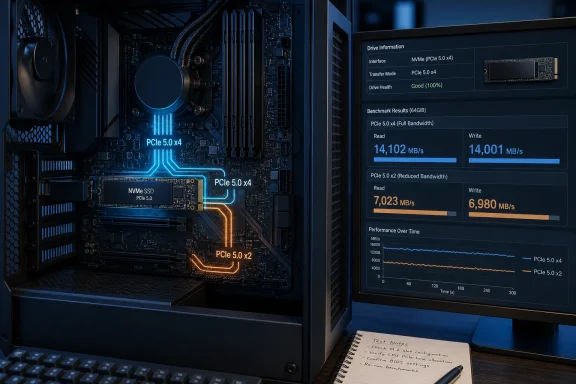 PCIe generation and lane width are separate limits
PCI-SIG’s PCI Express specifications define PCIe 4.0 at 16.0 GT/s per lane and PCIe 5.0 at 32.0 GT/s per lane. In practical terms, one Gen5 lane carries about twice the data of one Gen4 lane. But an NVMe drive needs enough lanes as well as a fast-enough generation to approach its rated sequential-transfer figures.
A PCIe 5.0 x4 connection has roughly 15.8 GB/s of one-way link bandwidth before storage-protocol overhead. PCIe 5.0 x2 has roughly 7.9 GB/s. PCIe 4.0 x4 also has roughly 7.9 GB/s.
That arithmetic is why an x4 Gen5 SSD constrained to Gen5 x2 can benchmark much like a high-end Gen4 drive. It also explains Samsung’s unusual 990 EVO design: the company sold it as a PCIe 4.0 x4 or PCIe 5.0 x2 device, treating those two link modes as equivalent bandwidth classes rather than presenting Gen5 x2 as a full Gen5 upgrade.
The practical consequence is straightforward. A 14,000 MB/s-class SSD cannot transfer data to the host at 14,000 MB/s through a link whose useful ceiling is around half that figure. No firmware update, Windows storage tweak, or benchmark setting can change the physical lane allocation.
The inverse is also worth remembering. A PCIe 5.0 x4 SSD installed in a PCIe 4.0 x4 slot is not “half broken”; it is backward-compatible and should operate normally at Gen4 x4 speeds. The purchase may have been poor value if Gen5 performance was the goal, but it is not a drive fault.
The M.2 slot’s location does not reveal its bandwidth
The reporting gets one major point right: M.2 is a connector format, not a performance guarantee. Two identical-looking M.2 sockets can have radically different electrical connections, different supported PCIe generations, different lane counts, and different sharing rules.
AMD’s AM5 chipset specifications illustrate why assumptions fail. The company lists a direct processor-attached x4 NVMe connection on current X870E, X870, B850, X670E, and X670 platforms, but it does not mean every M.2 socket on every board is attached to those lanes. Board vendors decide how to route the available processor and chipset lanes, and they may attach additional M.2 sockets through the chipset.
An ASUS ROG Strix Z690-E specification sheet, for example, lists one M.2 slot at PCIe 5.0 x4 and another at PCIe 4.0 x4, with more storage options connected through the Z690 chipset. ASUS’s newer Pro WS Z890-ACE SE similarly advertises one onboard PCIe 5.0 M.2 slot and three PCIe 4.0 M.2 slots. The physical socket gives a buyer no reliable clue about which one offers Gen5 x4.
There is a second complication: lane sharing. A board may use processor PCIe lanes for the graphics slot, a Gen5 M.2 socket, USB4 controllers, or an add-in card. Depending on the model and which sockets are populated, activating one device can reduce another from x4 to x2, disable a port, or divide a graphics slot from x16 to x8. Those rules are often buried in a small table in the manual under “PCIe bandwidth sharing,” “M.2 configuration,” or “expansion slots.”
This is where a drive upgrade can turn into an avoidable support ticket. A technician who moves an OS SSD to make room for a second drive may preserve bootability while silently moving the faster drive from a CPU-attached Gen5 x4 slot to a chipset-connected Gen4 or x2 path. Windows will continue working normally; only sustained storage benchmarks and large transfers will expose the compromise.
A slower benchmark is not automatically a lane problem
Link width and link speed are the first things to check, but they are not the only reasons a PCIe 5.0 SSD can miss its label speed. SSD makers generally quote best-case sequential reads and writes at high queue depths, using a particular capacity model and a sufficiently fast host platform. Smaller capacities, exhausted pseudo-SLC cache, a nearly full drive, thermal throttling, encryption overhead, background cleanup, and different benchmark profiles can all reduce recorded results.
The most common diagnostic error is treating one benchmark result as a direct measurement of PCIe bandwidth. A 2 TB Gen5 x4 drive that posts 10,000 MB/s instead of 14,000 MB/s may be limited by workload conditions, controller temperature, flash behavior, or the test itself—not an x2 connection. Conversely, a result consistently near 6,500 to 7,500 MB/s for a drive marketed around 14,000 MB/s is a strong reason to inspect the negotiated link.
Windows adds another wrinkle on newer hardware. Microsoft documents NVMe Dynamic Link Rate Management, or DLRM, as a Windows feature intended to reduce power use by adjusting PCIe link speed according to I/O workload. That means a utility reading the current PCIe state while an SSD is idle can present a lower active link condition that is power-management behavior rather than proof of a permanently restricted slot.
Do not diagnose an expensive drive from an idle screenshot alone. Check the connection while the system is under sustained storage activity, then compare the observed mode with the drive’s supported mode and the motherboard’s documented limits.
What to verify before replacing hardware
CrystalDiskInfo remains a useful first-pass tool on Windows because its Transfer Mode field can show the active PCIe generation and width alongside the device’s supported maximum. Crystal Dew World documents support for reporting PCIe modes and lane widths, while Microsoft’s PCI Express definitions separately expose negotiated link speed and negotiated link width. Those are the two values that matter.
A sensible troubleshooting sequence is short:
- Confirm that the SSD itself is a PCIe 5.0 x4 model rather than a hybrid or deliberately x2 design.
- Check CrystalDiskInfo’s active and maximum Transfer Mode while the drive is handling meaningful I/O, not only while the machine is idle.
- Read the motherboard or laptop service manual’s storage table for the exact M.2 socket in use, including footnotes about shared lanes, disabled SATA ports, USB4, and graphics-slot bifurcation.
- Compare the SSD’s tested capacity and rated read and write figures with the specific capacity in the PC, because ratings frequently vary by capacity.
- Check drive temperature during a sustained benchmark before concluding that the interface is the bottleneck.
For laptops and prebuilts, the documentation step is more important than it is on a self-built desktop. A second M.2 socket may be electrically limited to PCIe 4.0 x2, reserved for a lower-bandwidth expansion device, or routed through a chipset path that is shared with other internal hardware. An empty socket is an upgrade opportunity, not a promise of four Gen5 lanes.
The useful takeaway from How-To Geek’s report is not that owners should assume their new Gen5 SSD is being shortchanged. It is that a speed claim such as “PCIe 5.0” or “up to 14,000 MB/s” describes a maximum configuration, while the actual Windows PC decides performance through its negotiated generation, lane width, board routing, and workload.
Before spending money on a replacement SSD—or returning a perfectly healthy one—verify whether the system is delivering PCIe 5.0 x4. If it is not, the fix may be as simple as moving the drive to the correct M.2 socket. If the board has no such socket, the benchmark result is not a mystery: the platform has already set the ceiling.
