

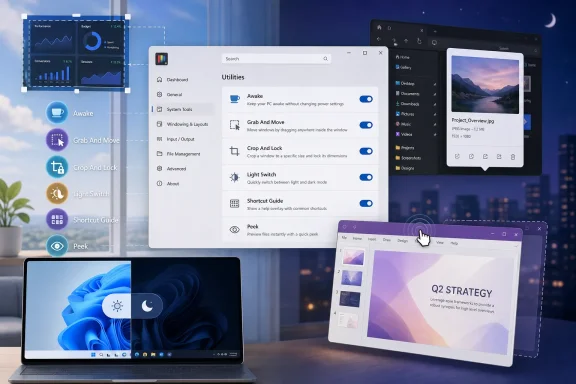
Microsoft’s own documentation and release notes confirm this is not one set of legacy tricks. Light Switch and Peek’s spacebar-first behavior arrived with PowerToys 0.95 in October 2025. Grab And Move was introduced as a preview feature in version 0.99 in April 2026, while the rebuilt Shortcut Guide arrived in version 0.100 in June. That recent churn means anyone using an older installation may simply not have the utilities—or the behaviors—described in current recommendations.
The important change is that PowerToys is increasingly filling gaps Microsoft has left in Windows 11: temporary power overrides, file previewing, theme scheduling, and more direct window manipulation. For individual users, these are convenience features. For IT staff, they are also examples of user-level tooling that should be enabled deliberately, tested against line-of-business applications, and governed rather than installed as an undifferentiated productivity bundle.
Awake is useful only while the user session remains active
Awake is the cleanest tool in the group for a long download, a local file copy, a media encode, or a presentation that must not be interrupted by Windows sleep. It requests an awake state without permanently changing the machine’s configured Power & Sleep settings, and it can run indefinitely, for a fixed interval, or until a specified expiration time.
The detail MakeUseOf’s overview leaves out is consequential: Awake does not keep a PC awake at the Windows lock screen. Microsoft says the lock screen is a separate security context, so an Awake request made by the signed-in user process cannot persist there. A user who starts a multi-hour download, presses Windows+L, and walks away should not assume the transfer will survive their organization’s lock-screen policy.
That is not a flaw in the feature so much as a boundary around its intended use. Awake makes sense when the user is present and needs a temporary exception to sleep behavior. A device that must remain operational unattended should be configured through its normal power policy, maintenance tooling, or task scheduling, then locked as required. Microsoft explicitly warns that persistent use is better handled through Windows power settings, particularly on shared systems.
There is another distinction worth making: Awake can keep the computer awake while allowing the displays to turn off, or it can also keep the screen on. For file transfers and background work, leaving the display off is usually the sensible setting. Keeping a bright panel active for hours wastes power and defeats the point of a narrowly targeted override.
Grab And Move fixes a real Windows friction point
Grab And Move is the newest module in this collection and arguably the one most likely to change daily mouse use. With the default configuration, holding Alt and dragging with the left mouse button moves a window from anywhere inside it; Alt plus a right-button drag resizes from the edge or corner closest to where the gesture began. Microsoft also allows the Windows key to replace Alt.
That sounds cosmetic until it meets modern Windows application design. Many apps now put tabs, search fields, document canvases, and custom controls across what used to be a predictable title bar. Grabbing the one narrow safe strip to move a window can be needlessly fiddly, especially on a large display or when the window has slipped partly off screen. Windows Central likewise singled out Grab And Move in its coverage of the April PowerToys update, describing it as a Linux-style window-management convenience brought into the Microsoft utility suite.
The feature shipped as a preview module, and it should be treated accordingly. Microsoft documents an exclusion list for applications and a Game Mode option that prevents it from activating during play. The latter is worth enabling for anyone who uses Alt as part of game controls. Laptop users should also test it before building muscle memory around it: Microsoft warns that some touchpads may not handle the gesture reliably.
For managed fleets, this is the kind of utility where a short pilot beats a blanket rollout. An Alt-click interaction can collide with specialized desktop software, remote-control environments, or apps that already use Alt-driven mouse commands. PowerToys supports Group Policy controls for enabling or disabling Grab And Move, but governance does not eliminate the need to test the apps people actually use.
Crop And Lock has two very different modes
Crop And Lock is often described as picture-in-picture for any app, but that phrase conceals the most important choice. Its Thumbnail mode creates a live, non-interactive view of a selected rectangle from another window. Its Reparent mode attempts to place the selected portion of the original application into a separate, interactive cropped window.
For a build dashboard, download progress indicator, Teams chat pane, monitoring graph, or timer, Thumbnail mode is the dependable choice. It is meant for watching information while keeping the full source application out of the way. The default shortcut for a thumbnail crop is Windows+Ctrl+Shift+T; selecting the source window first and then triggering the shortcut begins the crop selection.
Reparent mode is more ambitious, but it is not universal. Microsoft’s documentation says some windows do not react well when loaded inside another application, and specifically calls out failures with maximized or full-screen windows. Certain UWP apps can also behave poorly; Calculator is Microsoft’s named example. The project recommends falling back to Thumbnail mode when the cropped, interactive window becomes unresponsive.
This compatibility split changes where Crop And Lock belongs. It is excellent for observation: keeping a small live indicator in view on a single-display laptop, for example. It is less suitable as a way to rebuild an application’s interface or create a permanent interactive dashboard. Users who only need a static reference can choose Screenshot mode, but that is a frozen capture, not a live view.
Light Switch finally ties Windows themes to a schedule
Windows 11 has supported light and dark themes for years, but it still does not provide a built-in schedule to switch them based on a user’s day. Microsoft added Light Switch to PowerToys 0.95 in October 2025, confirming the gap was being handled by the utility suite rather than the operating system itself.
Light Switch can use fixed start and end times, local sunrise and sunset, or—following later updates—Windows Night Light’s schedule. It can apply a theme change to system UI, supported apps, or both. The module also provides a configurable keyboard shortcut for an immediate manual switch, which is more useful than burying the option inside Settings when a user moves between a bright office and a dark room.
The location-based option has a requirement that is easy to overlook: Windows location services must be enabled and correctly synchronized. Users who do not want to grant location access should use fixed hours or Night Light integration instead of assuming sunrise and sunset automation will work.
Light Switch has also grown beyond color preference. When the separate Power Display utility is enabled, it can apply different external-monitor profiles alongside light and dark modes. That can pair a bright daytime profile with a dimmer, warmer evening profile, though Power Display relies on monitors’ DDC/CI support and Microsoft warns that the control channel can be unreliable on some hardware. Theme scheduling is low-risk; monitor-control automation deserves testing before it becomes routine.
Shortcut Guide and Peek work best when their limits are understood
PowerToys 0.100 rebuilt Shortcut Guide into a context-aware side pane that detects the active application and shows relevant shortcuts. The crucial qualifier is relevant, not comprehensive. Microsoft’s release notes say it includes Windows shortcuts, enabled PowerToys shortcuts, and app-specific shortcut manifests for supported applications. It will not magically know every shortcut for every program installed on a PC.
That still makes it a useful training tool, particularly for users moving into an unfamiliar application or learning Windows keyboard navigation. MakeUseOf describes the default invocation as Windows+Shift+/; the actual hotkey can be changed in PowerToys Settings. Administrators should remember that a shortcut overlay is inherently dependent on the active app and its available manifest, so users should not interpret an incomplete list as proof that no other commands exist.
Peek, meanwhile, is one of the more mature modules in the group. In File Explorer, select a file and press Space to preview it without opening the associated application. It supports a broad mix of common documents, images, video, text, Markdown, web content, and developer files; arrow keys can move through files in the folder or, when multiple items are selected, through that selection.
The less obvious operational issue is that Peek can delete the file currently being previewed with the Delete key. It asks for confirmation by default, but PowerToys permits that confirmation to be disabled. That makes Peek fast for culling a folder of photos or duplicate downloads, but it also means it should not be treated as a harmless read-only viewer once someone has altered the default settings.
These modules are not substitutes for core Windows administration, nor are they reasons to enable every PowerToys feature. But the latest releases show that PowerToys is doing more than collecting novelty tweaks: it is providing workable answers to small, repetitive Windows problems that Microsoft has not addressed in the OS. The sensible approach is to enable the one that matches a real routine, learn its shortcut and its failure mode, and leave the rest off until there is a reason to use them.
Update: PowerToys preview builds add reliability fixes across several utilities (August 13, 2026)
According to WindowsReport, Microsoft has issued PowerToys Preview 0.101.2222.0 and 0.101.2241.0 with fixes that affect several modules, including Peek, File Locksmith, Quick Accent, New+, Mouse Highlighter, Workspaces, and Settings.
For Peek users, the most consequential change is expanded automated test coverage, alongside new testing for File Explorer add-ons, Image Resizer, and File Locksmith. This does not add a user-facing Peek feature, but it should improve Microsoft’s ability to catch regressions in Explorer-integrated utilities before they reach stable releases.
The previews also restore localized File Locksmith entries in Windows 11’s context menu and separate Mouse Highlighter’s rendering work from its low-level mouse hook, reportedly improving responsiveness during rapid input. Quick Accent receives fixes for blank initial frames and selection highlighting at the end of long character lists.
New+ also gains more predictable behavior: renamed templates are handled correctly, and desktop items created from the context menu should appear nearer the click location on mixed-DPI monitor setups. These remain preview builds, so organizations should validate them before deployment rather than treating the fixes as stable-branch changes.