
The advice is aimed at ASUS’s Ryzen AI Z2 Extreme-powered ROG Xbox Ally X, but it translates well to older ROG Ally hardware and, with different control software, competing Windows handhelds. XDA also points to the MSI Claw 8 EX AI+ as an example of a device where the same principles apply even though owners will use MSI Center M and Intel’s graphics controls rather than Armoury Crate.
That distinction matters. Windows 11 handheld gaming is still PC gaming compressed into an eight-inch screen: performance varies sharply by game engine, driver version, power budget, and whether a developer has done the work to support handheld-class integrated graphics. There is no single “best settings” button, even if Microsoft’s Xbox full-screen experience and handheld makers’ overlays have reduced the friction.
 A Stable 30 FPS Target Can Buy Better Image Quality
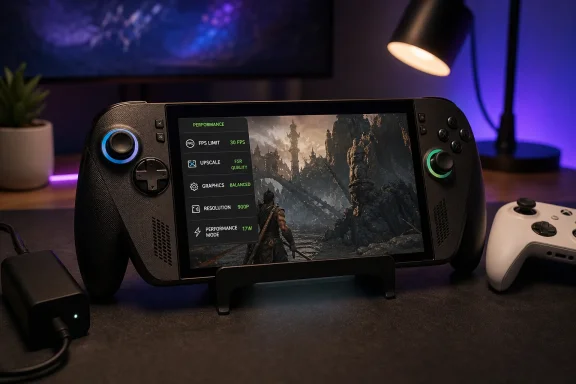
The most immediately useful tweak is also the least glamorous: set an in-game frame-rate limit. XDA’s example is Assassin’s Creed Black Flag Resynced, where a 30 fps cap turns fluctuating performance in the mid-30s to mid-40s into a more predictable experience and leaves room to increase selected visual settings.
That is a smarter trade than it may sound. A game running at 35 fps one moment and 45 fps the next is not simply “faster” than a locked 30 fps game. Its frame pacing can feel inconsistent, particularly when the display’s refresh behavior, V-Sync configuration, or frame-generation technology complicates delivery. A firm limit gives the APU a ceiling, reducing the likelihood that it spends every spare watt chasing frames that the player may not meaningfully notice on a small display.
ASUS exposes limiter choices in the ROG Xbox Ally X Command Center, including 30, 40, 60, 90, and 120 fps. The company’s own performance guide also recommends switching operating modes through Command Center and treating Turbo as a maximum-performance setting rather than a default. For readers who want less interference from global utilities, the game’s own limiter remains the cleaner option: it follows the title’s rendering pipeline and does not become an accidental policy for every game installed on the device.
The right ceiling is game-dependent. Thirty fps remains defensible for slower single-player games, RPGs, strategy titles, and cinematic action games where visual quality is the priority. Forty fps can be a notably better target on a 120 Hz variable-refresh-rate panel, while 60 fps is worth pursuing for racing, competitive shooters, and games where input response is central. The mistake is treating any one number as a universal standard.
A small on-screen monitor is useful here, but it should be used to identify sustained trouble rather than to encourage endless tweaking. If the frame rate is steady and the game feels responsive enough, the overlay has done its job.
Upscaling Is the Handheld’s Most Important Graphics Setting
XDA’s second recommendation, enabling AMD FidelityFX Super Resolution, is the one most likely to rescue a new AAA release from the “technically runs” category. FSR renders at a lower internal resolution and reconstructs the image for the handheld’s 1080p panel, cutting GPU load without forcing the player to accept a permanently low-output resolution.
AMD distinguishes this game-integrated FSR approach from Radeon Super Resolution, or RSR. FSR requires developer support and is configured inside the game; RSR is a driver-level method intended to work more broadly, generally with games running in exclusive full-screen mode. AMD itself recommends the game’s FSR implementation when it is available because title-specific integration can produce superior results.
That is why the XDA preference for per-title FSR over a global RSR switch is sound. Use the setting that the game developer has tested, then assess its quality mode on the actual handheld panel. “Balanced” is often a sensible starting point because it improves performance without the aggressive softness that can accompany Performance or Ultra Performance modes. But there is no guarantee: text-heavy interfaces, fine foliage, thin geometry, and fast camera movement can all make upscaling artifacts easier to see.
Frame generation needs even more caution. FSR 3 frame generation can insert synthesized frames in supported games, improving the displayed frame-rate figure, while AMD Fluid Motion Frames provides driver-level frame generation in compatible circumstances. Both can make motion look smoother, but neither produces the same kind of gain as increasing the game’s underlying rendered frame rate.
On a handheld, the base frame rate remains crucial. If a game is struggling below 30 fps before frame generation, adding generated frames may make the counter look healthier without solving poor input latency or uneven frame times. XDA’s reluctance to use AFMF globally reflects a wider practical concern: driver-level features are convenient, but they are less selective than a game’s own implementation. Start with native game settings, enable FSR where it exists, and consider frame generation only after the underlying game is reasonably stable.
Resolution and Settings Matter More Than a Preset Label
The third tweak is the most time-consuming but the most universally applicable: tune the game itself. A Windows handheld is not a fixed console target. Even two machines with the same chip can behave differently after BIOS, graphics-driver, Windows, and game patches, while a new game may introduce a “Steam Deck” or “Handheld” preset that is either excellent or almost meaningless.
XDA suggests 900p as an alternative to the panel’s native 1080p, and that is often the right kind of compromise. The extra GPU headroom can be redirected toward image settings that make a more visible difference than raw pixel count: texture quality where memory permits, character detail, view distance, or a higher-quality upscaler mode.
The settings most worth lowering are not universal, but several repeatedly hit handheld silicon hard:
- Ray tracing and expensive screen-space reflection effects can consume a disproportionate amount of the GPU budget.
- Shadow quality, volumetrics, ambient occlusion, and lighting presets often offer meaningful frame-rate recovery with limited impact on a small screen.
- Resolution scale is usually more consequential than texture quality, provided the handheld has enough shared memory for the game’s texture allocation.
- V-Sync can be unnecessary or counterproductive when the device’s variable-refresh-rate display is operating correctly, though individual games can behave differently.
Independent testing has reinforced the value of developer-provided handheld presets when they exist. DayOne, for instance, found that Assassin’s Creed Black Flag Resynced performed poorly with a generic low-to-medium mix on the ROG Xbox Ally X, but improved considerably after its handheld-specific options were enabled. That does not prove every handheld preset is good; it does demonstrate why owners should inspect the complete graphics menu before assuming “Low” is the only viable answer.
Community resources such as ROG Ally Life can shorten that experimental process by publishing tested combinations of TDP, VRAM allocation, resolution, CPU boost, and game settings. They are a starting point rather than a substitute for testing, particularly after a major game patch. One user’s excellent 35W plugged-in profile is not necessarily the right answer for another player trying to preserve battery life at 17W.
Power Modes Are a Performance Dial, Not a Checkbox
The fourth tweak is making sure the handheld is actually operating at the intended power budget. On the ROG Xbox Ally X, Silent mode is rated at 13W, Performance at 17W, and Turbo at 25W; ASUS says the device can raise Turbo to 35W when plugged in, reflecting the newer platform’s capability. That is an important correction to older Ally X guidance, where 30W plugged-in Turbo was the familiar maximum.
The practical consequence is simple: a player who accidentally remains in Silent or Performance mode can lose enough headroom to mistake a power-profile issue for a game optimization problem. Conversely, a player who leaves the device at full Turbo all the time can turn a manageable portable system into a loud, hot machine with sharply reduced battery endurance.
The 17W Performance profile deserves more respect than it gets. Notebookcheck’s testing of the ROG Xbox Ally X found that its 17W mode can approach the performance territory that required 25W Turbo on the prior ROG Ally X generation. For a game with a 30 or 40 fps cap, Performance may therefore offer the more rational balance of noise, heat, and runtime.
Manual profiles are for users who understand the trade-offs. ASUS documents manual control of power behavior through Armoury Crate, including SPL, SPPT, and FPPT limits, but the company also notes different behavior across models. Raising limits can help in CPU- or GPU-bound games, especially while plugged in, but it cannot fix an engine bottleneck, shader-compilation stutter, insufficient shared memory, or a bad driver release.
The final, unglamorous step is updates. ASUS firmware and Armoury Crate updates, AMD graphics packages supplied for the handheld, Windows 11 servicing, and day-one game patches can all materially alter compatibility or performance. Intel similarly recommends MSI Claw owners use MSI Center M’s performance controls, including its Over Boost option where appropriate, alongside current graphics software.
The real payoff from XDA’s checklist is not a magical settings recipe. It is a repeatable method: choose a frame-rate goal, use the game’s own upscaler, spend ten minutes on the settings that actually matter, and select a power profile that matches the moment. For Windows handheld owners fitting games into a 15-minute window, that is often the difference between tinkering with a PC and simply playing one.
