
 Overview
This Steam forum malware campaign is a useful reminder that modern Windows security incidents do not always begin with a drive-by exploit, a poisoned installer, or a phishing attachment. Sometimes the decisive failure occurs when a user is persuaded to open an elevated terminal and paste a command supplied by a stranger.
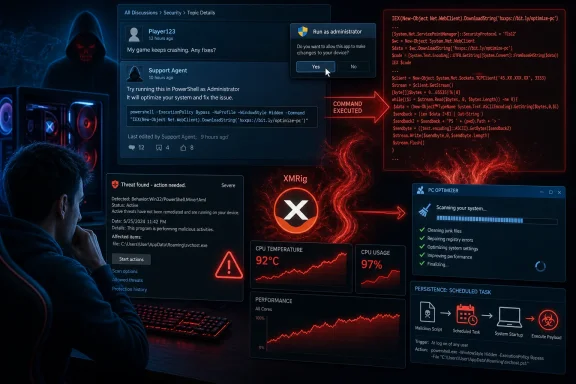
The technique is known as ClickFix. In its broadest form, ClickFix attacks present an invented error, verification process, support fix, or troubleshooting workflow that requires the target to take a manual action. Instead of exploiting a vulnerability in Windows or Steam, the attacker exploits urgency, familiarity, and the user’s desire to get back into a game quickly. BleepingComputer’s analysis found that the malicious Steam posts tell users to run PowerShell as an administrator and execute a supposedly helpful command.
The immediate payload in this case is XMRig, software commonly used for cryptocurrency mining. XMRig itself has legitimate applications when deployed knowingly by an owner or administrator. In this campaign, however, it is installed without consent, configured for persistence, and shielded from scanning—making it cryptojacking malware rather than a legitimate mining setup.
That distinction matters. A cryptominer may initially appear less severe than ransomware because it does not necessarily encrypt documents or display a ransom note. But a compromised Windows PC is still compromised. The attacker has convinced a user to run an elevated, remotely sourced script, and the reported script behavior creates the possibility that additional actions could have occurred beyond the visible XMRig installation. BleepingComputer therefore advises that an operating system reinstall may be the safest option in some cases.
Why Steam Discussion Forums Are an Effective Delivery Channel
Steam’s forums are built around a simple and valuable community behavior: users help one another solve problems. People frequently look for fixes after a game begins crashing, a save file disappears, a controller stops working, an inventory item fails to appear, or Windows performance suddenly deteriorates.
That context gives an attacker a powerful advantage. A reply that appears shortly after a complaint, uses technical language, and claims to offer a repair command can feel more credible than an unsolicited email ever would. The victim is not being asked to install an obviously unrelated application. They are being offered an apparent solution to the exact problem that prompted them to search for help.
According to BleepingComputer, the operators create apparently random Steam accounts and reply to threads about issues such as game crashes and lost inventory. This creates a support-shaped trap: the malicious command is framed as a technical intervention rather than a download.
The social engineering is more important than the code
The campaign’s strength is not an exotic zero-day exploit. It is the attacker’s ability to make a dangerous instruction look routine.
For many Windows users, PowerShell has an aura of authority. It is associated with administration, repairs, automation, and advanced troubleshooting. A user who sees a long command may assume that its complexity is evidence of expertise. In reality, complexity often serves another purpose: it hides the destination, the downloaded content, and the configuration changes the command will make.
The requirement to use Run as administrator should be treated as a major warning sign in forum-based troubleshooting. A legitimate Windows or game fix occasionally needs administrative rights, but anonymous posters should not be trusted with that authority. An elevated PowerShell window gives a script far greater ability to alter Windows Defender settings, create persistence mechanisms, change firewall configuration, and write into protected areas of the operating system.
The “manual execution” gap
Windows security features are designed to identify suspicious files, scripts, and behavior. But ClickFix attacks exploit a difficult reality: users can authorize actions that automated protections might otherwise flag or block.
In this campaign, the user’s manual execution of a command is part of the attack chain. BleepingComputer notes that the approach can bypass some protections because the victim directly launches the malicious activity. That does not mean endpoint security is useless; it means that endpoint security works best alongside a policy of refusing to execute unverified commands.
Inside the Fake Windows Optimization Utility
The deceptive PowerShell script reportedly presents itself as a Windows optimization tool named “msf utility \ PC Opt.” It claims to perform a broad range of familiar maintenance activities, including cleanup of temporary files, DNS cache flushing, driver updates, disk checks, startup optimization, malware scanning, Windows image repair, and System File Checker operations. BleepingComputer reported that most of these apparent maintenance functions are merely fake progress output.
This is an important detail. The script does not simply download a miner immediately and close. It performs theater.
Fake progress is a security feature—for the attacker
The reported script inserts pauses lasting roughly 1.5 to 8 seconds while displaying progress messages. Those delays make the tool feel like it is doing work: scanning, repairing, checking, or optimizing. BleepingComputer identified these fake optimization routines as a way to make the activity appear legitimate.
For an attacker, that visual illusion buys time and reduces scrutiny. A user who sees a long stream of reassuring maintenance messages may be less inclined to inspect Task Manager, Windows Security, or the PowerShell command itself. It also creates an unfortunate psychological effect: a user may credit the script for resolving a problem that would have disappeared naturally after a reboot or game restart.
The campaign reflects a broader security lesson for Windows users: console output is not proof of work performed. A PowerShell script can print any message it wants. Statements such as “repairing Windows image,” “cleaning threats,” or “updating drivers” are not evidence that Microsoft-supported repair tools were actually run.
The real malicious routine
Behind the fake maintenance behavior is a routine reportedly named Advanced-Optimization. That function disables TLS certificate validation, checks whether the script has administrative privileges, creates a hidden-looking storage location under C:\Windows\Background, and attempts to add that path to Microsoft Defender exclusions. BleepingComputer documented these steps.
Disabling certificate validation is especially revealing. Certificate validation is a core part of secure HTTPS connections because it helps Windows and applications verify that they are communicating with the intended server rather than an impostor. A purported PC optimization tool has no normal reason to turn that protection off simply to perform ordinary cleanup tasks.
The Defender exclusion is equally significant. Microsoft documents that custom exclusions can apply to scheduled scans, on-demand scans, and always-on real-time protection and monitoring. A folder exclusion can therefore prevent the security product from inspecting files stored within that path in the ordinary way. Microsoft Learn explicitly warns administrators to understand exclusions before configuring them.
The Reported Attack Chain
The campaign is notable not because any one technique is sophisticated, but because the sequence combines several ordinary Windows administration features into a durable compromise.
1. A fake Steam support reply
The attacker posts a seemingly helpful response to a Steam discussion. The target is likely already frustrated and searching for a quick solution. The reply instructs the user to open PowerShell as an administrator and run a supplied command. BleepingComputer
2. A staged “optimization” display
The PowerShell script identifies itself as a PC optimization utility and presents fake maintenance progress. The output is designed to reassure the user while concealing the script’s actual system changes. BleepingComputer
3. Security weakening and Defender evasion
Once elevated, the script creates C:\Windows\Background and adds it to Microsoft Defender exclusions. Microsoft’s own documentation confirms that exclusions can be configured through elevated PowerShell using Add-MpPreference, Set-MpPreference, or Remove-MpPreference with path, process, or extension parameters. Microsoft Learn
In other words, the method abuses a legitimate administrative interface. That is why an elevated PowerShell prompt should never be treated as harmless merely because it is built into Windows.
4. Payload retrieval and installation
The script reportedly creates a temporary outbound Windows Firewall rule, communicates with infrastructure identified as msfconfig[.]icu over TCP port 443, downloads a payload, checks that it is a non-empty executable, and moves it to:
C:\Windows\Background\system.exe
Those details were reported by BleepingComputer. The suspicious use of a generic executable name like system.exe and a Windows-adjacent directory is intentional: it can make casual inspection more difficult.
5. Persistence through Task Scheduler
The final reported step creates a scheduled task named in the form:
XMRig-[computer name]
The task starts the malicious system.exe payload at Windows startup with SYSTEM privileges. BleepingComputer reported this persistence mechanism.
Scheduled Tasks are a legitimate Windows automation feature, but they are also valuable to malware authors because they allow software to reappear after reboots. Microsoft’s schtasks documentation confirms that tasks can be created to run programs under particular security contexts and at defined triggers. Microsoft Learn
Why a Cryptominer Is Still a Serious Windows Security Incident
An unauthorized miner’s direct goal is to consume the victim’s CPU—or potentially GPU—resources to generate cryptocurrency for somebody else. The practical symptoms can include high processor use, elevated fan speeds, heat, sluggish gameplay, stuttering, reduced frame rates, increased electricity usage, and accelerated wear on hardware.
For gamers, the performance cost can be especially obvious. Modern games already place substantial demands on CPUs, graphics cards, memory, and cooling systems. A miner running in the background competes for those same resources. Even if it attempts to limit itself to avoid detection, the result can be unstable frame pacing, unexplained thermal spikes, and degraded responsiveness across Windows.
But the more serious issue is trust. The attacker’s script was launched as an administrator and changed endpoint security configuration. That makes the XMRig executable only the visible component of the intrusion.
A cryptominer does not prove that additional malware was installed, yet it also does not rule it out. As BleepingComputer notes, a full Windows reinstall can be the safer response when there is no reliable way to determine whether the downloaded payload took other malicious actions while it ran.
The risk of treating mining as “just a performance issue”
It is tempting to remove the miner, reboot, and move on. That may be enough in some cases, particularly when the compromise is tightly understood and all persistence has been removed. However, the initial command executed arbitrary remote content with administrative rights.
That means a response should account for the following possibilities:
- Additional executables or scripts may have been downloaded temporarily.
- Credentials stored in browsers, game launchers, or password managers could be at risk if other malware was delivered.
- Security settings may have been altered beyond the visible Defender exclusion.
- New startup mechanisms, services, firewall rules, or scheduled tasks may have been created.
- The attacker could change the remote payload at any point, meaning the same lure may not always produce identical behavior.
The last point is particularly important. The indicators below are tied to the campaign as reported, not a guarantee that every future version of the scam will use the same folder, domain, filename, or task prefix.
Indicators of Compromise for Windows PCs
Users who ran an untrusted Steam forum PowerShell command should inspect their systems for the campaign’s known indicators. The key reported artifacts are:
C:\Windows\BackgroundC:\Windows\Background\system.exe- A Microsoft Defender exclusion covering
C:\Windows\Background - A scheduled task whose name begins with
XMRig- - Suspicious outbound traffic connected with
msfconfig[.]icu - Potentially, an
xmrigorsystemprocess operating from theC:\Windows\Backgroundlocation
These indicators originate from the technical reporting by BleepingComputer. Do not assume that the absence of one artifact conclusively proves that the computer is clean; it may simply mean the script failed partway through, was modified, or was partially removed.
Check the suspicious directory
In File Explorer, inspect:
C:\Windows\Background
A folder named Background directly under C:\Windows is not, by itself, proof of infection. However, in the context of having executed a forum-supplied administrative command, it is a high-priority indicator—especially if it contains system.exe, configuration files, or recently created files.
Use an elevated PowerShell session to inspect the directory:
Get-ChildItem -Force 'C:\Windows\Background'
If the folder and files exist, record filenames, timestamps, and file hashes before deleting anything if you need to preserve evidence for IT support, a workplace security team, or an incident-response professional.
Check Microsoft Defender exclusions
Microsoft documents a PowerShell method to display configured Defender exclusions using Get-MpPreference. Microsoft Learn provides the following approach for viewing exclusion types:
$p = Get-MpPreference
'ExclusionExtension','ExclusionPath','ExclusionProcess' |
ForEach-Object {
 $t = $_
 $p.$t | ForEach-Object {
 [pscustomobject]@{
 Type = $t
 Value = $_
 }
 }
} | Format-Table -AutoSize
Look specifically for:
C:\Windows\Background
A Defender exclusion is a serious finding because Microsoft states that custom exclusions can affect real-time protection as well as scheduled and on-demand scans. Microsoft Learn
Check Task Scheduler persistence
Open Task Scheduler and inspect the Task Scheduler Library for tasks beginning with XMRig-. The command-line alternative is:
Get-ScheduledTask |
Where-Object {$_.TaskName -like 'XMRig-*'} |
Select-Object TaskName, TaskPath, State
A matching task should be treated as a direct campaign indicator when found alongside the suspicious folder or Defender exclusion. The reported malware task runs the payload at startup with SYSTEM privileges, which explains why deleting only the executable may not be sufficient if the scheduled task remains. BleepingComputer
Safe Remediation Steps
If these indicators are present, disconnect the PC from the internet first if practical. That reduces the chance that the miner or any additional payload can continue communicating with its infrastructure while cleanup begins.
1. Run updated security scans
Update Microsoft Defender or the organization’s endpoint protection platform, then run a full scan. A quick scan is useful, but a full scan is more appropriate when an attacker has written files into a nonstandard Windows directory and adjusted Defender settings.
Microsoft explains that full scans cover the complete file system, whereas quick scans focus on common startup locations, memory, and selected registry areas. Microsoft Learn That distinction matters in a case involving a deliberately excluded folder.
2. Remove the malicious scheduled task
If confirmed, remove the matching task:
Get-ScheduledTask |
Where-Object {$_.TaskName -like 'XMRig-*'} |
Unregister-ScheduledTask -Confirm:$false
Before removal, it may be prudent to document the task’s actions and triggers for investigative purposes. The key priority is to prevent the payload from relaunching after a reboot.
3. Remove the Defender path exclusion
If C:\Windows\Background appears in the exclusion list and was not intentionally created by an authorized administrator, remove it:
Remove-MpPreference -ExclusionPath 'C:\Windows\Background'
Microsoft documents Remove-MpPreference as the PowerShell mechanism for removing specified Microsoft Defender exclusions without replacing other exclusion entries. Microsoft Learn
4. Remove the malicious files only after persistence is addressed
After disabling persistence and restoring Defender coverage, remove the suspicious directory:
Remove-Item 'C:\Windows\Background' -Recurse -Force
Then restart Windows and run another full antivirus scan. If the folder, task, or exclusion returns, assume there is another persistence mechanism or unresolved malware component and escalate the response.
5. Change important passwords from a clean device
Because the original script ran with administrator rights and retrieved remote content, changing key passwords from another known-clean device is prudent. Prioritize:
- Steam account credentials
- Email accounts tied to Steam or Microsoft accounts
- Microsoft account credentials
- Password manager credentials
- Financial and payment accounts where applicable
Also enable or verify multi-factor authentication, particularly for Steam and email. Password changes are not a substitute for cleaning the compromised PC, but they help reduce the impact if additional credential theft occurred.
6. Consider a Windows reinstall when confidence is low
A clean Windows installation is the most disruptive option, but it can also be the most reliable. It is particularly justified when:
- The exact command cannot be recovered or assessed.
- Multiple suspicious changes are found.
- Security tools detect additional threats.
- The PC contains sensitive work data, financial records, or privileged accounts.
- Malware artifacts return after removal.
- There is no confidence that the original downloaded content was limited to a miner.
That approach aligns with BleepingComputer’s assessment that reinstallation may be safer because the remote payload could have carried out additional malicious activity.
Prevention: A Better Rule for PowerShell Fixes
The most effective defense against this Steam ClickFix campaign is simple: never paste a command into PowerShell, Command Prompt, Run, Terminal, Registry Editor, or a browser address bar just because a forum post says it will repair something.
This rule should apply to Steam Community discussions, Reddit threads, Discord messages, YouTube comments, GitHub issues, search-result snippets, and private messages. A stranger’s apparent technical confidence is not a security control.
What legitimate troubleshooting looks like
A trustworthy troubleshooting path generally has clear provenance. It comes from:
- The game developer’s official support site
- Steam Support or official Steam documentation
- A verified publisher forum moderator or support representative
- Microsoft documentation for Windows repair utilities
- A known, reputable vendor’s support documentation
Even then, users should understand the command before running it. A command that downloads a script from an unrelated domain, uses encoded or obfuscated content, demands elevation without explanation, disables certificate checks, changes antivirus exclusions, or creates scheduled tasks should be considered unsafe.
Practical red flags
Treat the following as immediate stop signs:
- “Open PowerShell as administrator and paste this.”
- “This fixes crashes, lag, inventory, bans, or account issues instantly.”
- “Disable your antivirus first.”
- “Add this folder or file to Microsoft Defender exclusions.”
- “Ignore Windows SmartScreen or security warnings.”
- “Run this one-line command; do not close the window.”
- A long, opaque command with URLs, encoded text, or pipe characters that cannot be explained.
- A request to perform Windows repair actions from an anonymous account rather than an official support channel.
The campaign’s fake optimization workflow illustrates why “it showed maintenance progress” is not a meaningful safety check. The visible text can be entirely fabricated while the harmful actions occur silently in the background.
The Larger Lesson for Windows Gamers
The Steam forum ClickFix cryptominer campaign is not merely another warning about scam links. It demonstrates how effectively attackers can weaponize trusted habits: searching a community forum, accepting peer support, opening a Windows tool, and trying to fix a problem quickly.
The reported script’s use of a fake PC optimization interface, disabled certificate validation, Defender exclusions, a Windows-looking folder, a generic system.exe filename, firewall changes, and a SYSTEM-level scheduled task shows an intentional effort to make a simple miner durable and difficult to notice. BleepingComputer
For Windows users, the core security principle is clear: administrative PowerShell is not a troubleshooting pastebin. It is one of the most powerful interfaces on the PC. Treat every command from an unverified forum source as potentially hostile, especially when it promises an instant fix for a frustrating game or Windows problem.
