
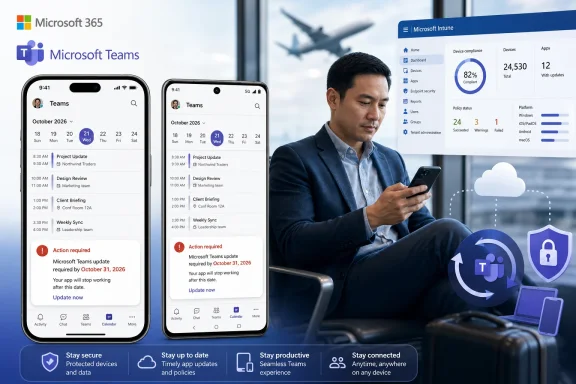
 Overview: A Mobile Teams Calendar Deadline With Real Operational Consequences
Microsoft Teams has become a central hub for chat, meetings, calling, files, collaborative apps, and daily scheduling. On mobile, the Calendar area is especially important because it gives employees a direct route to upcoming meetings, join controls, invitations, availability, and meeting creation while they are travelling, working remotely, or moving between offices.
The reported Message Center advisory says that Teams mobile users on Android and iOS need to keep their apps updated by late October 2026 to retain Calendar functionality. It is a tenant-wide concern, not a niche warning for preview users or a single operating system. Organizations that have allowed mobile apps to drift behind, either through user choice or restrictive device-management policies, could therefore encounter a visible collaboration failure at the worst possible time. Neowin reports that Microsoft is advising administrators to check whether their deployment configuration could prevent managed devices from receiving Teams updates.
That distinction matters. A user can often notice an out-of-date desktop client and install an update with minimal help. Managed mobile fleets are more complicated. Updates can be affected by app-store settings, mobile device management, app assignment, user enrollment state, network access, compliance policies, and internal change-control processes.
Microsoft’s own Teams release documentation also makes clear that mobile version numbers are a moving target rather than a static deployment baseline. Builds can be revised, replaced, or removed as rollouts progress, and the version shown inside an app may not perfectly mirror an initially published release number. Microsoft’s Teams version history guidance explicitly cautions that it is historical release information rather than a build-deployment status report. That makes a policy of “we updated Teams once this year” an insufficient response.
What Is Changing for Teams on iPhone and Android
The immediate issue is straightforward: old Teams mobile clients will no longer be able to use Calendar after the cutoff. The available reporting does not identify a mandatory minimum version number, nor does it establish whether an update available in July 2026 is already sufficient for late October. Those details should be treated as unconfirmed until Microsoft publishes a more precise support baseline or the required client build appears in the app stores and release documentation. Neowin notes that Microsoft has not clarified whether a current update guarantees continued Calendar service or whether another mandatory update will arrive closer to the deadline.
That uncertainty should shape the response. IT teams should not wait for an exact build number before starting remediation, but they also should not make a misleading promise that any one present-day version permanently resolves the issue. The correct operational objective is continuous, healthy Teams mobile updating, validated again ahead of the deadline.
Who is affected
The practical impact spans:
- Teams users on iOS, including iPhone and iPad deployments.
- Teams users on Android, including both managed corporate devices and approved BYOD scenarios.
- Employees who rely on Teams mobile to review schedules, join meetings, respond to changes, or create appointments.
- Help desks and collaboration administrators who will field issues if Calendar suddenly disappears from unsupported clients.
- Security and endpoint-management teams whose policies may inadvertently stop otherwise routine app updates.
The advisory reportedly excludes Teams on Windows, macOS, and the web. Neowin That exclusion limits the scope, but it does not eliminate business risk. Desktop access is not a realistic fallback for employees who are on the road, on-site with customers, working from a shop floor, supporting field operations, or using a mobile device as their primary collaboration endpoint.
Why Calendar is more than another Teams tab
In a conventional office workflow, Calendar is how users discover the next meeting and enter it without searching through email, chat threads, or links. It is also a planning surface: users can check availability, see invitations, schedule meetings, and manage the shifting cadence of a working week.
Losing that capability on mobile can create a chain reaction:
- A user may not see an updated meeting time until they return to a desktop device.
- Meeting participation may become dependent on finding an email invite or manually locating a join link.
- People with sparse mailbox synchronization may lose a familiar route to their scheduled work.
- Support teams may receive reports that meetings have “vanished,” when the underlying calendar data remains available elsewhere but the Teams mobile client is too old to expose it.
- Collaboration behavior can fragment, with users moving to alternate apps or improvised processes just to join a meeting.
The lesson is that this is not merely a Teams mobile app update story. It is a business-process story, because the Calendar experience connects the information workers use to organize their day with the meetings where that work is performed.
The Likely Context: Modernizing Calendar Connectivity
Microsoft has not publicly tied the Teams mobile Calendar deadline to a specific backend migration in the reported advisory. That omission is important: administrators should not present a causal explanation as fact unless Microsoft confirms it. Still, the timing overlaps closely with a major Exchange Online transition, making Exchange Web Services retirement a credible contextual factor rather than a proven explanation.
Microsoft states that Exchange Web Services, commonly called EWS, will begin to be disabled globally in Exchange Online in October 2026, with complete disablement scheduled for April 2027. Microsoft’s EWS deprecation documentation identifies Microsoft Teams among Microsoft products from which the company is removing EWS dependencies.
The connection is logical. A calendar experience is not just a user-interface component; it relies on data access, synchronization, authentication, service compatibility, and ongoing support for changing backend APIs. Microsoft’s stated explanation for the Teams mobile update requirement is that the mandate helps maintain a reliable calendar experience and compatibility with continued Teams service updates, according to Neowin’s coverage.
EWS retirement creates a wider October 2026 change window
Microsoft’s Exchange team says EWS is an older technology that no longer fits current expectations for security, scale, and reliability. The company has outlined a phased, administrator-controllable retirement approach beginning on October 1, 2026, with Microsoft Graph positioned as the strategic migration path. Microsoft’s Exchange Team announcement explains that the retirement applies to Microsoft 365 and Exchange Online, not to Exchange Server.
The same Microsoft documentation says that EWS dependencies are being removed from Microsoft applications, explicitly naming Teams alongside Outlook, Office, and Dynamics 365. Microsoft Learn This does not prove that the Teams mobile Calendar update mandate is caused by EWS, but it gives administrators a useful planning context: several calendar- and messaging-related dependencies are changing in the same period.
For Windows and Microsoft 365 administrators, the safe conclusion is narrower and more actionable than speculation: October 2026 is a significant service-transition period for Exchange Online-connected workflows, and unsupported clients are increasingly likely to become a liability.
The strength of Microsoft’s approach
There is a positive side to Microsoft’s warning. The company is communicating months ahead of the reported late-October cutoff rather than simply allowing an older client feature to fail without notice. Neowin characterizes the notice as a major change affecting all Teams customers on iOS and Android.
The advance notice gives organizations time to:
- Discover unmanaged and stale mobile installations.
- Repair app deployment or app-store policy issues.
- Notify employees before they encounter a Calendar outage.
- Update internal support documentation.
- Run a pilot with affected user groups.
- Prepare a fallback path for meeting access during the transition.
That lead time is valuable, particularly for enterprises in regulated industries where even a standard mobile app update may need review, staged deployment, or regional approval.
The Biggest Risk: Update Controls That Accidentally Freeze Teams
The critical operational question is not whether Teams has an update button. It is whether the organization’s mobile environment actually permits the right client to reach the right version at the right time.
Microsoft Intune supports management of apps across iOS/iPadOS and Android, including deployment, configuration, data protection, access control, and updates. Microsoft’s Intune app deployment documentation says store-app updates are automatic, while internally supplied line-of-business apps require the organization to provide updates itself.
That difference is essential. If Teams is deployed as a standard store app with healthy automatic updating, remediation may be routine. If it is wrapped, distributed through a special enterprise channel, constrained by device policy, or subject to a manually maintained catalog, IT must verify the actual delivery pipeline rather than assuming automatic behavior.
Common failure modes to investigate
A Teams mobile Calendar outage is most likely to emerge from one of these conditions:
- Automatic app updates are disabled on company-owned devices.
- Users have postponed store updates indefinitely.
- A managed app assignment is no longer active for a portion of the fleet.
- Device check-in is failing because users have not opened Company Portal, have lost compliance, or rarely connect.
- Devices run unsupported operating-system versions that cannot install a current Teams release.
- A BYOD population falls outside the organization’s managed deployment and communication processes.
- A restrictive network, store, regional, or mobile-data configuration prevents app downloads.
- The company uses a custom deployment method and does not regularly refresh the app package.
Microsoft notes that Intune automatically updates apps obtained from a store, but it distinguishes those from line-of-business applications, which must be updated by the organization. Microsoft Learn’s Intune deployment overview also says that required non-line-of-business apps can be automatically reinstalled, updated, or removed within 24 hours rather than waiting for a longer reevaluation cycle.
The exact mechanics in any tenant will vary. The important point is that a policy can be technically correct on paper while a population of devices remains stale in practice. Reporting and validation are therefore more important than simply toggling an “auto-update” setting.
Security policies should not become availability policies
Many organizations use Intune and Microsoft Entra Conditional Access to make sure employees access Microsoft 365 services through approved, protected mobile apps. Microsoft recommends policies that allow Teams for iOS and Android while limiting access by third-party OAuth-capable mobile clients. Microsoft’s Teams mobile management guidance describes that approach.
That architecture is sensible. It can protect data without requiring every personal device to be fully enrolled. However, it also means that the Teams client, Company Portal, Authenticator, app protection policies, and Conditional Access rules can interact in ways that complicate troubleshooting.
Microsoft states that app-based Conditional Access requires Microsoft Authenticator on iOS and Intune Company Portal on Android in the relevant scenarios. Microsoft Learn also says that, for unenrolled Android devices subject to Intune app protection policies, the user must have Company Portal installed.
The risk is not that these safeguards are inherently bad. The risk is that a user whose Teams update or management dependency is blocked may encounter a Calendar issue that looks like a Teams defect. Administrators should prepare support teams to distinguish between:
- Unsupported Teams version
- App update failure
- Intune enrollment or management failure
- Conditional Access denial
- Authentication or account-switching problem
- A genuine Teams or Exchange service incident
A Practical Remediation Plan for IT Administrators
The deadline is distant enough for orderly planning but close enough that organizations should begin now. Treat this as a standard client-lifecycle project with a collaboration-service dependency, not as an optional user-awareness campaign.
1. Identify the full Teams mobile population
Start by determining who is using Teams on iOS and Android. Separate users into meaningful groups:
- Corporate-owned, fully managed devices
- Personally owned devices enrolled in mobile application management
- BYOD users with app protection but no device enrollment
- Frontline or shared-device workers
- Executives, sales, service, and field teams with high mobile meeting dependency
- Users who are not currently compliant or have not checked in recently
The goal is to find the people most exposed to Calendar disruption, not merely to calculate total app installations. A small mobile-first business unit may create more operational risk than a large group that works from Windows desktops every day.
2. Audit update behavior rather than trusting defaults
Validate how Teams reaches each device class. Confirm whether the app comes from the Apple App Store, Google Play, a managed-store arrangement, a corporate catalog, or another process.
For managed apps, verify assignment state, update state, and recent device check-in. Microsoft documents that Intune supports app updates as part of managed app deployment, but the deployment model affects who performs the update and how reliably it arrives. Microsoft’s Intune deployment guidance should be used as a baseline when reviewing the organization’s app type and assignment model.
A useful audit checklist includes:
- Is Teams assigned as Required, Available, or unmanaged?
- Are automatic updates permitted at the operating-system and store level?
- Can devices access the relevant app store on corporate networks?
- Are older operating systems still in the active fleet?
- Do pilot devices receive a current Teams build successfully?
- Can users who have not opened Teams recently receive the update?
- Are there regions, device types, or ownership categories with different policies?
3. Establish a supportable Teams mobile baseline
Microsoft’s release-history page tracks Teams client releases across mobile, desktop, web, VDI, and other deployment types. Microsoft’s Teams version history should be monitored before the October deadline, but administrators should not mistake it for a real-time deployment dashboard.
Create an internal support baseline that is updated as Microsoft supplies more details. The baseline should state:
- The minimum supported Teams version, once Microsoft makes it available.
- The approved iOS and Android operating-system range.
- Any required Company Portal or Authenticator prerequisites.
- How to trigger or confirm an update.
- The escalation route when a device cannot receive the current client.
- The user-facing symptoms that indicate unsupported Calendar access.
This is more resilient than sending a one-time email that simply tells employees to “update Teams.”
4. Pilot before the deadline becomes urgent
A staged pilot should include users from the groups most likely to expose hidden deployment issues:
- Intune-enrolled iPhones
- Intune-enrolled Android phones
- BYOD devices using app protection policies
- Devices with strict Conditional Access
- Devices outside the primary corporate network
- Users with multiple managed accounts in Teams
- People who work primarily from mobile devices
Microsoft’s Teams mobile guidance says Teams supports app configuration delivered through mobile device management channels and through Intune app protection policy channels. Microsoft Learn That flexibility is useful, but it reinforces the need to test each management scenario rather than test only a single corporate smartphone.
5. Communicate in plain language
Employees do not need a lecture about API deprecation. They need a brief, reliable instruction:
Update Microsoft Teams on your iPhone, iPad, or Android device before late October 2026 to retain access to the Teams Calendar on mobile.
Internal guidance should also make two points clear:
- Desktop and web Teams are not part of this specific mobile Calendar requirement, according to the reported advisory. Neowin
- Users who cannot update because of company management restrictions should contact IT early, not wait until Calendar access is lost.
The best communications are repeated, targeted, and tied to a clear support path. A reminder in the company portal, an in-app announcement, a help-desk article, and a focused note to mobile-first departments will outperform a single organization-wide email.
What Users Should Do
For individual employees, the action is uncomplicated: install the latest Teams update available through the device’s approved app source, then verify that the app opens normally and Calendar remains visible.
Users should also avoid assuming that a phone’s general “automatic updates” setting guarantees success. A managed device may be subject to organization-level restrictions, and a work profile or protected-app configuration can introduce additional requirements.
If Teams does not update, the appropriate next step is to report the problem early with useful details:
- Device model and operating-system version
- Current Teams version
- Whether the device is company-owned or personal
- Whether Company Portal or Authenticator is installed
- Any update error from the app store
- Whether other Microsoft 365 mobile apps update successfully
- A screenshot of the Calendar issue, if Calendar access has already changed
This information allows support teams to isolate a deployment issue quickly instead of treating every report as a generic meeting problem.
The Broader Lesson for Microsoft 365 Mobile Management
The upcoming Teams mobile Calendar requirement reflects a broader reality of cloud productivity software: service reliability increasingly depends on keeping the client current. The older model—install an app once and expect it to work for years—does not fit a platform that continuously evolves its authentication, security, APIs, data services, and compliance capabilities.
Microsoft’s EWS retirement illustrates why. The company is moving Exchange Online away from a technology it says no longer meets modern security, scale, and reliability needs, while directing organizations toward Microsoft Graph and a phased transition plan. Microsoft’s Exchange Team has made clear that this is an active modernization program extending into 2027.
For Teams administrators, that does not mean every client change should be viewed with alarm. It means mobile app lifecycle management must be treated as part of the Microsoft 365 service architecture. An outdated app can become an availability problem even when the user’s account, mailbox, license, and device are otherwise healthy.
The practical takeaway is simple: update Teams mobile now, validate the rollout path, monitor Microsoft’s forthcoming version guidance, and communicate before late October 2026. Organizations that do so should avoid a preventable Calendar disruption; those that leave app currency to chance may discover that a seemingly small mobile-client gap can interrupt the routines that keep hybrid work moving.
Update: Teams mobile Calendar cutoff moves up to October 1 (July 31, 2026)
The Register reports that Microsoft has moved the Teams mobile update deadline forward: iOS and Android users must update by the end of September 2026, with older clients beginning to lose Calendar access from October 1.
This supersedes the earlier late-October timeframe. Desktop and web Teams remain unaffected, but administrators should revise mobile-device communications, deployment schedules, and Intune validation plans accordingly.
The tighter cutoff also aligns with Exchange Online’s EWS disablement beginning October 1, although Microsoft has not explicitly confirmed that EWS retirement is the cause of the Teams Calendar requirement.
Update: Microsoft reportedly specifies required Teams mobile versions (August 3, 2026)
TechRadar reports that Microsoft has now identified minimum Teams builds for retaining mobile Calendar access after the September 30 deadline: version 8.9.0, build 8.9.77.2026092302 or later on iOS, and version 1416/1.0.0.2026122504 or later on Android.
That is a material clarification for IT teams, which previously had a cutoff date but no published client baseline to validate against. Administrators can now use those reported versions in Intune reporting, pilot checks, help-desk guidance, and employee communications—while confirming availability through the relevant app stores and Microsoft’s own release information.
TechRadar also says Microsoft’s notice continues to limit the impact to Teams on iOS and Android; Calendar on desktop and web is unchanged.
