
steamapps folder the one item worth protecting before Windows starts deleting files. As Technobezz noted in its July 29 guide, removal varies sharply by platform—but Valve’s support documentation is especially clear on Windows: move C:\Program Files (x86)\Steam\steamapps elsewhere first if a reinstall is likely.For most Windows 10 and Windows 11 PCs, quit Steam, open Settings > Apps > Installed apps, select Steam, and choose Uninstall. Valve’s uninstaller then offers an Automatic option before completing removal. The older Start-menu and Control Panel routes still invoke the same basic uninstall process.
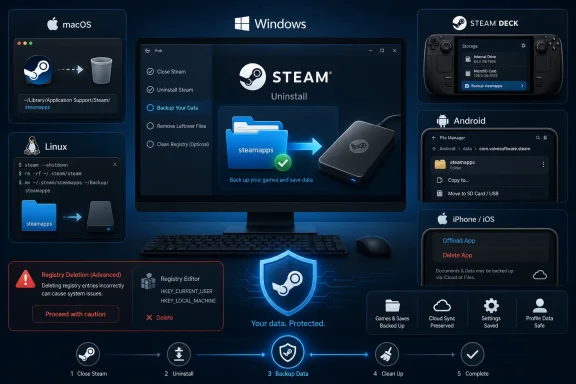 Keep game files before removing the client
Moving steamapps preserves downloaded game content, but it is not a guarantee that every save survives. Valve notes that games without Steam Cloud support may store saves separately, commonly under Documents\My Games, or in developer-specific locations.
Administrators and power users can also use Windows Package Manager. Microsoft documents winget uninstall --name Steam as a valid approach, although winget list Steam should come first to identify the exact registered package. If source-agreement prompts get in the way, --source winget narrows the search to the community repository.
Broken uninstalls call for repair, not cleaner apps
Valve recommends reinstalling Steam first when the normal uninstaller fails, then trying the Settings route again. That is safer than reaching immediately for a registry cleaner or deleting random files from Program Files.
Manual removal is the last resort: after backing up steamapps, delete Steam’s installation contents and remove its Valve registry keys. This should be approached carefully, particularly on 64-bit Windows where the main machine-wide entry sits under HKEY_LOCAL_MACHINE\SOFTWARE\Wow6432Node\Valve\Steam. A mistaken registry deletion can break unrelated software or Windows configuration.
macOS and Linux require different cleanup decisions
On macOS, dragging Steam from Applications to the Trash does not fully remove it. Valve says to also inspect ~/Library/Application Support/Steam; retain SteamApps to keep downloaded games, or delete the whole Steam directory for a full local removal before emptying Trash.
Linux users need to match the command to the original installation method. Debian’s current steam package is transitional, so systems installed from distribution packages commonly remove steam-installer, while Valve’s downloadable Debian package may register as steam-launcher. Flatpak users can remove com.valvesoftware.Steam, adding --delete-data only when they intend to erase Flatpak-managed application data. On Fedora-family systems, sudo dnf remove steam is the typical route.
The important distinction is package ownership: do not use apt, dnf, Flatpak, and Snap commands interchangeably just because each happens to contain the name Steam.
Mobile removal is ordinary; Steam Deck reset is not
Steam Mobile can be removed through Android’s app-management interface or iOS/iPadOS’s Remove App > Delete App flow. Android app archiving is different: it removes executable components while preserving the icon and user data, so it is not a clean uninstall.
On Steam Deck, Steam is part of the SteamOS experience rather than a conventional optional desktop app. Valve’s supported path is Steam button > Settings > System > Factory Reset, which clears local data and reinstalls SteamOS. For unbootable devices or deeper corruption, Valve’s recovery media offers Re-image Device, a more destructive process that wipes user data, installed games, applications, and the OS.
Deleting a Steam account is separate from uninstalling Steam anywhere. Valve requires proof of ownership, places the account in a 30-day restricted deletion queue, and permanently removes licenses, wallet funds, inventory, and related account data once the request completes.
