
The practical advice is straightforward: install a newer driver when it addresses a game, application, stability, or security issue relevant to the PC. But “newest” does not automatically mean “best” for every configuration. A measured update process—one that preserves a rollback option and respects laptop-maker customizations—delivers the performance benefits without turning a graphics-driver refresh into an avoidable troubleshooting exercise.
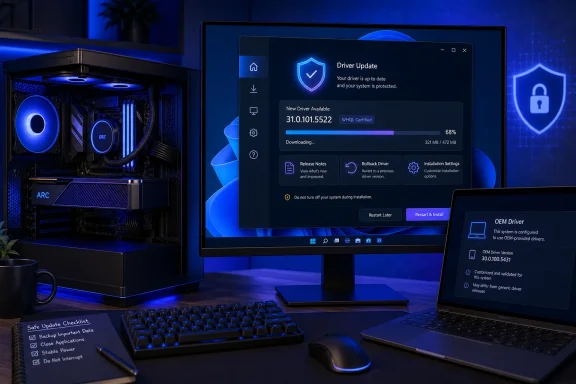 Overview: Why Intel Arc Driver Updates Matter
Intel divides its graphics-driver positioning broadly between Game On releases and professional Arc Pro drivers. Game On drivers target gaming performance, launch-day optimizations, and fixes for newly released games, while Arc Pro drivers focus on professional workloads, application optimizations, and ISV-oriented certification work for the Arc Pro product range. Intel’s Arc driver overview
That distinction matters. A gaming PC equipped with an Arc A770, Arc B580, or another consumer Arc GPU should generally look first at Intel’s mainstream Arc graphics package. A workstation with an Arc Pro card should use the dedicated professional package rather than assuming the general Game On driver is interchangeable. Intel’s Arc driver download page
The supplied guidance correctly identifies several common reasons to update:
- Game-specific fixes and optimizations
- Repairs for crashes, stutter, graphical corruption, or freezes
- Compatibility improvements for new software
- Access to newer Intel graphics software features
- Resolution of known driver bugs
However, a driver update should not be treated as a magic performance switch. Results vary according to the game, Windows build, GPU model, processor, memory configuration, enabled features such as Resizable BAR, and the particular issue addressed in the release notes. Intel itself describes Game On drivers in terms of optimized launch-day patches and performance updates, not a universal frame-rate guarantee. Intel’s Arc driver overview
For most Windows users, the best policy is purposeful updating: check for a new driver ahead of a major game launch, after encountering a reproducible graphics issue, or when Intel’s release notes list a fix that applies to the machine. If the system is stable and there is no relevant benefit, waiting briefly for early feedback can be sensible—particularly for a laptop with manufacturer-specific graphics tuning.
Check the GPU and Current Driver Before Installing Anything
Before downloading an Intel Arc graphics driver, establish exactly what is installed. This avoids the most common mistake in graphics-driver maintenance: choosing a package because its name looks familiar rather than because it explicitly supports the hardware.
Identify the Intel Arc GPU
On Windows 11 or Windows 10:
- Right-click Start and select Device Manager.
- Expand Display adapters.
- Confirm the precise GPU name, such as Intel Arc A770, Intel Arc B580, or an Arc graphics entry integrated into a Core Ultra system.
- Right-click the entry, choose Properties, then open the Driver tab.
- Record the installed driver version and date before proceeding.
This small preparation step is valuable if the new package causes a regression. It gives the user a known working version to compare against and makes it easier to decide whether a rollback actually occurred.
It is also worth distinguishing an Intel Arc consumer GPU from Intel Arc Pro hardware. Intel maintains separate driver positioning for the professional line, whose releases are designed around workstation performance and independent software vendor certifications. Intel’s Arc driver overview
Understand the Laptop Exception
The generic driver from Intel can be the fastest route to a new feature or game fix, but Intel explicitly warns that computer manufacturers can customize graphics drivers for platform-specific features and solutions. Installing Intel’s generic package may overwrite that OEM-tailored driver. Intel’s Arc driver download page
That makes the update decision different on an Intel Arc laptop.
A desktop Arc card usually has fewer vendor-specific integration concerns. By contrast, a notebook may rely on manufacturer tuning for hybrid graphics switching, display routing, panel behavior, power management, sleep and wake reliability, custom thermal profiles, or docking support. If a generic Intel driver introduces display flicker, battery drain, broken external-monitor behavior, or unusual instability, the PC manufacturer’s graphics driver should be the first fallback.
The sensible hierarchy for laptops is:
- Check the laptop maker’s support page first when the device is stable and no urgent Intel fix is needed.
- Use Intel’s generic driver when it specifically provides a needed fix or game support.
- Keep the OEM package available as a recovery path.
- If the system is business-managed, follow the organization’s IT policy rather than self-installing a consumer driver.
Method One: Manually Update Intel Arc Graphics from Intel
Manual installation remains the clearest and most controllable way to update an Intel Arc graphics driver. It puts the user in charge of the selected driver family, version, installer, and timing.
Intel’s current Arc graphics download page lists a general package for supported Arc platforms and provides the executable installer, supported operating systems, supported hardware, and a SHA-256 checksum. Intel’s Arc driver download page
Choose the Correct Driver Family
Start with Intel’s graphics-driver pages and identify which category applies:
- Game On / consumer Arc graphics driver: for Intel Arc A-Series, B-Series, and applicable Core Ultra systems with Arc graphics.
- Arc Pro graphics driver: for the professional Arc Pro product line.
- OEM graphics driver: often the safest baseline for laptops and prebuilt systems with extensive vendor customization.
The current general Intel Arc download supports Windows 10 64-bit from version 22H2 and later supported Windows 11 releases, including Windows 11 version 25H2. It lists Arc A-Series and B-Series support among its covered platforms. Intel’s Arc driver download page
Do not download a processor-integrated graphics package simply because the PC contains an Intel CPU. Intel has separate packages for different generations and graphics families. The driver page’s supported-product list—not a guess based on branding—should be the deciding factor. Intel’s Intel graphics driver catalogue
Install the Package Cleanly and Deliberately
A disciplined installation sequence is preferable to stacking multiple updates in a hurry:
- Save work and close games, browsers, editing suites, and GPU-intensive tools.
- Download the intended driver directly from Intel.
- Optionally verify the provided checksum if the package is being deployed in a more controlled or security-sensitive setting.
- Run the installer with administrative approval.
- Follow the installer prompts and allow the screen to flicker or temporarily blank during the graphics-stack transition.
- Restart Windows when the installation is complete, even if the installer does not force an immediate restart.
- Return to Device Manager and confirm the driver version has changed as expected.
- Test the affected game or application before declaring the update successful.
The supplied Driver Easy guidance recommends Intel’s manual route for users who want direct access to the correct driver family and an older-version selector when needed. Driver Easy’s Intel Arc update guide
Use Release Notes Rather Than Chasing a Version Number
The temptation to install every newly posted build is understandable, especially for gaming hardware. Yet the more useful question is whether the release notes include a change relevant to the system.
A new package might contain:
- A Game On profile for a newly released title
- Fixes for black screens, corruption, crashes, or game-specific hangs
- Improvements to media, AI, or content-creation workloads
- Newly identified limitations or known issues
- Platform or operating-system support changes
A WHQL-certified package can be an attractive conservative choice, but certification should not be misread as proof that every game and hardware combination will behave perfectly. Conversely, a newer non-WHQL or Game On release may contain the exact fix required for a current title. The release notes and supported-hardware list matter more than the label alone.
Method Two: Use Intel’s Own Automatic Update Tools
For many people, manual downloads are not necessary. Intel provides automatic detection and update options that can identify installed Intel hardware and offer applicable driver packages.
Intel describes the Intel Driver & Support Assistant (Intel DSA) as a free tool that scans the system for Intel hardware and installed Intel drivers, then presents relevant updates. Intel also states that the scan focuses on hardware and Intel driver status rather than collecting personally identifiable information. Intel’s guide to updating Intel graphics drivers
Intel Graphics Software and Intel DSA
Intel’s own guidance identifies two convenient paths:
- Intel Graphics Software, which Intel positions as a way to manage the graphics experience and keep drivers updated.
- Intel Driver & Support Assistant, which detects Intel components and updates across Intel hardware categories. Intel’s Arc driver overview
For Arc specifically, Intel’s support material says the bundled Arc control software provides driver-update settings that can be configured for notification-only behavior, downloading, automatic installation, and scheduling. Intel’s guide to updating Intel graphics drivers
That makes Intel’s tools a strong default for users who want automation without placing a third-party updater between the PC and the original hardware vendor.
Where Third-Party Driver Updaters Fit
The supplied article also recommends Driver Easy as an automated option for detecting outdated or incompatible drivers, updating several driver categories at once, and selecting older available versions from within its interface. It states that some of these convenience features, including its broader update workflow, are associated with its paid Pro offering or trial. Driver Easy’s Intel Arc update guide
There is a legitimate appeal here: a centralized utility can reduce the friction of checking Wi-Fi, Bluetooth, audio, chipset, network, and graphics drivers individually. But users should apply the same judgment they would to any privileged system utility:
- Prefer Intel’s official tools for the Intel Arc graphics driver when possible.
- Read the installer and pricing prompts carefully.
- Avoid accepting unrelated bundled changes or aggressive “fix all” recommendations.
- Do not update every device driver merely because an application labels it outdated.
- Make sure a rollback path exists before changing several drivers in one session.
The strongest use case for a third-party updater is convenience across many components, not a replacement for reading Intel’s own graphics release notes. The GPU driver is too important to install blindly.
Prevent Windows Update from Replacing the Preferred Arc Driver
One of the most frustrating graphics-driver scenarios occurs after a successful manual update: Windows Update later installs another driver classified as compatible, potentially changing the graphics stack without the user intentionally choosing that version.
The supplied guide highlights this as a recurring Intel Arc concern and recommends blocking automatic driver delivery through Windows Update. Driver Easy’s Intel Arc update guide
Microsoft documents a policy named “Do not include drivers with Windows Updates.” When enabled, Windows Update excludes driver-classified updates while continuing to process other Windows updates. Microsoft’s Windows Update policy documentation
Group Policy: The Supported Administrative Route
On editions that include the Local Group Policy Editor, use the policy rather than improvising with unrelated Windows Update settings.
- Press Windows + R.
- Enter
gpedit.msc. - Navigate to:
Computer Configuration > Administrative Templates > Windows Components > Windows Update > Manage updates offered from Windows Update
- Open Do not include drivers with Windows Updates.
- Select Enabled.
- Restart the PC.
Microsoft’s policy documentation confirms that enabling this setting prevents Windows Update from including drivers with quality updates. Microsoft’s Windows Update policy documentation
This is not equivalent to disabling Windows Update entirely. Security and feature updates remain important. The policy specifically changes treatment of updates carrying the Driver classification.
Registry Policy: Powerful, but Handle With Care
The corresponding policy value is:
HKEY_LOCAL_MACHINE\SOFTWARE\Policies\Microsoft\Windows\WindowsUpdate
ExcludeWUDriversInQualityUpdate = 1
Microsoft maps this registry value to the same policy and describes 1 as excluding Windows Update drivers. Microsoft’s Update Policy CSP reference
The supplied guide proposes creating this value manually in Registry Editor for Windows Home users. Driver Easy’s Intel Arc update guide
That approach deserves an important qualification: Microsoft’s current policy reference explicitly lists the policy’s supported editions as Pro, Enterprise, Education, and IoT Enterprise/LTSC, rather than Windows Home. Microsoft’s Update Policy CSP reference A registry setting may be observed by some configurations, but it should not be presented as a universally supported or guaranteed Windows Home control.
For home users, the safer operational approach is to:
- Install Intel’s preferred Arc driver.
- Monitor the installed driver version after major Windows Update activity.
- Keep the Intel installer or OEM installer available.
- Use rollback or reinstall the desired package if Windows changes the graphics driver.
The trade-off is clear: preventing Windows Update driver delivery gives the user more control, but it also means the user becomes responsible for manually checking hardware-driver updates. That may be worthwhile for an enthusiast gaming PC, but less attractive for a household system where routine maintenance is not likely to happen consistently.
What to Do When a New Intel Arc Driver Causes Problems
New drivers exist to fix problems, but complex GPU software can occasionally introduce a regression. Symptoms can include game crashes, new stutter, a performance drop, graphical artifacts, broken video playback, application incompatibility, or unstable multi-monitor behavior.
The right response is not automatically a complete Windows reinstall. Begin with the least destructive recovery method and escalate only if the problem persists.
Roll Back Through Device Manager
If the issue began immediately after updating, Windows may retain the previous driver package.
- Right-click Start and select Device Manager.
- Expand Display adapters.
- Right-click the Intel Arc GPU and select Properties.
- Open the Driver tab.
- Select Roll Back Driver, if available.
- Restart the PC and retest the affected workload.
The supplied guide recommends this as the fastest recovery option after an Arc driver regression. Driver Easy’s Intel Arc update guide
The Roll Back Driver button may be unavailable if Windows no longer has the prior package staged locally. That is why keeping a copy of the previous working installer can save considerable time.
Install a Known-Stable Older Version
Intel maintains historical driver availability for Intel Arc and Arc Pro graphics, and its support documentation explains that older versions can be selected from the relevant download page’s version selector. Intel specifically identifies visual corruption after a newer driver installation as one reason a previous version might be appropriate. Intel’s guide to finding previous graphics drivers
The recovery workflow is simple:
- Identify the last driver version that worked.
- Download that exact package from Intel’s driver history or, for laptops, the PC maker’s support page.
- Install it and reboot.
- Test the game or application that exposed the issue.
- Avoid immediately reinstalling the problematic newer version unless its release notes later identify a fix.
This is also where OEM drivers deserve renewed attention. If a generic Intel driver causes problems on a laptop, returning to the laptop manufacturer’s package is often a more useful test than trying multiple generic Intel builds in succession.
When a Clean Installation Is Appropriate
A clean installation is not necessary after every update. It becomes reasonable when ordinary updates and rollbacks leave behind persistent trouble, such as failed installations, corrupted driver behavior, repeated black screens, or an installer error.
Intel documents a recovery path for a specific Arc installation failure that involves removing the existing driver, downloading the driver in ZIP form, and using Device Manager to point Windows to the extracted package. Intel’s Arc driver repair troubleshooting guidance
That route is more technical than running the standard .exe installer, but it is useful when the normal installer fails. It also reinforces a broader point: Device Manager is a recovery tool, not the preferred first-choice updater for Arc gaming drivers. Intel’s full installer is usually better for normal upgrades because it delivers the intended package and accompanying software components together.
A Better Intel Arc Update Routine for Windows 11 and Windows 10
The most reliable approach combines performance awareness with caution:
- Identify the precise Arc GPU and installed driver version.
- Read Intel’s current release notes and support list.
- Use the OEM driver first on laptops when platform stability matters more than day-one game support.
- Use Intel’s direct package or Intel’s own update tools for consumer Arc graphics.
- Create a recovery plan: note the working version and retain its installer.
- Restart after installation and test the affected games or applications.
- Block Windows Update driver delivery only when the benefit of control outweighs the maintenance burden.
- Roll back promptly when a regression is reproducible.
This routine avoids both extremes: ignoring drivers for years and updating compulsively without a reason. Intel Arc has matured into a platform where driver software plays a central role in gaming, content creation, and day-to-day stability. That makes driver maintenance important—but it also makes informed, reversible updates far more valuable than simply installing the newest number available.
The best Intel Arc graphics driver for a Windows 11 or Windows 10 PC is ultimately the newest supported package that improves the workloads actually used on that machine while preserving stable display, power, and application behavior. For desktops, Intel’s latest Game On release will often be the right answer. For laptops and workstations, the OEM or Arc Pro route may be the more dependable choice. In every case, keeping a known-good driver within reach turns a risky update into a manageable one.
