
PCMag’s new list of 20 ways to revive an Intel Mac or old Windows PC gets the central point right: a machine that cannot move to Windows 11 or macOS 27 can still do useful work. But the practical value is not spread evenly across its suggestions. The safest and most durable uses are the ones that give an old system one narrow, replaceable job—a media player, offline writing terminal, retro-gaming box, photo display, or a managed appliance—not an exposed server loaded with irreplaceable data.
The timing is real. Windows 10 reached its normal end of support on October 14, 2025, and Apple’s current macOS 27 compatibility list is Apple-silicon-only after macOS Tahoe 26 served as the last major macOS release for the remaining Intel Macs. Yet “unsupported” does not mean a computer becomes useless overnight. It means the owner has to stop treating it as a general-purpose, permanently internet-connected workstation without a plan for patches, data, accounts, and replacement parts.
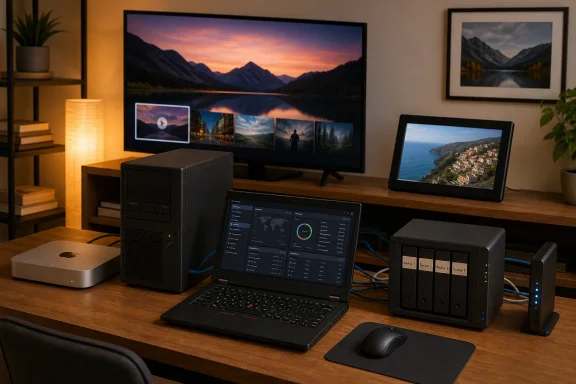
PCMag frames the issue as a chance to turn a closet full of obsolete hardware into a NAS, a Plex server, a privacy machine, a game server, a local AI system, a Home Assistant controller, or one of 14 other projects. That is an appealing catalog. It is also a mix of projects with radically different reliability and security demands, and the distinction is the part that determines whether an old Dell, ThinkPad, Intel Mac mini, or tower PC becomes useful equipment or a new maintenance liability.
The phrase “Microsoft has abandoned Windows 10” needs a sharper reading. Microsoft ended normal support for Windows 10 on October 14, 2025, so a standard un-enrolled installation no longer receives the ordinary monthly security fixes, feature work, or technical support. That is sufficient reason not to turn a stock Windows 10 PC into an internet-facing NAS, camera recorder, remote-access endpoint, or always-on game server.
But Microsoft’s consumer Extended Security Updates program remains an option for eligible Windows 10 systems, and Microsoft now says enrolled consumer PCs can receive critical and important security updates through October 12, 2027. It is not a return to full support: ESU does not add features, resolve ordinary bugs, or make old drivers and applications modern. It buys time to migrate responsibly.
For an old computer intended for basic local use—Zoom calls, word processing, a kitchen browser, legacy software that cannot move easily, or an offline game library—ESU may be the least disruptive bridge. For a machine meant to stay online around the clock, it is a temporary measure, not the foundation of the project.
The same applies to Intel Macs. Apple ending new major macOS versions for Intel hardware does not instantly remove an existing macOS installation’s utility, but it does narrow the sensible roles for those machines. An Intel Mac with a healthy SSD, supported browser, and current security updates for its installed macOS can make a fine display, media client, or lightweight personal computer. It is a poor candidate for holding the only copy of household documents or exposing administrative services to the public internet.
A clean operating-system installation is more important than squeezing out one more year from the original Windows image. Old installations often carry expired utilities, forgotten local accounts, browser extensions, OEM software, stale cloud sync clients, and years of accumulated credentials. Repurposing is an opportunity to remove all of that.
For machines that are too slow for modern Windows but still have 4GB of RAM or more and a 64-bit processor, a mainstream Linux distribution remains the most flexible route. Linux Mint, Ubuntu, Zorin OS, and similar distributions can give an older PC a maintained browser and current security updates with far less overhead than Windows 11. The tradeoff is hardware support: Wi-Fi adapters, fingerprint readers, hybrid graphics, Bluetooth peripherals, and sleep behavior should be tested from a live USB session before wiping the existing drive.
ChromeOS Flex is an even simpler answer for a browser-first device, but PCMag’s advice to install it on an old Mac or PC needs one qualification. Google guarantees functionality only on models it has certified; it explicitly warns that non-certified systems can have performance, stability, or hardware-function problems. Google’s current certified-model list includes end-of-support dates as well, which means “it boots” is not the same as “it has a useful support runway.” Check the precise model before committing to it.
The appliance approach also makes it easier to retire the device later. A photo frame or retro console can be unplugged and replaced with little disruption. A box that is quietly hosting backups, camera footage, smart-home automations, family files, and remote-access software is much harder to remove safely.
Anyone building a home NAS should start with the data model, not the operating system. Keep a separate backup of important data on another device or off-site service, test restoring a file before trusting the setup, and use a battery backup if sudden power loss is realistic. If the box contains tax records, family photos, work files, or password-manager exports, encrypted backups and documented recovery keys matter more than a slick web dashboard.
PCMag lists TrueNAS Core alongside Rockstor, FileCloud, and XigmaNAS. That recommendation has aged poorly: iXsystems now lists TrueNAS CORE as no longer under active development. For a new TrueNAS build, TrueNAS SCALE is the maintained branch to investigate. That does not invalidate an existing Core installation, but it changes the advice for someone starting today. Building new storage on a platform whose active development has ended is the opposite of what an old-PC revival project should accomplish.
An old Intel Mac can also be a capable home server, particularly a Mac mini with wired Ethernet and an SSD, but all-in-one iMacs and laptops have a structural limitation: their internal storage is rarely designed for multiple replaceable drives. They are better used as a low-power media endpoint or management station than as the household’s primary file vault.
A security-camera server may be free in software terms, but it needs ongoing operating-system patches, enough disk capacity for recorded footage, reliable time synchronization, strong account passwords, and a decision about whether any camera feed should be reachable outside the home. Avoid forwarding random ports on a consumer router just to make a dashboard available remotely. Use the product’s documented secure remote-access method or a properly configured VPN, and put internet-of-things devices on a separated network where possible.
The same logic applies to a Minecraft, Counter-Strike, or other dedicated game server. Local LAN play is relatively straightforward. Opening a server to friends over the internet raises the stakes: patch the server software, limit who can join, use unique credentials where supported, back up world data, and do not run the service under an administrator account. The old PC’s graphics capability is largely irrelevant, as PCMag notes, but its network connection, storage reliability, patch state, and power consumption are not.
A “privacy PC” running Tails or another anonymity-focused operating system deserves special care. Tails is valuable when its operating model matches the threat model: it is designed to run from removable media, minimize local traces, and route traffic over Tor. It is not a magic cloak for signing into the same personal accounts, attaching identifiable files, or repeating habits that reveal identity. For most people, a dedicated privacy machine should be regarded as a learning and risk-reduction tool—not an excuse to abandon account security, device updates, or ordinary judgment.
PCMag is correct that Home Assistant supports generic x86-64 hardware, but the current Home Assistant documentation is more specific than the article suggests. Its recommended Home Assistant OS route expects a dedicated 64-bit PC that boots through UEFI, and its installation guidance calls for Secure Boot to be disabled. It also warns that installing the appliance image erases the target drive. That makes an old Intel NUC or compact desktop a cleaner fit than a machine still needed for normal Windows or macOS work.
The gain is real, but so is the operational responsibility. Smart-home automation becomes infrastructure once it controls door locks, heating, alarms, or cameras. Back up the Home Assistant configuration, record recovery information, use a wired connection where practical, and resist the urge to expose the administrative interface directly to the internet. A local controller is only private and resilient if it remains maintained.
For most old Windows PCs and Intel Macs, the practical winners are a clean Linux or ChromeOS Flex desktop, a local media client, a retro-gaming system, an offline writing station, a Zoom terminal, or a photo display. A NAS, camera server, game host, local AI box, and Home Assistant appliance can be excellent second lives too—but they should be built as maintained services, with current software and recoverable data, rather than treated as a consequence-free way to avoid buying new hardware.
PCMag frames the issue as a chance to turn a closet full of obsolete hardware into a NAS, a Plex server, a privacy machine, a game server, a local AI system, a Home Assistant controller, or one of 14 other projects. That is an appealing catalog. It is also a mix of projects with radically different reliability and security demands, and the distinction is the part that determines whether an old Dell, ThinkPad, Intel Mac mini, or tower PC becomes useful equipment or a new maintenance liability.
 Windows 10 Is Ended, but It Is Not Yet Dead
The phrase “Microsoft has abandoned Windows 10” needs a sharper reading. Microsoft ended normal support for Windows 10 on October 14, 2025, so a standard un-enrolled installation no longer receives the ordinary monthly security fixes, feature work, or technical support. That is sufficient reason not to turn a stock Windows 10 PC into an internet-facing NAS, camera recorder, remote-access endpoint, or always-on game server.But Microsoft’s consumer Extended Security Updates program remains an option for eligible Windows 10 systems, and Microsoft now says enrolled consumer PCs can receive critical and important security updates through October 12, 2027. It is not a return to full support: ESU does not add features, resolve ordinary bugs, or make old drivers and applications modern. It buys time to migrate responsibly.
For an old computer intended for basic local use—Zoom calls, word processing, a kitchen browser, legacy software that cannot move easily, or an offline game library—ESU may be the least disruptive bridge. For a machine meant to stay online around the clock, it is a temporary measure, not the foundation of the project.
The same applies to Intel Macs. Apple ending new major macOS versions for Intel hardware does not instantly remove an existing macOS installation’s utility, but it does narrow the sensible roles for those machines. An Intel Mac with a healthy SSD, supported browser, and current security updates for its installed macOS can make a fine display, media client, or lightweight personal computer. It is a poor candidate for holding the only copy of household documents or exposing administrative services to the public internet.
The Best Projects Turn a PC Into an Appliance
PCMag’s strongest recommendations are the ones with limited scope. A dedicated media player running Kodi, a digital photo frame, a distraction-free writing PC, an old-games machine, a video-call terminal, or a guest computer can extend hardware life without turning the owner into a part-time server administrator.A clean operating-system installation is more important than squeezing out one more year from the original Windows image. Old installations often carry expired utilities, forgotten local accounts, browser extensions, OEM software, stale cloud sync clients, and years of accumulated credentials. Repurposing is an opportunity to remove all of that.
For machines that are too slow for modern Windows but still have 4GB of RAM or more and a 64-bit processor, a mainstream Linux distribution remains the most flexible route. Linux Mint, Ubuntu, Zorin OS, and similar distributions can give an older PC a maintained browser and current security updates with far less overhead than Windows 11. The tradeoff is hardware support: Wi-Fi adapters, fingerprint readers, hybrid graphics, Bluetooth peripherals, and sleep behavior should be tested from a live USB session before wiping the existing drive.
ChromeOS Flex is an even simpler answer for a browser-first device, but PCMag’s advice to install it on an old Mac or PC needs one qualification. Google guarantees functionality only on models it has certified; it explicitly warns that non-certified systems can have performance, stability, or hardware-function problems. Google’s current certified-model list includes end-of-support dates as well, which means “it boots” is not the same as “it has a useful support runway.” Check the precise model before committing to it.
The appliance approach also makes it easier to retire the device later. A photo frame or retro console can be unplugged and replaced with little disruption. A box that is quietly hosting backups, camera footage, smart-home automations, family files, and remote-access software is much harder to remove safely.
A NAS Is a Storage Project, Not a Free Hard Drive
Turning a tower PC with spare drive bays into network-attached storage is among the most useful ideas in the list, but it is also the one most likely to be misunderstood. A NAS is not a backup merely because it has several disks. RAID or ZFS redundancy can keep a service running after one drive fails; it does not protect against accidental deletion, ransomware, a failed power supply, fire, theft, or an administrator mistake.Anyone building a home NAS should start with the data model, not the operating system. Keep a separate backup of important data on another device or off-site service, test restoring a file before trusting the setup, and use a battery backup if sudden power loss is realistic. If the box contains tax records, family photos, work files, or password-manager exports, encrypted backups and documented recovery keys matter more than a slick web dashboard.
PCMag lists TrueNAS Core alongside Rockstor, FileCloud, and XigmaNAS. That recommendation has aged poorly: iXsystems now lists TrueNAS CORE as no longer under active development. For a new TrueNAS build, TrueNAS SCALE is the maintained branch to investigate. That does not invalidate an existing Core installation, but it changes the advice for someone starting today. Building new storage on a platform whose active development has ended is the opposite of what an old-PC revival project should accomplish.
An old Intel Mac can also be a capable home server, particularly a Mac mini with wired Ethernet and an SSD, but all-in-one iMacs and laptops have a structural limitation: their internal storage is rarely designed for multiple replaceable drives. They are better used as a low-power media endpoint or management station than as the household’s primary file vault.
The Internet-Facing Ideas Carry the Real Cost
The projects involving Agent DVR, Plex remote streaming, game servers, hotspots, remote desktop, Tor-focused operating systems, and Home Assistant are not weekend crafts in the same sense as converting a laptop into a kitchen PC. They create services, identities, credentials, network exposure, and update obligations.A security-camera server may be free in software terms, but it needs ongoing operating-system patches, enough disk capacity for recorded footage, reliable time synchronization, strong account passwords, and a decision about whether any camera feed should be reachable outside the home. Avoid forwarding random ports on a consumer router just to make a dashboard available remotely. Use the product’s documented secure remote-access method or a properly configured VPN, and put internet-of-things devices on a separated network where possible.
The same logic applies to a Minecraft, Counter-Strike, or other dedicated game server. Local LAN play is relatively straightforward. Opening a server to friends over the internet raises the stakes: patch the server software, limit who can join, use unique credentials where supported, back up world data, and do not run the service under an administrator account. The old PC’s graphics capability is largely irrelevant, as PCMag notes, but its network connection, storage reliability, patch state, and power consumption are not.
A “privacy PC” running Tails or another anonymity-focused operating system deserves special care. Tails is valuable when its operating model matches the threat model: it is designed to run from removable media, minimize local traces, and route traffic over Tor. It is not a magic cloak for signing into the same personal accounts, attaching identifiable files, or repeating habits that reveal identity. For most people, a dedicated privacy machine should be regarded as a learning and risk-reduction tool—not an excuse to abandon account security, device updates, or ordinary judgment.
Home Assistant Is Better Than a Smart Display Project
Among the server ideas, Home Assistant is one of the most compelling uses for a retired 64-bit mini PC or small-form-factor desktop. It can centralize local control of lights, sensors, switches, cameras, and other supported devices, and it avoids depending on a single cloud vendor for every basic household action.PCMag is correct that Home Assistant supports generic x86-64 hardware, but the current Home Assistant documentation is more specific than the article suggests. Its recommended Home Assistant OS route expects a dedicated 64-bit PC that boots through UEFI, and its installation guidance calls for Secure Boot to be disabled. It also warns that installing the appliance image erases the target drive. That makes an old Intel NUC or compact desktop a cleaner fit than a machine still needed for normal Windows or macOS work.
The gain is real, but so is the operational responsibility. Smart-home automation becomes infrastructure once it controls door locks, heating, alarms, or cameras. Back up the Home Assistant configuration, record recovery information, use a wired connection where practical, and resist the urge to expose the administrative interface directly to the internet. A local controller is only private and resilient if it remains maintained.
Choose the Project That Lets the Hardware Fail Gracefully
The missing test in PCMag’s broad list is simple: what happens if this old machine’s disk dies tomorrow, or if it stops receiving patches next year? If the answer is “the slideshow stops,” “the guest browser is unavailable,” or “the retro games need to be reinstalled,” the project is well suited to aging hardware. If the answer is “we lose the family archive,” “the cameras stop recording,” “the house automations go dark,” or “our network service is exposed,” the machine needs better hardware, backups, monitoring, and an explicit replacement plan.For most old Windows PCs and Intel Macs, the practical winners are a clean Linux or ChromeOS Flex desktop, a local media client, a retro-gaming system, an offline writing station, a Zoom terminal, or a photo display. A NAS, camera server, game host, local AI box, and Home Assistant appliance can be excellent second lives too—but they should be built as maintained services, with current software and recoverable data, rather than treated as a consequence-free way to avoid buying new hardware.
References
- Primary source: PCMag Australia
Published: 2026-08-05T17:10:33+00:00
Loading…
au.pcmag.com - Related coverage: support.microsoft.com
Windows 10 support has ended on October 14, 2025 | Microsoft Support
Windows 10 support ends on October 14, 2025. Upgrade to Windows 11 now to ensure continued security and feature updates. Learn more about the transition.support.microsoft.com - Related coverage: learn.microsoft.com
Windows 10 reaching end of support - Microsoft Lifecycle | Microsoft Learn
Announcing Windows 10 reaching end of support.learn.microsoft.com - Related coverage: apple.com
Loading…
www.apple.com - Related coverage: learn.microsoft.com
Windows 10 - release information | Microsoft Learn
Learn release information for Windows 10 releaseslearn.microsoft.com - Related coverage: blogs.windows.com
Stay secure with Windows 11, Copilot+ PCs and Windows 365 before support ends for Windows 10
When we launched Windows in 1985, we set out to revolutionize computing—guided by the belief that technology should be accessible, intuitive and powerful for everyone. Nearly 40 years later, that same vision continues to drive us forward. Today, Wiblogs.windows.com - Related coverage: knowledge.broadcom.com
Loading…
knowledge.broadcom.com - Related coverage: blogs.windows.com
How to prepare for Windows 10 end of support by moving to Windows 11 today
As we approach the end of support for Windows 10 on Oct. 14, 20251, we want to ensure you are well-prepared for the transition to Windows 11. This mblogs.windows.com - Related coverage: support.apple.com
Loading…
support.apple.com - Related coverage: macrumors.com
Loading…
www.macrumors.com - Related coverage: support.apple.com
Security Verification
Security verification page to protect against malicious bots.support.apple.com
- Related coverage: support.microsoft.com
Loading…
support.microsoft.com - Related coverage: aha.org
windows 10 extended security update 1 year extension frequently asked questions faq for customers
PDF documentwww.aha.org
- Related coverage: euroconsumers.org
- Related coverage: windowscentral.com
Windows 10 support has ended: Discover how to keep your device secure beyond October 2025 | Windows Central
Mainstream support for Windows 10 ended in October 2025. That means the OS no longer receives security updates automatically, and you must take action to ensure your devices remain secure when connected to the internet.www.windowscentral.com - Related coverage: microsoft.com