
 Overview: An Optional Upgrade With a Firm Institutional Destination
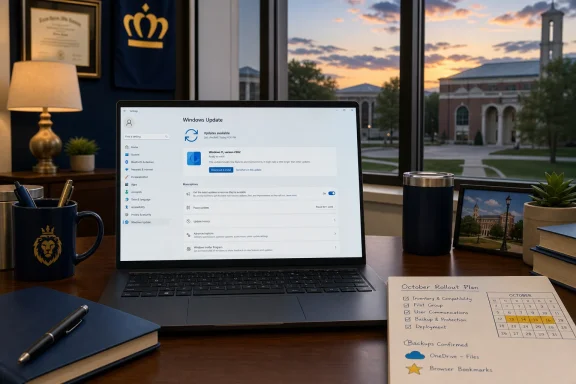
ODU’s message is refreshingly direct: Windows 11 25H2 is available now as an optional update, while the university-wide rollout is planned for October. That makes this a classic managed-device modernization program with a voluntary early-adopter period, not an indefinite choice between Windows releases. The university’s guidance positions the move as part of keeping campus systems “secure and supported.”
For users, the practical value is simple. An upgrade performed at a quiet, user-selected time is generally easier to accommodate than one that lands during a critical class, administrative deadline, research workflow, or remote meeting. It also offers a buffer: if a software setting, peripheral, or workflow needs attention after the update, there is time to resolve it before the campus-wide deadline arrives.
For IT teams, this approach creates a valuable period of organic validation. Early upgrades expose the real-world friction points that do not always appear in lab testing: specialty printers, VPN behavior, browser profiles, accessibility settings, department-specific software, and hardware that spends much of its time away from campus. Microsoft’s update-management framework is built around exactly this principle, allowing organizations to control what updates are offered, when they are applied, and how they are deployed in waves. Microsoft’s Windows Update client policy documentation specifically describes phased deployment and reliability testing on a subset of devices before wider deployment.
The phrase “optional Windows 11 upgrade” can sometimes be misunderstood. In this case, “optional” describes the timing of installation before October—not whether ODU-managed PCs are expected to transition to the new release. That distinction is critical for campus users weighing whether to act now or postpone the work.
Why Windows 11 Version 25H2 Matters for Managed PCs
Windows 11 25H2 is not just a routine monthly patch. It is an annual feature update, the category Microsoft uses for releases that change the Windows version and consolidate features, improvements, and previously delivered fixes. Microsoft says its annual Windows 11 feature updates normally arrive in the second half of the calendar year and begin a new servicing lifecycle. Microsoft’s Windows client release-cycle documentation lists 24 months of support for Home and Pro editions and 36 months for Enterprise and Education editions.
That support lifecycle is one of the clearest reasons an institution such as ODU would standardize its fleet around a newer release. Keeping endpoints on a supported Windows version ensures that the systems remain eligible for the continuing stream of cumulative security and quality updates. Microsoft describes its monthly security releases as cumulative packages containing current and prior security fixes, along with applicable non-security content. The Windows release-cycle guidance notes that these monthly releases are central to keeping devices secure and compliant.
25H2 Is the Correct In-Place Target for Existing Campus Machines
There is an important technical nuance in the current Windows 11 landscape. Microsoft’s release information shows that Windows 11 25H2 remains an actively serviced release for existing devices, with the latest listed general-availability build in July identified as 26200.8894. Microsoft’s Windows 11 release information page lists 25H2’s availability date as September 30, 2025, and identifies its support end dates by edition.
Microsoft also lists Windows 11 26H1, but explicitly says that release is scoped to new devices coming to market and is not offered as an in-place feature update from either 24H2 or 25H2. Microsoft’s release-health guidance makes that distinction clear. In other words, ODU’s use of 25H2 is not a case of overlooking a newer version number; it is the sensible in-place upgrade path for the existing managed-PC estate.
For ODU users, that means the upgrade should be understood as a supported, institutionally selected Windows servicing transition—not an invitation to manually chase whatever release happens to have the highest number. The university’s Windows Update offer is the appropriate channel because it is tied to the device’s managed configuration and eligibility.
A Managed Upgrade Is Different From a Consumer Download
An ODU-managed PC is not simply a personal Windows computer that happens to be used for work. Microsoft defines update-managed devices as systems where an organization controls Windows update behavior through management tools or policies, including Group Policy, configuration service provider policies, Microsoft Graph, or services such as Microsoft Intune. Microsoft’s definition of update-managed devices also emphasizes that those devices are secured and configured according to organizational standards.
That distinction has practical implications:
- The upgrade offered in Windows Update has been made available within ODU’s management environment.
- The university can set policies around update timing, notifications, and deadlines.
- Compatibility checks can help prevent unsuitable updates from being offered to a device.
- The device remains aligned with campus security and configuration requirements after the upgrade.
Microsoft says Windows Update client policies can govern both the update offer and the installation experience, including active hours, grace periods, scheduling, notifications, and deadlines. Its managed-device guidance describes these controls as part of the organization-managed update experience.
The implication is straightforward: ODU users should use the update offered through Settings > Windows Update, not attempt to sidestep campus management with an installation assistant, downloadable ISO, or bootable USB media. Those tools have their place for personal and recovery scenarios, but they are not the preferred route for an organization-owned, policy-controlled endpoint.
How ODU Users Can Install the Windows 11 25H2 Upgrade Now
The university’s installation workflow is intentionally simple. Eligible users can open the built-in Windows Update interface, check for updates, and select the Windows 11 upgrade offer when it appears. ODU’s instructions are concise because the managed Windows Update channel is designed to handle the delivery process.
The Official ODU Upgrade Steps
- Open Settings.
- Select Windows Update.
- Choose Check for updates.
- Select the available option to download and install the Windows 11 upgrade.
That sequence mirrors Microsoft’s general Windows Update guidance for an eligible upgrade: check for updates, install outstanding updates if necessary, and then select Download and install when the feature update offer appears. Microsoft’s Windows 11 upgrade guidance notes that an upgrade may not appear until current-version updates are installed and the PC has restarted.
Allow the Time ODU Recommends
ODU advises users to reserve one to two hours and, where possible, start the process at the end of the workday. The university’s notice does not promise that every system will take exactly the same amount of time—and it should not. Download speed, device age, free disk capacity, pending updates, encryption status, and restart cycles can all affect the experience.
The most important planning rule is not to begin immediately before an immovable commitment. Users should expect periods in which the computer restarts or cannot be used normally. Microsoft similarly warns that Windows 11 downloading and installation generally take longer than a typical feature update, even though the PC can often still be used while the initial download proceeds. Microsoft’s upgrade preparation page says the installation can also be scheduled for a time when the PC is not needed.
A good upgrade window has several characteristics:
- The laptop is connected to reliable power.
- The device has stable internet access.
- No presentation, class session, call, exam workflow, or deadline depends on the PC.
- Important files have already synchronized or been backed up.
- The user can leave the machine connected and avoid forcing it off during installation.
This is basic operational discipline, but it remains one of the best defenses against turning a routine Windows 11 upgrade into an avoidable support incident.
Back Up First: The Essential Pre-Upgrade Habit
ODU explicitly asks users to safeguard files before beginning the update. Its announcement specifically directs users to save important documents to OneDrive and to back up browser bookmarks in Chrome, Microsoft Edge, or Firefox.
That recommendation should not be treated as boilerplate. A properly delivered in-place Windows feature upgrade is designed to retain user files and installed applications, but a backup is still the right pre-upgrade standard. Microsoft likewise recommends backing up files before installing Windows 11. Microsoft’s Windows 11 preparation guidance identifies backup as a step before installation rather than a response after something has gone wrong.
OneDrive Is Useful, but Verify the Sync Status
OneDrive can provide meaningful protection for work stored in folders such as Desktop, Documents, Pictures, Videos, and Music. Microsoft’s Windows Backup guidance explains that these folders can be selected for OneDrive backup, allowing the files to be synchronized and made available on other signed-in devices. Microsoft’s Windows Backup documentation also notes that backup status can be reviewed through the Windows Backup app or Settings > Accounts > Windows backup.
However, syncing is not magic. A file that has not finished uploading is not yet safely available in the cloud. Users should confirm that OneDrive is running normally and that there are no visible sync errors before initiating the feature update.
Microsoft cautions that OneDrive backup can fail or be incomplete when the user is not signed in, cloud storage is insufficient, or another OneDrive issue needs attention. Its Windows Backup support page specifically calls out sign-in and storage problems as possible causes of backup errors.
For managed environments, another caution matters: not every file belongs in a personal cloud account. ODU’s own announcement directs users to follow its regulated-data matrix when handling sensitive information. The university’s notice therefore correctly treats backup as both a resilience issue and a data-governance issue.
Browser Bookmarks Still Deserve Attention
Browser favorites are easy to overlook because they are small, familiar, and often tied to daily work. Yet bookmarks may include research portals, administrative dashboards, library resources, vendor systems, internal application links, and saved reference material accumulated over years.
ODU recommends backing up browser bookmarks before upgrading. Its guidance names Chrome, Edge, and Firefox specifically. Exporting bookmarks or confirming that browser sync is active offers a modest but worthwhile safeguard.
The same principle applies to other user-specific configuration that may matter more than the operating system itself:
- Saved passwords and authentication methods
- Browser extensions
- VPN profiles
- Local templates and macros
- Desktop shortcuts to shared resources
- Specialty printer settings
- Files stored outside standard synchronized folders
Not every item needs a separate manual backup. But users should know where their important work lives and avoid assuming that every setting is automatically protected.
Strengths of ODU’s Early-Upgrade Strategy
ODU’s decision to provide an optional runway before an October deployment has several notable strengths.
It Gives Users Agency Without Sacrificing Standardization
A fully mandatory feature update can create anxiety because it forces every user into the same operational window. A completely open-ended approach, on the other hand, can leave an organization with too many versions in circulation for too long.
ODU’s model strikes a better balance. Users can upgrade early at a convenient time, while the university preserves a clear standardization plan for the fall. That is a practical application of the phased-update model Microsoft supports for managed Windows environments. Microsoft’s update policy documentation says organizations can deploy updates in waves and control when updates are offered and applied.
It Spreads Support Demand
When thousands of devices move at once, help desks can become a bottleneck even if the upgrade has a high success rate. An optional early window distributes some of that demand across weeks rather than concentrating it in a short mandatory deployment period.
ODU has also given users a clear support route: contact the IT Help Desk at [email protected], provide a reachable phone number, and include at least two windows of availability. The university’s support instructions are unusually practical because they help the support team avoid back-and-forth scheduling delays.
It Aligns With the Windows Servicing Model
Windows 11’s servicing approach is not only about feature delivery. It is also about maintaining a supported operating-system baseline that continues to receive security fixes and quality improvements. Microsoft notes that feature updates are cumulative and include previously released fixes as well as new features and enhancements. Its release-cycle documentation frames the annual feature update as the beginning of a new lifecycle.
For a university environment with a wide variety of hardware and work patterns, that standardization matters. Faculty laptops, administrative desktops, classroom devices, research workstations, and remote systems are easier to support when they operate from a defined Windows release baseline.
Risks and Friction Points to Watch
An optional Windows 11 25H2 upgrade is a sensible initiative, but it is not risk-free. The best communication around feature updates acknowledges that the installation may complete successfully while still prompting post-upgrade adjustments.
Compatibility Is Often About Workflows, Not Windows Itself
Microsoft says Windows Update includes built-in compatibility checks intended to prevent a poor update experience and repeated rollbacks. Microsoft’s Windows Update client policy guidance identifies those safeguards as a benefit of using the managed update channel.
Even so, Windows compatibility checks cannot fully evaluate every department-specific workflow. A PC may upgrade perfectly while a niche application, uncommon driver, legacy scanner, specialized printer, or peripheral configuration needs attention afterward. This is especially relevant in higher education, where a single institution can support disciplines with exceptionally diverse technical requirements.
The prudent response is not to avoid the upgrade indefinitely. It is to choose an early window when there is time to validate essential work:
- Sign in after the upgrade with normal campus credentials.
- Confirm network and VPN access if applicable.
- Open the software needed for regular work.
- Test any required printers, cameras, audio devices, or peripherals.
- Check browser access to essential web applications.
- Report problems promptly through the IT Help Desk.
Storage, Power, and Connectivity Still Matter
Microsoft recommends that managed devices have at least 10 GB of free space, are used regularly, remain charged, and can reach the Windows Update service without obstruction. Microsoft’s Windows Update policy recommendations highlight all of these as factors in a smooth update experience.
For laptop users, power is particularly important. A feature update should not begin on battery power when an AC adapter is readily available. Likewise, a device that has been offline for a long period may first need to process earlier quality updates before the 25H2 option becomes available.
The fact that an upgrade offer does not immediately appear should not automatically be treated as a failure. Microsoft notes that Windows 11 upgrade availability can be delayed until current updates are installed and the device has restarted. Microsoft’s upgrade instructions describe this dependency directly.
Avoid Unapproved Workarounds
The temptation to use a Windows installation USB, ISO image, or third-party “upgrade helper” is understandable when users want to move quickly. On an ODU-managed computer, it is also unnecessary and potentially counterproductive.
Microsoft warns that booting from Windows installation media performs a fresh installation that wipes the existing Windows installation, files, and installed applications. Microsoft’s installation-media guidance says users should ensure required data is backed up before taking that path. That is fundamentally different from selecting the institution-provided in-place update in Windows Update.
The appropriate path for an ODU-managed PC is the one ODU has published. It preserves the connection between the device, its management policies, its approved update offer, and the university’s support process.
What This Means Before the October Rollout
The current early-access period should be seen as an opportunity, not a requirement to rush. Users with stable schedules, reliable backups, and a desire to control the timing of the change have a strong case for installing Windows 11 25H2 now. They can complete the work during a quieter period, confirm their core applications afterward, and enter the fall rollout already on the standardized release.
Users in the middle of time-sensitive work may reasonably wait for a more convenient period, provided they remember that ODU has already set October as the point for broader deployment. The university’s announcement makes clear that the early option is intended to get ahead of that campus-wide transition, not eliminate it.
The bigger lesson reaches beyond one university. A successful Windows 11 upgrade is rarely only a technical download. It is a coordination exercise involving security, supportability, user data, application readiness, scheduling, and communications. ODU’s 25H2 program gets the essentials right: a defined target version, a voluntary early-install window, clear Windows Update steps, explicit backup reminders, and a direct support channel for problems.
For ODU-managed PCs, Windows 11 version 25H2 is now the next supported operational baseline. Installing it early offers the clearest advantage of all: users can make the transition on their own schedule while the university still has time to help ensure the device is ready for the October rollout.
