
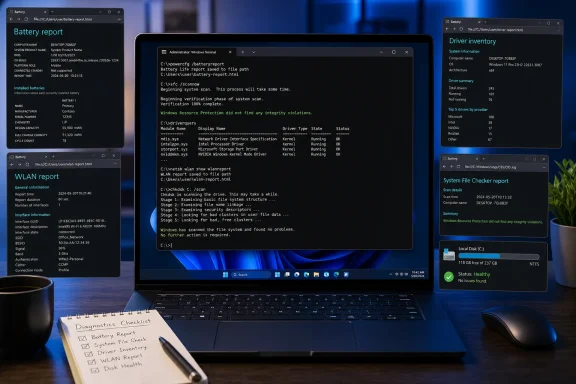
powercfg /batteryreport, sfc /scannow, driverquery, netsh wlan show wlanreport, and chkdsk /scan. As a recent MakeUseOf walkthrough argues, these commands do not replace Settings so much as expose the evidence that its simplified pages often leave behind: historical reports, protected-file integrity checks, driver inventories, connection timelines, and file-system health.That distinction matters. Windows Settings is optimized for control—changing a Wi-Fi network, selecting a power mode, reviewing battery use, or installing updates. Command-line diagnostics are optimized for observation. They generate artifacts and return state that can help turn “my laptop feels slower” or “Wi-Fi keeps dropping” into a smaller, verifiable problem.
For Windows 11 users in particular, the appeal is not nostalgia for the Command Prompt. These are still supported Windows tools, and they are useful precisely because they stay close to the underlying services, drivers, component store, and NTFS file system. Used carefully, they make troubleshooting less reliant on guesswork and less likely to end with random driver downloads, registry “cleaners,” or an unnecessary Windows reset.
 Overview: Why Settings Cannot Show Everything
The Settings app has to make complicated system information approachable. That is a feature, not a flaw. A battery chart needs to be readable; a networking page needs to prioritize connecting to a wireless network rather than surfacing every authentication event; a storage page should not make normal users parse file-system metadata.
The tradeoff is that Settings frequently presents a current snapshot, while many Windows failures only become meaningful when viewed over time. A Wi-Fi adapter can look healthy immediately after it reconnects. A battery can read 100% charged while holding far less energy than it did when new. A device may appear normal in Device Manager even though its installed driver package is old or poorly matched to a recent Windows update.
The five commands below work because they each answer a different diagnostic question:
- Has the battery’s usable capacity declined?
- Are protected Windows files intact?
- Which drivers are actually installed, and what details do they expose?
- What happened during recent wireless connection sessions?
- Does the volume contain detectable logical file-system errors?
None is a universal repair button. That is an important limitation. A report can identify a pattern without proving its cause, and a clean scan does not guarantee that every hardware or software issue has disappeared. But these commands provide a disciplined way to collect evidence before changing settings or replacing hardware.
Before Running Windows Troubleshooting Commands
Most of these commands are safe to run because they either report information or scan for integrity problems. Still, the difference between a scan and a repair is crucial.
Commands such as powercfg /batteryreport, driverquery, netsh wlan show wlanreport, and chkdsk /scan are primarily diagnostic. They gather data or inspect the system. By contrast, sfc /scannow, DISM /RestoreHealth, and chkdsk /f can repair files or structures, which means they should be run with a clearer understanding of the problem and, ideally, a current backup.
A practical baseline is straightforward:
- Save active work before beginning.
- Open Terminal, Command Prompt, or Windows PowerShell as administrator when the command calls for elevated rights.
- Record the exact command and the final result rather than relying on memory.
- Do not treat a single line of output as a diagnosis in isolation.
- Avoid downloading random “fixes” for a driver or DLL before identifying the affected component.
That last point is where native Windows diagnostics are especially valuable. They keep the initial investigation inside Windows itself.
powercfg /batteryreport: Measure Battery Wear Instead of Guessing
A laptop that reaches 100% but dies much faster than it did a year ago is not necessarily suffering from a Windows power-setting problem. The more likely explanation may be physical battery aging, a pattern that Settings can hint at but does not always contextualize well.
Microsoft documents powercfg as the Windows command-line utility for controlling power plans and analyzing power, sleep, and battery behavior. Its /batteryreport option generates an HTML report describing battery-usage characteristics over the life of the system. Microsoft’s powercfg documentation specifically identifies /batteryreport as a report-generation option, while Microsoft Support’s battery guidance explains that the resulting HTML file provides detailed usage and estimated-capacity information.
powercfg /batteryreport
Windows returns the location of the generated report. The path can vary, so the output from the command—not an assumed folder location—should be treated as authoritative. Open the .html file in a browser to view the report.
The two figures that matter most
The most revealing early comparison is typically between:
- Design Capacity — the energy capacity reported for the battery when it was new.
- Full Charge Capacity — the amount of energy the battery currently reports it can store.
A simple estimate of capacity loss is:
(Design Capacity - Full Charge Capacity) / Design Capacity × 100
If a battery was designed for 60,000 mWh and now reports 42,000 mWh at full charge, the estimated reduction is about 30%. That does not mean Windows is malfunctioning. It means the machine may now have materially less runtime even when the battery indicator claims it is fully charged.
The report is particularly helpful when evaluating a used laptop. Cosmetic condition and a successful charge cycle reveal very little about actual runtime. A battery report can provide a more grounded starting point than simply asking whether the device “holds a charge.”
What else to inspect
The report contains more than capacity figures. Microsoft highlights Installed batteries, Recent usage, and Battery usage as useful starting sections. Microsoft Support also notes that the report is intended for more technical information about usage and estimated capacity.
Useful sections commonly include:
- Recent usage, which can distinguish discharge from connected standby activity.
- Usage history, which can reveal changing estimates over longer periods.
- Battery capacity history, which makes decline easier to see than one isolated number.
- Cycle count, if the device firmware reports it.
- Battery life estimates, which should be read as estimates rather than promises.
The limits of a battery report
Battery telemetry is only as good as the laptop firmware and battery controller that supply it. Not every system reports cycle count, and capacity estimates can shift after recalibration or a firmware update. A sudden one-day change in the report should therefore be treated as a signal to investigate, not automatic proof that a battery has physically failed.
There is also an important safety boundary. If the battery is visibly swollen or distorts the chassis, stop using the device and arrange service rather than attempting to “fix” it with a command. Microsoft warns that a severely deteriorated battery can swell and should be handled cautiously, without pressure or puncturing. Microsoft’s battery-care guidance is clear on that point.
Best use case: unexplained loss of unplugged runtime, evaluating a used notebook, or separating battery wear from a possible software power-management issue.
sfc /scannow: Check the Windows Files That Apps Depend On
When Windows features start behaving strangely—apps fail to launch, a system dialog crashes, an update repeatedly fails, or a protected component appears to be missing—sfc /scannow is one of the appropriate first-line checks.
System File Checker, or SFC, scans protected Windows system files and attempts to replace incorrect versions with correct ones. Microsoft’s SFC command reference confirms that /scannow verifies all protected system files and repairs problem files where possible. The command needs administrator privileges.
sfc /scannow
The tool is easy to run, but its purpose is often misunderstood. SFC is not a general performance tuner, malware remover, driver updater, disk-health test, or application repair utility. It specifically targets protected Windows files.
Reading the outcome correctly
The final SFC message is more valuable than the fact that the scan completed. The outcomes generally fall into three categories:
- No integrity violations — SFC did not identify protected system-file corruption.
- Corruption found and repaired — Windows replaced one or more protected files successfully.
- Corruption found but some files could not be repaired — the files SFC needs as its repair source may themselves be damaged or unavailable.
The third result is the point at which many troubleshooting guides become careless. Re-running SFC over and over is unlikely to fix a damaged component store. Instead, the logical next step is to examine the Windows image that supplies repair content.
When DISM belongs in the process
Microsoft distinguishes between the quick protected-file check provided by SFC and the more extensive servicing-image repair capabilities in Deployment Image Servicing and Management, or DISM. Microsoft’s Windows image repair documentation describes sfc /scannow as a quick check and DISM /Cleanup-Image as the more extensive option for repairing issues with the component store.
A sensible sequence after an SFC failure is:
DISM /Online /Cleanup-Image /ScanHealth
DISM /Online /Cleanup-Image /RestoreHealth
sfc /scannow
/ScanHealth checks the running Windows image for component-store corruption. /RestoreHealth attempts a repair. Microsoft’s documentation states that DISM can use Windows Update as a repair source by default, and it can also use a specified local or network source with the /Source option. Microsoft’s Windows repair-source guidance explains that Windows Update is the default repair source and that organizations can configure alternate repair locations.
Why the SFC/DISM distinction matters
SFC repairs individual protected system files. DISM repairs the underlying Windows servicing image and component store from which valid files can be obtained. That is why DISM can be the prerequisite for a successful SFC repair rather than a competing tool.
For Windows enthusiasts, this is the key operational lesson: do not claim that “SFC fixed Windows” unless the command actually reports what it repaired and the original symptom improves. A successful scan only establishes that protected-file corruption is no longer one obvious explanation.
Best use case: Windows components, built-in apps, or system features appear damaged; recurring servicing and update issues; unexplained errors that plausibly involve protected operating-system files.
driverquery: Turn “The Device Is Working Properly” Into a Real Inventory
Device Manager’s reassuring message—“This device is working properly”—can be useful, but it has narrow meaning. It indicates that Windows can communicate with the device and does not currently expose a detected problem code. It does not certify that the driver is current, optimal, stable, vendor-supported, or unrelated to the symptom being investigated.
That is where driverquery provides a more direct view.
driverquery
According to Microsoft’s driverquery documentation, the command displays installed device drivers and their properties. Without additional parameters, it runs against the local computer.
Make the output more useful
The default table can be enough for a quick inventory, but these variations are often more practical:
driverquery /v
driverquery /si
driverquery /fo csv > "%USERPROFILE%\Desktop\drivers.csv"
The /v parameter asks for verbose output. The /si parameter displays signed-driver information, while the /fo csv format creates a file that can be reviewed in Excel, LibreOffice Calc, or another spreadsheet application. Microsoft lists table, list, and CSV output formats as supported options. Microsoft’s command reference also notes that the tool can query remote systems when supplied appropriate parameters and credentials.
What to look for during a real investigation
A driver inventory is most useful when it starts with a symptom:
- Bluetooth mouse disconnects.
- Wi-Fi drops after waking from sleep.
- Audio crackles after a recent update.
- USB storage disconnects intermittently.
- Display glitches appear when using an external monitor.
From there, identify the relevant category—network, Bluetooth, graphics, storage, audio, chipset, or USB—and note the driver name, provider, and date information available in the output. A very old date does not automatically prove that a driver is defective. Some mature Microsoft-supplied drivers remain unchanged for years because they remain compatible and stable.
The more useful question is whether the driver’s age, provider, and role line up with the problem. An outdated wireless driver becomes more relevant when the WLAN report shows repeated adapter resets. An old display driver becomes more relevant when the problem is exclusive to docking or multi-monitor use.
The security and support angle
driverquery /si can be a useful inventory aid because signing information matters. But it should not be used as a reason to delete unfamiliar drivers. Windows systems commonly contain legacy drivers, virtualization components, printer drivers, anti-cheat modules, vendor management tools, and OEM utilities with names that are not self-explanatory.
The appropriate follow-up is usually one of these:
- Check Windows Update’s optional driver updates.
- Use the PC manufacturer’s support page for laptop-specific drivers.
- Use the component vendor only when the OEM does not supply a newer relevant package.
- Create a restore point or retain the prior package before a manual update.
Best use case: correlating a persistent hardware symptom with the installed driver ecosystem, especially when Settings and Device Manager offer only a high-level status.
netsh wlan show wlanreport: Reconstruct Intermittent Wi-Fi Failures
Intermittent Wi-Fi problems are frustrating because the evidence disappears when the connection recovers. The network icon returns to normal, the router looks reachable again, and Settings shows a perfectly ordinary connected state. None of that explains why the drop happened.
Windows includes a built-in report for that exact investigative gap:
netsh wlan show wlanreport
Microsoft documents netsh wlan as a command set for configuring, managing, and troubleshooting wireless networking. Its show wlanreport option generates a report that summarizes recent wireless network sessions and activity. Microsoft’s netsh wlan reference lists wlanreport among the available show commands and defines it as a recent-session activity report.
What the WLAN report can reveal
The generated HTML report presents a timeline-oriented view of wireless activity. Depending on the system and incident, it can help surface:
- Connection and disconnection events.
- The wireless interface involved.
- Network session details.
- Connection failures and reason codes.
- Adapter and driver context.
- Signal-quality information.
- Event sequences around sleep, wake, roaming, or authentication failures.
This is much more useful than checking Settings after the fact. A normal current connection does not contradict an earlier failure. The report exists to preserve that recent history.
Use correlation, not assumptions
It is tempting to blame the router whenever Wi-Fi drops. Sometimes the router is absolutely the problem. But a timeline can expose other possibilities: a wireless adapter reset, a driver event, a Windows sleep transition, a roaming decision, profile trouble, or authentication failure.
The most productive approach is to compare timestamps. If the WLAN report shows a disconnect at the same time that an Event Viewer entry, driver update, sleep transition, or VPN reconnect occurs, the investigation has gained direction. If another device on the same network also drops at the same moment, the router, ISP link, or access point becomes more plausible.
Be mindful of privacy
Wireless diagnostic reports can include identifying information about adapters, profiles, SSIDs, and connection history. Review the report before uploading screenshots to a forum or sending it to support. A report can be enormously helpful, but it is still a record of network activity.
Windows also offers netsh wlan show drivers and netsh wlan show interfaces, both listed in Microsoft’s netsh wlan documentation, for a more immediate view of the wireless hardware and active interface. Used alongside driverquery, they can create a clearer picture of whether the issue is network-wide or adapter-specific.
Best use case: Wi-Fi disconnects that cannot be reproduced on demand, recurring reconnect loops, post-sleep wireless failures, and suspected driver-related drops.
chkdsk /scan: Inspect NTFS Before Escalating to Repairs
A slow or unreliable PC is not always suffering from physical disk failure. Windows also depends on the logical consistency of the file system: the metadata that tracks files, folders, allocation, and volume state. If that structure develops errors, symptoms can range from file-access trouble to application failures and persistent update problems.
The low-disruption first check is:
chkdsk /scan
Microsoft’s chkdsk reference lists /scan among the available command options. Microsoft documentation also emphasizes the distinction that matters most: CHKDSK corrects logical disk errors only when the /f parameter is specified.
Why /scan is the right starting point
chkdsk /scan is useful because it focuses on discovering file-system issues before instructing Windows to repair them. That makes it a reasonable diagnostic step when:
- Files behave as though they are corrupted.
- A volume repeatedly reports errors.
- An application crashes while accessing local data.
- Windows Update or installation tasks fail alongside storage-related warnings.
- The system suffered an improper shutdown.
If the scan reports problems, the repair command is generally:
chkdsk C: /f
For the active Windows volume, CHKDSK may need to schedule the repair for the next restart because it needs exclusive access. Microsoft notes that /f repairs logical disk errors and requires the drive to be locked for corrections. Microsoft’s CHKDSK reference also warns that repairs on certain file systems can change allocation data and that a large drive or a volume containing many files can make a repair take significant time.
Do not confuse file-system repair with drive-health testing
chkdsk /scan is valuable, but it does not replace every storage diagnostic. It is primarily concerned with file-system consistency. A clean result does not rule out failing flash memory, an unstable SSD controller, damaged cables, power issues, or a disk that is slowing down under load.
Likewise, /r is not a magic “deep clean” option to run routinely. Microsoft describes /r as locating physical disk errors in the file system and attempting to recover readable data from affected sectors. Microsoft’s documentation makes clear that it is a more intensive operation. It should be used when there is a reason to suspect physical media trouble, not as a casual monthly maintenance ritual.
If there are signs of physical storage failure—repeated I/O errors, disappearing drives, SMART warnings from the drive vendor’s tool, or files becoming unreadable—the priority is backup, not repeated repair scans.
Best use case: suspected NTFS consistency problems, file-access errors after an unexpected shutdown, or a controlled first check before scheduling a repair.
A Better Windows Troubleshooting Order
The real strength of these five commands is not that they are obscure. It is that they encourage a better sequence: observe first, narrow the issue, then repair only what the evidence supports.
For common symptoms, that can look like this:
- Battery runtime is suddenly poor: run
powercfg /batteryreport, then compare design and full-charge capacity before changing power settings or blaming a recent app. - Windows features or protected components are broken: run
sfc /scannow; if it cannot repair files, inspect and repair the component store with DISM, then rerun SFC. - A specific device is unstable: use
driverqueryto inventory the installed drivers, then compare the relevant component with OEM-supported updates. - Wi-Fi failures are intermittent: generate a WLAN report soon after a failure and correlate its timeline with sleep, driver, VPN, or router events.
- Files or local operations seem unreliable: run
chkdsk /scanfirst; only schedulechkdsk /fwhen the scan and symptoms justify repair.
That is a more conservative process than treating every issue as an excuse to reinstall Windows. It also produces evidence that can make support requests far more effective.
The Bigger Lesson: Windows Still Rewards Evidence-Based Maintenance
Modern Windows has made routine configuration far more approachable, and Settings remains the right place to manage everyday preferences. But Settings is not a complete diagnostic console. It cannot reasonably expose every service event, driver property, component-store problem, battery history trend, or file-system inconsistency without becoming overwhelming.
These five Windows commands fill that gap exceptionally well. powercfg /batteryreport makes battery aging measurable. sfc /scannow and DISM separate protected-file corruption from deeper servicing-image issues. driverquery provides an inventory that is more revealing than a generic device-health message. netsh wlan show wlanreport preserves Wi-Fi history after the failure has passed. chkdsk /scan checks the logical integrity of a volume before a repair is attempted.
The command line is not inherently more advanced than the graphical interface; it is simply closer to the evidence. For Windows troubleshooting, that difference can turn a vague problem into a precise next step—and prevent a great deal of unnecessary trial and error.
