
A recent Fox News antivirus buying guide boils the decision down to several core capabilities: automatic real-time protection, coverage for malware and ransomware, firewall protection, sensible performance, regular updates, and help identifying scams. It is sound advice, but Windows users should add a few qualifications before clicking “Buy.”
The best antivirus software is not necessarily the suite with the most tools. It is the one that provides dependable protection, makes its limits clear, works smoothly with the security already built into Windows, and remains something the user will actually keep enabled.
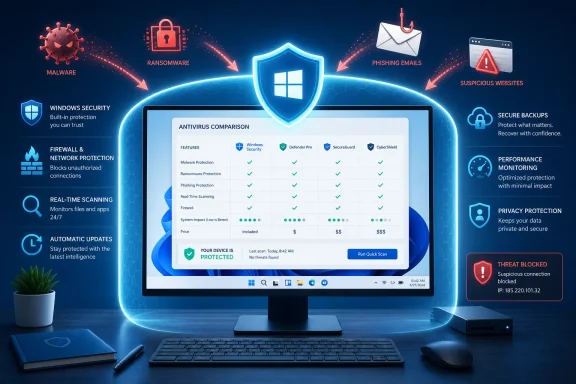 The Plain-English Antivirus Checklist
For a typical home PC, antivirus software should handle five jobs well:
- Watch for danger automatically
- Block malicious files and suspicious behavior
- Help prevent ransomware from damaging personal files
- Protect web browsing and downloads from scams
- Stay updated and unobtrusive
Everything else—VPNs, password managers, identity monitoring, cloud backup offers, PC “cleaners,” and bundled subscriptions—may be useful to some buyers. But those extras should not distract from the essentials.
A product that promises dozens of features but misses threats, throws misleading alerts, or slows the computer down is a poor trade. Conversely, an antivirus tool with a shorter feature list can be an excellent choice if its core protection is credible and easy to live with.
Think of protection as layers, not a magic shield
Antivirus remains important, but it is only one part of PC security. A dangerous email can steal credentials through a fake sign-in page without ever installing a traditional “virus.” A scammer can persuade someone to install a legitimate remote-access tool, disclose a one-time code, or send money. No security suite can guarantee that every bad decision or convincing deception will be stopped.
That does not make antivirus less valuable. It means that buyers should look for multiple protective layers: malware detection, web and phishing protection, software updates, account security, backups, and sensible Windows settings. CISA’s ransomware guidance similarly emphasizes patching, multifactor authentication, recovery planning, and offline backups alongside endpoint defenses. CISA’s ransomware advisory makes the larger point clearly: prevention helps, but recovery matters too.
Real-Time Protection Is the Non-Negotiable Feature
The most important antivirus feature is real-time protection. This means the software checks activity as it happens: when a file is downloaded, an attachment is opened, an app starts, or a suspicious process tries to change the system.
That matters because a manual scan is retrospective. It can discover a problem after a file is already on the PC, but it cannot replace an always-on defense that gets a chance to block a threat at the moment of contact.
What real-time protection means without the jargon
In simple terms, strong modern protection should inspect more than filenames. It should consider whether a program behaves in a risky way, whether a download has a bad reputation, whether the file resembles known malware, and whether cloud-based intelligence has identified it as dangerous.
Microsoft describes its own built-in antivirus protection as combining always-on scanning, file and process behavior monitoring, heuristics, and cloud-delivered detection. It also says the service can automatically download security intelligence updates and respond to emerging threats quickly. Microsoft’s Windows security documentation illustrates why real-time monitoring is more meaningful than a simple promise to “scan for viruses.”
When comparing paid products, do not settle for vague language such as “advanced defense” or “next-generation security.” Look for a direct answer to these questions:
- Does the product inspect files, links, attachments, and apps as they are used?
- Does it use behavior monitoring as well as known-malware detection?
- Does it receive automatic security updates?
- Does it offer protection while browsing, not merely after a download lands on the computer?
- Does the vendor explain what happens when it encounters a suspicious item?
If those answers are unclear, the product page is likely telling you more about its marketing strategy than its protection.
Malware Is a Category, Not a Single Threat
“Virus” is still the word most people use, but it is not a complete description of current threats. Malware is the broader term for software designed to harm, spy on, extort, disrupt, or take unauthorized control of a device.
A capable antivirus package should be able to address several kinds of malicious activity:
- Viruses and worms, which can spread or alter files
- Trojans, which disguise themselves as useful or harmless software
- Spyware and information stealers, which may target passwords, browser data, or personal information
- Potentially unwanted applications, which can install intrusive advertising or unwanted system changes
- Ransomware, which can encrypt or lock files and demand payment
- Malicious scripts and suspicious behavior, which may be used to evade older signature-based checks
The important point is not to memorize the categories. It is to make sure that a product’s protection language is broad enough to cover the threats people encounter through fake downloads, cracked software, malicious attachments, compromised websites, and deceptive messages.
Microsoft’s consumer support materials likewise identify viruses, ransomware, spyware, and other malicious software as types of malware, while noting that real-time antimalware protection watches for suspicious activity while the device is in use. Microsoft Defender support documentation provides a useful baseline for what home users should expect from an endpoint protection tool.
Avoid treating a detection percentage as the whole story
Security vendors often advertise a huge percentage: 99%, 99.9%, or even 100%. Those figures can be meaningful only when accompanied by context. What was tested? Over what period? Did the testing include brand-new web threats, downloaded malware, phishing pages, false alarms, or performance impact?
A single number cannot tell a buyer whether the product will constantly flag safe files, interfere with a game, bog down an older laptop, or protect against the way attacks are delivered today. The better approach is to look for a reputable independent test that evaluates protection, performance, and usability together.
For example, AV-TEST’s March–April 2026 Windows 11 home-user assessment evaluated 14 products using their default settings and scored them in those three categories. Several products, including Microsoft Defender Antivirus, received the maximum 6 points in protection, performance, and usability in that particular test. That does not make any one product universally perfect, but it shows why buyers should look beyond claims printed on a vendor’s own checkout page.
Ransomware Protection Is About Your Files, Not Just Malware Alerts
Ransomware deserves special attention because its impact is personal. A malware infection is bad; losing access to photos, work documents, tax records, school files, or creative projects can be much worse.
An antivirus product should have a clearly stated ransomware defense strategy. That might include behavior-based blocking, protected folders, suspicious-encryption detection, recovery support, or integrations with secure cloud storage. The details vary, but the priority is simple: the software should try to stop untrusted programs from rapidly changing your important files.
Windows already includes useful ransomware defenses
Windows users should not overlook the security tools already present in the operating system. Microsoft’s Controlled Folder Access can protect selected folders by stopping unknown or untrusted apps from changing files there. Microsoft states that it protects common locations such as Documents, Pictures, Videos, Music, and Desktop by default when enabled, and can notify the user when an app has been blocked. Microsoft’s ransomware protection guidance also warns that creating antivirus exclusions reduces the files or processes being checked for threats.
That warning matters. An exclusion can solve an annoying compatibility issue, but it can also create a blind spot. Exclusions should be rare, narrowly scoped, and used only when the file or application is genuinely trusted. Adding a whole Downloads folder, a broad file type, or a questionable app to exclusions simply to silence an alert defeats the reason antivirus is installed.
Backup remains the recovery layer antivirus cannot replace
Even excellent ransomware protection is not a substitute for backups. Security software can fail, a user may override a warning, storage can fail, or a threat may exploit a weakness before detection is available.
A practical home setup includes copies of irreplaceable files stored somewhere separate from the everyday PC. Microsoft recommends keeping Windows updated, using Windows Security, considering Controlled Folder Access, and storing important files in OneDrive, which offers file versioning and ransomware detection and recovery features. Microsoft’s ransomware protection page is a useful starting point, while CISA continues to recommend maintaining and testing offline backups as a defense against the impact of ransomware. CISA’s ransomware fact sheet reinforces the same principle.
The ideal outcome is never needing the backup. The responsible plan assumes that someday you might.
A Firewall Matters, but It Is Not a Separate Mystery Box
A firewall sounds intimidating because the word suggests something that belongs in a corporate server room. In practice, it is a traffic-control system for network connections.
A firewall can help decide which incoming or outgoing connections are allowed. That is particularly relevant on public Wi-Fi, where the network includes devices belonging to strangers. Windows automatically distinguishes among network profiles, and the protection level should be stricter for a public network than for a private home network.
Microsoft says that Windows Firewall protects devices by filtering network traffic and blocking unauthorized access based on criteria including IP addresses, ports, and app paths. The company also warns that switching it off increases vulnerability and advises allowing a specific app through the firewall, where necessary, rather than disabling the firewall outright. Microsoft’s Firewall and network protection guide is a straightforward explanation of the feature.
Do you need a separate antivirus firewall?
Not always. Microsoft Defender Firewall is built into Windows 10 and Windows 11, and it is already a capable baseline for most home users. A paid security suite may offer more detailed controls, app-specific alerts, network inspection, or a simpler dashboard. Those can be useful, but a buyer should not pay extra merely because “firewall” appears in a feature comparison.
Instead, check the following:
- Is the Windows firewall enabled and working?
- Does the antivirus product replace it, manage it, or leave it alone?
- Will installing the suite create confusing duplicate prompts?
- Can the software distinguish public from private networks?
- Is there a clear way to restore default settings if a custom rule breaks an app?
The goal is reliable protection with understandable controls, not the maximum possible number of switches.
Scam and Phishing Protection May Be More Valuable Than Another PC Tune-Up Tool
Many attacks now begin with persuasion rather than a malicious file. Fake delivery notifications, fraudulent support pop-ups, bogus invoice emails, impersonation messages, and counterfeit shopping sites are built to trigger a hurried click.
This is why scam protection belongs on the antivirus checklist. The Fox News guide rightly emphasizes risky links, fake websites, and suspicious messages as everyday entry points for attackers. But buyers should be careful about what a security suite actually promises to detect.
“AI scam protection” is not a guarantee
Artificial intelligence is often advertised as a way to spot deceptive content and abnormal behavior. It can be helpful, particularly when it supports web reputation services, behavior analysis, and rapid threat intelligence. Yet AI is not a magic truth detector. It can make mistakes, and a convincing social-engineering scam may involve a real website, a legitimate payment platform, or a phone call outside the security product’s reach.
The more practical question is whether the software offers meaningful anti-phishing and malicious-site protection where you actually work. Microsoft’s Windows Security documentation says its reputation-based protection and Microsoft Defender SmartScreen can help protect against phishing, malware, unsafe apps, and suspicious downloads; in Microsoft Edge, SmartScreen can warn when a download appears untrusted. Microsoft’s App & browser control overview also describes phishing protections connected to suspicious sites.
That is valuable, but browser choice and product compatibility still matter. If you use Chrome, Firefox, Edge, or multiple browsers, verify that the paid antivirus product’s web protection works across them. A feature that only functions in one browser is not useless, but it should not be mistaken for universal protection.
Performance and Usability Are Security Features
A security product that constantly interrupts the user is more likely to be muted, postponed, or removed. One that makes Windows feel slow encourages people to turn protection off when gaming, working, or troubleshooting a problem.
That is why performance belongs beside detection in a serious antivirus buying guide. It covers the practical effect on browsing, opening files, installing applications, copying data, and using a PC day after day.
What to watch for during a trial
If a product offers a trial period, use it for normal tasks rather than judging it by the installation screen. Look for:
- Long startup delays after installation
- Noticeable slowdowns when opening files or browsing
- Repeated upgrade prompts and pop-ups
- Alerts written to frighten rather than explain
- Browser extensions that alter search, shopping, or homepage behavior
- Bundled utilities that pressure you to “fix” non-problems
- Difficult-to-find settings for notifications, scans, and renewal
Independent testing provides a better first filter than a vendor’s performance claim. AV-TEST’s current home-user test explicitly measures performance and usability alongside protection, with the latter encompassing the real-world consequences of false alerts and unnecessary interruption. Its published scoring method awards up to six points in each category, for a maximum total of 18.
A false positive is not merely an inconvenience. If an antivirus repeatedly blocks legitimate downloads, games, applications, or work files, users may start ignoring alerts—including the one that matters.
Windows Security Changes the Paid Antivirus Decision
The question for Windows users is no longer simply, “Do I have antivirus?” Modern Windows already includes Microsoft Defender Antivirus, firewall protection, SmartScreen-based reputation checks, account-security tools, and other defenses in the Windows Security app.
Microsoft says that Defender Antivirus is included with Windows 11 and that if another active antivirus app is installed and turned on, Defender turns itself off; it can turn back on when the third-party product is removed. Microsoft’s Windows 11 security documentation confirms this behavior.
That leads to an important buying rule: do not run two full real-time antivirus products at the same time. Microsoft warns that using more than one antivirus or antispyware program simultaneously can reduce performance, cause instability, or trigger unexpected restarts. Microsoft’s PC virus-protection guidance is unambiguous on that point.
When paying for an antivirus suite can make sense
A paid product can still be worthwhile when it provides something meaningful beyond the built-in Windows baseline. That may include:
- Better multi-platform management for Windows, macOS, Android, and iPhone devices
- Stronger web, phishing, or identity-protection tools
- Parental controls for a household
- A password manager that is genuinely useful and supported
- A VPN that meets the buyer’s privacy and usage needs
- More hands-on support
- A simple dashboard for family members who are less comfortable with Windows Security
But the added feature must be real value, not just a bundle designed to make comparison shopping difficult. VPN data limits, password-manager restrictions, identity-monitoring availability, cloud storage caps, and support terms should all be checked before purchase.
Most importantly, compare the introductory price and the renewal price. The Fox News guide specifically advises looking at plan features, device limits, first-year pricing, and the cost after the promotional period ends. That recommendation is one of the most consumer-friendly parts of the checklist, because the renewal amount can be far more consequential than the headline discount.
A Better Way to Choose Antivirus Software
Buying antivirus software does not need to become a contest between brand slogans. Use a short decision process and insist on clear answers.
1. Start with the Windows baseline
Open Windows Security and confirm that Virus & threat protection and Firewall & network protection are active. Check whether Microsoft Defender Antivirus is currently handling protection or whether another product has taken over.
If protection is off because of an old, expired, or partially removed suite, fix that first. A PC should never remain unprotected while subscription decisions are being made.
2. Decide what problem a paid suite must solve
Do not buy a package merely because it has a sale banner. Identify the gap:
- Is the need cross-device protection?
- Is it easier scam protection for a family member?
- Is it parental controls?
- Is it password management?
- Is it a desire for additional support and a different security interface?
If there is no clear gap, the built-in Windows protections plus careful habits may be sufficient for many users.
3. Check independent tests, not just testimonials
Look for recent results that evaluate protection, performance, and usability under default settings. Do not assume that last year’s top performer will always be this year’s best choice; security products and threat conditions evolve.
Use results as a comparison tool, not as a promise that any product can catch every attack.
4. Examine the product’s behavior, not its buzzwords
During a trial, see how it handles everyday use. Does it explain an alert in plain English? Can you find its renewal settings? Does it make it clear what data it collects and what browser extensions it installs?
A security product should increase confidence, not create a second job managing warnings, subscription prompts, and mysterious performance tools.
5. Keep the rest of the security foundation in place
Use unique passwords, enable multifactor authentication where possible, install Windows and application updates, avoid untrusted downloads, and keep recoverable backups of important files. Antivirus is most effective when it is one layer in a broader, routine security posture.
The Bottom Line for Windows Users
The best antivirus software without the jargon is software that works automatically, catches a broad range of threats, protects important files, helps identify dangerous web activity, stays updated, and does not punish the user with constant interruptions.
Real-time protection is essential. Ransomware defenses and backups are vital for personal data. A firewall should remain enabled. Scam protection is increasingly important because deception often arrives before malware. Independent testing should influence the final decision, because detection claims alone say little about performance or false alarms.
For many Windows 11 users, the built-in Windows Security foundation is already stronger than outdated assumptions suggest. A paid antivirus suite should therefore earn its place by delivering a clear benefit: better protection in a particular area, useful cross-platform coverage, effective family features, or support that makes secure computing easier.
Security is not about buying the longest feature list. It is about choosing protections that remain active, understandable, and dependable when a suspicious download, fraudulent message, or ransomware attempt appears.
