
That distinction is missing from much of the “Bing daily wallpaper” advice circulating online. The GroovyPost guide correctly identifies the two practical routes, but its wording can blur the difference between Bing’s daily homepage image and Windows Spotlight’s rotating Microsoft imagery. Microsoft’s own Windows support documentation describes Spotlight as a changing set of images from Microsoft, while its Bing Wallpaper installation page documents a separate desktop app with a Bing tray icon. An independent guide from TechYorker reaches the same practical conclusion: Spotlight can cover the lock screen, while Bing Wallpaper is a desktop-background tool.
For someone who simply wants a fresh photograph every day, Spotlight is the cleanest no-install option. For someone who specifically wants the image seen on Bing.com that day, use the Bing Wallpaper app for the desktop and accept that the lock screen will need Spotlight or a manually chosen picture.
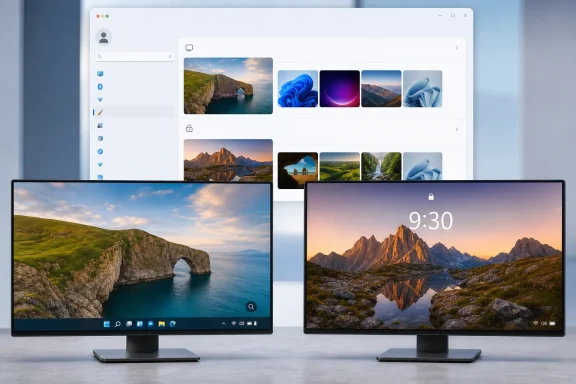 Set Windows Spotlight on the Windows 11 lock screen
To put a regularly changing Microsoft image on the lock screen, open Settings with Win + I, select Personalization, then choose Lock screen. In the Personalize your lock screen drop-down menu, select Windows spotlight.
Microsoft documents Windows Spotlight as a rotating collection of images accompanied by tips, tricks, notifications, and other optional content. The lock screen is separate from the sign-in screen, although Windows 11 also provides a setting to use the lock-screen background on the sign-in screen if you want the same photo to remain visible while entering a PIN or password.
This is the most straightforward method for the screen shown before sign-in, and it does not need a Microsoft Store download, an installer, or a permanent background utility. It also gives the lock screen an informational layer: depending on the Windows configuration, Spotlight can show details about the featured image and offer links that open after sign-in.
The practical limitation is simple: Windows Spotlight is not a guarantee that the photo matches Bing’s homepage image for the day. It is a Windows content feed selected by Microsoft. The images may resemble the travel, wildlife, architecture, and landscape photography associated with Bing, but they are separate experiences.
Turn on Spotlight for a changing desktop background
Windows 11 can also use Spotlight on the desktop. Go to Settings > Personalization > Background, find the Personalize your background menu, and select Windows spotlight.
Microsoft’s current Windows documentation confirms that Desktop Spotlight updates daily and can provide captions about the image or location. On most current Windows 11 installations, enabling it also places a small “Learn about this picture” control on the desktop. That control can reveal more context about the wallpaper and offer feedback controls, though the exact appearance has changed across Windows 11 releases.
Choosing Spotlight replaces the desktop wallpaper you had selected previously. It does not delete the old image file, but it does hand control of the desktop background to Windows until you choose Picture, Slideshow, or another background option again.
Do not configure both desktop and lock-screen Spotlight with the expectation of a synchronized pair. Windows exposes those as separate personalization settings, and Microsoft’s support material does not promise that the desktop and lock screen will display the same image at the same time. GroovyPost notes that they can differ, which matches the sensible operational assumption: treat them as independent rotating feeds.
For users who want visual variety and do not care whether every photograph is the Bing homepage image, this is the best option. It is already in Windows 11, creates no extra startup program, and is easy to reverse.
Use Bing Wallpaper for the actual Bing homepage image
The dedicated Bing Wallpaper app is the better choice if “Bing daily wallpaper” means the photograph currently displayed on Bing’s home page. Microsoft continues to distribute the application through its Bing Wallpaper installation page, and it is also listed in the Microsoft Store.
Install it only from Microsoft’s official Bing or Store listing. Microsoft’s installation instructions say to run BingWallpaper.exe; once setup is complete, the app adds a Bing icon that can be used to customize the experience and learn more about the current image.
There is one setup screen worth reading rather than clicking through: Microsoft says the installer may offer to make Bing the browser homepage and default search engine. Those browser choices are not required to receive the wallpaper. Decline them if the only goal is a rotating desktop image and you do not want to change Edge, Chrome, Firefox, or another browser’s search behavior.
After installation, the app should apply the current Bing image to the desktop and continue updating it. Its system-tray control provides a more direct route to image information and app settings than Windows Spotlight’s desktop control. That is the useful dividing line:
- Windows Spotlight is part of Windows 11 and rotates Microsoft-selected desktop or lock-screen images.
- Bing Wallpaper is a separate Microsoft application intended to put Bing’s image on the desktop.
- Neither Windows 11’s lock-screen settings nor Microsoft’s Bing Wallpaper installation documentation presents Bing Wallpaper as an automatic lock-screen provider.
The submitted GroovyPost walkthrough describes image history, themes, widgets, and AI-image settings in its version of the Bing Wallpaper interface. Microsoft’s public installation page, however, does not document those controls or promise they will appear in every release. Treat the installer, Bing tray icon, and daily desktop change as the supported basics; regard detailed interface options as version-dependent rather than requirements for making the wallpaper work.
The lock-screen gap matters
Windows 11’s built-in lock-screen choices are Windows Spotlight, Picture, and Slideshow. Microsoft documents all three in its lock-screen personalization guidance, but none is labeled as an automatic feed for the Bing homepage photo.
That leaves two realistic choices for people who insist on a Bing image on the lock screen. The first is to use Windows Spotlight and accept that it supplies Microsoft imagery rather than necessarily the exact Bing photo. The second is to save a Bing image manually, then return to Settings > Personalization > Lock screen, select Picture, and browse to the saved file.
The manual route gives complete control over the image, but it is static. Windows will not automatically replace it with tomorrow’s Bing photo just because the Bing Wallpaper app is installed. A slideshow can rotate files stored in a chosen folder, but it does not fetch new Bing images for you; it only cycles through pictures already on the PC.
This is where the distinction moves from trivia to configuration reality. A user can have Bing Wallpaper successfully updating the desktop every day and still see an unrelated Spotlight image—or an old manually selected photo—at the lock screen. Nothing is broken in that situation. The two surfaces are being supplied by different Windows components.
Choose the method that matches the requirement
Use Windows Spotlight on both the desktop and lock screen if the requirement is a fresh, Microsoft-selected photograph with the least maintenance. It is the native Windows 11 solution, and it avoids a separate utility running in the background.
Use Bing Wallpaper when the desktop must follow Bing’s current homepage image. During installation, watch for the optional browser-search and homepage changes, then use the Bing icon in the notification area to manage the application.
Use a manually saved image for the lock screen if the exact Bing photograph matters more than automatic rotation. It is the only method among these that puts a specific chosen Bing image on the lock screen, but it also makes the daily update a manual task.
The key consequence is that a Windows 11 PC can be configured for daily image changes everywhere without extra software, but an exact Bing homepage image on both the desktop and lock screen remains a two-part setup rather than a single supported feature.
