

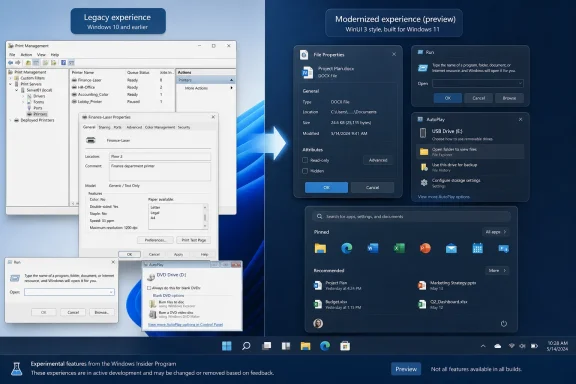
Windows Central’s Zac Bowden first detailed the wider list of WinUI 3 migrations this month, following earlier sightings of the File Properties work in Windows 11 build 26300.8935. Microsoft has separately documented that its new Run dialog is a WinUI 3 application available to Experimental Channel Insiders, while the company’s Windows team has publicly committed to reducing the amount of legacy UI users encounter. Taken together, those records show a real modernization program. They do not show that these replacements are ready for normal Windows 11 deployments.
For Windows users and administrators, that distinction matters. A new dark-mode-capable property sheet is welcome, but a replacement for an old management console has to preserve the awkward, rarely advertised controls enterprises rely on—not merely reproduce the visible window chrome.
File Properties is the most concrete change, but it is not complete
The File Explorer Properties dialog is one of Windows’ most conspicuous leftovers. Right-click a typical file, choose Properties, and Windows 11 still drops into a classic tabbed property sheet whose visual language predates Fluent Design, Mica, and system-wide dark mode. It is not a minor edge case: Properties is where users check file sizes and locations, change attributes, unblock downloaded files, set compatibility modes, inspect certificates, and reach security permissions.
The redesigned version was found hidden in Windows 11 Experimental build 26300.8935, with the new interface appearing when inspecting an item in the Recycle Bin. TweakTown independently described the same limited behavior after the discovery was posted by Windows observer Phantomofearth: the window was not exposed through the normal File Explorer Properties command for ordinary files. That is the key detail omitted by looser coverage of the story.
Microsoft has clearly begun replacing the UI surface, but Windows 11 users should not read this as confirmation that every Properties sheet is being converted now. File properties are not one uniform dialog. The tabs and available controls differ by item type, installed shell extensions, security context, file system, enterprise policy, and whether the object is a file, folder, drive, shortcut, network resource, or device. A Recycle Bin test case demonstrates the new front end; it does not demonstrate equivalence across that entire matrix.
That leaves the actual engineering challenge where it has always been: retaining old functionality while separating the display layer from dependencies that have accumulated around Windows shell property pages for decades. Windows Central reports that Microsoft plans to extend the new design to the full File Properties experience, but Microsoft has not published a rollout date, a supported-build list, or a public compatibility inventory for the replacement.
Print Management is a much tougher test than a dark-mode facelift
According to Windows Central, Microsoft is also building a WinUI-based replacement for Print Management, the long-standing Microsoft Management Console snap-in used to administer printer servers, queues, drivers, ports, forms, and deployed printers. If it reaches release with functional parity, this would be more consequential than the File Properties redesign because it would mark a move against one of the classic MMC administration tools rather than a consumer-facing dialog.
It is also the least substantiated public component of the reported list. Windows Central’s screenshots and reporting are currently the only material account of a modern Print Management application, and Microsoft has not announced it in a Windows Insider blog post or published documentation for it. No other outlet has independently reported a build number, deployment channel, feature flag, or timetable for the tool.
That absence is more than a paperwork issue. Print Management is used disproportionately by administrators, print-server operators, and support staff—not by the average Windows 11 home user. The current snap-in exposes details that the consumer-oriented Settings > Bluetooth & devices > Printers & scanners page does not attempt to replace. A successful rewrite has to answer unglamorous questions: Can admins manage server-hosted queues and drivers at scale? Are familiar command-line and MMC workflows preserved? Which Windows editions receive it? Does it still work cleanly with older print drivers and line-of-business software?
Microsoft’s stated approach offers a reason for cautious optimism, not an answer. In an interview with Windows Central published August 3, Marcus Ash, Microsoft’s corporate vice president of Design and Research for Windows and Devices, said the company must preserve compatibility with existing drivers, tools, and workflows before retiring legacy surfaces. That is precisely the constraint that makes Print Management a useful litmus test. Changing its appearance is easy; preserving its operational contract is the job.
Run shows what a controlled transition looks like
The new Run dialog is further along and provides the strongest indication of how Microsoft may handle other sensitive shell changes. Microsoft’s own Learn documentation says the modern Win+R interface is built with WinUI 3 and C#, compiled using .NET Ahead-of-Time compilation, and shares code with PowerToys Command Palette.
More importantly, Microsoft has not forced the new dialog on everyone. On supported Experimental Channel installations, users turn it on in Settings > System > Advanced, and can turn it off again to restore the classic Run dialog. Organizations can also disable or hide the relevant Advanced settings controls through policy, according to Microsoft’s documentation.
That opt-in posture is a practical acknowledgement that Run is a utility rather than a design canvas. It has to open commands, local and network paths, and command history reliably in a fraction of a second. Microsoft claims a median time-to-show of 94 milliseconds for the modern dialog versus 103 milliseconds for the classic one, along with dark-mode support, home-directory navigation through ~\, and familiar arrow-key history. The company’s published numbers are its own measurements, but the broader point stands: Microsoft is treating the rewrite as a performance-sensitive system component, not merely a visual refresh.
For IT departments, the presence of a policy-controlled, reversible implementation is the model worth watching. A new UI does not automatically become an upgrade if it disrupts help-desk scripts, user training, automation assumptions, or accessibility workflows. Keeping the legacy dialog available while the new version proves itself is a much safer deployment pattern than the all-at-once shell changes Windows users have endured in past releases.
Start’s rewrite is designed to be mostly invisible
The Start menu is the largest component on the reported WinUI 3 roadmap, but users expecting another radical Start redesign may be looking in the wrong place. Windows Central reports that Microsoft is rewriting the Start menu in WinUI 3 primarily to improve responsiveness and reduce resource use, with no major visual upheaval currently planned.
Microsoft’s public quality updates support the performance half of that account. In May, the company said it had begun tuning app launches and core shell experiences including Start, Search, and Action Center. It also said it was making foundational File Explorer improvements incrementally to reduce hangs and improve responsiveness, rather than presenting one monolithic Explorer replacement.
This is where the WinUI 3 push has a concrete practical purpose beyond consistency. Windows 11’s UI has often been criticized for combining newer XAML-based surfaces with older Win32 elements, sometimes producing different theme behavior, different control density, different accessibility treatment, and inconsistent responsiveness within the same task. Moving more shell experiences to a common framework can reduce that fragmentation only if the framework is fast enough and can cover the legacy functionality being replaced.
Microsoft knows that condition is non-negotiable. Ash told Windows Central that the team’s prioritization depends on usage, customer feedback, and whether its tooling is ready to move a surface without breaking promises. The company is reportedly considering long-term work on tools such as Registry Editor, but that should be understood as exploratory future work, not a product commitment.
The missing release plan is the story administrators should keep in view
Microsoft’s modernization campaign is real, and it is more substantial than replacing a few icons. File Properties, AutoPlay, Run, Print Management, and Start cover different generations of Windows development and different risk profiles. The shared WinUI 3 direction gives Microsoft a chance to make dark mode, scaling, keyboard behavior, accessibility, and performance more consistent across those surfaces.
But the company has not given administrators the information needed to plan around most of these changes. There is no published compatibility matrix for modern File Properties sheets, no formal announcement or servicing roadmap for Print Management, and no commitment that legacy interfaces will disappear on a particular Windows 11 release. Microsoft’s own language points to staged Insider testing and incremental adoption.
For now, the action item is modest: treat these as Experimental Channel developments, not as reasons to change production baselines or rewrite operating procedures. The first broad test will come when Microsoft exposes the new File Properties dialog through the normal File Explorer path and documents what it preserves. If that transition holds up across permissions, shell extensions, non-NTFS locations, and enterprise-managed devices, Windows 11’s UI cleanup will have moved from screenshots into the hard part: replacing legacy interfaces without breaking the work they still do.