
The build also completes a visible administrative change within the Windows Insider Program. Devices on the 29600 preview line will now see Experimental (Future Platforms) in the refreshed Windows Insider Program channel interface, placing the formerly more abstract future-platform testing track behind a clearer label in Settings. Microsoft says the move concludes the transition of Insider builds to the updated channel UI.
For Windows enthusiasts, accessibility advocates, IT testers, and anyone running an Experimental device as a secondary machine, Build 29634.1000 is an important checkpoint. It introduces features with potentially meaningful day-to-day benefits, but it also comes with the standard—and especially relevant—risks of an Insider channel intended for work on future Windows platforms.
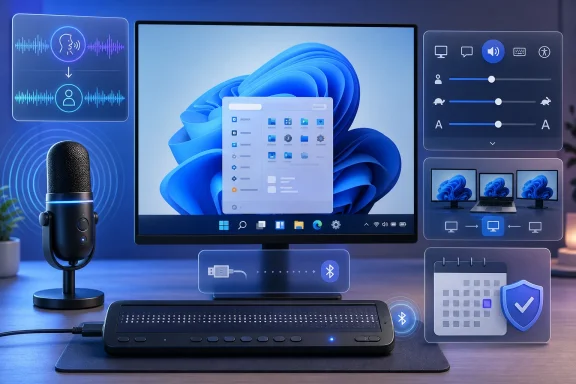 A Necessary Update: The Windows Insider Flight Certificate Renewal
The most immediate reason to install Windows 11 Insider Preview Build 29634.1000 is not Voice Access, Narrator, or the Start menu. It is the renewed Windows Insider flight certificate included in the build. Microsoft uses flight certificates to code-sign Insider Preview builds and maintain an update path for devices participating in the program. Microsoft’s certificate-renewal guidance describes the process as routine planned maintenance rather than a reaction to a security incident.
The certificate used by the current round of Insider builds expires on August 11, 2026. Microsoft’s instruction is straightforward: install an eligible build containing the renewed certificate before that date. Build 29634.1000 is one such update.
Why the certificate matters
The certificate itself does not change Windows activation, the retail license attached to a device, installed applications, or personal files. Instead, it concerns the signing and servicing chain used by Insider Preview builds. Microsoft states that a device must be on a build at or above the required level for its channel to be operating with the refreshed certificate.
That distinction deserves emphasis because the wording “certificate expiration” can sound more alarming than it is. This is not a warning that a Windows installation becomes unlicensed on August 11. It is a practical warning that preview servicing can become unreliable or stop offering newer flights if a device stays behind on an expiring build.
Microsoft’s broader Insider troubleshooting guidance already stresses that preview builds eventually expire and that remaining current is necessary to avoid expiry notifications and update disruptions. The company advises affected users to check Windows Update for the newest build offered to their channel.
What Experimental channel users should do
For systems enrolled in Experimental (Future Platforms), the immediate checklist is uncomplicated:
- Open Settings > Windows Update.
- Select Check for updates.
- Download and install Windows 11 Insider Preview Build 29634.1000 when offered.
- Restart when Windows requests it.
- Confirm the installed build using
winveror Settings > System > About.
Microsoft’s published troubleshooting steps likewise direct Insiders to verify their enrollment through Settings > Windows Update > Windows Insider Program, ensure Windows is activated, and manually check for updates when a flight is not appearing. Those steps are documented here.
The critical point is timing. A machine that is used only occasionally—an old desktop, a test laptop, a virtual machine, or a small home lab PC—is exactly the device most likely to miss a maintenance deadline. Experimental channel participants should not assume that a machine left offline for weeks will seamlessly catch up after the certificate expires.
The bigger implication for Insider servicing
The renewed certificate also reinforces a longstanding truth about the Insider Program: preview participation is a continuing servicing commitment, not a one-time installation. An Insider build is not a frozen beta image to preserve indefinitely. It is part of a moving pipeline in which feature toggles, platform changes, certificates, servicing stack updates, and rollback paths can all matter.
That is particularly true for Experimental (Future Platforms). Microsoft’s own support documentation says that leaving this channel can require a clean installation of Windows 11, unlike some other Insider channels where users may have a more direct route back to a retail build. Microsoft explicitly identifies Experimental (Future Platforms) as a channel for which a clean Windows installation is required to exit.
For enthusiasts, that makes a backup strategy essential rather than optional. Maintain a recent system image, protect irreplaceable files separately, and avoid treating an Experimental machine as the only place where important school, work, financial, or creative data exists.
Voice Isolation Gives Voice Access a More Practical Path Through Noisy Environments
The headline feature in Build 29634.1000 is Voice Isolation for Voice Access. Microsoft is adding it as a speech-recognition mode designed to let Voice Access focus on the enrolled user’s voice while reducing interference from nearby speakers and environmental noise. According to the build notes, all processing occurs locally on the device.
That local-processing claim is substantial. Voice control is most useful when it feels dependable, yet the environments where people need hands-free computing are often not acoustically controlled. Shared offices, classrooms, family spaces, open-floor work areas, and rooms with television audio all create competing sounds. A feature that distinguishes between the user issuing a command and someone speaking nearby could materially improve the experience.
Three recognition modes instead of one microphone path
Build 29634.1000 introduces three modes in Voice Access settings > Improve speech recognition:
- Voice Isolation — filters other speakers and background noise after a one-time voice setup.
- Remove background noise only — reduces non-speech sound, such as typing or a door closing, without an additional setup step.
- No filtering — uses the microphone’s normal input as the default, with no further processing.
Microsoft describes these three options in the build announcement, and the design is more thoughtful than a single on-or-off “noise suppression” toggle.
The division between other speech and non-speech noise matters. Many audio products can reduce a fan, keyboard clicks, or a passing siren. Separating one person’s voice from another person’s speech is a harder problem, and it is a distinctly useful one when the goal is accurate control of a PC.
Users who select Voice Isolation will complete a short guided enrollment by reading a paragraph aloud. Microsoft says the process takes roughly a minute and that the resulting voice information does not leave the PC. The company’s release notes position that privacy boundary as a core part of the feature rather than an afterthought.
Why on-device voice processing is the right direction
On-device processing has two clear benefits. First, it may reduce privacy concerns for users who depend on speech input to navigate, dictate, and operate Windows. Second, it can avoid dependence on a consistently available network connection, which is particularly valuable for accessibility features that must remain available in a hotel, school, medical setting, enterprise network, or rural location.
The feature also reflects an important distinction between voice assistance and voice accessibility. A consumer voice assistant can tolerate an occasional incorrect interpretation because the user can repeat a request. Voice Access has a higher bar: a false command can disrupt text entry, application navigation, or a workflow someone may be using because conventional mouse and keyboard input is difficult or unavailable.
Microsoft’s description does not promise perfect separation in every acoustic situation, and users should keep that expectation grounded. A microphone’s quality, placement, room echo, headset design, and the loudness of another speaker will still influence results. The right framing is not that Voice Isolation makes Voice Access infallible; it is that it targets one of the most frustrating reasons speech control fails in real homes and workplaces.
The testing questions that matter
Experimental users should pay close attention to several practical questions while evaluating Voice Isolation:
- Does command recognition remain accurate with music, video, or conversation in the background?
- Does the system respond correctly when someone else says a phrase similar to a Voice Access command?
- Is there an audible or perceptible delay compared with No filtering mode?
- How does the option behave with internal laptop microphones versus USB headsets and Bluetooth devices?
- Does the one-time setup meaningfully improve results for different speaking styles, accents, and vocal conditions?
Because this is an Insider feature rolling out gradually, availability and behavior may vary among participants. The most constructive feedback is specific: record the mode used, audio hardware, reproduction steps, expected result, actual result, and whether the issue occurs consistently.
Narrator’s HID Braille Support Is the Build’s Most Significant Accessibility Change
While Voice Isolation is likely to attract broader attention, the most consequential change in Build 29634.1000 may be the new HID-standard braille display support in Narrator. Microsoft says compatible refreshable braille displays can now connect over USB and begin working immediately, with Bluetooth pairing handled through the regular Bluetooth devices experience. The new capability is detailed in Microsoft’s build notes.
This is a meaningful shift because assistive technology is most effective when installation friction disappears. Historically, braille support can involve feature downloads, display-driver selection, manufacturer choices, connection-type selections, restarts, and coordination with third-party screen readers. Microsoft’s existing Narrator braille documentation illustrates that complexity: it describes installing an Accessibility–Braille support component, enabling braille, choosing a display, and sometimes selecting the appropriate driver. Those current setup procedures are documented by Microsoft here.
Plug-and-play is not a cosmetic improvement
The HID, or Human Interface Device, standard is intended to provide a broadly understood connection model for hardware. In practice, HID braille support means that a compatible display can be connected in a way that resembles the familiar experience of attaching a standard keyboard or other common USB peripheral.
Microsoft identifies several compatible examples in the build notes:
- Orbit Reader 20
- Orbit Slate 340
- Freedom Scientific Focus 40
- APH Mantis Q40
The complete initial list and connection guidance are in the Build 29634.1000 announcement. Compatibility should still be checked on a specific model and firmware combination before purchasing or deploying hardware around the feature, especially during the Insider period.
The key benefit is reduced setup burden. A user should not need to understand an assistive-device driver stack just to read the desktop, a login prompt, an email, or a document through a braille display. The fewer prerequisite steps there are, the less likely a working configuration will be interrupted by a new PC, a reset, an IT refresh, or a support call.
Bluetooth support changes the usability equation
The Bluetooth element is also notable. Microsoft says users can pair a supported HID braille display under Settings > Bluetooth & devices like another accessory, allowing wireless use rather than forcing a tethered USB setup. That is new behavior outlined for Build 29634.1000.
This matters because Microsoft’s existing public Narrator braille documentation still describes Bluetooth as unavailable for its older braille path. The current support article says Narrator works with USB or serial braille displays and notes that Bluetooth is not available under that setup. Build 29634.1000 therefore represents a genuine architectural expansion, not merely another supported device entry.
Wireless braille can improve desk ergonomics, make switching between devices more realistic, and make it easier to use a compact display alongside a laptop or tablet-like Windows device. It may also reduce the chance that a cable snag becomes a workflow disruption.
There are caveats, of course. Bluetooth introduces the usual variables: pairing reliability, sleep-and-wake behavior, battery management, radio interference, and reconnect timing. The promise of wireless support should be judged by how consistently it works after reboots, lock-screen transitions, hibernation, and long periods away from the device—not solely by whether it pairs successfully once.
Braille support during Windows setup is the real breakthrough
The most important part of the announcement is that supported HID braille displays now work through USB during Windows Out-of-Box Experience (OOBE). In practical terms, a user who is deaf-blind can set up a PC independently from the first setup screen. Microsoft identifies OOBE support as part of the new HID braille experience.
That is a high-value change because setup is where accessibility support is often most urgently needed and least available. A feature that appears only after a user has completed account creation, connectivity steps, and device configuration is not fully accessible. Enabling a compatible USB braille display at the outset recognizes that setup itself is a core Windows experience, not a technical prelude outside the product’s accessibility obligations.
Microsoft has steadily expanded Narrator’s braille capabilities, including support for a braille viewer intended to help teachers, assistive-technology trainers, developers, and testers see both textual and braille output on screen. Microsoft documents the braille viewer and its intended audiences here. HID support in OOBE builds on that work by addressing independence at the earliest possible stage.
What remains to be proven
The direction is excellent, but the Experimental label is still important. Hardware support lives or dies by edge cases: regional braille tables, keyboard input behavior, display-specific buttons, firmware revisions, third-party screen-reader coexistence, and reconnect behavior after a system update.
Microsoft’s existing documentation acknowledges that users of third-party screen readers may need to manage which driver communicates with a braille display to switch cleanly between Narrator and another reader. The support guidance explains that driver consideration. The new HID model should reduce friction for supported devices, but it will need to prove that it works gracefully in mixed assistive-technology environments.
The strongest early feedback from Insiders will be detailed compatibility feedback—not simply “works” or “doesn’t work.” Include the display model, connection method, firmware version where known, whether Narrator was already configured, whether another screen reader was installed, and what happened at OOBE, lock screen, desktop, and after reconnecting.
A Cleaner Insider Identity: Experimental (Future Platforms) in Settings
Build 29634.1000 also finalizes the transition to the updated Windows Insider Program interface. Users on 29600 Preview Builds will now see Experimental (Future Platforms) as the channel designation in Windows Insider settings. Microsoft confirms the UI transition in its announcement.
That wording is useful because it communicates the channel’s purpose more clearly than a generic pre-release label. This is not simply a “new features early” route. It is a place where Microsoft can test changes aimed at future platform work, potentially before their eventual destination, scope, or production schedule is decided.
What the channel name should tell users
The new label should be read as a risk signal as well as an invitation. Experimental builds can carry features that are incomplete, modified substantially, paused, or removed entirely. Microsoft may use controlled rollouts, which means two devices on the same build can expose different capabilities based on configuration, region, staged deployment, or experimentation.
That does not make the channel unsuitable. It makes it suitable for a particular audience:
- Enthusiasts with a spare PC or virtual machine.
- Developers and IT professionals validating compatibility.
- Accessibility testers with the time and equipment to provide detailed feedback.
- Advanced users comfortable with backups, recovery media, and clean installation.
It is a poor fit for a sole work PC, a family computer with little maintenance tolerance, or a device that must stay stable for assistive technology, academic testing, business-critical software, or regulated workflows.
Microsoft’s exit guidance reinforces the point. While some Insider channels may offer an option to stop receiving preview builds and move toward retail servicing, the company says Experimental (Future Platforms) users should plan on a clean Windows 11 installation when leaving the channel. That limitation is stated in Microsoft’s Insider troubleshooting documentation.
Small Reliability Fixes That Could Have Outsized Benefits
Beyond the high-profile accessibility work, Build 29634.1000 includes a collection of fixes that target reliability rather than visual novelty. These are easy to skim past in release notes, but they often define whether a Windows build feels polished in daily use.
Microsoft lists improvements in the following areas:
- Navigating to Startup apps in Settings.
- Loading the system tray while using a PC in tablet posture.
- Retaining selected Start menu view preferences.
- Keyboard navigation when focus is in the Start menu apps list.
- Detecting conditions that should trigger time-zone change notifications.
- Rendering while scrolling in certain applications spread across multiple monitors.
All of these fixes are included in the official Build 29634.1000 notes.
Start menu reliability remains a core quality metric
Microsoft’s changes to Start menu view retention and keyboard navigation might sound niche, but they target two separate groups: users who customize Start to support their workflow, and users who navigate Windows heavily through the keyboard.
A view preference that quietly resets can feel minor in isolation, yet it communicates that the interface is not respecting a deliberate user choice. Likewise, keyboard focus in the apps list is essential not only for power users, but also for users who rely on keyboard navigation for speed, ergonomics, or accessibility.
The test standard here is simple: change a Start view, restart the machine, sign out and back in, switch display modes, and determine whether Windows consistently honors the selected choice. For keyboard navigation, verify that arrow keys, tab traversal, focus indicators, and activation behavior remain predictable across app-list sections.
Tablet posture and the system tray
The taskbar improvement targets system-tray loading when a PC is in tablet posture. This is a welcome area for testing because convertible devices still need Windows to adjust gracefully as keyboards detach, fold back, or become impractical to use.
A taskbar is more than a launcher. The system tray contains connectivity, volume, battery, accessibility, notification, and quick-setting access. If it fails to load reliably, a device can become harder to diagnose precisely when a user is relying more heavily on touch interaction.
The potential benefit is strongest on 2-in-1 laptops and tablets, but it also speaks to a broader Windows 11 challenge: behavior must remain coherent as devices shift among desktop, docked, touchscreen, and portable modes.
Time-zone notifications and multi-monitor graphics
The update’s time-zone detection improvement may benefit travelers, hybrid workers, and anyone regularly moving between locations. Incorrect time zones can affect calendar appointments, authentication prompts, scheduled tasks, certificates, logs, and collaboration tools. The release notes do not provide a detailed list of affected scenarios, so the appropriate interpretation is modest: Microsoft is improving the likelihood that Windows recognizes when it should offer a time-zone change notification. That is the scope stated in the official release notes.
The display-and-graphics fix is similarly targeted but potentially valuable. Microsoft says Build 29634.1000 improves content-rendering reliability while scrolling in certain apps spanning multiple monitors. The company does not name the affected applications, so users should avoid assuming every multi-display scrolling issue is resolved.
Still, the area is important. Mixed-DPI screens, different refresh rates, docking stations, external GPUs, remote desktop sessions, and applications stretched across displays can expose flaws that never appear on a single-screen laptop. Experimental testers with complex desk setups are well placed to validate whether the improvement reduces redraw artifacts, blank regions, stutter, visual tearing, or content lag.
GIF Search Moves From Tenor to GIPHY
Build 29634.1000 replaces the Tenor API with GIPHY as the GIF provider in the Windows emoji panel, opened with Windows key + period (.). Microsoft says the change is intended to provide smoother GIF browsing and sharing after the Tenor API’s deprecation. The switch is documented in the build announcement.
On the surface, this is a relatively small consumer-facing change. Yet it demonstrates a practical responsibility of platform maintenance: Windows experiences often depend on external services, and API changes can force software vendors to update integrations before an existing function breaks outright.
The advantages and the cautions
A new provider could improve search responsiveness, result quality, content availability, and reliability. Users may also notice differences in the kinds of GIFs surfaced for the same keyword, since provider catalogs, ranking systems, moderation rules, regional availability, and metadata are not identical.
That latter point is worth noting for homes, schools, and workplaces. GIF search is not a neutral technical component; it is a content-discovery surface. Organizations that tightly manage content exposure should test the updated panel and consider whether existing Windows policies, network controls, or acceptable-use practices need review.
The change is not likely to determine whether someone installs Build 29634.1000. But it is another example of why the Windows emoji panel should be considered a living service-integrated feature rather than a static local character picker.
Account Control Gets a More Explicit Subscription Signal
Microsoft is also refreshing the Windows 11 Account Control flyout with a more modern appearance and a clearer subscription badge. The stated objective is to make account status easier to recognize, while helping users identify their plan, find included benefits, and explore upgrades. Microsoft’s release notes describe the Account Control redesign in those terms.
There is a reasonable usability case for the change. Account-related subscriptions can be confusing when users do not know which Microsoft identity is active or what service level applies to a device. A clear status indicator can reduce uncertainty and make benefits more discoverable.
At the same time, this is an area Microsoft should treat carefully. An account flyout is part of the Windows shell, and users will understandably scrutinize any visual change that appears to blur the boundary between useful account management and persistent upgrade promotion. The best implementation will make status transparent without turning routine navigation into a sales surface.
Microsoft directs feedback on the Account Control flyout to Feedback Hub under Settings > Start Menu. That route is specified in the build post. Clear feedback should distinguish between visual clarity, account accuracy, discoverability of included services, and the perceived intrusiveness of upgrade messaging.
How to Evaluate Build 29634.1000 Responsibly
Windows 11 Insider Preview Build 29634.1000 contains enough platform-facing work that testing should be intentional. The right approach is not to install it and simply browse the desktop for five minutes. It is to test the changes that relate to a system’s real configuration and report reproducible issues.
Recommended validation areas
For a thorough evaluation, prioritize the following:
- Update health and certificate status
Install the build promptly, reboot, confirm the build number, and verify that Windows Update remains operational. - Voice Access behavior
Compare Voice Isolation, background-noise-only removal, and no filtering using the same microphone and commands. Test nearby conversation, keyboard noise, television audio, and speech at different distances. - Braille hardware behavior
Connect a supported HID display through USB, then test Bluetooth pairing where available. Validate reading, input, reconnecting, locking and unlocking, sleep and wake, and—where possible—OOBE behavior on a test device. - Mixed-display workflows
Reproduce normal multi-monitor tasks with applications spanning displays. Test different scaling levels, display orientations, refresh rates, docking states, and scrolling-heavy applications. - Start and tablet interactions
Set a preferred Start view, restart, and confirm persistence. On a convertible device, switch into tablet posture and check system-tray load behavior, touch responsiveness, and quick settings access. - GIF integration and account UI
Search the emoji panel with common and edge-case terms, then observe result loading and relevance. Verify that the Account Control subscription badge correctly reflects the active account and does not create misleading account-state messaging.
Feedback quality matters
A good Insider report contains enough detail for an engineer to reproduce the failure. Include:
- The exact build number.
- Device model and relevant peripherals.
- Connection type for accessories.
- Whether the issue is new or intermittent.
- Step-by-step reproduction instructions.
- Expected behavior.
- Actual behavior.
- Screenshots, screen recordings, logs, or Narrator/Voice Access context where appropriate.
For accessibility issues, the surrounding context is especially important. A report that says “braille not working” is less actionable than one that identifies the hardware, firmware, connection method, Narrator state, whether the display worked before the update, and whether the failure occurs at OOBE, sign-in, desktop, or after sleep.
A Build That Prioritizes Continuity and Independence
Windows 11 Insider Preview Build 29634.1000 is not a flashy shell overhaul, and that is precisely why its significance should not be underestimated. The flight certificate renewal keeps Experimental systems in the servicing pipeline; Voice Isolation aims to make Voice Access more dependable in realistic spaces; and HID braille support—especially in OOBE—moves Windows toward a more independent setup experience for users who rely on refreshable braille.
The accompanying reliability work is equally consistent with the build’s purpose. Start menu behavior, tablet-posture taskbar readiness, time-zone notification detection, Startup apps navigation, and multi-monitor rendering all address the routine friction that shapes perceptions of Windows over months rather than minutes.
For Experimental (Future Platforms) users, the message is clear. Install Build 29634.1000 before the August 11 certificate deadline, test its accessibility and reliability improvements with real hardware and real workflows, and keep a recovery plan ready. The build’s strongest contribution is not merely adding features; it is making core Windows interactions—updating, speaking, reading, connecting, navigating, and setting up a PC—more resilient and more accessible.
