
That simplicity matters. For people who use braille as a primary way to read, write, and navigate a PC, assistive technology setup is not a decorative preference or optional convenience. It determines whether a new computer, a replacement work device, or a freshly reset system is usable without outside intervention. Windows 11’s new HID braille display support is therefore more than another Narrator feature. It is a move toward making braille hardware behave like the standard peripherals it should have long been treated as.
 A long-standing friction point in Windows braille support
Windows has supported refreshable braille displays through Narrator for years, and Microsoft has expanded the range of supported models over time. The existing support model, however, has involved more than attaching a device: users could need to download the Accessibility – Braille support component, restart Windows, turn on braille in Narrator, and manually select the display’s manufacturer and connection type. Microsoft’s current Narrator braille documentation still describes that multi-step process.
That legacy workflow was workable for experienced users and assistive technology professionals. It was also a poor fit for the reality of modern devices, especially for someone setting up a PC alone, borrowing a machine, changing computers at work or school, or troubleshooting after a reset.
The contrast between the old and new experiences is stark.
The previous Windows 11 braille workflow
Under Microsoft’s established Narrator setup guidance, a user had to:
- Open Narrator settings.
- Download and install the optional braille package.
- Restart the PC after installation.
- Turn on braille support.
- Add the braille display by selecting a manufacturer and either USB or serial connection.
- Potentially adjust the driver if the same display was used with another screen reader such as JAWS or NVDA. Microsoft’s support guidance outlines these stages, including the driver-management step for users working across screen readers.
Each step may appear modest in isolation. Combined, they create a support burden that is especially problematic when a braille display is the very tool a user relies on to access the PC’s interface.
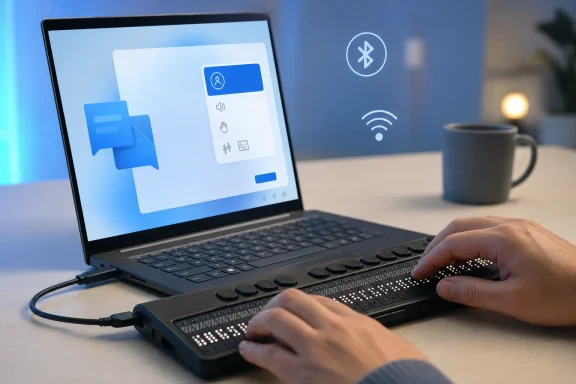
The new Windows 11 Insider implementation changes the expected starting point. With a HID-compliant braille display, USB connection becomes the setup action. No separate driver download, manual manufacturer list, or device-specific selection should be required for the initial Narrator experience. Microsoft’s Experimental build announcement explicitly calls it “true plug-and-play” behavior.
That is the kind of accessibility improvement that can sound incremental on a release-notes page while fundamentally changing the day-to-day experience.
Why HID braille support changes the equation
HID, short for Human Interface Device, is a broadly used standard framework for peripherals. It is familiar territory in Windows because keyboards, mice, game controllers, and many other devices can identify themselves through standard descriptors rather than requiring each operating system to understand a manufacturer’s proprietary communications method.
For braille displays, the standard is important because it provides a common way for hardware to expose its capabilities to the host platform. Apple’s developer documentation describes the USB-IF braille HID specification as a standard that lets braille devices connect to computing platforms by exposing a HID descriptor that describes the display’s characteristics. Apple’s Braille HID reference offers a concise explanation of the model.
The USB Implementers Forum published the HID standard for braille displays specifically to improve cross-platform interoperability. The organization said the standard was intended to make it easier for braille hardware to work across operating systems and reduce reliance on device-specific integration. USB-IF’s announcement captures the long-term rationale behind the standard.
Standardization is the feature
The key innovation is not that Windows can send text to a refreshable braille display. It could already do that. The larger shift is that Windows is beginning to recognize a class of braille displays through an open, standardized interface.
That creates practical advantages:
- Fewer vendor-specific dependencies. A user should not have to hunt for an installer or know which legacy driver their display needs before basic access works.
- Cleaner device replacement. If a compatible display is lost, repaired, upgraded, or borrowed, the replacement process can be much less disruptive.
- Better cross-platform prospects. Hardware vendors that implement HID braille have a clearer path to working with multiple operating systems.
- Lower IT deployment complexity. Managed environments can potentially avoid some of the custom software and manual configuration associated with assistive technology deployment.
- More dependable first-use access. A standard connection method is especially meaningful when Windows is being set up for the first time.
This should not be mistaken for a promise that every refreshable braille display on the market will instantly become plug-and-play. HID compliance is the requirement, not merely USB connectivity. A display can have a USB port and still rely on an older or proprietary protocol. Microsoft’s release notes are clear that the automatic connection experience applies to displays that use the HID standard. Microsoft does not present the feature as universal support for all historical braille hardware.
USB plug-and-play is the immediate win
For compatible devices, the headline Windows 11 behavior is remarkably straightforward: attach the braille display via USB, start Narrator, and begin reading. That is a substantial departure from the documented Windows braille setup process, which has traditionally required an optional feature installation and device selection. Microsoft’s older setup instructions show exactly how much configuration the HID path is designed to bypass.
USB remains the most reliable starting point for accessibility hardware. It offers power, a direct connection, predictable pairing behavior, and a troubleshooting path that does not depend on radio state or battery life. For a user arriving at a newly issued Windows laptop, that reliability can matter more than any cosmetic improvement elsewhere in the operating system.
A better fit for real-world support scenarios
The plug-and-play model should be particularly valuable in several common scenarios:
- A school, employer, or agency deploys a new Windows 11 PC to a braille display user.
- A user needs to recover access after resetting or replacing a computer.
- An assistive technology instructor needs to connect a display to several PCs during training.
- A shared device must be made usable quickly without installing specialized software.
- A support technician needs to establish basic accessibility access before completing more advanced configuration.
The practical value is not just saved minutes. It is a reduction in dependency. A complex setup flow often assumes that somebody already has a usable way to read Windows menus, download software, make driver selections, and recover from errors. A directly recognized braille display weakens that circular dependency.
Bluetooth support brings needed flexibility
Microsoft is also extending the HID braille display experience to wireless connections. The supported workflow is conventional: pair the device under Settings > Bluetooth & devices, then use it with Narrator without being physically tethered to the PC. Microsoft’s Insider announcement confirms both the Bluetooth pairing path and the intended wireless use case.
For braille display users, Bluetooth is not merely about making a desk look tidier. It can make a Windows laptop more comfortable to use in classrooms, meeting rooms, on a sofa, while traveling, or with a display positioned independently of the notebook’s screen and keyboard.
The documentation gap is worth watching
There is one important qualification. Microsoft’s publicly available Narrator braille support page still says that Bluetooth support is unavailable when using a braille display with Narrator, and its setup directions continue to describe the old downloadable braille component. Microsoft’s current support page has not yet been fully updated to reflect the Insider implementation.
That does not undermine the new feature announcement. The official Windows Insider release notes specifically state that Bluetooth HID braille displays can be paired through Settings and used wirelessly. Microsoft’s build notes are the more relevant source for this preview build.
Still, the mismatch illustrates a familiar risk in accessibility rollouts: documentation and support articles must catch up promptly. An accessibility feature is only as approachable as the instructions available to the people trying to use it, their families, educators, employers, and IT departments.
Compatible displays: what Microsoft has named so far
Microsoft has named four examples of compatible HID braille displays in the Windows 11 Insider Preview announcement:
- Orbit Reader 20
- Orbit Slate 340
- Freedom Scientific Focus 40
- APH Mantis Q40 Microsoft’s release notes list these devices as compatible HID displays.
The list is meaningful because it includes products with different designs and use cases. The Orbit Reader 20, for example, is a 20-cell display that can work as a braille display, note-taker, and standalone book reader, with both USB and Bluetooth connectivity. Orbit Research’s product page describes those capabilities.
The APH Mantis Q40 takes a different approach, pairing a 40-cell refreshable braille display with a traditional keyboard layout. APH’s Mantis Q40 documentation identifies its 40-cell display, standard keyboard, Home button, and navigation controls.
Microsoft’s list should be read as a set of confirmed examples rather than a closed compatibility catalog. The underlying test is whether a device exposes the relevant HID braille capability in a way Windows recognizes. Manufacturers may also need firmware updates, mode changes, or specific connection settings before a device identifies itself as a HID braille display.
Do not confuse general Narrator support with HID plug-and-play support
Windows already maintains a much broader list of braille devices supported by Narrator, spanning manufacturers such as Albatross, Alva, Baum, Freedom Scientific, Handy Tech, HumanWare, Orbit Research, Papenmeier, and others. Microsoft’s supported braille display appendix makes clear that the existing compatibility ecosystem is extensive.
But the broader list should not be interpreted as confirmation that every listed device qualifies for the new zero-setup HID connection model. Existing Narrator support can involve a manufacturer-specific driver or an older connection architecture. The distinction will matter to purchasers, support teams, and users deciding whether to update hardware.
That makes Microsoft’s next documentation task clear: publish an easy-to-find, maintained list separating:
- Displays supported by Narrator generally.
- Displays supported through the new HID braille standard.
- Devices that support USB HID only.
- Devices that support both USB and Bluetooth HID operation.
- Any device-specific firmware, mode-switching, or known-issue requirements.
Without that clarity, “HID compatible” could become another vague compatibility label rather than the straightforward promise it is meant to represent.
OOBE support is the most important part of the update
The deepest accessibility improvement may be the one that appears furthest down the release notes: HID braille displays connected through USB now work during the Windows Out-of-Box Experience, or OOBE. Microsoft says this means deaf-blind users can set up a Windows PC independently from the first screen. Microsoft’s announcement explicitly identifies independent setup for deaf-blind users as the objective.
OOBE is the sequence a person encounters when a PC is first powered on, reset, or provisioned. It is where Windows asks for region, keyboard, network, account, privacy, and other foundational choices. If a user cannot access that stage independently, the rest of the operating system’s accessibility features arrive too late.
Accessibility must begin before sign-in
Windows has previously offered ways to make Narrator and braille settings available before logon, although the documented process could require prior configuration and synchronization of Narrator settings. Microsoft’s braille guidance explains that pre-logon braille use has involved promoting settings so they are available before the user signs in.
OOBE support is more ambitious. It does not assume a user account, existing preferences, a preconfigured PC, or a support person who can prepare the device in advance. It addresses the precise moment when users are most vulnerable to exclusion: the first interaction with a new machine.
For deaf-blind Windows users, tactile access to installation and setup content can be essential. Speech output alone may not be usable; visual controls alone may not be usable; remote support may not always be feasible or private. A USB HID braille display at OOBE turns an accessibility principle—independent access from the first screen—into a practical capability.
This is also where the choice of USB over Bluetooth makes sense. Bluetooth requires a pairing workflow, while USB supports immediate physical connection. The OOBE implementation is therefore focused on the path with the least ambiguity and the fewest prerequisites.
Narrator customization remains part of the picture
Automatic hardware recognition does not eliminate the need for personal braille preferences. It eliminates unnecessary setup before users can get to those preferences.
Microsoft says users can customize braille input and output settings in Settings > Accessibility > Narrator > Braille. The Insider release notes identify the new settings location.
That matters because braille access is not one-size-fits-all. A user may need different braille tables, language settings, cursor behavior, notification timing, or input and output conventions depending on their literacy preferences, work, education, region, and device layout. Microsoft’s established documentation lists configurable items including input and output languages, table types, notification timeouts, and cursor presentation. Microsoft’s Narrator braille settings guide details those available controls.
The ideal Windows 11 experience, then, is layered:
- Instant access first through HID plug-and-play.
- Personalization second through Narrator’s braille settings.
- Advanced interoperability third for people working across multiple screen readers, devices, or enterprise environments.
That ordering is much more humane than forcing users to master configuration before they can read the configuration screen.
The Experimental channel caveat
This is an Insider feature, not a broadly released Windows 11 capability available to all PCs today. It is shipping in the Experimental (26H1) channel, which Microsoft positions as an early venue for features that may be far from a retail Windows release. Microsoft’s description of the revised Windows Insider channels says the Future Platforms option is its earliest preview build and is not aligned to a retail version of Windows.
That distinction deserves serious attention. Accessibility features can be particularly difficult to test casually because a feature that works in one narrow scenario can still fail around lock screens, restart cycles, Bluetooth reconnection, device sleep, firmware differences, multilingual braille, enterprise policies, or coexistence with third-party screen readers.
Microsoft also notes that moving away from Experimental Future Platforms builds can require a clean installation of Windows. Its Insider channel guidance makes that consequence explicit. For a PC that is essential for school, work, communication, or independent living, that is a significant trade-off.
Sensible expectations for early adopters
The new braille support is promising, but users and organizations should approach the preview with appropriately specific expectations:
- Confirm the display is genuinely HID braille compatible, rather than assuming all USB braille devices qualify.
- Use USB for initial testing, particularly where reliable access is critical.
- Test Bluetooth reconnection after sleep, restart, and display power cycles before relying on it daily.
- Keep existing screen-reader configurations available until interactions with Narrator, JAWS, NVDA, or other tools are understood.
- Document working device modes and firmware versions for support teams and accessibility coordinators.
- Send feedback through the Windows Insider program when hardware behavior, layout mapping, or OOBE access does not meet expectations.
These are not reasons to dismiss the change. They are the practical conditions of testing an early platform feature that could eventually become foundational accessibility infrastructure.
A meaningful direction for Windows accessibility
Microsoft has been steadily broadening Windows 11 accessibility work across Narrator, Voice Access, live captioning, voice features, keyboard navigation, and adaptive input. The same Experimental build that introduces HID braille display support also adds Voice Access support for Portuguese from Portugal, Portuguese from Brazil, and Korean from South Korea. Microsoft’s build 28120.2546 notes place those enhancements alongside the new braille capabilities.
Yet the braille update stands apart because it addresses both software accessibility and hardware interoperability. Narrator improvements can make Windows better once a user is in the operating system. HID support can make the act of connecting essential accessibility hardware dramatically less fragile.
The move also reinforces a broader industry lesson: assistive technology should not be perpetually dependent on bespoke drivers, opaque connection modes, and specialist setup knowledge. Standardization does not solve every accessibility challenge, but it can remove the obstacles that exist only because platforms and devices have failed to speak the same language.
Windows 11’s HID braille display support is currently an Experimental-channel feature, and it still needs broader device validation, clearer public compatibility guidance, and updated support documentation. But the direction is undeniably right. By making compatible displays connect instantly over USB, supporting wireless Bluetooth pairing, and enabling braille at the Windows setup screen, Microsoft is moving closer to a PC experience where independent access begins not after configuration, but with the first connection.
