

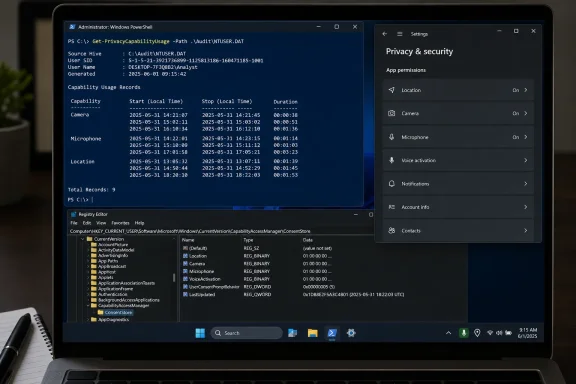
The important correction is that Settings is not as empty as the registry-first approach suggests. Microsoft says Windows 11’s Privacy & security pages provide a seven-day history for resources including Location, Camera, and Microphone. Microsoft Support also documents taskbar indicators for active microphone and location use, while camera hardware should illuminate its physical indicator when it is active. The registry is useful when the built-in history is too compressed or when an administrator needs raw per-entry timestamps, but it cannot reconstruct every prior access event.
For a quick first pass, use Settings before opening Registry Editor:
- Open Settings > Privacy & security > Camera, Microphone, or Location.
- Review the recent activity shown for the capability and revoke access where Windows provides a per-app control.
- Hover over the taskbar privacy indicator while it is present to identify active use, rather than waiting for a later record.
Neowin’s underlying finding is still valuable: the Windows Capability Access Manager keeps data that is far more convenient to audit with PowerShell than with Registry Editor. The catch is understanding what that data proves—and what it does not.
ConsentStore records the latest session, not a running timeline
For the signed-in account, Windows stores capability-consent and recent-use values under:
HKEY_CURRENT_USER\Software\Microsoft\Windows\CurrentVersion\CapabilityAccessManager\ConsentStore
The usual capability names are webcam, microphone, and location. Other folders can appear depending on hardware, installed apps, and Windows features used on that PC.
Inside each capability are application-specific entries. Microsoft Store and other packaged apps normally appear under package-related names. Traditional Win32 software is commonly placed under NonPackaged, where Windows represents executable paths in registry-safe form. A path-like entry containing # may need that character converted back to \ before it resembles a normal executable path.
The forensic significance is straightforward. The keys can contain LastUsedTimeStart and LastUsedTimeStop, which endpoint forensics tools such as Velociraptor also parse as Windows FILETIME timestamps. Subtracting stop from start gives the length of the most recently recorded session.
What the key does not provide is a chronological audit trail. Once an app uses the microphone again, the newer timestamps can replace the earlier session. If a browser accessed the microphone for five minutes on Monday, 40 minutes on Wednesday, and two minutes today, the record may leave only the final two-minute session. The Windows Settings history and the registry therefore answer different questions: Settings offers a limited recent-activity view, while ConsentStore offers raw detail for the latest retained access.
That distinction makes it a useful triage tool after an unexpected indicator appears. It does not make it a reliable historical record for investigating weeks of suspected camera or microphone use.
A read-only PowerShell audit is safer than editing Registry Editor
The Registry Editor shortcut in Neowin’s instructions works by writing a LastKey value so Regedit opens at ConsentStore. It is harmless in normal use, but unnecessary: it changes the current user’s registry merely to set a navigation location. For an audit, PowerShell can read the same values without changing permission entries or erasing evidence.
Run the following in a normal PowerShell window while signed in to the user account you want to inspect:
$root = 'HKCU:\Software\Microsoft\Windows\CurrentVersion\CapabilityAccessManager\ConsentStore'

$results = foreach ($capabilityKey in Get-ChildItem -LiteralPath $root -ErrorAction SilentlyContinue) {
    $capability = $capabilityKey.PSChildName

    foreach ($entry in Get-ChildItem -LiteralPath $capabilityKey.PSPath -Recurse -ErrorAction SilentlyContinue) {
        $p = Get-ItemProperty -LiteralPath $entry.PSPath -ErrorAction SilentlyContinue

        if ($null -ne $p.LastUsedTimeStart -and
            $null -ne $p.LastUsedTimeStop -and
            [Int64]$p.LastUsedTimeStart -ne 0 -and
            [Int64]$p.LastUsedTimeStop -ne 0) {

            $start = [DateTime]::FromFileTimeUtc([Int64]$p.LastUsedTimeStart).ToLocalTime()
            $stop  = [DateTime]::FromFileTimeUtc([Int64]$p.LastUsedTimeStop).ToLocalTime()

            [PSCustomObject]@{
                Capability       = $capability
                AppEntry         = ($entry.PSChildName -replace '#', '\')
                LastUsedStart    = $start
                LastUsedStop     = $stop
                Duration         = $stop - $start
                RegistryKey      = $entry.Name
            }
        }
    }
}

$results |
    Sort-Object Capability, LastUsedStart -Descending |
    Format-Table Capability, AppEntry, LastUsedStart, LastUsedStop, Duration -AutoSize
The script translates the opaque 64-bit FILETIME values into local date and time, lists the capability, and calculates duration. It deliberately shows the registry key as well as a friendlier app entry because the friendly name is not always an application name a user will recognize. Package identities, Windows components, service hosts, and browser executables can all require a second step of identification.
A Duration of 00:40:00 means Windows recorded a 40-minute session between the stored start and stop times. It does not establish what the program captured during those 40 minutes, whether it transmitted data, or whether a person intentionally enabled a voice-chat feature. The entry is evidence of capability access, not proof of exfiltration.
LastSetTime should not be labeled as permission granted
The original script calls LastSetTime “PermissionGrantedOn.” That is too confident.
Microsoft’s public support documentation explains how Windows privacy toggles control access, but it does not document LastSetTime as an immutable “permission granted” timestamp. The field name only establishes that Windows last set something related to that consent entry. It may line up with a user granting access, but it can also be affected by later privacy changes, app installation behavior, policy application, or other maintenance of the consent record.
For that reason, treat it as last consent-state change observed in this key, not proof of the first time an app was authorized. If it is useful to include in a script, label it LastConsentChange and keep the interpretation narrow.
The Value field is similarly limited. Allow or Deny tells you the stored consent state at the relevant level, but Windows privacy enforcement has layers: device-wide controls, user settings, app-specific permissions for packaged apps, broad desktop-app switches, browser site permissions, and organization-managed policy.
Desktop apps and browser tabs are where the audit becomes ambiguous
Microsoft’s own documentation warns that desktop apps do not behave like Microsoft Store apps in the privacy UI. Camera and microphone access for traditional desktop software is often controlled through a broad “Let desktop apps access” setting rather than a per-application toggle. Microsoft also notes that desktop apps can be absent from the Settings list and may access these resources differently.
That produces two practical consequences.
First, finding msedge.exe, chrome.exe, Firefox, Teams, Discord, OBS Studio, or a game executable in ConsentStore does not identify the individual website, meeting, game mode, or plug-in that requested the device. If Microsoft Edge used the microphone, the next place to look is Edge’s site-permission list. Revoking Windows-level access alone is often more disruptive than blocking the one site that should never have been allowed.
Second, a Windows component name may be legitimate but still warrant explanation. Microsoft specifically notes that indirect use can be attributed to a component rather than the app a user interacted with. Speech features, Windows Hello, conferencing software, overlays, and audio drivers can leave entries that look unfamiliar. Do not delete registry keys to “clear” them; that destroys the diagnostic record and can create confusing consent behavior. Revoke the relevant permission, disable the feature, or uninstall the software instead.
Camera records need one further caveat. Microsoft says Windows Hello can use a camera for sign-in even when the general Camera access setting is off. A camera entry associated with Windows Hello is therefore not automatically evidence that a third-party application bypassed a privacy setting.
Check the machine-wide store and managed policies separately
The HKCU path covers the currently signed-in user. It does not speak for other accounts on the PC, a shared workstation, or device-wide policy.
Administrators can inspect the machine store from an elevated PowerShell window by changing the root path to:
HKLM:\SOFTWARE\Microsoft\Windows\CurrentVersion\CapabilityAccessManager\ConsentStore
Do not merge results from HKCU and HKLM without labeling which hive supplied each row. A user-level entry identifies activity or consent associated with that user profile; a machine-level entry can reflect device scope. On managed Windows 11 Pro, Enterprise, Education, and IoT systems, Group Policy and MDM can also force allow or deny settings under the Windows App Privacy policies. Those controls can override what a user sees as editable in Settings.
For IT staff, this makes ConsentStore a useful endpoint artifact after a help-desk report: preserve the current values, correlate the executable path with installed software and browser permissions, then compare the relevant Windows privacy policy. It should not be treated as a substitute for endpoint telemetry, process auditing, or a data-loss investigation.
The concrete payoff is modest but real: Windows can tell you the last recorded start time, stop time, and duration for a tracked camera, microphone, or location session. Use that detail to investigate a specific surprise, then change the permission at the layer that actually controls the software involved—Windows, the application, the browser site, or organizational policy.