
The biggest problem is technical, not cosmetic. The guide says duplicate documents and cache files can “start automatically” and consume RAM in the background. Files sitting on disk do neither. A cache file may take storage space; an application or service may consume memory and CPU after it launches. Those are separate problems with separate tools. Deleting files can be necessary when a drive is nearly full, but it is not a substitute for finding the process that is actually making a PC sluggish.
HP’s own Windows 11 advice is largely based on built-in controls, which is the right starting point. The published operating-system versions and several of the navigation paths, however, show why users should not treat the page as a current step-by-step manual in August 2026.
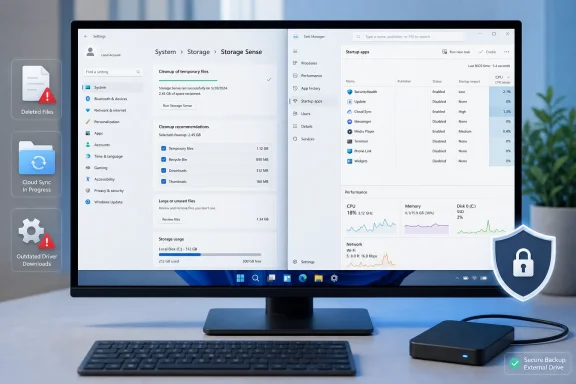 Windows storage cleanup is about capacity, not magic performance
Windows 11’s Storage Sense and Cleanup recommendations are legitimate first-party ways to reclaim space. Microsoft documents Storage Sense as a tool for removing temporary files and aged Recycle Bin contents, while Cleanup recommendations surfaces categories such as temporary files, large or unused files, cloud-synced content, and infrequently used apps.
That can directly help a machine that is running short of disk space. Windows needs working room for updates, temporary installation files, page files, restore points, application updates, and normal day-to-day writes. A nearly full system drive can make updates fail, prevent apps from saving data, and compound slowdowns on older hardware.
But free space is not RAM. A PC with 300 GB free can still feel slow because a browser has dozens of tabs open, an endpoint-security scan is active, a cloud client is synchronizing a large folder, or a startup program is chewing through CPU time. Conversely, deleting a few gigabytes of old downloads from a spacious SSD will not make a healthy system measurably faster.
For Windows 11, the practical sequence is:
- Open Settings > System > Storage and identify whether the system drive is actually tight on capacity.
- Use Cleanup recommendations to review temporary files, old Windows installation files, large files, and unused apps before removing anything.
- Enable Storage Sense only after reviewing its Recycle Bin, Downloads, and cloud-file settings.
- If the complaint is slow boot or constant background activity, inspect Task Manager > Startup apps rather than deleting caches.
That last step is where HP’s explanation goes off course. Microsoft’s current documentation identifies startup apps as applications registered to launch when a user signs in, and Task Manager shows their startup impact. Disabling an unnecessary high-impact launcher can improve sign-in time; removing a duplicate PDF cannot.
Storage Sense has another limitation worth knowing before enabling it broadly: it manages the Windows system drive, normally C:, rather than every internal or external drive attached to the computer. It can also make eligible OneDrive files online-only under the user’s chosen rule. That is a capacity-saving feature, not a backup strategy, and users who work while offline should check exactly which folders they have marked “Always keep on this device.”
Several instructions are already stale—and one Windows label is wrong
The HP article calls out Windows 11, macOS 14, Android 14, and iOS 14 as though they are peers. They are not.
Apple released iOS 14.8.1 on October 26, 2021. Apple’s current iPhone documentation is for iOS 26, making the guide’s iOS 14 framing especially problematic in a section that tells readers to update for security. A phone genuinely still running iOS 14 is not simply overdue for routine maintenance; it is operating far outside Apple’s current supported release stream. The correct action is to check whether the specific hardware can install a supported version, then make a backup before attempting a major upgrade or planning a replacement.
macOS 14 Sonoma and Android 14 are also previous-generation releases. Their broad storage and uninstall concepts remain familiar, but menu names, available cleanup features, and security-update status vary by hardware and vendor. Android is particularly fragmented: a Google Pixel, a Samsung Galaxy phone, and a budget Android handset may all expose software updates differently and receive them on materially different schedules. “Android 14” is not enough information to tell a reader whether a device is current.
On Windows, HP’s path to remove programs also uses an outdated Settings label. Current Windows 11 documentation directs users to Settings > Apps > Installed apps, not “Apps & features.” Control Panel’s Programs and Features remains available for many traditional desktop applications, but Settings is where Windows 11 exposes modern app management.
This may sound like a minor wording issue, but it changes the value of a cleanup guide. Users facing a slow or full PC need instructions that match what is on screen, particularly when they are being asked to remove software or files. Old UI labels encourage people to download third-party “cleaners” after they cannot find the built-in option—a worse outcome than doing nothing.
Remove applications deliberately, not by deleting their folders
Uninstalling software can recover substantial storage, especially games, creative suites, virtual machines, old device utilities, and unused vendor bundles. It also reduces the number of programs that may update, launch helpers, register services, or add browser extensions.
It does not follow that every unfamiliar application should be removed. Enterprise VPN clients, printer suites, backup agents, audio drivers, endpoint protection, and manufacturer utilities may look expendable while supporting a function the user relies on. A PC that boots normally after a cleanup can still lose its VPN tunnel, scanner capability, audio controls, or recovery workflow weeks later.
The sensible Windows inventory process is to sort Installed apps by size and installation date, then identify the largest and least-used entries. For anything unclear, verify the publisher and application name before uninstalling. If software is malfunctioning rather than unwanted, Microsoft recommends considering repair first when the application supports it.
Mac users should also distinguish between App Store apps and software installed from elsewhere. Apple’s Launchpad deletion method applies to App Store downloads; other applications generally need to be moved from Applications to Trash or removed through the vendor’s own uninstaller. Deleting an app does not necessarily cancel an associated subscription or remove every document and support file it created.
On iPhone, the more measured option is Offload Unused Apps, which removes an app while keeping its documents and data for later reinstallation. That is preferable to deleting an app outright when the objective is a few extra gigabytes, not a permanent removal.
Cloud storage is backup only if recovery has been planned
HP advises automatic backups and expansion of cloud capacity, both reasonable recommendations. Yet the guide treats cloud storage as though it is automatically a secure backup once a folder is synchronized. Sync and backup overlap, but they are not interchangeable.
A synced OneDrive, Google Drive, or iCloud Drive folder is designed to reproduce changes across devices. Delete or corrupt a file locally and the service may synchronize that change. Version history, recycle bins, retention settings, and recovery windows can reduce the damage, but they are not a replacement for a tested backup plan.
The U.S. Cybersecurity and Infrastructure Security Agency advises users to maintain backups in secure external storage or a properly vetted cloud service, and warns against leaving an external backup drive continuously attached. That is the distinction HP leaves out: a second copy in the same always-connected sync workflow may not protect against account compromise, accidental deletion, or ransomware.
The article also describes a “Google Drive duplicate file finder” that identifies and removes duplicates instantly. Google’s own Drive guidance does not provide such an integrated automatic duplicate-removal tool. It recommends list view, sorting, and search to spot likely duplicates manually. Files by Google can find duplicate files stored on an Android device, but that is a different product and a different storage location.
That distinction matters before anyone authorizes a third-party Drive add-on. Such tools may require broad access to cloud files, and a duplicate filename is not proof that two documents are disposable copies. A safer approach is to sort by name or size, inspect candidates, ensure important folders are backed up, and remove only confirmed duplicates.
Update operating systems first; update drivers when there is a reason
The advice to install operating-system updates is solid. Software updates address known vulnerabilities, fix defects, and often improve compatibility. CISA continues to recommend prompt software updates and automatic updates where appropriate.
For Windows users, Windows Update should be the first stop for recommended drivers. Microsoft says Windows 11 installs recommended driver updates automatically and exposes optional driver updates under Settings > Windows Update > Advanced options > Optional updates. If a needed update is not there, the next source should be the PC maker’s or device maker’s official support page—not a generic driver-download utility.
The “update every driver” mentality is another common cleanup mistake. Drivers are low-level components, and a newer version is not inherently better for every machine. If hardware works correctly, Windows Update is current, and there is no documented fix needed for a specific issue, indiscriminate driver churn creates a rollback problem without delivering a meaningful performance gain.
Before removing large groups of files, uninstalling core software, changing cloud settings, or updating firmware, make a backup that can actually be restored. Then use Windows 11’s storage tools to recover capacity, Task Manager to identify startup overhead, and official update channels to patch software. That turns device cleanup into maintenance rather than a cycle of deleting the wrong things and hoping the PC feels faster.
