
That distinction is more than semantic for Windows users and administrators. The command changes the storage ceiling for Volume Shadow Copy Service, or VSS, and Windows may remove existing shadow copies immediately when the new ceiling is below current use. Microsoft’s own documentation carries the same warning: resizing a shadow-storage association can cause shadow copies to disappear.
MakeUseOf’s Afam Onyimadu reported seeing 11.47 GB listed as used shadow-copy storage on a roughly 500 GB SSD, then reduced its maximum allocation to 2 GB. Afterward, the reported used figure fell to 0.42 GB. The personal result is plausible, but it should not be treated as a universal Windows cleanup trick: the reclaimed capacity is the price of losing older restore history.
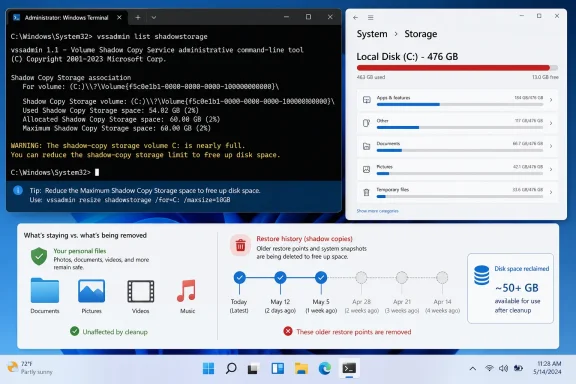 Shadow storage can explain “missing” C: drive capacity
Windows does not present VSS storage as a normal folder that users can inspect in File Explorer. That makes it easy to mistake the difference between a drive’s apparent free space and the sum of its visible files for a problem with Windows’ storage accounting.
The command in MakeUseOf’s report is:
vssadmin list shadowstorage
Run it from an elevated Command Prompt, Windows Terminal, or PowerShell session. It reports storage associations, including the volume being protected, the volume holding the data, and three figures that should not be confused:
- Used Shadow Copy Storage space is capacity occupied by existing shadow copies at that moment.
- Allocated Shadow Copy Storage space is capacity currently assigned to the VSS diff area, which can be greater than the data actively used.
- Maximum Shadow Copy Storage space is the limit VSS can consume, rather than capacity Windows has already consumed.
The “Used” value is therefore the most useful first diagnostic number for a machine under immediate storage pressure. A large maximum by itself is not proof that Windows has already claimed that much disk space.
Microsoft documents vssadmin for Windows 10, Windows 11, and supported Windows Server releases. Its list shadowstorage command lists the storage associations; its resize command changes how much storage can be used. Those are administration tools, not a substitute for understanding what created the snapshots in the first place.
Reducing the limit deletes recovery history
The command shown by MakeUseOf was:
vssadmin resize shadowstorage /for=C: /on=C: /maxsize=2GB
/for=C: identifies the volume being shadowed. /on=C: means the shadow-copy storage area resides on the same volume. /maxsize=2GB sets the new cap.
It does not target personal files, but calling the operation “without deleting a single file” overstates what happens. Shadow copies contain prior states of Windows system files, the registry, installed-application information, and—in some configurations—recoverable previous versions of files. Those copies are files and recovery data, even if they are not the user’s ordinary working files.
Windows responds to a reduced limit by pruning snapshots until the data fits. Microsoft says VSS deletes shadow copies beginning with the oldest when it runs out of storage space. In the MakeUseOf example, shrinking the maximum from 23.85 GB to 2 GB appears to have removed enough old snapshots to free roughly 11 GB. That is expected behavior, not a bug, and not a reversible cleanup operation.
For a personal PC with current backups and no need to roll Windows back several weeks, that may be a reasonable trade. For a PC that has just received a driver, firmware, endpoint-security, or Windows update change, it can be an especially bad moment to wipe available restore points. A restore point is often most valuable shortly after the kind of system change that consumes one.
Microsoft’s System Protection guidance offers a less abrupt way to manage the same decision. Search Windows for “Create a restore point,” select the protected drive, then use Configure to review whether System Protection is enabled and set its allowed disk usage. That interface makes the relationship between the space setting and restore-point retention more apparent than a command that simply imposes a number.
A 2 GB cap is a policy choice, not a recommended default
The 2 GB figure in the MakeUseOf example was appropriate only for that machine’s storage shortage and the author’s stated willingness to lose older rollback options. It is not a safe standard for every C: drive.
On a 500 GB system volume, 2 GB can leave very little headroom for multiple restore points after application installs, updates, or configuration changes. Windows will continue to create and age out restore points according to the available policy and workload, but a small cap means retention will be shallow. One substantial system change can consume enough shadow-copy space to force older points out quickly.
Microsoft’s documentation on traditional System Restore describes automatic management of the space assigned to restore points. Its published Windows 7-and-later guidance has historically allowed up to 5% of the volume or 10 GB, whichever is lower, on drives larger than 64 GB. Actual settings can differ by Windows release, machine history, protection configuration, and administrative policy, which is why inspecting the local configuration is more useful than copying a percentage or fixed capacity from a web article.
There is also a newer wrinkle on current Windows releases. Microsoft’s support documentation describes Point-in-time restore for Windows, a separate recovery feature that can create local restore points on a schedule and use a maximum usage limit. It differs from traditional System Restore in what it restores and how long it retains points. Administrators should identify which recovery facility is enabled before treating all recovery-related disk use as disposable VSS clutter.
Microsoft says Point-in-time restore can return the system to an earlier state including apps, settings, and files, while traditional System Restore focuses on system files and settings without affecting personal files. Reducing classic VSS shadow storage will not necessarily answer every question about local recovery capacity on a modern Windows 11 machine.
Check what recovery function you are giving up
Before resizing shadow storage, users should determine whether the existing snapshots are actually useful. The practical checks are straightforward:
- Run
vssadmin list shadowstorageand record the Used, Allocated, and Maximum figures before changing anything. - Open System Protection and confirm whether protection is enabled for C:, how much space it is permitted to use, and whether restore points are available.
- Create a current restore point manually if System Protection is enabled and there is enough room to do so.
- Confirm that important user data is backed up independently, because System Restore is not a replacement for a real backup.
- Avoid making the change immediately before a major driver installation, Windows feature update, BIOS update, or software deployment that may need a rollback path.
For managed endpoints, this deserves more caution than it gets in consumer cleanup advice. VSS is an underlying Windows snapshot mechanism used by System Restore and can be involved in recovery and backup workflows. Microsoft notes that vssadmin administers shadow copies created by the system software provider, but organizations should still validate their backup product’s architecture and recovery requirements before adjusting a volume’s shadow-storage cap through scripts or endpoint-management policies.
A help-desk response to a full C: drive should also rule out the more mundane consumers first: hibernation files, component-store cleanup, Windows Update remnants, memory dumps, OneDrive offline files, user profiles, virtual machines, development-tool caches, and application data. Shadow storage is a good diagnostic target precisely because it is less visible—not because it is automatically waste.
MakeUseOf’s 11 GB recovery is a legitimate example of reclaiming capacity without erasing a user’s ordinary data. The accurate takeaway is narrower: on Windows PCs with unexpectedly high VSS usage, reducing the shadow-storage limit can free space fast by deleting older restore snapshots. That is a recovery-policy decision, and the next system problem may reveal whether the space saved was worth the rollback history lost.
