
The change is significant because the dedicated Copilot key was never merely an extra button on many laptops. On a number of new Windows 11 systems, it displaced a familiar and functional key in the lower-right portion of the keyboard. For users who rely on keyboard shortcuts, remote-desktop workflows, developer tools, accessibility utilities, or old-fashioned muscle memory, that replacement has been more disruptive than Microsoft’s AI-first keyboard marketing suggested.
A forthcoming Windows 11 update is set to add native configuration options under Settings > Bluetooth & devices > Keyboard, allowing supported users to make the Copilot key behave as either Right Ctrl or the Context menu key. That is a welcome correction, but the details matter: it is not quite the universal “turn it off” switch that frustrated users may expect, and rollout timing, hardware behavior, and feature availability will remain important variables.
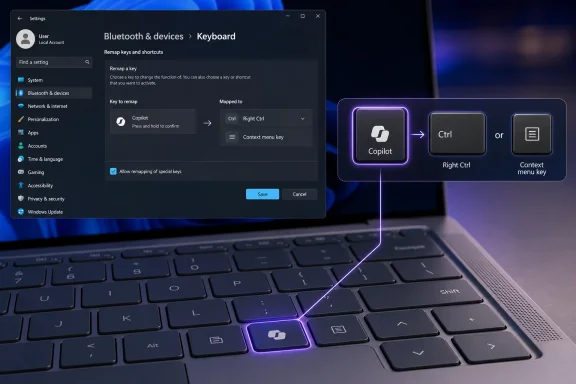 The Copilot Key Problem Was Always About More Than Copilot
When Microsoft announced the Copilot key in early 2024, it framed the move as the most substantial change to the Windows keyboard layout in decades. The company’s reasoning was straightforward: Copilot would become a central Windows experience, so it deserved a dedicated hardware shortcut alongside familiar keys such as Windows, Alt, and Ctrl.
On paper, a one-press route to an AI assistant has obvious appeal. A dedicated key can make a software feature more discoverable, reduce the friction of opening an app, and make Windows PCs feel distinct in a rapidly growing market for AI-branded hardware.
The complication emerged at the hardware level. Keyboard real estate is finite, especially on thin-and-light laptops. Rather than add another physical key, some PC makers placed the Copilot key where a Right Ctrl key or Context menu key traditionally lived.
For many users, that trade-off was not neutral.
The right-side Ctrl key is less prominent than the left-side version, but it is not redundant. It is used deliberately in a range of professional and specialist workflows, including:
- Keyboard shortcuts where the user’s right hand remains close to the arrow keys or numeric keypad
- Remote-desktop and virtual-machine software that distinguishes between left and right modifier keys
- Coding, terminal, CAD, media-production, and enterprise applications with customizable shortcut maps
- Gaming setups that bind commands around the right side of a laptop keyboard
- Accessibility workflows involving screen readers, alternative input methods, and customized key commands
- International keyboard layouts and application-specific combinations that depend on a predictable physical layout
The Context menu key, sometimes also called the Application key, matters for a different reason. It can open the right-click menu without requiring a mouse, trackpad gesture, or Shift + F10 combination. That makes it useful for keyboard-focused productivity and especially relevant to users who depend on assistive technologies.
Replacing either key with one dedicated to a single AI experience created an avoidable conflict between new capability and established capability. The issue was not that Copilot existed. The issue was that a broad Windows ecosystem had been asked to surrender a general-purpose input control for a vendor-defined shortcut.
Microsoft’s New Windows 11 Remapping Plan
Microsoft’s updated guidance acknowledges that people who relied on the displaced Right Ctrl or Context menu key encountered workflow challenges. The company’s planned response is a native Windows 11 setting designed to restore one of those missing functions to the Copilot key.
Once the relevant update reaches a supported device, the intended route is:
- Open Settings.
- Select Bluetooth & devices.
- Choose Keyboard.
- Locate the Copilot key configuration option.
- Set the key to act as Right Ctrl or Context menu.
That is a materially better approach than asking users to install a third-party remapping utility, edit the registry, modify low-level keyboard mappings, or accept a compromise that only works in some apps.
Why Native Remapping Matters
Windows-level remapping is important because the Copilot key is not always exposed to the operating system as a simple, ordinary spare key. On many devices, pressing it sends a specialized hardware signal or an unusual key combination. In some cases, that makes conventional remapping tools less predictable than users might assume.
A native setting can potentially handle the translation closer to the operating system’s input stack. That should improve consistency in standard desktop software and reduce the chance of Copilot opening unexpectedly when a user intended to press a familiar modifier key.
It also gives IT administrators, accessibility teams, and support staff a documented path rather than forcing them to maintain unofficial workarounds across mixed hardware fleets.
Still, the practical phrase here is “should improve consistency.” Microsoft has already cautioned that some combinations involving the physical left Shift key and the remapped Right Ctrl function may not behave consistently across all keyboards. That caveat is not a small footnote. It suggests the new remapping feature may be a major improvement without being a perfect electrical or firmware-level recreation of the original key.
Is This Really a Copilot Key “Kill Switch”?
Not exactly—at least not based on the clearest description of the new setting.
The planned Windows 11 options focus on transforming the Copilot key into a Right Ctrl key or a Context menu key. That is far more useful than assigning the key to an AI app, but it is different from a dedicated option that renders the key completely inert.
The distinction is worth making because “disable” can mean several different things:
- Prevent the key from launching Copilot
- Reassign the key to another app
- Restore a traditional keyboard function
- Make the key produce no input at all
- Disable Copilot itself across Windows
These are separate actions, with separate levels of usefulness.
Reassigning Is Not the Same as Disabling
Windows already offered a degree of Copilot key customization through Settings > Personalization > Text input. Depending on the system, users could configure the key to open Search, select a compatible app, or choose another supported action.
That earlier configuration was helpful for people who wanted the key to launch an alternative AI assistant or another approved application. It did not solve the central complaint from users whose physical Right Ctrl or Context menu key had disappeared.
A key that opens a different app is still an app-launch key. It does not automatically restore the ergonomic and workflow value of a real keyboard modifier.
Restoring Right Ctrl Is the Most Meaningful Option
For many affected laptop owners, making the Copilot key behave as Right Ctrl is the closest thing to a genuine fix. It returns a familiar function to a location where users expect it and reduces the need to retrain hands around Microsoft’s AI shortcut.
However, users should not assume all keyboard behavior will become identical across every program, game, virtual machine, or remote session. A physical key is recognized through hardware scan codes and firmware behavior, while a remapped key may pass through a software translation layer.
That distinction can become visible in edge cases such as:
- Legacy software with unusual keyboard handling
- Full-screen games that bypass normal desktop input paths
- Remote-desktop sessions that pass raw keyboard input to another machine
- Virtualization platforms that distinguish modifier-key states
- Secure sign-in screens or pre-boot environments
- Vendor-specific hotkey utilities that work outside standard Windows input processing
For normal Windows use, the native option should be a substantial improvement. For users with specialized setups, it will need real-world testing before it can be considered a total replacement.
A True “Off” Setting Would Still Be Better
There is a strong argument that Windows should also offer a simple Do nothing option. A key users cannot or do not want to use should be allowed to remain inactive without requiring a third-party utility.
That choice would benefit users who have remapped other nearby keys, use an external keyboard most of the time, or simply prefer to avoid accidental launches. It would also align with a broader principle of user control: a dedicated key should never force a software experience onto someone who does not want it.
Microsoft’s planned expansion is progress, but it should not be treated as the end of the discussion about Copilot key customization.
Why the Right Ctrl Key Matters More Than It Looks
To casual users, the presence of two Ctrl keys may appear unnecessary. Windows shortcuts such as Ctrl + C, Ctrl + V, Ctrl + Z, and Ctrl + S generally work with either side. That has led some observers to dismiss complaints about the missing Right Ctrl key as resistance to change.
That view overlooks how people actually use keyboards.
Muscle Memory Is a Productivity Feature
A keyboard is not merely a collection of buttons. It is a physical interface learned through years of repetition. The location, spacing, and feel of keys become embedded in muscle memory, particularly for people who type all day or work in applications with dense shortcut systems.
When a user reaches for Right Ctrl and instead launches an AI panel, the interruption is not limited to one mistaken keystroke. It can break concentration, move focus away from the active application, cover work with a new window, or introduce delay into a routine command.
These small disruptions add up. A workflow interruption that occurs dozens of times a day becomes more than an annoyance.
Remote and Virtual Workflows Are Less Forgiving
The right-side Ctrl key can be especially important in remote and virtual computing. Administrators, developers, help-desk technicians, and power users may interact with multiple systems through Remote Desktop, virtual machines, terminal environments, and browser-based consoles.
These environments often use keyboard sequences that must pass cleanly from the local computer to a remote one. A remapping layer can be effective, but it adds a point of uncertainty. If the dedicated Copilot key is translated only after Windows fully loads—or if an application reads the original scan code in a nonstandard way—the restored key may not behave as expected.
That is why the best long-term solution is not merely a software option. PC makers should avoid replacing standard keyboard controls in the first place unless they can provide robust, firmware-aware customization.
Accessibility Cannot Be an Afterthought
Microsoft’s acknowledgement of accessibility concerns is important. For users who rely on screen readers, keyboard navigation, switch devices, or customized shortcut frameworks, a familiar key location can be essential rather than optional.
The Context menu key is also a meaningful part of keyboard accessibility. It provides direct access to commands that are often otherwise exposed through a right-click gesture, which may be more difficult or impossible for some users to perform reliably.
The Copilot key controversy illustrates a larger issue for Windows hardware design: input changes need accessibility evaluation before they ship, not after users report broken workflows. A widely deployed operating system cannot treat long-established keys as expendable simply because a new feature needs branding.
What Users Can Do Before the New Setting Arrives
Microsoft has not attached a universal availability date to the expanded Copilot key remapping feature. That means many users may need an interim solution.
The appropriate workaround depends on the device, the edition of Windows 11, the application involved, and the specific goal.
Use Existing Copilot Key Settings Where Available
On systems that already expose the Copilot key personalization page, users can open:
Settings > Personalization > Text input
From there, look for Customize Copilot key on keyboard.
Available choices can vary by Windows build, installed apps, account type, and device policy. The setting may let users redirect the key to Windows Search, an eligible app, or another Copilot-related action.
This does not restore Right Ctrl, but it can stop the key from launching an unwanted default experience and reduce accidental interruptions.
Consider Microsoft PowerToys for Temporary Remapping
Microsoft PowerToys includes Keyboard Manager, a utility that can remap keys and shortcuts. For some machines, it can be used to assign the Copilot key to another function, including a non-Copilot destination.
It is useful, but it is not a universal cure.
PowerToys operates while Windows is running and relies on software-level key interception. It may not work in firmware screens, during sign-in, in every game, or in applications running with higher privileges unless PowerToys is also elevated. Microsoft also warns that remapping modifier keys such as Ctrl, Alt, Shift, or Windows can have side effects.
Users should also remember that the Copilot key can be represented as a special shortcut rather than an ordinary standalone key. That can complicate attempts to recreate the exact behavior of a physical Right Ctrl key.
Check the PC Manufacturer’s Utility
Some laptop makers supply their own keyboard, hotkey, or device-management software. These utilities may expose configuration options that Windows does not yet show, particularly on recently released AI PCs.
The quality of these tools varies widely. Vendor software can provide deeper integration with the keyboard firmware, but it can also be inconsistent across models, tied to a particular driver version, or removed during a clean Windows installation.
For organizations managing large numbers of laptops, manufacturer-specific controls should be tested carefully before they become part of a standardized deployment image.
Avoid Registry Changes Unless You Understand the Trade-Offs
Windows supports low-level keyboard scancode remapping through registry settings, and numerous guides recommend this route. It can be powerful, but it is also easy to misconfigure and difficult to troubleshoot later.
Registry remaps may fail to recognize the Copilot key properly, particularly if the device sends a special hardware shortcut. They can also affect all users of a PC, require a restart, and create support complications when the machine changes hands.
For most people, a native Windows 11 option or a well-understood remapping tool is the safer choice.
Copilot Remains Separate From the Copilot Key
It is also important to separate dissatisfaction with the hardware key from dissatisfaction with Copilot itself.
A user may like Copilot but dislike its dedicated key. Another may never use Copilot but still welcome the ability to turn the button into Right Ctrl. A third may want to use a different assistant while retaining the existing Windows keyboard layout.
These are all reasonable positions.
The key is a hardware-access decision; Copilot is a software and service ecosystem. Changing or remapping the key does not necessarily uninstall Copilot, disable AI features elsewhere in Windows, prevent Copilot from being opened via other shortcuts, or alter organization-wide Copilot policies.
Conversely, removing or restricting the Copilot app does not restore a missing Right Ctrl key. The physical layout problem remains until the key is remapped.
Managed PCs Have Different Rules
In workplace environments, Copilot behavior may be shaped by Microsoft Entra identity, Microsoft 365 licensing, organizational policy, app deployment, privacy settings, and endpoint-management rules.
An administrator can often limit access to Copilot experiences through policy and app-management controls. But that kind of restriction is not the same as an ordinary consumer-facing switch, and it does not necessarily solve the keyboard-layout issue for the employee using the device.
For IT departments, the forthcoming Windows 11 option should be treated as both a user-experience improvement and a supportability enhancement. Restoring a traditional key can reduce unnecessary help-desk tickets, minimize accidental app launches, and make standardized laptop images friendlier to accessibility requirements.
The Bigger Lesson for Windows PC Makers
The Copilot key is a revealing case study in the tension between platform strategy and practical usability.
Microsoft wants Windows hardware to visibly signal its investment in AI. That goal makes commercial sense. AI features are now a major part of PC marketing, and dedicated hardware controls help manufacturers distinguish new models from older systems.
But a keyboard is one of the most mature interfaces in computing. Changes are noticed immediately, and changes that remove standard functions face a higher burden of proof than additions that leave familiar controls intact.
Dedicated AI Keys Can Work—If They Do Not Displace Essentials
There is nothing inherently wrong with a configurable AI key. In fact, a hardware shortcut can be genuinely useful for people who invoke an assistant frequently.
The problem begins when that shortcut is treated as more important than a general-purpose control that users, applications, and accessibility workflows already depend upon.
A better design philosophy would include:
- Retain both Left and Right Ctrl keys on standard layouts
- Preserve the Context menu key where it is traditionally present
- Add an AI shortcut only when space permits
- Make the AI key fully configurable from day one
- Provide options for app mapping, traditional-key restoration, and complete disablement
- Ensure the behavior works reliably in remote, virtualized, secure, and accessibility scenarios
- Publish clear documentation describing device-specific limitations
That is not anti-AI. It is pro-choice, pro-productivity, and pro-compatibility.
Windows Needs a Stronger Hardware Baseline
Windows thrives because it supports an enormous range of devices, peripherals, applications, and user needs. That openness is one of its greatest strengths, but it also means platform changes need clear baseline rules.
If manufacturers can freely replace standard keyboard keys with branded shortcuts, users may end up with inconsistent layouts that complicate training, troubleshooting, and cross-device use. The issue becomes more acute in schools, businesses, libraries, and public-sector environments where people move between different PCs.
Microsoft’s new remapping path is a sensible correction. A stronger original standard would have prevented the problem from becoming widespread in the first place.
A Welcome Fix, but Not a Complete Resolution
The planned ability to map the Copilot key to Right Ctrl or Context menu is one of the most practical Windows 11 quality-of-life changes tied to the Copilot era. It recognizes that a dedicated AI button should not force users to abandon established workflows simply because a new hardware trend has arrived.
For owners of affected laptops, restoring Right Ctrl may finally make the lower-right keyboard layout feel normal again. For accessibility users, it may return a control that should never have been casually displaced. For IT teams, it offers a cleaner and more supportable option than improvised remapping tools.
Yet Microsoft should not stop here. The strongest version of Copilot key customization would include reliable native remapping, a true disable choice, consistent behavior across applications and remote sessions, and no compromises involving standard modifier keys on future Windows laptops.
The real victory is not that Windows can put the Copilot key back to work. It is that Windows is beginning to recognize the key should work for the person using the PC—not the other way around.
Update: PCMag UK Now Says a Full Copilot-Key Disable Option Is Planned (July 26, 2026)
Contrary to the initial reporting, PCMag UK now says Microsoft’s forthcoming Keyboard settings will include a true option to switch the dedicated Copilot key off entirely, alongside remapping it to Right Ctrl. That would address the article’s remaining concern: restoring a traditional key is useful, but it is not the same as making the key inert.
The updated PCMag UK report says the controls will appear under Settings > Bluetooth & devices > Keyboard, although Microsoft still has not provided a rollout date. If confirmed in the final Windows 11 implementation, users who do not want either Copilot or a replacement action tied to that physical key will no longer need a third-party remapping workaround simply to prevent accidental launches.
The distinction remains important: disabling the Copilot key would not itself disable the Copilot app or broader Copilot services across Windows, especially on managed devices.
