

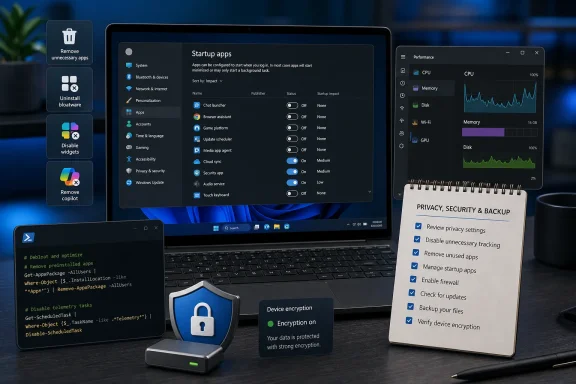
The rest of the guide relies on Chris Titus Tech’s Windows Utility, Raphire’s Win11Debloat, and O&O ShutUp10++ to remove apps, suppress interface promotions, disable features, and alter telemetry policies. Those are legitimate, active tools with public documentation and substantial user communities. But the performance promise needs a narrower reading than “max performance,” and the privacy promise needs an even narrower one: these utilities can reduce data sharing and remove unwanted Windows components, but they cannot make a normal Windows 11 Home or Pro installation invisible to Microsoft.
The meaningful finding is that “debloat” is not one operation. Startup cleanup, app removal, disabling Copilot or Widgets, reducing diagnostic data, blocking web search integration, and preventing automatic BitLocker encryption have very different consequences. Treating them as a single Recommended button is convenient; it is not a risk assessment.
Startup apps are the safest first cut
Microsoft’s own Windows 11 guidance confirms that startup applications affect boot and sign-in performance, and Task Manager exposes an impact rating for each registered startup item. That makes the Club386 advice to review Settings > Apps > Startup a sound place to begin, especially on OEM laptops where manufacturers frequently bundle support agents, trialware, update checkers, and audio-control utilities.
A disabled startup app is generally still installed and can be launched later. That distinction matters for utilities tied to hardware features. Turning off a headset control panel may mean losing automatic equalizer profiles; turning off a laptop vendor’s power-management service can affect battery modes or fan controls. The right approach is to disable one high-impact or clearly unnecessary item at a time, reboot, and verify that the device still behaves as expected.
Microsoft also points out a limitation that gets lost in simplified guides: the Startup apps list is incomplete. Some launch points use the common Startup folder, the current-user Startup folder, scheduled tasks, services, browser background tasks, or registry entries. That does not mean readers should begin manually deleting registry keys. It means a clean startup list is an improvement, not proof that nothing else loads with Windows.
For most modern PCs with SSD storage and adequate memory, this stage is where the noticeable responsiveness gains end. Removing a dormant Store app or hiding a taskbar button will make Windows look cleaner, but it does not free a meaningful amount of CPU capacity during ordinary work unless the associated process was actually running.
Chris Titus Tech’s “Standard” preset is a policy bundle, not a performance benchmark
Club386 says Chris Titus Tech’s Windows Utility can remove roughly 70 unnecessary processes, including AI-related services, from a fresh Windows 11 installation. That number is not documented as a repeatable benchmark in the utility’s public repository, and the guide does not identify the Windows build, installed apps, machine configuration, idle CPU use, RAM use, boot time, or before-and-after process capture behind it.
That omission is important because a process count is a poor performance measurement. Windows splits work across many short-lived and service-hosted processes; closing or disabling 70 entries may have no perceptible effect on a current Core i5, Ryzen 5, or better system with 16GB of memory and an SSD. Conversely, a handful of vendor services performing disk scans, cloud synchronization, or frequent update checks can make an older machine feel slow even if the total process count is modest.
Chris Titus Tech’s own documentation describes the Standard preset as balanced defaults for most users and Minimal as limited changes meant to suit every user. Those descriptions are more defensible than the claim that a preset inherently creates a “clean Windows 7” experience. The utility performs system-wide modifications with administrative rights, and its project documentation directs users to inspect the exact contents of its preset configuration. That is the correct checkpoint before applying it.
The other issue is delivery. Both the Windows Utility and Win11Debloat can be launched by piping a web-downloaded PowerShell payload directly into an administrator shell. It is convenient, but it means the code executed is whatever the maintainer’s endpoint serves at that moment, rather than a reviewed local copy or a pinned release. The projects are open source, which gives experienced users an opportunity to inspect them; the one-line launch method removes that review step.
For a home PC, a Standard or Minimal preset can be reasonable after a backup and a quick review of selected changes. For an IT-managed machine, a shared family computer, or a system carrying work data, running a moving remote script as administrator is the wrong deployment model. Export the configuration, inspect it, test it on comparable hardware, and document how to revert it.
Win11Debloat’s privacy options include a security decision
Raphire’s Win11Debloat is more explicit about its scope than many debloat scripts. Its project documentation says it can remove preinstalled apps, disable telemetry, remove interface elements, and apply other customization changes; it also warns users to proceed at their own risk. It offers a restore-point option and supports settings for Copilot, Recall, Click to Do, Edge AI features, Bing web search, delivery optimization, and automatic BitLocker device encryption.
Club386 correctly cautions readers not to disable BitLocker casually, but this is more than a minor footnote. Windows 11’s automatic device encryption eligibility expanded beginning with version 24H2, allowing more TPM-equipped devices to encrypt internal drives after setup. On qualifying systems, that protection is armed after a Microsoft or Microsoft Entra account sign-in and recovery material is backed up to the associated account or organization.
Disabling automatic encryption does not make a PC faster in any useful everyday sense. It changes the protection of data at rest. If a laptop is lost, stolen, or booted from removable media, BitLocker is designed to prevent offline access to the contents of its internal drive. Microsoft specifically advises against disabling automatic device encryption on machines using Recall, though the broader lesson applies to any portable Windows system: do not exchange theft protection for a tidier configuration screen unless an alternative encryption plan is already in place.
Win11Debloat’s restore-point option is useful, but it should not be mistaken for a full backup. A restore point can roll back many system files, applications, drivers, and settings. It is not the same as a tested image backup containing user documents, BitLocker recovery information, browser data, authentication keys, and every installed application. Before applying broad changes, users should have a current backup outside the PC, not merely a checkbox promising reversibility.
The project’s option to apply changes across users also deserves scrutiny. Removing a per-user app or setting a current-user policy is one thing; imposing machine-wide restrictions on every account is another. On a multi-user PC, separate accounts may have different needs for OneDrive, Widgets, voice access, Microsoft Store, or Copilot features.
“Stop spying” overstates what Windows 11 editions can do
O&O ShutUp10++ is best understood as a large control panel for Windows privacy-related settings, not as a switch that ends all Microsoft communication. O&O’s documentation says the tool covers nearly 300 settings across more than 20 categories and separates per-user settings from machine-wide ones. Its own recommended configuration is therefore a reasonable first boundary; manually enabling every privacy restriction is where useful features and supportability begin to disappear.
Microsoft’s diagnostic-data documentation draws the line more clearly. On Windows 11 Home and Pro, the supported baseline is required diagnostic data. Microsoft says that baseline includes device configuration, hardware and firmware attributes, compatibility information, driver activity, quality metrics, crashes and hangs, and some app performance data. Optional diagnostic data goes further, including more detailed device health, app activity, Microsoft-browser activity, and potentially more extensive crash information.
A true “diagnostic data off” setting is available to Windows Server, Enterprise, and Education editions, according to Microsoft. It is not a normal Home or Pro outcome. Privacy tools can disable specific services, registry policies, tailored experiences, advertising identifiers, suggestions, web-connected search, and app permissions; they can also reduce some telemetry routes. But they cannot accurately promise that a consumer Windows 11 system sends no diagnostic information, and they do not govern the independent telemetry choices of third-party applications or separately installed Microsoft software such as Microsoft 365.
That distinction also undercuts the casual claim that disabling tracking services automatically improves responsiveness. Some changes may reduce background work, particularly when they disable active content feeds or web integrations. Many are privacy or interface choices with negligible performance impact. Readers should choose them because they want fewer recommendations, less cloud integration, or less data collection—not because a registry switch is guaranteed to produce higher frame rates or a faster desktop.
The maintainable setup is smaller than the script menus suggest
Windows feature updates can restore defaults, reinstall inbox applications, or introduce new components, so Club386 is right that cleanup may need revisiting. Re-running an entire debloat preset after every major update is the least controlled way to handle that reality. Keep a written list of the handful of choices that matter: unwanted startup apps, removed consumer apps, disabled suggested content, diagnostic-data preference, browser privacy settings, and any AI features deliberately turned off.
Avoid stacking all three tools at once. Windows Utility, Win11Debloat, and O&O ShutUp10++ overlap in telemetry, search, content suggestions, app privacy, OneDrive, and Copilot controls. Applying each tool’s recommended settings makes it harder to know which change caused a failed feature, and harder still to reverse it when Windows changes its policy handling in a later release.
The most defensible Windows 11 “debloat” is therefore modest: remove software you do not use, disable high-impact startup items, turn off promotions and web features you do not want, and reduce optional diagnostic sharing through supported settings where possible. Do not disable encryption, updates, or security reporting merely to chase an unmeasured process count.