
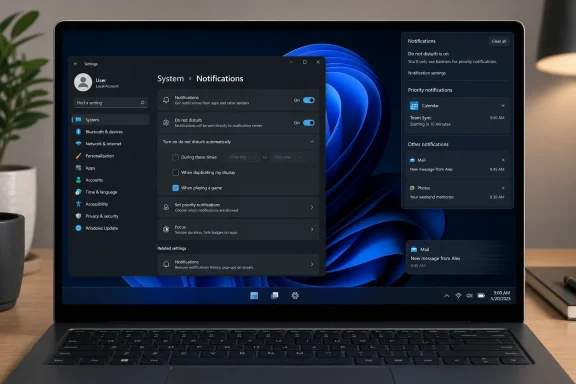
The article, published August 8, recommends hiding lock-screen widgets, removing the Widgets taskbar button, enabling a quieter notification posture, trimming Start recommendations, disabling Search highlights and taskbar badges, and hiding desktop icons. Most of those are straightforward preference changes. The practical value is in recognizing that Windows 11 distributes attention-grabbing content across several separate surfaces, each controlled in a different Settings page.
But Windows Central’s step-by-step directions under “Do not disturb to stop toast notifications” say to turn off the Do Not Disturb toggle. That contradicts both the text immediately above it — which says the feature should prevent toast-notification distractions — and Microsoft’s own documentation. Turning the switch off restores normal notification delivery, including banners from apps configured to show them.
For anyone following that guide, correct the instruction before changing anything else: go to Settings > System > Notifications and turn Do not disturb on. Notifications will still accumulate in Notification Center, accessible with Windows key + N, unless the individual app or the system-wide notification service has also been disabled.
The notification setting is the one worth getting right
Microsoft describes Do Not Disturb as a banner-suppression feature, not as a mechanism that deletes notifications. When enabled, alarms, reminders, and apps allowed through the priority-notifications list can still interrupt; other notifications are sent to Notification Center for later review. That distinction makes it a better daily work setting than simply switching off every notification at the top of the page.
Turning all notifications off can be appropriate for a kiosk, a presentation device, or a deliberately minimal personal system. It is a poor default for managed workstations and servers administered from the desktop. Endpoint protection alerts, backup failures, disk-capacity warnings, VPN prompts, authentication requests, and calendar reminders may be easy to miss if Windows is prevented from collecting them at all.
A more durable configuration is to leave Windows notifications enabled, use Do Not Disturb during work hours or fullscreen activity, and review the small priority list. Microsoft also ties Do Not Disturb into Focus sessions, which can temporarily suppress taskbar badges and flashing icons as well as banners. That is closer to the outcome Windows Central is aiming for: fewer interruptions without losing the audit trail of what arrived.
The error is small in wording but material in effect. A reader who flips the toggle to Off after reading the article will likely conclude that Windows’ notification controls do not work, when the system is doing exactly what the selected setting tells it to do.
Hiding Widgets does not turn Widgets off
Windows Central’s recommendation to remove Widgets from the taskbar is accurate, with one limitation readers should understand. In Settings > Personalization > Taskbar, turning off the Widgets taskbar item removes the live icon and its taskbar presence. It does not uninstall or disable the Widgets board.
Microsoft’s support documentation confirms that the Widgets board remains available through Windows key + W even after its taskbar button is hidden. Touch users may also still be able to reach it through the relevant gesture. This is a sensible compromise for people who dislike an always-visible entry point but occasionally want weather, calendars, sports, finance, or other glanceable data.
There is a second layer worth changing for people who want the taskbar completely quiet: Widgets has its own notification controls. Widget alerts can create a taskbar badge or an announcement, including persistent alerts such as severe weather or breaking-news items. Removing the taskbar button reduces exposure, but it is not the same as disabling every route by which Widgets can seek attention.
The lock screen deserves similar care. Microsoft now describes the Windows 11 lock-screen experience in terms of its Weather and more app and detailed status. Depending on the installed Windows 11 build and feature rollout, users may see slightly different labels than the “Widgets” toggle described by Windows Central. The outcome is the same: select None for detailed lock-screen status or switch off the available widgets option, then use Picture or Slideshow rather than Windows Spotlight if promotional overlays and rotating content are unwelcome.
That build-to-build variation is not cosmetic. Windows 11’s Settings labels have changed as Microsoft has expanded the lock-screen feed, and copied instructions can become misleading even when the underlying control remains available. The correct target is the content itself: no live lock-screen status, no suggested widgets, and a static background if the goal is a predictable sign-in screen.
Start and Search are separate recommendation systems
The article’s Start menu advice is useful but should not be oversold. In Settings > Personalization > Start, Windows 11 offers controls for recently added apps, recommended files and recent items, recommendations for tips and shortcuts, and account-related notifications. Switching those off sharply reduces the amount of personal activity and Microsoft-supplied suggestion content surfaced in Start.
It does not necessarily eliminate every visual remnant of the Recommended area on every consumer installation. The space, label, and exact layout vary by Windows 11 release. Microsoft’s enterprise documentation makes clear that a stronger “Hide recommended section” policy exists for managed environments, while the consumer-facing Settings toggles chiefly control the categories of material shown there.
For IT administrators, that difference matters. A technician can clean up Start for a single profile through Settings, but a business that wants a consistent Start experience should use the supported policy or configuration service provider settings rather than relying on each user to flip several toggles. Microsoft documents policies for hiding recently added apps, recent Jump Lists, personalized website recommendations, and the Recommended section itself.
The privacy angle is also more concrete than the word “clutter” suggests. The setting that hides recommended files in Start also affects recent files in File Explorer and items in Jump Lists. That can be desirable on a shared machine, a screen-shared workstation, or a device used in front of clients — but it changes convenience elsewhere. A user who relies on recent-file lists to reopen working documents will lose that shortcut at the same time.
Search highlights are a cleaner case. The switch at Settings > Privacy & security > Search permissions > More settings removes the rotating image, trends, quizzes, and other content from Search home. It does not disable Windows Search, local file indexing, installed-app discovery, Settings search, or cloud content returned through a signed-in account. For a keyboard-driven user who presses the Windows key and types, the change may barely be visible; for someone who regularly opens Search home, it reduces a prominent source of non-work content.
Taskbar badges are attention signals, not just decoration
Taskbar badges are one of the least risky items to disable. Windows Central correctly points users to Settings > Personalization > Taskbar > Taskbar behaviors, where clearing Show badges on taskbar apps removes unread counts and status dots from supported applications.
Microsoft describes those badges as alerts that activity has happened or needs attention. They can be useful for an active alarm in Clock, unread mail, Teams messages, or a communication app waiting for a response. They are also a classic interruption cue: the application does not need to show a banner to pull the user’s attention if a red count is sitting in peripheral vision all afternoon.
There is a separate control for taskbar flashing. Users seeking a genuinely subdued taskbar should consider turning off both badges and flashing, while retaining notifications in Notification Center. Focus sessions can also suppress both temporarily, which is more suitable for work that needs clear begin-and-end boundaries.
The trade-off is operational rather than technical. A home user may be happy to check messaging on a self-chosen schedule. An on-call administrator, incident responder, executive assistant, or help-desk worker may need badge counts as a lightweight triage signal. The right answer is not to remove all indication of urgency; it is to decide which apps have earned the right to interrupt.
A clean desktop can hide evidence as well as clutter
Hiding all desktop icons through the desktop context menu’s View > Show desktop icons option works exactly as Windows Central describes. The files and shortcuts remain in the Desktop folder and can still be opened from File Explorer. It is reversible and especially useful before presentations or screen sharing.
The operational catch is that hiding the desktop does not reduce what is stored there. On systems where OneDrive backs up the Desktop folder, those items may still synchronize to Microsoft’s cloud and appear on other signed-in PCs. On managed endpoints, Desktop redirection or OneDrive Known Folder Move can make the desktop a company-controlled location rather than merely a local scratchpad.
For that reason, hiding icons should be treated as a visual cleanup, not a file-management policy. If the desktop has become a staging area for installers, exports, credentials in text files, or documents that should be retained elsewhere, clearing the folder is the real fix. Hiding the icons only makes the accumulated material less visible.
Windows Central’s core premise holds: Windows 11 can be made considerably calmer in a few minutes without registry edits or third-party utilities. Start with Do Not Disturb — turned on — then remove the taskbar and search cues that do not serve the way the PC is actually used. The result is not a stripped-down Windows installation; it is a Windows desktop that reserves interruptions for events worth interrupting work for.