
This is not about turning every household computer into a corporate endpoint-management project. It is about applying a small number of controls that meaningfully reduce risk, documenting them in plain language, and giving relatives a reliable response when something looks wrong.
The resulting Windows security checklist is especially useful because it treats security as a mixture of technology and behavior. A fully updated PC with encryption and Microsoft Defender is valuable; a person who knows to hang up on an unsolicited “Microsoft support” call can be even more valuable.
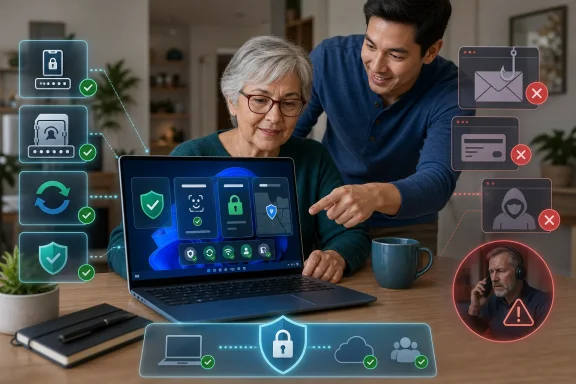 The Family IT Problem Is Usually a Prevention Problem
Family tech support often begins as a series of isolated incidents: a suspicious pop-up, a forgotten password, a browser notification that will not disappear, or a device that seems inexplicably slow. Over time, those incidents reveal a pattern. The issue is rarely a lack of intelligence or willingness; it is that Windows security settings and modern online threats are not self-explanatory.
The right response is a repeatable baseline, not a complicated lecture after every scare. A successful family cybersecurity plan should answer four simple questions:
- Can an outsider sign in if they get physical access to the PC?
- Can malware run with broad system privileges?
- Can the owner recover the device or account if it is lost, stolen, or locked?
- Does the user know when to stop, verify, and ask for help?
That framework matters because scam tactics are designed to create urgency. An unexpected full-screen browser message, a phone call claiming to be from a bank, or an email demanding action now can make a relatively capable user overlook obvious warning signs.
Microsoft’s own guidance on tech-support fraud is unequivocal: scammers may cold-call, spoof caller ID, persuade victims to install remote-access applications, and use normal system messages as supposed proof of a serious problem. Microsoft does not make unsolicited support calls asking to fix a PC.
Start With the Settings That Close the Largest Gaps
A useful Windows 11 security checklist should start with the measures that are both high impact and low effort. These are the items worth checking today on a parent’s laptop, a shared family desktop, or a device that has been running without attention for months.
1. Set Up Windows Hello
Windows Hello is the most approachable first step because it changes how the user signs in without requiring them to memorize yet another complicated credential. Windows 11 supports a device PIN, fingerprint authentication, and facial recognition where compatible hardware is available. Microsoft documents the setup path under Settings > Accounts > Sign-in options.
The PIN is particularly misunderstood. It is not merely a shortened version of the Microsoft account password; Windows Hello ties that PIN to the specific device, which limits its usefulness if it is exposed elsewhere. That is a meaningful practical benefit over typing the same account password into every Windows sign-in screen.
For an older relative, the best configuration is usually whichever Hello method they can use confidently every day:
- PIN: available on essentially every supported Windows 11 PC and easy to explain.
- Fingerprint: fast and convenient on laptops with a reliable reader.
- Face recognition: excellent when the computer has a Windows Hello-compatible infrared camera.
- Password fallback: still necessary in recovery scenarios, but it should not be the default daily experience.
The key is not to force facial recognition onto a device that lacks the right camera or to create an elaborate password ritual. Security improves when the stronger option is also the option people will actually use.
2. Resume Windows Update and Check for Pending Restarts
An unpatched system slowly accumulates avoidable risk. Windows Update is not exciting, but it remains one of the most consequential safeguards on any family PC because Microsoft uses it to distribute security fixes as well as reliability and feature updates. Windows 11 users can review available updates through Settings > Windows Update and select Check for updates.
This is also an area where tech supporters should be specific. A PC that says “restart required” is not necessarily broken, and an update pause may be intentional during travel or a deadline. But a machine with updates permanently delayed is creating an unnecessary exposure that no password manager can solve.
There is an additional concern for households still using Windows 10. Microsoft states that free Windows Update software updates, technical assistance, and security fixes for Windows 10 ended on October 14, 2025. A Windows 10 machine can still operate, but it should no longer be treated as an equally protected long-term option for routine banking, shopping, email, and sensitive documents.
3. Verify Microsoft Defender and Windows Security Status
The name “Windows Defender” persists in common conversation, but the relevant interface for most users is the Windows Security app and its Virus & threat protection page. It provides access to Microsoft Defender Antivirus scans, threat information, security intelligence updates, and real-time protection controls. Microsoft’s Windows Security overview also surfaces firewall, SmartScreen, phishing, device security, and protection-history controls in one place.
A quick household check should look for warning indicators, disabled protection, or a confusing overlap with third-party antivirus software. Installing multiple security products does not automatically create layered protection; it can create conflicting alerts, performance problems, and uncertainty about which product is actually responsible for defending the device.
The sensible baseline is straightforward:
- Open Windows Security from Start.
- Select Virus & threat protection.
- Confirm that no urgent action is listed.
- Check that real-time protection is active unless a trusted, deliberately installed alternative security suite is managing it.
- Review Protection history if a recent alert has confused the device owner.
Microsoft Defender SmartScreen also deserves attention. Through App & browser control, Windows can help identify potentially dangerous applications, files, websites, downloads, unwanted apps, and phishing threats. It is a safety net, not a replacement for judgment, but it is a safety net that should not be casually disabled.
4. Turn On Find My Device Before It Is Needed
A lost laptop is not just a hardware problem. It can become an account, privacy, and data problem if the device contains stored documents, browser sessions, personal photos, tax information, or email access.
Windows 11’s Find My Device can help locate a lost Windows computer and remotely lock it, but it must be configured before the device disappears. Microsoft says the feature requires a Microsoft personal account, an administrator account on the device, and location enabled; it is managed in Windows 11 through Settings > Privacy & security > Find my device. The device can then be located or locked through the Microsoft account device dashboard.
There is a necessary privacy trade-off here. Find My Device relies on location capabilities, and locating a computer notifies a person currently using it. That is appropriate behavior, but it means families should discuss the feature openly rather than quietly enabling location functions on a shared PC.
Make Account Recovery a Security Feature, Not an Afterthought
Many security checklists focus on stopping intruders while neglecting the legitimate owner. In real household support, account recovery is just as important. A relative who loses a password, changes phones, or cannot access an old email address needs a safe route back into their digital life.
Use a Microsoft Account Deliberately
A Microsoft account can make device recovery, synchronization, licensing, and password-reset processes less painful. It also supports the services required for features such as Find My Device and can preserve a recovery path for encryption keys on compatible configurations.
That does not mean every local account is inherently unsafe. Local accounts can make sense in privacy-sensitive, offline, or tightly controlled setups. However, for the average household Windows 11 machine, a Microsoft account paired with deliberate recovery information is often more manageable than an isolated local account with no documented backup plan.
The practical risk is centralization: one account can become a gateway to the PC, email, cloud files, browser data, and recovery tools. That is precisely why it needs unique credentials, multi-factor authentication, and recovery contacts that are current.
Enable Two-Step Verification and Preserve Recovery Options
Two-step verification—or 2FA/MFA in more general security terminology—makes a stolen password less useful because a sign-in also requires a separate proof of identity. Microsoft explains that its two-step verification can request a code through an email address, phone, or authenticator app when someone signs in on an untrusted device.
The operational detail is crucial: do not enable two-step verification and then neglect the backup methods. Microsoft warns that account recovery can become significantly more difficult if the user loses the only authentication method, and recommends maintaining multiple pieces of security information.
A family-ready setup should include:
- An authenticator app on the primary phone where practical.
- A backup email address that remains accessible.
- A current phone number, if it is used for recovery.
- Recovery information written down in a protected place or recorded in a trusted password manager.
- A clear explanation that authentication codes are never to be read aloud to an unexpected caller.
The last point prevents one of the most damaging forms of social engineering. A scammer may not need the password if they can convince the victim to approve a sign-in notification or disclose a one-time verification code.
Prefer Passkeys When Services Offer Them
Password managers remain essential, but passkeys are increasingly worth adopting where supported. Microsoft describes passkeys as unique to the specific website or app and resistant to phishing attempts because the sign-in process does not involve typing a reusable password into a potentially fraudulent page. On Windows, passkeys can use Windows Hello and can be synchronized through a compatible credential manager.
For a family support plan, passkeys reduce friction rather than adding it. A user can authenticate using their existing PIN, fingerprint, or face, avoiding the familiar cycle of forgotten passwords and unsafe password reuse.
The caveat is recovery. A passkey saved only to one device can create a new kind of lockout if that device is lost or fails. Synced credential managers or carefully configured additional devices provide a more resilient arrangement.
Encryption Is the Difference Between a Lost Laptop and Exposed Files
Device theft should not automatically mean file theft. Device encryption addresses the scenario in which someone removes a storage drive from a locked computer, attaches it to another machine, and attempts to read its contents outside the normal Windows sign-in process.
On eligible Windows 11 systems, Device Encryption is designed to simplify BitLocker-based protection. Microsoft states that it can be automatically enabled when a device is set up with a Microsoft, work, or school account, and that the associated recovery key is attached to that account. The setting is available through Settings > Privacy & security > Device encryption when the hardware and account configuration support it.
The terminology can confuse users:
- Device Encryption is the simplified feature available across a wider range of compatible systems, including some Windows Home PCs.
- BitLocker Drive Encryption is the more familiar management interface and is associated with Windows Pro, Enterprise, and Education editions.
- Neither label guarantees that every older or lower-specification device is compatible.
That last limitation should be handled carefully. If the Device Encryption setting does not appear, it may mean the PC lacks required support or that the current user is not an administrator—not that Windows has failed. Microsoft specifically directs users to check the system’s Device Encryption support status in System Information.
Do Not Treat the Recovery Key Casually
Encryption without recovery planning can create its own emergency-support scenario. The recovery key is intentionally powerful: it can unlock encrypted data when ordinary startup authentication cannot proceed.
Families should make sure the recovery key is accessible to the legitimate owner, not merely assumed to be somewhere in an old email inbox. It should not be stored only on the laptop it unlocks, printed and left in an obvious location, or shared casually through chat messages.
A good compromise is to verify the account holding the recovery information, document that relationship, and store a protected backup according to the household’s risk tolerance. That turns encryption from a source of anxiety into what it should be: a decisive protection against offline data theft.
Standard User Accounts Limit the Blast Radius
Windows PCs are often set up with the first household account as an administrator, and then that account becomes the daily driver forever. It is convenient until a questionable download, malicious attachment, or deceptive installer gets the same broad permissions as the user.
Using a Standard account for regular web browsing, email, documents, and shopping constrains what applications can change without elevation. Microsoft’s User Account Control documentation explains that UAC helps protect Windows from unauthorized changes by prompting when an app needs administrator-level permissions; standard-user processes normally run with standard-user rights. Microsoft also notes that elevation can occur when needed through an administrator token.
This is a classic example of defense in depth. A standard account will not make phishing harmless and will not fix an already-compromised browser. It can, however, add an important point of friction before a suspicious process gains unrestricted control of the system.
The trade-off is usability. Some legacy applications, drivers, and installers genuinely require administrator access. The best family configuration is therefore often two accounts:
- A standard daily-use account for the person using the PC.
- A separate administrator account with a strong, unique password held by the device owner or a trusted support person.
That arrangement also makes the Windows elevation prompt more meaningful. Instead of clicking “Yes” automatically because it appears all the time, the user must stop and ask whether the requested change is expected.
Password Managers Are a Practical Necessity, Not a Luxury
The article that inspired this checklist begins with a parent asking whether they should use a password manager. The answer is emphatically yes—not because every user needs to become a security specialist, but because human memory is a poor system for creating and retaining dozens or hundreds of unique credentials.
Password reuse remains a major weakness. Microsoft’s Edge documentation says multiple studies have found that roughly 60% of users reuse passwords across accounts, a habit that can turn a breach of one service into access attempts against email, retail, banking, and social-media accounts. Edge’s Password Security Check can identify saved passwords that are leaked, reused, or weak.
A password manager solves the practical problem by generating long, unique passwords and filling them only on the intended site. It also creates a useful family-support boundary: the helper does not need to know every banking, shopping, or email password in order to assist.
A sound rollout looks like this:
- Choose one reputable password manager and avoid spreading credentials across random notes, browsers, and spreadsheets.
- Protect the manager itself with a strong primary password and MFA.
- Start with the most important accounts: primary email, Microsoft account, financial services, shopping, and mobile-provider accounts.
- Replace reused passwords before polishing low-risk accounts.
- Record the recovery process and ensure the owner can access it without relying solely on one family member.
Microsoft Edge can also act as a practical starting point for households that are not ready to adopt a dedicated service. Its built-in Microsoft Password Manager can store passwords and passkeys for users signed in with a personal Microsoft account, and its password generator can propose strong credentials during account creation.
Still, browser-based password storage should be configured knowingly, not treated as magic. The user needs to understand which browser profile is signed in, how synchronization works, and how to recover access if the computer is replaced.
The Best Security Habit Is Knowing When to Stop
Technical controls can block many threats, but the most effective household rule is behavioral: never act under pressure. Phishing, fake support messages, compromised sites, fraudulent delivery notices, and impersonation calls all depend on getting the target to make a rushed decision.
A simple pause procedure can be more useful than a page of threat terminology:
- Stop before clicking, calling, installing, paying, or sharing a code.
- Inspect the sender, address, URL, and unexpected request.
- Verify independently using a saved bookmark, an official app, or a phone number from a bank statement or legitimate website.
- Ask for help before granting remote access or installing unfamiliar software.
This does not require users to accurately identify every scam on sight. It only requires them to recognize that surprise, urgency, fear, and secrecy are reasons to pause.
Pop-Ups and Unsolicited Calls Are Not Support Channels
The “Your computer is infected—call this number immediately” pop-up is a recurring scam because it exploits a familiar fear. It may imitate a Windows warning, use full-screen browser tricks, produce noise, or block ordinary navigation in an attempt to force a hurried phone call.
Microsoft specifically states that genuine Windows error messages do not include a phone number to call. Its guidance also explains that scam sites can create fake blue screens, activation dialogs, persistent pop-ups, and browser full-screen effects to imitate a system-level crisis. An unsolicited call claiming to be Microsoft Support should be treated as fraudulent and ended immediately.
The correct response to a suspicious browser message is generally to avoid its instructions. Close the browser if possible, use Ctrl + Shift + Esc to open Task Manager if the browser appears trapped, end the browser task if necessary, and run a Windows Security scan afterward.
Remote-Access Software Is Not Automatically Malware—But Context Matters
Applications such as AnyDesk and TeamViewer are legitimate remote-support tools used by real organizations and individuals. The danger is not the name alone; it is the context in which the user is told to install it.
A legitimate support session is normally expected, requested, and connected to an established relationship. An unexpected caller who asks a user to install remote-control software is attempting to create direct access to the device. Microsoft warns that tech-support scammers frequently request remote-access software and can then misrepresent routine system information as evidence of serious issues.
The household rule should be absolute: never install remote-access software because an unexpected caller, pop-up, email, or text told you to do it. If support is genuinely needed, contact the known service provider through independently verified details.
Turn the Checklist Into a Family Support System
The greatest strength of this Windows security checklist is its accessibility. It does not require security jargon, a paid antivirus subscription, or fear-based messaging. It emphasizes built-in Windows protections, account hygiene, encryption, and a calm response to social engineering.
Its main limitation is that a checklist can create false confidence if it is performed once and forgotten. Security is not a single “all clear” screen. Updates need to install, recovery options need to remain current, passwords need attention after breach alerts, and users still need reinforcement when scam tactics evolve.
A durable family plan should therefore include a light maintenance routine:
- Monthly: check Windows Update, Windows Security status, and any unresolved alerts.
- Quarterly: review password-manager recovery access, password-health warnings, and Microsoft account security information.
- When buying a new PC: enable Windows Hello, verify encryption, configure Find My Device, set up MFA, and record recovery details before personal files accumulate.
- After a suspicious incident: disconnect from the scam interaction, update passwords where appropriate, inspect for remote-access tools, run a security scan, and check financial accounts if payment or account data was shared.
The goal is not to eliminate every support request. It is to replace panic with a consistent process: protect the device, protect the account, encrypt the data, and teach the user that no legitimate emergency requires an instant decision. That is how a family tech-support role becomes manageable—and how Windows 11 security becomes a daily habit rather than a late-night crisis.
