
Dual-booting Windows and Linux is still a sound way to keep native performance for games, specialized Windows software, development work, or hardware testing. But How-To Geek’s seven-point guide gets at least one of the most consequential problems backward: Windows Fast Startup does not itself bypass GRUB or the UEFI boot menu. It resumes Windows only after Windows Boot Manager has already been selected.
The practical danger is less dramatic and more important. Fast Startup leaves the Windows installation in a hibernation-derived state, so Linux must not write to the Windows NTFS volume afterward. Microsoft’s documentation confirms that Fast Startup saves the Windows kernel session to
How-To Geek is right to tell prospective dual-boot users that the arrangement carries maintenance costs. Its advice on installation order, separate drives, shared storage, timekeeping, Secure Boot, and the tendency to settle into one operating system is broadly useful. The missing piece is that a modern Windows 11/Linux system is no longer governed mainly by an old-style boot-sector fight. It is governed by UEFI firmware entries, the EFI System Partition, TPM-backed encryption, hibernation state, and the ownership of data volumes.
The familiar symptom is simple: a machine configured to use Windows Boot Manager as its default may power on and go directly to Windows. That does not mean Windows has reached backward through the firmware to suppress GRUB. It means the firmware followed its configured
Microsoft describes Fast Startup as a hybrid shutdown. User sessions are closed, but the kernel session and drivers are saved in the hibernation file rather than rebuilt on the next boot. The system still goes through firmware initialization and its boot manager; the difference happens after Windows Boot Manager recognizes the valid hibernation state.
This distinction changes the fix. If GRUB, systemd-boot, or a Linux shim entry is set as the first UEFI boot target, the chooser should appear before either operating system starts. If Windows Boot Manager is first, use the firmware’s one-time boot menu to select Linux or change the UEFI boot order. Disabling Fast Startup can still be the sensible policy for a dual-boot machine, but it should be done to avoid hibernated NTFS volumes and confusing power-state behavior—not because it is expected to repair a boot menu that firmware never tried to load.
A safer baseline is straightforward:
The explanation often supplied for that advice is dated. On legacy BIOS systems, operating systems could compete for control of the disk’s master boot record, and a Windows installation could overwrite boot code that GRUB had placed there. Most current Windows 11-capable PCs use UEFI with GPT disks. Their firmware stores boot entries in nonvolatile memory and loads
That does not make modern dual booting foolproof. It means recovery work is different. A Windows reinstall, feature update, firmware reset, BIOS update, drive replacement, or careless partitioning can change the UEFI boot order or remove an EFI entry. The response is normally to restore the Linux boot entry, repair the EFI files from a live USB, or choose the desired loader in the firmware—not to assume the Linux partition has been erased.
For IT pros, the important asset is therefore not a screenshot of a GRUB menu. It is a record of the disk layout, the EFI System Partition in use, the UEFI boot entries, and the BitLocker recovery key before altering partitions or firmware settings.
But “separate drives” should not be sold as complete separation. Many installers will use the EFI System Partition already present on the Windows drive unless the user deliberately creates and selects an ESP on the Linux drive. A Linux root filesystem on a second NVMe SSD can therefore still depend on boot files stored on the Windows SSD. Remove or replace the first drive and the second may no longer start without repair.
There are two defensible designs. The simpler one uses one EFI System Partition and one primary boot menu, typically GRUB or systemd-boot. It is convenient, but both installations share a small, critical boot volume. The more isolated arrangement gives each drive its own EFI System Partition and relies on the firmware’s boot picker or a chosen default entry. It is less polished at startup, but a drive can generally boot independently.
Neither choice is inherently superior. The mistake is believing that physical separation automatically creates boot independence.
Microsoft’s BitLocker guidance explicitly treats boot-file and firmware changes as recovery-relevant events. Its advice for firmware changes is to suspend BitLocker protection first, perform the intended update, and resume protection afterward. The same discipline should apply before repartitioning a Windows disk, changing UEFI settings, switching Secure Boot configuration, or replacing a boot manager.
This is where consumer dual-boot guides often provide advice that is technically correct but operationally incomplete. “Disable Secure Boot if Linux will not install” may get a machine through setup, but it can trigger a BitLocker recovery prompt on the next Windows boot. A user who has never checked where their recovery key is stored has turned a weekend experiment into an account-recovery incident.
The better approach is to keep Secure Boot enabled whenever the chosen distribution supports it and to verify the recovery key before changes. Ubuntu documents a signed chain using Microsoft-signed shim and Canonical-signed GRUB. Fedora and other mainstream distributions also support Secure Boot through signed boot components. The claim that major distributions need Secure Boot disabled is no longer a reasonable default assumption.
Secure Boot is not decorative. Microsoft describes it as a pre-OS protection that verifies boot software before it runs and helps block bootkits and rootkits. Disabling it reduces a real layer of Windows platform protection merely to accommodate a bootloader that may not need the accommodation.
There is a timely wrinkle in 2026: Microsoft has been moving Windows devices from Secure Boot certificates issued in 2011 to newer certificates. Microsoft warns that systems left on the old certificate set can retain ordinary Windows update functionality while losing the ability to validate future early-boot updates. On older PCs, a dual-boot change is a poor time to discover that firmware and Secure Boot certificate maintenance have been neglected.
That means WSL is useful for inspecting a spare Linux disk or moving files from an external Linux-formatted drive. It is not a transparent solution for browsing the Ext4 partition on the same physical drive that contains the active Windows installation. Third-party filesystem drivers exist, but installing a write-capable filesystem driver at the Windows kernel level is a risk decision, not a default recommendation.
A dedicated shared NTFS partition is usually the pragmatic answer for documents, installers, game mods, media, and project exports. exFAT is reasonable for removable transfer media, but NTFS has stronger crash resilience and Windows-native permissions. Do not put Linux home directories, package-manager data, or Windows user profiles onto the shared volume; those operating systems expect different metadata, permissions, filenames, and locking semantics.
The clock issue belongs in the same category of small incompatibilities that become operational annoyances. Linux normally interprets the hardware clock as UTC, while Windows installations have traditionally expected local time from the real-time clock. Configure one side to match the other, then verify scheduled tasks, VPN certificates, and file timestamps after the first few switches. “The clock is wrong” is often harmless; incorrect time can also break authentication and automation.
For users who need Linux command-line tools, containers, or a controlled development environment while remaining in Windows applications all day, WSL or a virtual machine is often the lower-maintenance answer. For people who need native GPU performance, anti-cheat-compatible Windows gaming, direct hardware access, kernel testing, or a clean separation between work and personal environments, dual boot remains appropriate.
The setup succeeds when the partition plan, encryption plan, boot ownership, and data-sharing rules are decided before installation. Windows and Linux can share a PC reliably; they just should not be allowed to share the same unexamined assumptions about boot state, filesystems, and security settings.
hiberfil.sys; a restart, by contrast, performs a full shutdown. In a dual-boot setup, that makes “Shut down Windows, boot Linux, and edit files on C:” a potentially destructive workflow, even if the PC appears to have powered off normally.How-To Geek is right to tell prospective dual-boot users that the arrangement carries maintenance costs. Its advice on installation order, separate drives, shared storage, timekeeping, Secure Boot, and the tendency to settle into one operating system is broadly useful. The missing piece is that a modern Windows 11/Linux system is no longer governed mainly by an old-style boot-sector fight. It is governed by UEFI firmware entries, the EFI System Partition, TPM-backed encryption, hibernation state, and the ownership of data volumes.
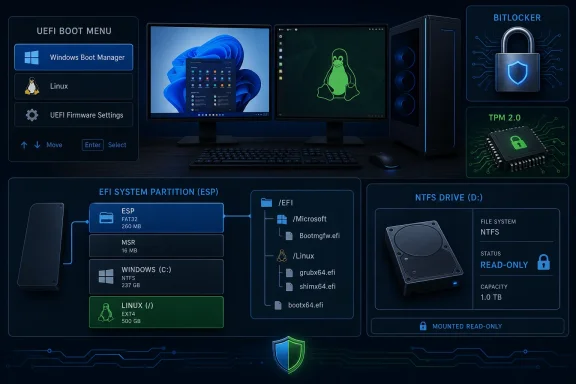 Fast Startup’s real dual-boot hazard is NTFS, not GRUB
The familiar symptom is simple: a machine configured to use Windows Boot Manager as its default may power on and go directly to Windows. That does not mean Windows has reached backward through the firmware to suppress GRUB. It means the firmware followed its configured BootOrder, launched Windows Boot Manager, and Windows resumed its saved kernel state.Microsoft describes Fast Startup as a hybrid shutdown. User sessions are closed, but the kernel session and drivers are saved in the hibernation file rather than rebuilt on the next boot. The system still goes through firmware initialization and its boot manager; the difference happens after Windows Boot Manager recognizes the valid hibernation state.
This distinction changes the fix. If GRUB, systemd-boot, or a Linux shim entry is set as the first UEFI boot target, the chooser should appear before either operating system starts. If Windows Boot Manager is first, use the firmware’s one-time boot menu to select Linux or change the UEFI boot order. Disabling Fast Startup can still be the sensible policy for a dual-boot machine, but it should be done to avoid hibernated NTFS volumes and confusing power-state behavior—not because it is expected to repair a boot menu that firmware never tried to load.
A safer baseline is straightforward:
- Use Restart in Windows before booting Linux if you need a guaranteed clean Windows shutdown without changing settings.
- Disable Fast Startup, and avoid Windows hibernation, if Linux will mount or write to the Windows data volume.
- Treat a mounted Windows system partition as read-only from Linux when there is any uncertainty about its shutdown state.
“Install Windows first” remains good advice, but UEFI changes the failure mode
Installing Windows first and Linux second is still the least troublesome sequence for a new build. A Linux installer can usually discover an existing Windows Boot Manager entry and create its own entry alongside it. Installing Windows afterward adds a chance that the default boot target will be moved back to Windows Boot Manager, leaving the Linux installation intact but less visible.The explanation often supplied for that advice is dated. On legacy BIOS systems, operating systems could compete for control of the disk’s master boot record, and a Windows installation could overwrite boot code that GRUB had placed there. Most current Windows 11-capable PCs use UEFI with GPT disks. Their firmware stores boot entries in nonvolatile memory and loads
.efi executables from an EFI System Partition. GRUB’s own documentation reflects this split between legacy BIOS installation and UEFI installation.That does not make modern dual booting foolproof. It means recovery work is different. A Windows reinstall, feature update, firmware reset, BIOS update, drive replacement, or careless partitioning can change the UEFI boot order or remove an EFI entry. The response is normally to restore the Linux boot entry, repair the EFI files from a live USB, or choose the desired loader in the firmware—not to assume the Linux partition has been erased.
For IT pros, the important asset is therefore not a screenshot of a GRUB menu. It is a record of the disk layout, the EFI System Partition in use, the UEFI boot entries, and the BitLocker recovery key before altering partitions or firmware settings.
Two physical drives isolate failures, but they do not isolate boot management
How-To Geek’s recommendation to place Windows and Linux on separate physical drives is excellent where hardware permits it. Separate drives reduce the odds of selecting the wrong partition during installation, make each operating system easier to remove, and give administrators a cleaner recovery boundary. If the Linux disk dies, the Windows disk and its data are less likely to be collateral damage from filesystem repair; the inverse is also true.But “separate drives” should not be sold as complete separation. Many installers will use the EFI System Partition already present on the Windows drive unless the user deliberately creates and selects an ESP on the Linux drive. A Linux root filesystem on a second NVMe SSD can therefore still depend on boot files stored on the Windows SSD. Remove or replace the first drive and the second may no longer start without repair.
There are two defensible designs. The simpler one uses one EFI System Partition and one primary boot menu, typically GRUB or systemd-boot. It is convenient, but both installations share a small, critical boot volume. The more isolated arrangement gives each drive its own EFI System Partition and relies on the firmware’s boot picker or a chosen default entry. It is less polished at startup, but a drive can generally boot independently.
Neither choice is inherently superior. The mistake is believing that physical separation automatically creates boot independence.
BitLocker is the change-control tripwire people forget
The larger Windows complication is not that BitLocker cannot coexist with Linux. It can. The problem is that BitLocker measures parts of the startup configuration through the TPM and may request its recovery key after certain boot, firmware, or security-setting changes.Microsoft’s BitLocker guidance explicitly treats boot-file and firmware changes as recovery-relevant events. Its advice for firmware changes is to suspend BitLocker protection first, perform the intended update, and resume protection afterward. The same discipline should apply before repartitioning a Windows disk, changing UEFI settings, switching Secure Boot configuration, or replacing a boot manager.
This is where consumer dual-boot guides often provide advice that is technically correct but operationally incomplete. “Disable Secure Boot if Linux will not install” may get a machine through setup, but it can trigger a BitLocker recovery prompt on the next Windows boot. A user who has never checked where their recovery key is stored has turned a weekend experiment into an account-recovery incident.
The better approach is to keep Secure Boot enabled whenever the chosen distribution supports it and to verify the recovery key before changes. Ubuntu documents a signed chain using Microsoft-signed shim and Canonical-signed GRUB. Fedora and other mainstream distributions also support Secure Boot through signed boot components. The claim that major distributions need Secure Boot disabled is no longer a reasonable default assumption.
Secure Boot is not decorative. Microsoft describes it as a pre-OS protection that verifies boot software before it runs and helps block bootkits and rootkits. Disabling it reduces a real layer of Windows platform protection merely to accommodate a bootloader that may not need the accommodation.
There is a timely wrinkle in 2026: Microsoft has been moving Windows devices from Secure Boot certificates issued in 2011 to newer certificates. Microsoft warns that systems left on the old certificate set can retain ordinary Windows update functionality while losing the ability to validate future early-boot updates. On older PCs, a dual-boot change is a poor time to discover that firmware and Secure Boot certificate maintenance have been neglected.
Shared data needs a deliberate filesystem, not hope
How-To Geek correctly identifies asymmetric filesystem access. Linux generally has solid NTFS support, while Windows does not mount Ext4, XFS, or Btrfs as ordinary local volumes in File Explorer. Windows Subsystem for Linux narrows that gap, but Microsoft’s own WSL documentation places sharp limits on it:wsl --mount needs administrator access, attaches an entire disk, cannot mount the Windows installation disk, and cannot use a disk already in use.That means WSL is useful for inspecting a spare Linux disk or moving files from an external Linux-formatted drive. It is not a transparent solution for browsing the Ext4 partition on the same physical drive that contains the active Windows installation. Third-party filesystem drivers exist, but installing a write-capable filesystem driver at the Windows kernel level is a risk decision, not a default recommendation.
A dedicated shared NTFS partition is usually the pragmatic answer for documents, installers, game mods, media, and project exports. exFAT is reasonable for removable transfer media, but NTFS has stronger crash resilience and Windows-native permissions. Do not put Linux home directories, package-manager data, or Windows user profiles onto the shared volume; those operating systems expect different metadata, permissions, filenames, and locking semantics.
The clock issue belongs in the same category of small incompatibilities that become operational annoyances. Linux normally interprets the hardware clock as UTC, while Windows installations have traditionally expected local time from the real-time clock. Configure one side to match the other, then verify scheduled tasks, VPN certificates, and file timestamps after the first few switches. “The clock is wrong” is often harmless; incorrect time can also break authentication and automation.
Dual boot works best when each OS has a job
The most candid observation in How-To Geek’s guide is that many people eventually use one side almost all the time. A reboot is a large context switch. Browser sessions, password managers, messaging clients, development environments, peripherals, and files all create friction, even when the boot menu itself works perfectly.For users who need Linux command-line tools, containers, or a controlled development environment while remaining in Windows applications all day, WSL or a virtual machine is often the lower-maintenance answer. For people who need native GPU performance, anti-cheat-compatible Windows gaming, direct hardware access, kernel testing, or a clean separation between work and personal environments, dual boot remains appropriate.
The setup succeeds when the partition plan, encryption plan, boot ownership, and data-sharing rules are decided before installation. Windows and Linux can share a PC reliably; they just should not be allowed to share the same unexamined assumptions about boot state, filesystems, and security settings.
References
- Primary source: How-To Geek
Published: 2026-08-06T14:30:50+00:00
7 things nobody tells you about dual booting Linux and Windows
Truths about dual booting I learned the hard way. www.howtogeek.com
- Related coverage: learn.microsoft.com
Secure Boot and Trusted Boot | Microsoft Learn
Trusted Boot prevents corrupted components from loading during the boot-up process in Windows 11learn.microsoft.com - Related coverage: learn.microsoft.com
Distinguishing Fast Startup from Wake-from-Hibernation - Windows drivers | Microsoft Learn
Starting with Windows 8, a fast startup mode is available to start a computer in less time than is typically required for a traditional, cold startup.learn.microsoft.com