
format command, finally removing the company’s long-standing 32GB creation cap. But the practical detail missing from recent coverage is the one most users will encounter first: this is a command-line change, not a File Explorer change. Right-clicking a 64GB, 128GB, or 2TB USB drive in File Explorer still does not expose a new large-volume FAT32 path.Microsoft documented the change in the April 30, 2026 preview update KB5083631 for Windows 11 versions 24H2 and 25H2, and it subsequently arrived in the May 12 cumulative update KB5089549. The release notes are unusually specific: Windows is increasing the limit for formatting FAT32 volumes “from the command line” from 32GB to 2TB. The same wording appeared in the April 10 Insider builds for the Dev and Beta channels.
That means the core news is real, but the claim that Windows 11 updated its USB-formatting experience in File Explorer is wrong. The File Explorer Format dialog remains the old interface, and the 32GB wall there remains relevant. Administrators, technicians, and enthusiasts who need a larger FAT32 volume can now avoid third-party utilities on updated Windows 11 24H2 and 25H2 machines—but they must use the terminal.
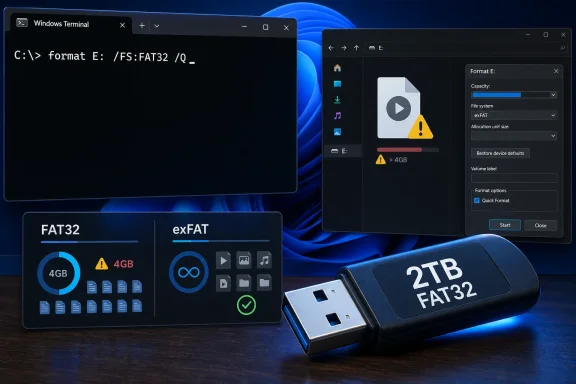 The 32GB cap was Windows policy, not FAT32’s actual ceiling
FAT32 has always had limits, but the 32GB volume cap was not the important technical one. Windows could read and write larger FAT32 volumes for decades; it simply refused to create them through its native formatter. Third-party tools filled that gap, which is why a 128GB FAT32 SD card or USB stick has never been unusual in camera, console, embedded-device, and retro-computing circles.
The meaningful FAT32 constraint is its maximum individual file size: a single file cannot exceed 4GB minus one byte. That restriction remains unchanged after the Windows update. A 2TB FAT32 drive is possible, but it cannot hold a 5GB Windows ISO, a large
install.wim, a modern game archive, or many high-bitrate video files.
Microsoft’s own Windows deployment documentation still warns that FAT32 cannot hold files at or above 4GB. For bootable Windows media, the usual consequence is that
install.wimmust be split into
.swmfiles, or the USB layout must use a separate FAT32 boot partition alongside another partition using NTFS or exFAT. Raising the volume-formatting limit does not make the FAT32 file-size limit disappear.
There is also a historical wrinkle. Microsoft first announced this same 32GB-to-2TB command-line increase for Windows 11 Canary build 27686 in August 2024. Reporting from Ars Technica and BleepingComputer at the time correctly identified the feature as a command-line change. It did not, however, become a broadly available Windows 11 servicing feature until 2026. The current rollout is therefore less a brand-new File Explorer capability than the production arrival of a two-year-old preview change.
File Explorer is still not the tool for large FAT32 volumes
The distinction matters because the graphical workflow most people know—open File Explorer, right-click the removable drive, select Format, and choose FAT32—has not gained a 2TB option.
On an updated Windows 11 PC, formatting a large existing volume from an elevated Command Prompt or Windows Terminal can be as simple as:
format E: /FS:FAT32 /QReplace
E:with the actual removable-drive letter. The
/Qswitch requests a quick format. It is deliberately fast because it recreates the file-system structures without scanning or overwriting every sector.
That command will erase the visible contents of the selected volume. It will not create a partition, convert the partition table between MBR and GPT, or reduce a 4TB drive to a 2TB partition. Those are separate storage-management steps. In particular, the 2TB FAT32 limit means a 4TB USB hard drive does not become a single 4TB FAT32 volume merely because Windows now offers a higher native cap.
For users who need to prepare a blank disk from scratch, Disk Management or DiskPart can create the partition, after which the
formatcommand can apply FAT32. Be exact when selecting disks and volumes. A typo in a drive letter is a simpler mistake than selecting the wrong physical disk in DiskPart, but either can destroy data.
Microsoft’s documentation applies the updated behavior to Windows 11 24H2 and 25H2 servicing builds. It does not state that Windows 10, Windows 11 23H2, or the File Explorer and Disk Management graphical format dialogs have received the same change. IT departments should not assume a task sequence will behave identically across mixed Windows client fleets.
FAT32 remains a compatibility format, not a default for every USB drive
A larger FAT32 formatting option is useful when the destination device specifically requires FAT32. That list is longer than it may sound: older UEFI firmware, automotive infotainment systems, some televisions, cameras, game consoles, music players, industrial controllers, and legacy operating systems often recognize FAT32 more reliably than NTFS. A 64GB or 128GB USB stick that ships as exFAT may need FAT32 before such hardware will even detect it.
For ordinary cross-platform file transport, exFAT is generally the better fit. It supports much larger files, is compatible with current Windows and macOS releases, and avoids the 4GB per-file barrier. NTFS remains the better Windows-focused choice where access control lists, compression, BitLocker use, or resilience features matter, though many consumer devices either cannot read NTFS or provide limited support.
The new option should therefore solve a specific compatibility problem, not prompt a wholesale migration of large flash drives to FAT32. A 1TB FAT32 drive full of photos may work well with an older media device. A 1TB FAT32 drive intended for Windows installation media, virtual-machine images, or video editing will run into the 4GB file ceiling immediately.
Device requirements still override Windows capability. Some products say “FAT32” in their manuals but impose lower capacity limits, preferred cluster sizes, MBR-only partitioning, or a requirement that the drive contain one primary partition. Windows can now create a larger FAT32 volume; it cannot make a device firmware implementation more capable than it was designed to be.
Quick format, full format, and data disposal are separate jobs
The submitted guidance is also too casual about formatting as a cleanup or disposal method. A quick format does not securely erase a drive. Microsoft’s Disk Management documentation says a quick format creates a new file table without fully overwriting or erasing the volume. If a drive was formatted by mistake, the first correct response is to stop writing to it immediately; continued use can overwrite recoverable data.
A non-quick format is slower and performs a more thorough operation, but users disposing of an SSD should not treat it as a universal sanitization procedure. Flash storage controllers use wear-leveling and spare-area management, so software writes to logical sectors do not necessarily touch every physical cell containing prior data. For business devices or sensitive material, follow the organization’s media-sanitization policy and use the drive vendor’s supported secure-erase or sanitize process where appropriate.
The
formatcommand also offers a
/Poption for deliberate overwrites. Microsoft documents
/P:0as zeroing every sector, while positive values add random overwrite passes after the zeroing pass. That is more intentional than relying on a normal format, but it takes time and should be used only after verifying the selected drive and considering the type of storage involved.
For a USB stick that simply needs to work in an older car stereo or console, a quick FAT32 format is normally sufficient. For a failed drive, formatting is not repair evidence: copy any readable data first and replace storage that is producing errors. For data disposal, formatting is a file-system operation; secure erasure is a separate task.
The useful change is native support, with a terminal-shaped catch
Windows 11 users on current 24H2 and 25H2 builds no longer need a third-party formatter merely to create a FAT32 volume larger than 32GB and no larger than 2TB. That is a genuine quality-of-life improvement for support desks, deployment technicians, retro-device users, and anyone preparing removable media for stubborn hardware.
But the new limit is attached to
format.exe, not to the right-click Format command in File Explorer. The 4GB maximum file size remains in force, and the update does not change the capacity or partitioning limitations of the devices the USB drive will be plugged into.
The immediate consequence is straightforward: if File Explorer still refuses to offer FAT32 for a 64GB or 128GB drive, the system is not necessarily missing the update. On supported Windows 11 builds, open an elevated terminal and use the built-in
formatcommand—or choose exFAT if the destination hardware does not explicitly require FAT32.
References
- Primary source: en.softonic.com
Published: August 9, 2026 at 8:04 PM UTC
Loading…
en.softonic.com - Related coverage: learn.microsoft.com
Loading…
learn.microsoft.com - Related coverage: learn.microsoft.com
Loading…
learn.microsoft.com - Related coverage: support.microsoft.com
File Explorer in Windows | Microsoft Support
Find and open File Explorer in Windows, and customize Quick access by pinning and removing files and folders.support.microsoft.com - Related coverage: answers.microsoft.com
Loading…
answers.microsoft.com - Related coverage: bleepingcomputer.com
Loading…
www.bleepingcomputer.com - Related coverage: arstechnica.com
Loading…
arstechnica.com - Related coverage: windowsforum.com
Loading…
windowsforum.com - Related coverage: techcommunity.microsoft.com
Loading…
techcommunity.microsoft.com - Related coverage: pureinfotech.com
Loading…
pureinfotech.com - Related coverage: pcgamer.com
Loading…
www.pcgamer.com - Related coverage: pcworld.com
Loading…
www.pcworld.com - Related coverage: support.microsoft.com
June 9, 2026—KB5094126 (OS Builds 26200.8655 and 26100.8655) | Microsoft Support
June 9, 2026—KB5094126 (OS Builds 26200.8655 and 26100.8655)support.microsoft.com - Related coverage: windowsforum.com
Loading…
windowsforum.com - Related coverage: windowscentral.com
Loading…
www.windowscentral.com - Related coverage: techcommunity.microsoft.com
- Related coverage: download.microsoft.com
- Related coverage: blogs.windows.com
Loading…
blogs.windows.com - Related coverage: nist.gov
Loading…
www.nist.gov - Related coverage: nist.gov
Loading…
www.nist.gov