

That distinction is more than a feature-chart detail. Microsoft still offers no AirDrop-style, bidirectional file-sharing workflow for iPhones in Phone Link, despite bundling Phone Link with Windows 11. Microsoft’s current iPhone feature list covers calls, messages, notifications, and contacts over Bluetooth, while its Windows photo-import guidance still directs iPhone owners toward a USB connection or iCloud for Windows. For a Windows 11 user with an iPhone, the gap that prompted the Reddit thread is real.
Windows Central says it spent a week with both apps after users in r/Windows11 singled them out. Independent hands-on coverage from Android Authority and PC Gamer reaches the same broad conclusion: both apps reduce friction substantially, but they should not be treated as interchangeable AirDrop clones.
Blip trades local-only privacy for reach
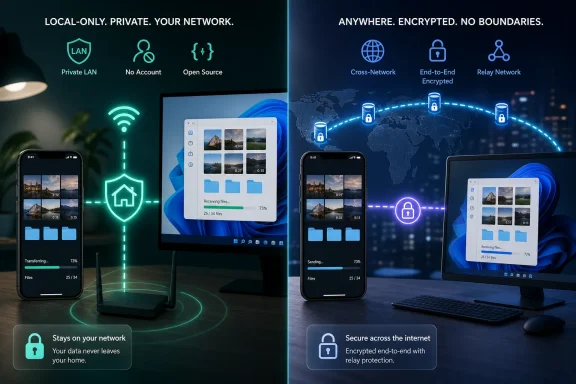
Blip’s key advantage is that its sending model is designed to work both nearby and across the internet. Once the Windows, iPhone, Android, or Mac apps are installed and signed in, users can send a file or folder to a recognized device without first placing both devices on the same Wi-Fi network. Android Authority reported that Blip appears in Windows Explorer’s right-click menu and in the mobile sharing interface, making it feel closer to a built-in sharing target than a separate upload-and-download job.
That removes the common failure case behind “email it to myself”: a photo taken on an iPhone while away from home can be sent to a Windows PC that is elsewhere and left ready for editing. A cloud drive can achieve a similar end result, but it usually requires uploading the file into a synchronized folder, waiting for the client to index it, then finding it again on the PC. Blip is built around the handoff instead.
Its claimed lack of file-size limits also has practical value for video editors, photographers, and anyone transferring folders full of assets. Blip says it can send folders without first creating a ZIP archive and can resume interrupted transfers. Those features matter more for a 30 GB video project or a camera card’s worth of files than for a handful of phone snapshots.
But the description “without the cloud” needs careful reading. Blip says it does not store users’ files in cloud storage or leave them behind on public download links. It says transfers are end-to-end encrypted using mutually authenticated TLS 1.3 connections, and that it attempts a direct path over the local network or the internet first. Yet Blip also says that if a direct path cannot be established, the encrypted data is routed through its relay network.
For most personal users, that is a reasonable engineering compromise. The vendor says its relays cannot read the encrypted files, and a relay can make cross-network transfers work where direct peer-to-peer connectivity is blocked by NAT, carrier networks, or firewall policy. But it means Blip is not the same thing as a strictly LAN-only tool: its service infrastructure can be in the transfer path even though it does not retain the content.
The commercial model deserves a correction as well. Windows Central describes a $25-per-user-per-month plan for businesses and priority speed. Blip’s current pricing page says $25 per user per month applies when billed annually, or $30 per user per month on monthly billing. The free Community tier covers non-commercial use, but Blip says internet transfers at that tier can be slower during peak demand. That caveat will not matter for occasional photo sharing; it could matter to a freelance editor who assumes “no size limit” automatically means consistently unrestricted performance.
LocalSend is the cleaner answer on a trusted LAN
LocalSend takes the opposite approach. Its project documentation describes a free, open-source application that transfers files directly among devices on the local network. No account is required, and the LocalSend project says the data does not leave the LAN or depend on third-party servers. It supports Windows, macOS, Linux, Android, and iOS, which makes it more useful than AirDrop in mixed-device households and labs.
PC Gamer’s recent hands-on report correctly frames LocalSend as an open-source AirDrop alternative, but the comparison has a boundary: it is for nearby devices on the same network, not for sending files between an iPhone on cellular data and a Windows desktop at home. If the iPhone and PC can see each other on the same Wi-Fi or Ethernet segment, LocalSend’s design means speed is generally constrained by local Wi-Fi or LAN performance rather than an ISP uplink or a cloud provider’s transfer policy.
For an IT-minded user, LocalSend’s openness is not merely philosophical. The application’s protocol is published, the code is publicly available, and the project documents how peer discovery and transfers work. It uses HTTPS with device-generated TLS certificates; the project identifies a device using the certificate’s SHA-256 fingerprint when encryption is active. That gives an administrator and security reviewer a clearer record of what is running than a proprietary service whose transfer behavior must be taken on trust.
The same transparency exposes the operational catch that breezy “just install it” recommendations tend to miss. LocalSend uses UDP multicast discovery and TCP/UDP traffic on port 53317 by default. Its own Windows documentation says the network should be set to Private, that firewalls may need rules allowing incoming TCP and UDP on port 53317, and that router access-point isolation must be disabled. On guest Wi-Fi, hotel networks, segmented corporate wireless, and VLAN-separated environments, those conditions frequently are not met.
In other words, LocalSend can be brilliantly simple on a normal home LAN and frustratingly invisible on a managed network. That is not evidence the app is broken; it follows directly from the choice to avoid a central relay service and to discover peers locally. Users should not weaken a corporate firewall or disable network segmentation merely to make a consumer file-sharing app work. On managed endpoints, LocalSend should be evaluated and deployed through normal IT policy, with explicit scope for its listening port and device-discovery behavior.
There is also a setting worth treating carefully. LocalSend’s troubleshooting guidance notes that disabling encryption can improve transfer speeds. On a private test network, that may help isolate a performance issue. It is poor default practice on a shared network, because the project’s HTTPS protection is the safeguard for content and transfer integrity. The performance gain is not worth casually sending unencrypted files across an office or public wireless segment.
Windows 11 still leaves iPhone transfer to third parties
The larger story is Microsoft’s incomplete iPhone integration. Phone Link exists on Windows 11, supports iPhones running iOS 14 or later, and can surface calls, messages, notifications, and contacts. It does not offer the sort of file transfer Microsoft provides for supported Android devices through Phone Link and Link to Windows.
Microsoft’s support material for iPhone photos instead points users to the Photos app’s USB import process, with the iPhone unlocked and trusted, or to iCloud for Windows if the originals live in iCloud Photos. Both remain valid options, particularly for a large one-time archive import or a full photo-library sync. Neither acts like a quick, recipient-selected transfer button for arbitrary files and folders.
This is why the two Reddit recommendations have gained traction. They paper over a missing Windows-to-iPhone workflow rather than adding a convenience feature to an already complete Microsoft stack. Apple’s AirDrop is proprietary to Apple hardware, and Microsoft’s iPhone integration remains constrained compared with Android. Blip and LocalSend exploit the neutral ground: both platforms permit third-party apps to move files, even if their first-party device-linking experiences do not.
Pick the tool based on where the recipient sits
For sending an iPhone photo to a Windows 11 PC sitting on the same home network, LocalSend is the more defensible default. It is free, requires no login, is open source, keeps the transfer on the local network, and does not introduce a vendor relay path. It is also the better option for users who want to move sensitive files inside a known LAN and are willing to handle an occasional firewall or discovery issue.
Blip earns its place when the recipient device is elsewhere, when network segmentation prevents local discovery, or when the sender wants a polished device-to-device workflow that can survive travel and changing networks. Its relay fallback is precisely what makes it more flexible than LocalSend, while its account requirement and proprietary service are the tradeoffs.
Neither app replaces a backup strategy. Blip and LocalSend are transfer tools: they create another copy at the destination only when a user sends something. iCloud Photos, OneDrive, a USB import, or a managed backup system remains necessary when the goal is preserving an entire photo library rather than quickly moving a few files.
The practical fix for Windows 11 and iPhone users is therefore straightforward: use LocalSend for local, account-free transfers; use Blip when distance matters; keep USB or iCloud for bulk imports and long-term retention. Emailing photos to yourself should no longer be the fallback, but neither app changes the fact that Windows 11 still relies on third parties to provide the iPhone file-sharing experience Microsoft has not built.