
The report, published August 15, says a new Customize menu command appears at the foot of the context menu and opens a Settings page. There, users can individually enable or disable Send to, Print, Create shortcut, Copy as path, Rotate image, app extensions, and two layout rules: showing primary commands inline and grouping cloud-storage actions into their own section.
This is still pre-release work, not a feature Microsoft has formally documented for Insiders or committed to a public Windows 11 update. Windows Central says it enabled the feature in hidden form with help from Windows feature researcher PhantomOfEarth and expects an announcement within one or two weeks. No other outlet has independently published the same Settings page or its full list of toggles, so the exact controls and their rollout timing remain attributable to Windows Central’s hands-on report.
What is no longer speculative is Microsoft’s direction. In June, Marcus Ash, Microsoft’s vice president of Design and Research for Windows and Devices, said the company was working to make context menus “faster, simpler by default” and configurable around what people use most. TechRadar independently reported that statement at the time. Windows Central subsequently reported seeing working context-menu customization code at a Windows Insider Meetup in London.
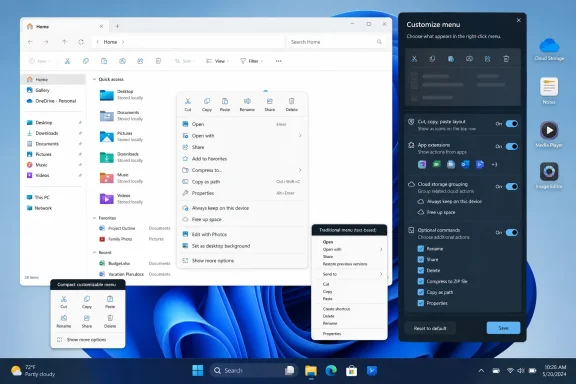 The default menu appears designed to load less
The important detail in the new hands-on report is not simply that users will be allowed to turn entries off. Windows Central says many optional actions are disabled by default in the new configuration. That would mark a reversal from the approach that caused the current menu’s problems: every installed application, cloud service, and shell extension competing for a place in the first right-click surface.
For ordinary users, a shorter list means less hunting. For people who regularly use File Explorer, it could also reduce the pause between a right-click and a usable menu. Windows Central has previously reported that Microsoft’s compact-menu work is intended to avoid loading every third-party action on the initial menu path, a common source of delay on systems with numerous applications installed.
Microsoft’s own developer documentation explains why that distinction matters. Modern File Explorer commands are built through the IExplorerCommand interface; when Explorer constructs the menu, it activates code that supplies each command’s title, icon, state, and action. Microsoft explicitly advises developers to keep those menu-construction methods fast and to defer expensive work until after a person has selected a command.
A Settings switch that suppresses an extension before Explorer needs to surface it could therefore be meaningful in two ways. It removes visual noise, but it may also stop unnecessary command creation on the UI path. Microsoft has not described the engineering mechanism for this proposed menu design, so it would be premature to promise universal performance gains. Still, it addresses the right part of the problem rather than merely squeezing the existing list into a tighter layout.
Vertical primary actions are an accessibility and muscle-memory concession
Windows 11 moved Cut, Copy, Paste, Rename, Share, and Delete into a horizontal strip of icon buttons at the top of its modern context menu. The design saves vertical space, but it also makes commonly used actions less discoverable—especially for people who do not instantly recognize every icon or who learned to use the text commands in earlier Windows releases.
The reported “Arrange primary actions inline” toggle would allow users to return those operations to the main vertical list. That is a sensible escape valve. The horizontal presentation can remain the compact default for people who value density, while the vertical version restores readable labels and predictable keyboard-and-mouse scanning for those who do not.
This needs to be understood as a layout choice, not a return to the old Windows 10 menu wholesale. Windows Central says the legacy context menu remains available as an optional command, presumably through the existing “Show more options” route or its successor. But the report also says there is no setting to make the legacy menu the permanent default.
That limitation is deliberate in effect, even if Microsoft has not stated its reasoning. The legacy menu is where many older shell extensions live, while the modern Windows 11 menu depends on the newer extension model. Making the classic menu the default would preserve broad compatibility but would also abandon the performance and grouping goals of the redesign. Microsoft is offering a closer visual behavior for basic commands without reopening the entire legacy shell stack.
Cloud services and app extensions are the real test
The most consequential switches in Windows Central’s screenshots are “App extensions” and “Keep cloud storage actions in their own section.” Those are the controls that will determine whether this is genuine user choice or a narrow cleanup of Microsoft’s built-in commands.
The modern File Explorer menu can host commands from packaged desktop apps and from unpackaged Win32 software that uses a sparse package. Microsoft’s documentation allows those extensions to target generic files, folders, and folder backgrounds. In a heavily managed business PC—or simply a long-lived enthusiast installation—that can translate into a menu containing backup, compression, security, development, media, version-control, and sharing commands.
A master switch for app extensions could make the initial menu much more predictable. It could also create a support consideration for IT teams: users might hide a command supplied by a line-of-business application and then report that it has “disappeared.” Microsoft will need to make the Settings page clear about whether disabling extensions hides them only from the modern menu, moves them to an overflow area, or prevents them from being offered at all.
The cloud-storage grouping option has a similar tradeoff. Separating OneDrive and other storage-provider actions could clean up the top-level menu for users who do not work from synced folders. But users who frequently move or share files through a cloud provider may see an extra click if those entries are no longer adjacent to ordinary file commands. The proposed control is valuable precisely because there is no universally correct default.
Microsoft still has to explain the scope
Several implementation questions are missing from the present reporting. Microsoft has not said which Windows 11 versions will receive the feature, whether it will arrive first in Experimental, Beta, Canary, or Release Preview builds, or whether it will be enabled through the company’s gradual controlled rollout system. It also has not said whether context-menu preferences roam with a Microsoft account, apply per user or per device, or can be configured through policy or mobile-device management.
Those gaps matter more to administrators than the vertical-versus-inline preference. A consumer-only Settings page is helpful, but enterprise deployments need a way to set a baseline—particularly if disabling third-party extensions produces measurable responsiveness improvements or reduces help-desk tickets around cluttered menus.
Microsoft’s existing Insider release notes show that the company increasingly ships interface changes through controlled feature rollouts, even within a preview channel. That means a public announcement would not guarantee immediate availability on every eligible Insider PC. It also means the hidden state observed by Windows Central should not be treated as a safe production configuration or enabled through unofficial feature-flag tools on managed machines.
The redesign’s value will come down to whether Microsoft preserves the promised control when it moves from a hidden preview feature to a supported Windows setting. If the toggles ship substantially as Windows Central demonstrated, Windows 11 users will finally be able to decide which commands deserve the first right-click—and the menu will have a credible path to becoming faster by default rather than merely looking cleaner.
Update: Report says Refresh may be added across modern folder menus (August 16, 2026)
WinCentral now reports that Microsoft is also working to make Refresh available across modern context menus in all folders, rather than leaving its availability inconsistent. If accurate, that would give users a more predictable way to reload File Explorer views without falling back to the legacy menu.
The outlet also says the modern menu will gain direct Send to support. Earlier reporting identified Send to as one of the commands being considered for customization; this new claim suggests Microsoft may be restoring it as a first-class modern-menu action rather than treating it solely as an optional legacy-menu feature.
Microsoft has not yet confirmed either change in Insider documentation. The reported Refresh expansion and direct Send to implementation should therefore be treated as in-development details that could change before any supported preview rollout.
Update: XDA reports menu reordering and Shift shortcut for legacy commands (August 16, 2026)
XDA reports that the hidden context-menu Settings panel may let users reorder actions as well as toggle them on or off. If implemented as shown, that would extend the redesign beyond simple decluttering by allowing frequently used commands to appear in a preferred sequence.
The outlet also says Shift+right-click can reveal the legacy command set when the modern menu hides “Show more options” by default. That could provide a quicker compatibility path for power users and support staff without making the classic menu the default interface.
XDA describes the work as part of Windows 11’s Experimental branch and speculates that it could reach users by year-end. Microsoft has not confirmed the branch, the reordering control, or a release schedule in official Insider documentation.
