
For most people, the decision comes down to intent. If you are handing the machine to someone else, removing one account is incomplete; use Windows 11’s reset process. If you want to keep using the same Windows profile without Microsoft cloud sign-in, convert that profile to a local account. If Outlook, Search, or another app has an unwanted secondary identity, remove only that app-connected account.
The practical risk is concentrated in one button: Windows’ Remove account and data action deletes the selected user’s local profile data from that PC. It is not a way to close a Microsoft account, and it is not a clean substitute for wiping a computer before sale.
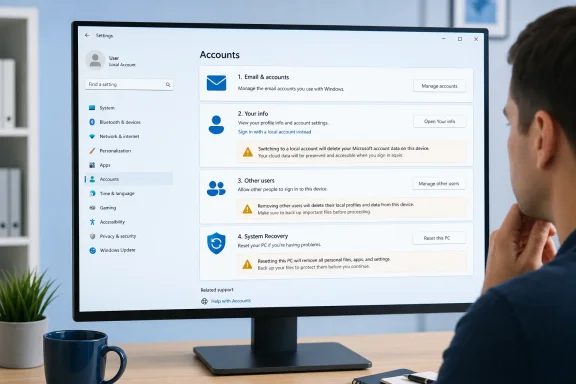 The four things Windows calls an “account”
The guide’s first method, Settings > Accounts > Email & accounts, applies to credentials used by applications. These can include personal Microsoft accounts, work accounts, or identities connected for Mail, Calendar, Microsoft 365, Search, and other Windows features. Removing one here usually stops Windows and apps from using that identity; it does not remove a person’s Windows sign-in profile from the lock screen.
Microsoft’s documentation separates those app connections from Other users. The latter is where Windows lists distinct local and Microsoft-backed user profiles that can sign in to the device. Removing an entry under Other users removes that person’s sign-in access and profile data from the computer, while leaving the online Microsoft account intact.
A third category is the account currently signed in to Windows. It cannot simply be deleted while it is the active profile. The supported route is to convert it from a Microsoft-account sign-in to a local Windows account, then sign out and back in. The local account retains the existing Windows profile, desktop, and most locally installed software configuration; it changes how that profile authenticates to Windows.
Finally, work or school accounts belong under Settings > Accounts > Access work or school. These should be disconnected there, not deleted through the consumer-account workflow. On an organization-managed PC, policy, device enrollment, BitLocker recovery-key handling, Microsoft 365 licensing, and management access can all be tied to that connection. Employees should check with IT before disconnecting a managed work account.
Remove a secondary app-connected account
Use this only when the unwanted Microsoft account is an identity available to Windows apps, rather than a separate user who signs in to the PC.
Open Settings > Accounts > Email & accounts. Under Accounts used by other apps or the relevant email/calendar section, select the account and choose Remove. Confirm the prompt.
This is the least destructive option, but it can still change app behavior. Microsoft notes that Windows Search can use previously added accounts to personalize cloud results. Removing an identity may therefore stop OneDrive, Outlook, Search, or other apps from surfacing content associated with it until the account is added again.
Do not expect this to remove the account’s tile from the Windows sign-in screen. If it remains visible there, it is a Windows user profile and belongs under Other users.
Convert your current Microsoft sign-in to a local account
For a PC that you will continue to use, switching the current Windows sign-in profile to a local account is usually the correct operation. Microsoft documents the path as Settings > Accounts > Your info > Sign in with a local account instead.
Windows will ask you to verify your current credentials, then create a local username, password, and password hint. The username must be unique on the device. Select Next, then choose Sign out and finish; the change is completed only after you sign back in with the newly created local credentials.
The result is often misunderstood. Your Microsoft account still exists online and remains usable for Outlook.com, OneDrive, Xbox, Microsoft 365, purchases, and other services. Windows simply stops using it as the identity for that particular local profile.
Before making the switch, check what you are giving up or changing:
- Windows Backup relies on a personal Microsoft account for the consumer backup and restore experience, including backed-up folder synchronization through OneDrive.
- OneDrive files that are already stored in the cloud are not destroyed by changing to a local Windows account, but the client may need to be signed in again if you want synchronization to continue.
- Windows Hello sign-in settings are device-specific, but you should know the Microsoft account password before changing account types. A PIN or biometric sign-in is not a substitute for knowing the underlying credentials when recovery is required.
- Create and test the local password before depending on it. Microsoft recommends a password reset disk for local accounts because local-password recovery is more limited than Microsoft-account recovery.
The source guide advises having another administrator account before removing the main account. That is prudent when the goal is to delete an old profile, but conversion itself preserves the current profile. The important safeguard is that you must retain at least one usable administrator account before deleting any user account with administrative rights.
Delete a former Windows user profile only when its local data is expendable
Once you have another administrator account and are signed in with it, open Settings > Accounts > Other users. Select the former account and use the removal control that Windows presents. Confirm only after verifying that the selected name is the intended profile.
This deletes that user’s local data from the device. Think of it as deleting the Windows profile, not deleting an online identity. Microsoft says plainly that the action removes the person’s sign-in information and data from the device but does not close their Microsoft account.
The source article’s warning that all “apps associated with that account” will disappear needs a narrower reading. The user’s files, settings, per-user application data, and access to software installed only for that profile can be removed. But Windows software installed for all users is not necessarily uninstalled merely because one user profile is deleted. Do not use profile removal as an application-cleanup tool; use Settings > Apps for that job.
Before confirming removal, copy anything that exists only in the former profile. That includes Desktop, Documents, Downloads, Pictures, browser profiles, locally stored Outlook data, application configuration folders, SSH keys, development credentials, virtual-machine files, and game saves that have not synchronized. OneDrive is not a universal safety net: cloud-synced files may remain online, while files that never completed a sync or were stored elsewhere in the profile may be lost locally.
Selling or giving away the PC requires a reset, not an account removal
For a computer changing hands, Microsoft’s own guidance is to back up needed files and use Settings > System > Recovery > Reset PC, then choose Remove everything. The reset reinstalls Windows and removes personal files, applications, and settings. After the reset, Microsoft recommends removing the device from the Microsoft account’s device list.
Choosing the optional clean data setting makes recovery of removed files harder, though Microsoft cautions that its consumer-focused erasure process does not meet government or industry data-erasure standards. Businesses, regulated organizations, and anyone disposing of storage containing sensitive data should follow their organization’s approved sanitization process instead.
Simply removing an account through Other users is inadequate for a sale because it leaves Windows, other user profiles, installed applications, and potentially recoverable data behind. It also leaves the buyer with a machine that has not been returned to a clean out-of-box state.
A safer order of operations
The shortest safe workflow is to identify the target before touching Settings:
- Remove an identity in Email & accounts only when you want to disconnect it from Windows apps.
- Use Your info and “Sign in with a local account instead” when you want to retain the current profile but stop using a Microsoft account for Windows sign-in.
- Use Other users only to remove a different Windows user profile after its files have been backed up and another administrator is available.
- Use System > Recovery > Reset PC with Remove everything when the entire computer is leaving your possession.
Windows 11 does not offer one universal “remove Microsoft account” command because those actions carry very different consequences. Treating a cloud identity, an app credential, and a local user profile as the same thing is how an otherwise simple cleanup becomes a data-loss incident.
