
The important caveat is version drift. Microsoft has added features through Microsoft Store updates and, in some cases, limits newer AI-adjacent tools to Copilot+ PCs. Check for Snipping Tool updates before assuming every button described below will appear on a particular Windows 11 installation.
 Make the capture itself do more work
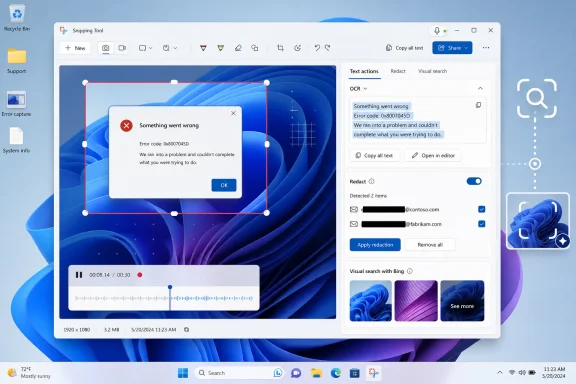
- Use Text actions on an existing image. Open a screenshot or photo in Snipping Tool, select Text actions, and copy either all recognized text or a selected section. This is useful for photographed serial numbers, error dialogs, and scanned documents.
- Extract text directly from the screen. The text-extraction workflow avoids retaining a screenshot when the only goal is getting text into the clipboard. That is especially practical for unselectable app labels, image-based PDFs, and webpages that interfere with ordinary copying; OCR output should still be proofread.
- Run Quick redact before sharing. After Text actions identifies content, Quick redact can mask detected email addresses and phone numbers. It is a safer starting point than using a blur effect, but admins should inspect the finished image for missed names, account numbers, addresses, and other context-sensitive data.
- Set a capture delay for menus and transient UI. Snipping Tool’s timer gives users a few seconds to open a context menu, hover state, or settings flyout before the capture begins. It remains one of the most reliable ways to document UI that disappears when focus changes.
- Use Freeform for irregular capture areas. Rectangle capture is faster most of the time, but Freeform can isolate a shape, diagram, or part of an interface without collecting unrelated screen content. Microsoft continues to list Freeform alongside rectangle, window, and full-screen modes.
- Stop automatic saving if screenshots are disposable. Turning off automatic saving keeps routine captures in the clipboard until the user deliberately saves them. For people taking dozens of one-off screenshots during troubleshooting, that prevents the Pictures folder from becoming an accidental archive of potentially sensitive material.
Turn Snipping Tool into a small support studio
- Record a focused screencast. Select the Record mode, choose the relevant region, and start recording rather than capturing a succession of stills. Microsoft supports video snips directly in Snipping Tool, including the
Windows+Shift+Rshortcut, making it a convenient way to show a colleague the exact clicks needed to reproduce a fix. - Enable microphone input when narration matters. A short narrated recording is often more useful than a lengthy support email, particularly for device setup, application walkthroughs, and help-desk handoffs. Check the app’s settings for the microphone-default option and confirm that the correct input device is selected before recording.
- Add a consistent border for publication-ready screenshots. Snipping Tool can automatically apply a colored border to captures. It is a modest feature, but it helps distinguish a screenshot from surrounding page content in documentation, social posts, and internal knowledge-base articles.
- Use shapes or emoji as an intentional privacy layer. The Shapes tool can place filled rectangles, ovals, or emoji over faces and sensitive regions. A solid fill is preferable to blur for data that must not be recoverable from the resulting image; make sure the object fully covers the original pixels.
Bing lookup is useful, but it is not local analysis
Snipping Tool’s Visual Search with Bing can submit an image for reverse-image searching, helping identify an object, location, product, or reused profile picture. That is useful for research and basic scam checking, but it is fundamentally different from local OCR: Bing Visual Search uploads or processes the image through Microsoft’s online service.
Organizations handling customer records, security incidents, source-code screenshots, or confidential diagrams should treat that action as an external sharing event and apply their normal data-handling policy. Microsoft’s newer Click to Do integration similarly distinguishes local screen analysis from actions that send selected content to web services.
Snipping Tool is not replacing a full workflow tool for every power user, but it now covers the tasks that most often interrupt ordinary Windows work: capture, copy, redact, explain, and share. For many Windows 11 PCs, the only remaining requirement is keeping the app updated—and knowing which of its less obvious controls to reach for.
