
Microsoft’s own support documentation confirms that users can turn off recently added apps, most-used apps, and recently opened items from the Start settings page. It also documents a separate toggle for the Phone Link-powered mobile-device companion. The useful result is a quieter Start menu centered on pinned apps, but the cost of the cleanest configuration is broader than the MakeUseOf walkthrough suggests: one of the controls also changes what Windows remembers and displays in Jump Lists and File Explorer.
For people who use Start strictly as an application launcher, that trade-off may be worthwhile. For users who rely on recent documents in Explorer or right-click Jump Lists on the taskbar, it is worth separating the settings before switching everything off.
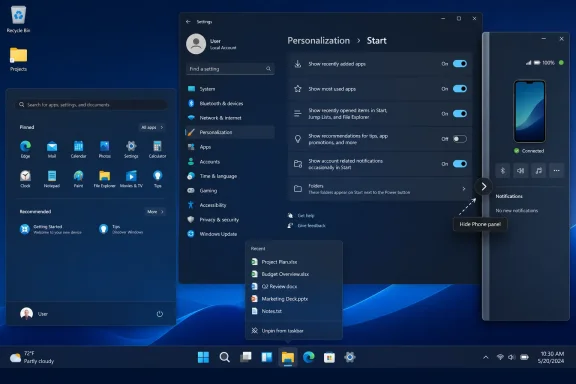 The Start menu controls do more than remove suggestions
Windows 11’s Start settings mix several distinct behaviors under a small group of toggles. “Show recently added apps” controls software Windows highlights after installation. “Show most used apps” governs usage-based app suggestions. “Show recently opened items in Start, Jump Lists, and File Explorer” is the consequential one: it links Start recommendations to Windows’ recent-item history in other parts of the shell.
Microsoft’s accessibility guidance still presents these as the ordinary consumer controls for simplifying Start. Turn off the recent-items setting and Windows stops surfacing recently opened files in Start, but the effect extends to Jump Lists and File Explorer as the setting’s full name warns.
That is the material omission in the broad advice to disable everything. A user who wants Start to stop showing a recent spreadsheet does not necessarily want to lose convenient access to that same spreadsheet from File Explorer’s recent locations or an app’s taskbar Jump List. The feature is functioning as designed; Microsoft has simply tied several surfaces to the same history preference.
The safe approach is to begin with the two app-oriented controls—recently added and most used—then decide whether the convenience of cross-Windows recent files is worth keeping. Finally, disable “Show recommendations for tips, shortcuts, new apps, and more” if it appears on the PC. That setting targets Microsoft’s wider in-product prompts rather than personal document history.
Phone Link is a separate source of Start menu clutter
The “Show mobile device in Start” switch should be treated separately from recommendations. Microsoft’s documentation says the mobile-device companion can expose a connected Android phone or iPhone directly in Start, including connection status, messages, calls, recent activity, photos on Android, and file-transfer actions.
Disabling that pane does not disconnect the phone from Windows or uninstall Phone Link. It only removes the Start menu entry point. That makes it a low-risk choice for anyone who uses Phone Link occasionally but does not want a persistent handset panel every time they press the Windows key.
The setting also has prerequisites, so it will not appear meaningfully on every machine. Microsoft lists Windows 11, a Microsoft account, Phone Link version 1.25032.82.0 or later, and a compatible phone connection among the requirements. If the toggle is absent, the likely explanation is that the companion experience has not been enabled or rolled out to that device—not that Start’s ordinary recommendation controls are broken.
“Empty” and “removed” are different outcomes
There are now two different Start menu experiences circulating across Windows 11 builds, and they are easy to confuse.
The established Settings toggles manage what appears in the Recommended section. After users turn off the eligible sources of recommendations, Start can become much quieter or show no useful items. Windows Central has reported that, on the refreshed Start implementation it tested, disabling all of those inputs removes the visible Recommended section rather than merely leaving an empty container.
Microsoft, meanwhile, announced a more direct design in its May 2026 Windows Insider update: separate section-level controls for Pinned, Recommended, and All. With those switches, a user can explicitly hide Recommended and retain a pins-only Start menu. Microsoft also said it was adding a separate control for file recommendations so that disabling them in Start would no longer turn off recent files in Jump Lists and File Explorer.
That distinction is the real improvement, and it is why users should not expect the same settings page on every Windows 11 installation. Microsoft’s May announcement described the new controls as rolling out first to Windows Insiders in the Experimental channel. The company did not, in that announcement, commit to a general-availability date for all supported Windows 11 PCs.
So a guide that shows a direct “Recommended” section switch may be accurate for a newer preview or staged rollout, while a fully updated retail PC may still expose only the older individual toggles. The interface is changing, but the rollout remains uneven.
A cleaner setup without sacrificing useful history
For a personal Windows 11 PC, the practical sequence is straightforward:
- Open Settings > Personalization > Start and switch off recently added apps, most-used apps, and recommendation prompts if those are the kinds of content you do not want to see.
- Leave “Show recently opened items in Start, Jump Lists, and File Explorer” enabled at first if you rely on recent documents or taskbar Jump Lists, then disable it only if removing document history from Start is more valuable.
- Turn off “Show mobile device in Start” if the Phone Link companion panel is unwanted, knowing it does not disable Phone Link itself.
- Check whether the Start settings page has distinct visibility controls for Pinned, Recommended or Recent, and All. Those are the newer controls Microsoft has been testing; they are the cleanest route to a pinned-app-only layout.
- Use the Folders option in the same Start settings page deliberately. Adding Documents, Downloads, Settings, or File Explorer near the power button can make a minimalist Start menu more useful without re-enabling recommendation content.
This produces a more considered result than indiscriminately switching off every option. It also preserves a useful distinction between app discovery, promotional prompts, phone integration, and document history—four different behaviors that happen to be presented in one small settings area.
Administrators have a real removal policy
The consumer-facing toggles are only part of the picture for managed devices. Microsoft Learn documents a policy named Remove Recommended section from Start Menu, with corresponding CSP entries under HideRecommendedSection. When enabled, Microsoft says the Start menu will not display the section containing recommended applications and files.
That policy matters for organizations that want a predictable Start menu rather than a per-user preference. It avoids asking employees to change several settings and offers a cleaner baseline for shared PCs, task-focused devices, training rooms, kiosks, and tightly managed Windows environments.
Microsoft’s policy documentation also makes clear that Start controls have version dependencies. Some Group Policy settings are available only beginning with Windows 11 version 24H2 and a specified cumulative update, including KB5062660 for one listed Start policy. Administrators should therefore verify the Windows release and installed servicing level before assuming that a policy template will expose every newer Start option.
There is also a usability decision to make. A Start menu stripped down to pins is easy to scan, but it assumes that the organization has pinned the right line-of-business apps, provided sensible taskbar defaults, and given users another reliable route to recently used documents. Removing content is simple; replacing the workflow value it provided takes planning.
Microsoft is finally separating choices that should have been separate
MakeUseOf’s complaint is fundamentally about control, and Microsoft’s current direction acknowledges that the old arrangement was too blunt. The company has already described the problem plainly in its Insider material: turning off Recommended has historically meant turning off recent files in other Windows surfaces as well.
The new section-level controls and separate file-recommendation preference address that design flaw more effectively than the older collection of toggles. They let users decide whether Start should be an app launcher, a recent-work hub, or both—without silently changing unrelated navigation features.
Until those controls are broadly available, Windows 11 users can still make Start markedly cleaner today. They should simply recognize that disabling the recent-items switch reaches beyond Start, while hiding the Phone Link panel and promotional recommendations does not.