
That simplicity matters. A frozen browser tab, an unresponsive game, or a runaway background process can make Windows feel broken even when the operating system itself is still responsive. Knowing more than one way to open Task Manager in Windows 11 is therefore practical disaster recovery knowledge: the best shortcut depends on whether the desktop works, whether only the keyboard responds, whether the PC is being controlled remotely, or whether accessibility tools are in use.
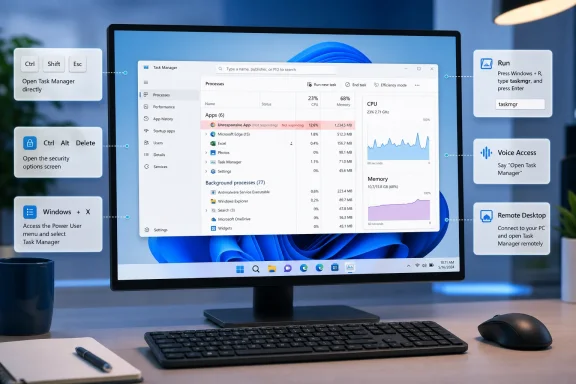 The fastest method: Ctrl + Shift + Esc
For most Windows 11 users, the direct Task Manager shortcut is the one worth memorizing:
Ctrl + Shift + Esc
Press all three keys together and Windows opens Task Manager immediately. Microsoft lists Ctrl + Shift + Esc as the shortcut specifically assigned to opening Task Manager in Windows 11. Microsoft’s keyboard-shortcut reference also confirms that this shortcut bypasses menus and the Windows security screen.
This is the best choice when:
- An app has stopped responding but Windows still accepts keyboard input.
- The taskbar is visible, but clicking it feels slow.
- You need to identify which program is consuming CPU, memory, disk, or network resources.
- You want to review startup programs without navigating through Settings.
- You are troubleshooting an issue repeatedly and need the quickest route.
The key advantage is not merely speed. Ctrl + Shift + Esc reduces dependencies. It does not require the Start menu, taskbar, Windows Search, or a functional mouse. If the desktop shell is struggling but the operating system still reacts to keystrokes, this shortcut can be the difference between a quick recovery and a forced restart.
What to do after Task Manager opens
The Processes page is normally the first stop. It lists running apps, background processes, and Windows processes, while showing resource usage such as CPU, memory, disk activity, and network use. Microsoft notes that Task Manager can be used to inspect these performance indicators and terminate unresponsive programs. Microsoft’s Task Manager overview confirms its roles in monitoring resource consumption and managing active software.
If an application is visibly stuck:
- Locate the application under Apps.
- Select it.
- Choose End task.
Use that action carefully. Ending a task can discard unsaved work, interrupt a file transfer, or cause an application to lose its current session. It is most appropriate when the program has stopped responding and a normal close action no longer works.
Use Ctrl + Alt + Delete when Windows is struggling
The second essential route is:
Ctrl + Alt + Delete
Unlike Ctrl + Shift + Esc, this does not launch Task Manager directly. Instead, it opens the Windows security screen, where Task Manager is one of the available options alongside actions such as locking the PC, switching users, signing out, and changing a password. Microsoft’s shortcut documentation explicitly identifies Ctrl + Alt + Delete as the route to that security screen.
Once the screen appears:
- Select Task Manager.
- Wait for Task Manager to load.
- Review the Processes page before ending an app or process.
This method is especially valuable when the ordinary Windows desktop feels unstable. The Start menu might not open, the taskbar may be delayed, and app windows may refuse to react to the mouse, yet the secure Windows screen can still be available.
Direct shortcut versus security screen
The distinction is important:
| Method | Result | Best use |
|---|---|---|
| Ctrl + Shift + Esc | Opens Task Manager directly | Everyday troubleshooting and fastest access |
| Ctrl + Alt + Delete | Opens the Windows security screen first | When the desktop is sluggish or unreliable |
| Windows + X | Opens the Quick Link menu | Keyboard-and-menu workflow |
| Right-click Start | Opens the Quick Link menu | Mouse-first workflow |
A common mistake is assuming that Ctrl + Alt + Delete and Ctrl + Shift + Esc do the same thing. They do not. The latter is the dedicated Task Manager shortcut; the former is a broader Windows security command.
Open Task Manager from Start or the Quick Link menu
Windows 11 includes Task Manager in the Quick Link menu, the compact system-tools menu that appears when users right-click the Start button.
Right-click the Start button
Using a mouse:
- Right-click Start on the taskbar.
- Select Task Manager.
Microsoft currently documents this Start-button method alongside the direct keyboard shortcut. Its Windows system-configuration guide lists Right-click Start > Task Manager as an official way to launch the tool.
This route is easy to remember because it puts Task Manager beside other administrative shortcuts, including:
- Settings
- Device Manager
- Disk Management
- Terminal
- Run
- Computer Management
- Event Viewer
For users who work mainly with the mouse, it is arguably the most discoverable Windows 11 Task Manager method.
Press Windows + X
The keyboard equivalent is:
Windows key + X
This opens the same Quick Link menu. From there, select Task Manager with the mouse, arrow keys, or the menu’s keyboard accelerator where available.
The advantage of Windows + X is that it gives access to Task Manager while also serving as a broader troubleshooting gateway. If Task Manager alone will not solve the problem, the same menu can lead to Device Manager, Terminal, Event Viewer, and other Windows administration tools.
The taskbar right-click route
On current supported Windows 11 builds, Task Manager can also be accessed by right-clicking an empty area of the taskbar and choosing Task Manager, as outlined in the supplied Technobezz walkthrough. That is useful for mouse users because the taskbar is usually present even when individual app windows have become unresponsive.
However, this is also an area where older Windows 11 advice can be misleading. Early Windows 11 releases changed the taskbar context menu significantly, and many older guides still claim that the Task Manager item is unavailable from the taskbar. On contemporary builds, the menu option may be present; if it is not visible on a particular managed, customized, or older installation, use Ctrl + Shift + Esc or right-click Start instead.
Use Windows Search when you do not remember shortcuts
Search is the most forgiving method for opening Task Manager in Windows 11.
- Press the Windows key or select Start.
- Type
Task Manager. - Select Task Manager from the results.
For a keyboard-only sequence:
Windows key → Task Manager → Enter
This works well because Windows Search is designed to locate installed apps and system tools by name. It is also a practical option for users who remember what they need but not the specific shortcut or menu location.
Why Search is not always the best emergency option
Windows Search is convenient, but it has more moving parts than the direct shortcut. If the Start menu is stalled, the search panel is delayed, or Explorer is consuming excessive resources, typing a query can take longer than Ctrl + Shift + Esc.
That does not make Search a poor method. It simply means it is better for normal use than for a system already showing signs of instability.
For example, Search is ideal when you are calmly investigating slow startup performance. It is less ideal when a full-screen application has frozen and you need immediate control.
Run taskmgr from Run, Command Prompt, PowerShell, or Terminal
Task Manager also has a straightforward command name:
taskmgr
The most familiar approach uses the Run dialog:
- Press Windows + R.
- Type
taskmgr. - Press Enter or select OK.
The same command can be entered from Command Prompt, Windows PowerShell, or Windows Terminal. The supplied Technobezz guidance identifies taskmgr as the command for launching the utility from these command surfaces.
This method is particularly useful for:
- IT support staff already working in a command shell.
- Users diagnosing a PC through Terminal.
- Scripts, batch files, or remote support procedures.
- Situations where Run is available but the Start menu is inconvenient.
Why the command route remains useful
Typing taskmgr might seem less efficient than using the direct shortcut, but it has an important advantage: it is consistent across multiple Windows interfaces. Someone working in PowerShell does not need to leave their current workflow and navigate through menus merely to inspect processes.
It can also be helpful when teaching troubleshooting steps remotely. “Press Windows + R and type taskmgr” is a clear, easily repeatable instruction for many users.
Still, command access does not grant special recovery powers. If Windows is so unresponsive that a command shell cannot open, or if Task Manager itself is blocked by policy, taskmgr will not bypass those underlying conditions.
Open Task Manager while investigating startup problems
Task Manager is not just an emergency “close frozen app” tool. It also includes the Startup apps page, which helps identify software configured to launch when a user signs in.
Microsoft says Task Manager provides a more detailed startup view than Settings, including each app’s estimated startup impact. Microsoft’s startup-app documentation explains that the tool can be used to enable or disable startup applications and view their impact categories.
To open Task Manager from System Configuration:
- Open Search.
- Type
msconfig. - Select System Configuration.
- Open the Startup tab.
- Select Open Task Manager.
Microsoft documents this exact handoff in its clean-boot troubleshooting instructions. The official clean-boot guide directs users from System Configuration’s Startup tab to Open Task Manager when isolating startup-related problems.
Understanding startup impact
Task Manager labels startup items with an impact assessment. Microsoft defines Low Impact as less than 300 milliseconds of CPU time and less than 292 KB of disk activity, while High Impact can mean more than one second of CPU time or more than 3 MB of disk activity during startup. Microsoft’s startup-app reference provides these thresholds.
Those labels are useful signals, not absolute verdicts. A “high impact” program might be important security software, a hardware management utility, or a productivity tool that the user deliberately wants ready at sign-in. Likewise, removing every startup app can reduce convenience and may temporarily alter expected behavior.
A sensible Windows 11 startup cleanup process is:
- Review the publisher and name of each startup entry.
- Disable only software you recognize and do not need immediately after sign-in.
- Restart the PC.
- Evaluate whether the boot experience improved.
- Re-enable anything that turns out to be necessary.
Do not confuse startup optimization with a cure-all. Slow sign-in may also result from storage pressure, Windows updates, driver problems, profiles, network sign-in policies, or hardware limitations. Task Manager offers evidence; it does not eliminate the need for careful diagnosis.
Use Task Manager with Voice Access
Windows 11 includes Voice Access, an accessibility feature that lets people operate Windows and author text using voice commands. Microsoft states that Voice Access is available on Windows 11 version 22H2 and later and can operate without an internet connection after setup. Microsoft’s Voice Access introduction describes the feature as on-device voice control for Windows and apps.
After Voice Access is enabled, users can issue an app-opening command such as:
Open Task Manager
The supplied Technobezz article also lists alternate phrasing including “Start Task Manager” and “Show Task Manager.”
This capability has clear accessibility value. It can help users who have limited mouse or keyboard access, and it can also be useful when hands are occupied or a physical input device is unavailable.
Voice control is a complementary route, not an emergency replacement
Voice Access is powerful, but it should not replace knowledge of the keyboard shortcut. If a PC is severely slowed, the microphone is unavailable, Voice Access is not configured, or speech recognition does not interpret a command correctly, Ctrl + Shift + Esc is still the more dependable recovery path.
Microsoft’s documentation also notes that Voice Access has microphone states, command feedback, and an interactive guide for learning supported controls. The Voice Access guide is worth exploring before relying on voice commands during a frustrating troubleshooting event.
Open Task Manager in Remote Desktop sessions
Remote Desktop changes how Windows handles some keyboard shortcuts. When working inside a remote Windows session, pressing Ctrl + Alt + Delete normally targets the local PC rather than the remote machine.
The alternative is:
Ctrl + Alt + End
Microsoft documents Ctrl + Alt + End as the Remote Desktop shortcut that opens the Windows Security dialog box for the remote session, providing the remote equivalent of Ctrl + Alt + Delete. Microsoft’s Remote Desktop shortcut reference confirms this behavior.
From the remote security screen:
- Select Task Manager.
- Diagnose the remote application or process.
- End only the process that is causing the issue.
Important Remote Desktop limitations
Remote Desktop keyboard behavior can vary depending on whether the session is full-screen, whether shortcut keys are configured to apply locally or remotely, and whether the user is working through nested remote sessions. Microsoft warns that hotkeys may not work in nested Remote Desktop or RemoteApp scenarios. Its Remote Desktop documentation specifically calls out that limitation.
That means remote troubleshooting should always include a fallback plan:
- Use the Remote Desktop connection bar or session controls.
- Open a command shell within the remote session and run
taskmgr. - Use the Start-button or Search method inside the remote desktop.
- Confirm that the intended machine—not the local workstation—is receiving the command.
The risk here is operational rather than technical. Ending the wrong process in a remote session can disconnect users, interrupt a shared workflow, or terminate work that belongs to another active session. Confirm the process name, user, and system context before acting.
When Task Manager has been disabled by an administrator
If Windows displays the message “Task Manager has been disabled by your administrator,” treat it first as an access-control issue, not as a missing app.
Microsoft identifies local or domain Group Policy settings and registry settings as possible causes. Its troubleshooting guidance points to the Remove Task Manager policy under User Configuration > Administrative Templates > System > Ctrl+Alt+Del Options, as well as DisableTaskMgr registry values. Microsoft’s support article on the disabled Task Manager message documents both paths.
For a work, school, or otherwise managed PC, the appropriate response is straightforward:
- Contact the organization’s IT administrator.
- Explain the message and the immediate issue requiring Task Manager.
- Avoid attempting to override Group Policy or registry restrictions.
Why registry “fixes” are risky
Many online guides recommend editing the registry to re-enable Task Manager. Microsoft explicitly cautions that registry modification can cause serious problems and may require reinstalling the operating system if performed incorrectly. Its guidance on the administrator-disabled error includes that warning.
On a personally owned PC, a restriction may warrant a malware scan or a broader review of system configuration. On an organization-managed device, however, it may be intentional security policy. Bypassing it can violate workplace rules and create support complications.
Task Manager as a diagnostic tool, not just a force-close button
The best Windows 11 Task Manager workflow begins with observation, not immediate termination. Before pressing End task, check whether the application is actually consuming unusual resources, whether disk usage is saturated, or whether a background process is responsible.
Task Manager can also help isolate display problems. Microsoft’s screen-flickering guidance uses Task Manager as a diagnostic comparison: if the entire display and Task Manager both flicker, a display driver is a likely cause; if Task Manager remains stable while the rest of the screen flickers, an incompatible app is more likely involved. Microsoft’s Windows flickering troubleshooter outlines that distinction.
This is a good example of why Task Manager deserves to be treated as a Windows troubleshooting hub rather than a blunt instrument. It can help answer questions such as:
- Is an app genuinely frozen or merely busy?
- Is RAM use unusually high?
- Is a drive under sustained heavy activity?
- Are too many apps launching at sign-in?
- Is the display issue likely tied to an app or a graphics driver?
- Are multiple user sessions active on the machine?
The answer may not always be “end the process.” Sometimes the better response is to wait, update an application, restart Windows, adjust startup programs, investigate drivers, or escalate a managed-device issue to IT.
The practical Windows 11 Task Manager cheat sheet
For everyday use, these are the routes worth retaining:
- Fastest direct shortcut:
Ctrl + Shift + Esc - When the desktop is sluggish:
Ctrl + Alt + Delete, then choose Task Manager - Mouse route: Right-click Start > Task Manager
- Keyboard menu route:
Windows + X, then choose Task Manager - Search route: Press Windows, type
Task Manager, press Enter - Run command:
Windows + R> typetaskmgr> Enter - Command shell route: Type
taskmgrin Command Prompt, PowerShell, or Terminal - Startup troubleshooting route:
msconfig> Startup > Open Task Manager - Voice route: Enable Voice Access and say “Open Task Manager”
- Remote Desktop route:
Ctrl + Alt + End, then choose Task Manager
Task Manager is built into Windows 11, accessible through multiple routes, and valuable far beyond closing a frozen app. Memorizing Ctrl + Shift + Esc covers the majority of urgent situations, while the Start menu, Search, Run, Voice Access, System Configuration, and Remote Desktop methods ensure there is still a route available when the normal desktop path is not.
