
As highlighted by MakeUseOf, pressing Windows+X opens the menu from the keyboard. The underlined letter in each entry then acts as a second keystroke, although the exact letters can vary with Windows version, language, and recent menu changes. For administrators and frequent troubleshooters, the value is not a new utility but a shortcut to familiar tools at the moment they are needed.
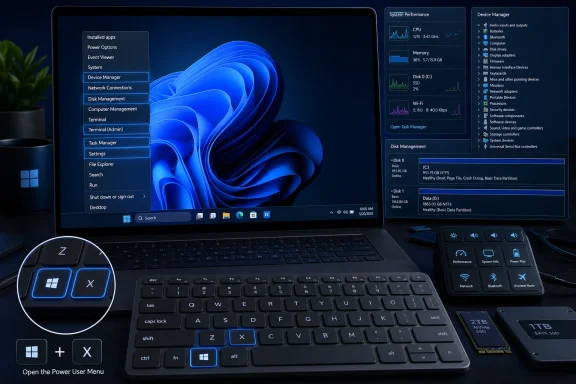 Four shortcuts worth committing to memory
Windows Mobility Center is particularly useful on supported laptops. It consolidates display brightness, volume, battery and presentation-related controls in a single legacy dashboard; desktop PCs may not expose the same options or the app at all.
Task Manager remains the quickest built-in place to terminate a hung process, inspect startup impact, or trace excessive CPU, memory, disk, and network use. Ctrl+Shift+Esc opens it directly, but Win+X keeps it in the same operational menu as the rest of Windows’ recovery and administration tools.
Settings > System > About provides the concise hardware and Windows specification view needed when documenting a support case, checking system type, or confirming installed memory. It is less diagnostic than System Information, but far more convenient for a quick inventory check.
Device Manager is the route for examining a hardware problem after a driver update. Microsoft’s support guidance confirms that rolling back a driver is done from the affected device’s Properties dialog on the Driver tab, and requires administrative permissions. It is a useful escape hatch after a bad graphics, network, storage, or peripheral driver deployment—but not a substitute for testing and controlled rollout in managed environments.
The menu is more useful than its name suggests
The Win+X menu is also a compact launchpad for Disk Management, Event Viewer, Terminal (Admin), power settings, installed apps, Network Connections, File Explorer, Run, and shutdown options. Disk Management is especially valuable for checking partition layouts, initializing new disks, changing drive letters, or identifying a volume that Windows sees but File Explorer does not.
Terminal (Admin) deserves special care. It provides an elevated command environment, so it is ideal for a technician who knows the command being run, but it also bypasses many of the guardrails that make ordinary Settings pages safer. In corporate environments, elevation policy and endpoint controls still apply; a fast shortcut does not confer new rights.
The key practical point is that Win+X is a navigation accelerator, not an advanced mode. It exposes tools already included with Windows, reducing clicks at exactly the points where users are likely to be troubleshooting a frozen app, a device failure, a storage issue, or a connectivity problem.
For Windows power users, the lasting habit is simple: press Windows+X first when the next task involves diagnosis or system control. The right tool is probably already one keystroke away.
