

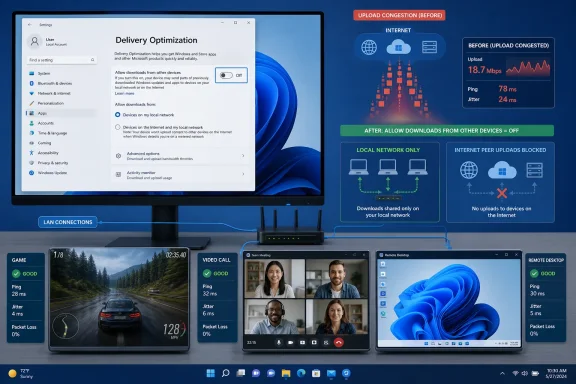
The outlet is right about the basic mechanism: Delivery Optimization is Microsoft’s update-delivery client for Windows Update, Microsoft Store content, and certain other Microsoft packages. It can obtain pieces of a download from peers and can, depending on configuration, upload cached pieces to other PCs. On a connection with plentiful downstream bandwidth but limited upstream capacity, an uncontrolled upload can add latency well before a conventional download speed test looks alarming.
But Microsoft’s current Delivery Optimization documentation draws a sharper line than the article does. On unmanaged Windows 10 and Windows 11 PCs, the default peer mode is LAN-only: devices may share with other machines behind the same public IP address, but they do not upload to internet peers. Internet peering requires the more expansive “Devices on the internet and my local network” option, or an organizational policy that sets Delivery Optimization’s Download Mode to Internet.
That changes the practical advice. A user who sees lag does not need to disable a Windows service in the Registry first—or at all. They should establish whether Delivery Optimization is actually uploading, then use the Settings toggle or a bandwidth limit that directly addresses the condition.
The reported problem is real, but its likely scope is narrower
How-To Geek describes a familiar symptom: a PC’s upload traffic rises, game ping spikes, video calls stutter, and downloads feel slow even when the broadband plan has a much higher advertised download rate. The networking explanation is sound. Most consumer cable, fixed-wireless, DSL, and even some fiber plans are asymmetric, with far less upload capacity than download capacity. Filling a 20 Mbps or 40 Mbps upstream path can delay the small return packets that keep interactive applications responsive.
Wi-Fi can make the experience more visible because client devices share airtime and radios generally cannot transmit and receive simultaneously on the same channel. A busy upstream transfer does not magically consume all downstream throughput, but it can compound contention, buffer delay, and retransmissions. A speed test that reports strong download throughput may therefore miss the problem; latency under load and jitter are the more useful measurements.
Delivery Optimization is capable of generating that upstream traffic. Microsoft says the service can upload content to local peers or internet peers, according to the configured sharing mode. Its Activity Monitor records how much data a PC has uploaded to “PCs on the local network” and “PCs on the Internet,” and Microsoft’s enterprise controls include a monthly cap specifically for uploads to internet peers.
For homes with several Windows PCs, local peer sharing can make sense. One machine downloads a large cumulative update from Microsoft, while other PCs on the same network retrieve portions locally. That can reduce repeated external downloads, particularly on a capped or slow connection. It does not, however, solve a gaming-latency problem if the local network itself is already congested, and it offers little benefit to a household with one Windows PC.
The more consequential point is that an Activity Monitor entry for internet uploads is evidence of a configuration change, device-management policy, or an older non-default setting—not the normal baseline Microsoft documents for a current unmanaged installation.
Windows does have a “No, thanks” button
The report’s biggest factual problem is its assertion that sharing is compulsory and that Windows offers no way to turn it off. Microsoft’s consumer support documentation says the opposite.
In Windows 11, open Settings > Windows Update > Advanced options > Delivery Optimization, then turn off Allow downloads from other devices. Windows will continue receiving updates and Store content directly from Microsoft, but it will neither download from nor upload to other PCs. This is a supported configuration, not a workaround.
Users who want to retain local sharing but stop the possibility of internet sharing can choose the local-network-only option instead. That allows peering among devices on the same home or office connection without making the PC an internet peer.
The distinction is more than semantic. Delivery Optimization itself remains part of Windows’ update plumbing even when peer sharing is disabled. Microsoft describes it as a cloud-managed downloader that can use Microsoft’s own HTTP sources, Microsoft Connected Cache servers in managed environments, and optional peers. Turning off the peer-sharing toggle does not stop Windows Update; it tells Windows to stop using other PCs as sources and stops the PC from serving content to them.
That is a far better outcome than setting the Delivery Optimization service’s Start Registry value to 4, as How-To Geek recommends. A value of 4 disables the service, but Microsoft does not present service disablement as the normal consumer control for this feature. The Registry change is broader than necessary, harder to audit later, and can create avoidable update or Store troubleshooting work. A supported Settings option solves the stated bandwidth concern without modifying a service Windows uses for content delivery.
Managed corporate PCs are the exception. If the sharing control is greyed out or Settings says the configuration is managed by an organization, the IT department has enforced Delivery Optimization policy through Group Policy, Microsoft Intune, or another management platform. In that case, changing a local Registry value is not a responsible fix; the policy may be restored at the next management check-in, and the organization may depend on peer caching or Microsoft Connected Cache to limit WAN usage.
Activity Monitor can identify history, not prove the live culprit
How-To Geek correctly directs users to Delivery Optimization’s Activity Monitor, available under the same Settings page. It is the fastest way to determine whether Windows has uploaded update data during the current reporting period. If the “PCs on the Internet” upload count is in gigabytes, the machine has in fact participated in internet peer sharing at some point.
But it is a historical counter, not a live incident recorder. A large total accumulated over weeks does not prove that Delivery Optimization caused a specific 9 p.m. latency spike. It also does not reveal whether a present upload is caused by OneDrive, Steam, a cloud-backup client, a browser tab, a NAS sync job, malware, or another Windows component.
The right diagnostic sequence is straightforward:
- Check Delivery Optimization Activity Monitor to see whether the PC has uploaded to local or internet peers at all.
- During an actual lag event, use Task Manager’s Processes tab or Resource Monitor’s Network view to identify which process is transmitting data at that moment.
- If the traffic belongs to an
svchost.exeinstance, use Process Explorer from Microsoft Sysinternals to inspect the hosted services rather than assuming everysvchost.exeupload is Delivery Optimization. - Administrators and advanced users can query Delivery Optimization’s current status with the
Get-DeliveryOptimizationStatusPowerShell cmdlet, which exposes active peer-transfer information including recent upload rates.
Microsoft documents Process Explorer as a tool for examining running processes and their details, while its Delivery Optimization monitoring guidance specifically identifies the PowerShell status command as a way to see active peer activity. Either method is more defensible than blaming Delivery Optimization based solely on a monthly total.
This is especially important because Delivery Optimization traffic is only one potential source of bufferbloat—the latency increase that happens when a modem, router, or gateway queues too much traffic. A saturated upstream connection can make every device feel broken regardless of what created the upload. Disabling Delivery Optimization may remove one contributor, but it will not fix a router with poor queue management or a backup client that starts sending hundreds of gigabytes overnight.
Microsoft’s defaults make bandwidth controls worth checking
Microsoft’s own documentation contains an important operational detail for administrators: Delivery Optimization’s bandwidth controls are dynamic by default unless an organization sets explicit policies. The company recommends absolute bandwidth limits, rather than percentage-based limits, for low-bandwidth environments.
That advice applies well beyond enterprise deployments. A percentage can be misleading on a connection whose usable upstream bandwidth changes by time of day, signal quality, or ISP congestion. A concrete upload ceiling gives administrators a predictable budget for interactive traffic. In Intune, Microsoft exposes settings for maximum upload bandwidth and monthly upload data caps, as well as Download Mode controls that can force HTTP-only behavior with no peering.
For unmanaged home PCs, the Settings controls are usually sufficient. Turn off peer sharing completely if the household has one Windows PC, or select local-network-only sharing if several machines receive the same large Windows releases and the network can tolerate it. Marking a connection as metered adds another layer of protection: Microsoft says Delivery Optimization will not automatically download or send update fragments to internet peers on metered or capped connections.
The caveat is that metered mode changes Windows Update behavior more broadly. Feature updates and other large downloads may wait for user approval, so it is useful for a mobile hotspot or strict data cap but is not a universal performance setting.
The practical fix is safer than the Registry workaround
Delivery Optimization deserves a place on the troubleshooting checklist for unexplained upstream usage. Its peer-sharing capability is real, its internet peer mode can consume upload allowance, and the resulting congestion can be painful on asymmetric broadband. How-To Geek’s central warning is therefore worth taking seriously.
Yet the article turns an optional, configurable service into a more alarming story than the record supports. Microsoft’s current documentation says LAN-only peering is the default, internet peering is a separate mode, and the Settings app can disable peer sharing while preserving normal Windows and Store updates. The claim that users cannot opt out is simply outdated or incorrect for current Windows 11 behavior.
Before replacing a router, rewiring a home, or disabling DoSvc through the Registry, check Delivery Optimization’s Activity Monitor and the live process responsible for the traffic. If peer uploads are present, turn off Allow downloads from other devices or restrict sharing to the local network. That addresses the actual bandwidth risk without breaking the Windows update mechanism that Delivery Optimization was built to support.