
A recent troubleshooting guide from Guiding Tech correctly points users toward ports, drivers, power settings, firmware, and Fast Startup. But for Windows 11 users and administrators, the most productive first move is to inspect the exact Device Manager status rather than reinstalling drivers blindly. Microsoft’s USB documentation draws a sharp line between a device that failed enumeration and one that was recognized but lacks a suitable driver.
 “Unknown” Can Mean Windows Never Learned the Device’s Name
Every USB peripheral begins with a short exchange called enumeration. The USB host controller detects a connection, resets the port, assigns an address, and requests a device descriptor. That descriptor contains the vendor ID and product ID that Windows uses to construct a hardware ID and find a matching driver.
When that exchange breaks down, Device Manager may display entries such as Unknown USB Device (Device Descriptor Request Failed), Unknown USB Device (Set Address Failed), or Unknown USB Device (Device Failed Enumeration). Microsoft’s USB engineering documentation notes that these failures can arise when a port reset times out, the device does not accept an address, or its descriptor request fails or returns malformed data.
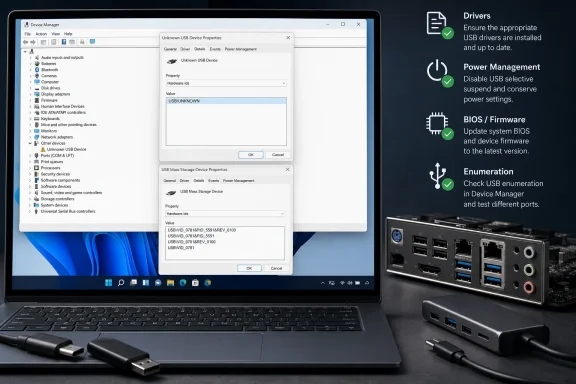
That is usually not a case of Windows merely missing an application-level driver. If Device Manager shows USB\UNKNOWN, or a vendor and product ID of VID_0000&PID_0000, the PC did not get far enough to learn what it was talking to. A driver download for a printer, keyboard, flash drive, audio interface, or drawing tablet cannot repair a device that cannot supply a valid descriptor.
The alternative is a recognizable hardware ID — something in the form USB\VID_####&PID_#### — paired with a yellow warning symbol and a Code 28 message. In that case, enumeration worked: Windows knows the manufacturer and product, but it cannot match the device with an installed driver package. That is where the vendor’s driver, Windows Update, or an OEM support package can be relevant.
To check, open Device Manager with devmgmt.msc, locate the affected item, open Properties, then select Details and choose Hardware Ids from the Property list. The information on that page is more useful than the generic “Unknown device” label.
Isolate the Hardware Before Changing Windows
The fastest diagnostic is still physical, and it eliminates a surprising amount of guesswork. Disconnect the peripheral, inspect the connector and cable, and test it on a known-good port directly on the PC. Avoid front-panel ports, passive hubs, docking stations, monitor USB hubs, and extension cables during this test.
A USB device that works from a rear motherboard port but not from a front-panel port points toward chassis cabling, a weak front-panel assembly, or a local controller issue. A device that works only through one port may also expose a damaged connector or a port-specific power problem. Conversely, if the same peripheral is unidentified on two separate PCs, the cable, device firmware, or hardware itself becomes the leading suspect.
Storage devices deserve extra caution. A USB flash drive or external SSD that appears as an unknown device is not yet a Disk Management or data-recovery problem if it has failed enumeration; Windows cannot see a usable disk to mount. Repeated reconnect attempts, especially through unstable hubs, can make a marginal device appear intermittently alive without providing a safe path to its files.
For peripherals with detachable cables, replacing the cable is a low-cost, high-value test. USB-C cables are particularly easy to misjudge because they can look identical while supporting very different data, charging, and power-delivery capabilities. A charge-only cable can make a device appear powered while preventing data communication altogether.
Driver Maintenance Still Matters — But Start With the PC
Once the device produces a valid vendor/product ID, Windows 11’s driver path becomes the next focus. The obvious “Update driver” command in Device Manager can help, but it is not a comprehensive repair strategy. It searches the drivers available locally and through configured Windows Update channels; it does not guarantee the newest chipset, USB controller, dock, or peripheral driver from the system manufacturer.
For desktops, download the current chipset, USB controller, and BIOS/UEFI packages from the motherboard vendor. For laptops and branded PCs, use the manufacturer’s support page for the exact model rather than a generic component-driver site. USB controllers are tightly integrated with platform firmware and chipset components, so an Intel, AMD, Qualcomm, or OEM package can be more appropriate than a manually selected “USB driver” from an unfamiliar download portal.
If Device Manager reports Code 28 and exposes a real hardware ID, use that ID to identify the peripheral manufacturer. A specialized device — for example, a USB-to-serial adapter, label printer, security key, scanner, audio interface, or industrial controller — may need a vendor driver or management package that Windows Update does not supply.
When a device had worked previously and suddenly turns unknown, uninstalling only the affected device node can be reasonable. In Device Manager, right-click the failed entry under Universal Serial Bus controllers, choose Uninstall device, disconnect the peripheral, restart Windows, and reconnect it. Windows will rebuild the connection path and attempt detection again.
Administrators should resist treating mass removal of every USB controller as a routine cure. Windows can reinstall the controller stack after a reboot, but removing all hub and controller entries may disrupt keyboards, mice, network adapters, docked displays, and remote-management hardware at the same time. On managed endpoints, a targeted change and a recorded Device Manager problem code are easier to support than a broad reset.
Power Features Can Break a Marginal Connection
Power management is a credible contributor, particularly on laptops, tablets, and USB-C docks. Windows can selectively suspend USB devices to save energy, while devices and hubs can also enter low-power states on their own. Normally that behavior is invisible. On marginal hardware, outdated dock firmware, or a problematic cable, waking the device can fail.
The setting highlighted by Guiding Tech — USB selective suspend in the advanced power plan — is worth testing, not necessarily disabling permanently. Turn it off temporarily, reconnect the device, and see whether the failure disappears. If it does, investigate an updated BIOS/UEFI release, chipset driver, dock firmware, or peripheral firmware before accepting higher standby power use as the permanent answer.
The same principle applies to Device Manager’s Power Management tab for USB Root Hub or Generic USB Hub entries, where available. Clearing “Allow the computer to turn off this device to save power” can help isolate a hub wake issue. It is not a universal setting; many newer controller paths do not expose it, and its presence does not prove that power saving caused the failure.
Fast Startup is another sensible test when the problem appears only after shutdown or reboot and vanishes after a full power cycle. Fast Startup hibernates parts of the Windows kernel session rather than performing the same initialization sequence as a cold boot. Disabling it temporarily in Control Panel’s Power Options can establish whether initialization state is involved.
A cleaner one-time test is to hold Shift while selecting Shut down, then start the PC and reconnect the device. If a genuine cold boot restores recognition while normal restarts do not, the next step should be firmware and driver updates — not simply leaving Fast Startup disabled without understanding the pattern.
BIOS, Docks, and USB-C Add Another Layer
On modern systems, especially business laptops, the USB port is often part of a larger chain involving firmware, USB4 or Thunderbolt controllers, docks, monitors, power-delivery negotiation, and security policy. A BIOS setting can disable ports, restrict external access, or affect pre-boot USB behavior. Corporate endpoint controls can also block USB storage after enumeration, although that normally produces an access restriction rather than USB\UNKNOWN.
Check BIOS/UEFI settings only after the basic port-and-device tests. Look for disabled USB ports, USB controller settings, Thunderbolt or USB4 security modes, and dock-related options. Record existing settings before changing them. Resetting firmware defaults may resolve a bad configuration, but it can also alter RAID, Secure Boot, virtualization, wake, and boot-order settings that matter far more than a peripheral problem.
Dock firmware deserves special attention. If multiple devices fail only when attached through the same USB-C dock, the dock is the common component, not Windows 11. Test the same peripherals directly on the laptop, update the dock through its manufacturer’s utility, and use the power adapter specified for the dock. A low-wattage charger can produce erratic behavior when displays, storage, Ethernet, and charging all compete for the same connection.
Microsoft’s USBView utility can help advanced users see the host controller, hub path, and descriptors Windows can retrieve. It is especially useful when Device Manager’s friendly name hides the physical topology. For most users, however, Device Manager’s Hardware Ids, device status, and problem code provide enough evidence to decide whether the issue is a driver mismatch or a failure much closer to the cable and hardware.
The practical dividing line is simple: a real VID and PID means Windows has identified the peripheral and needs help selecting software; USB\UNKNOWN means the conversation failed before software selection really began. Start with the port, cable, direct connection, and a second PC. Then update the PC’s chipset and firmware, test power behavior, and only afterward chase device-specific drivers.
