
That discovery is more than a nostalgia trip. It is an unusually tangible example of Windows’ long-standing compatibility philosophy: Microsoft can redesign the shell repeatedly, but it must avoid casually breaking a decades-old shortcut, installer, theme, or management tool that refers to an icon stored inside a system module.
For Windows 11 users, the practical result is simple. The glossy Fluent-style appearance of File Explorer and Settings is only one layer of the operating system. Beneath it sits a collection of DLLs containing old folders, floppy disks, CRT monitors, networking symbols, multimedia artwork, and other artifacts from earlier Windows generations.
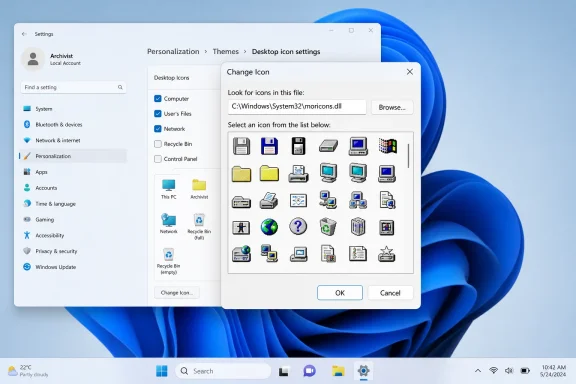 Overview: Windows 11’s Unexpected Icon Museum
Icons are not merely picture files sprinkled around an operating system. In Windows, an icon can be stored as a resource within an executable or DLL, and a single icon entry may represent a collection of images in different sizes and color depths. Microsoft’s Win32 documentation distinguishes between individual RT_ICON resources and RT_GROUP_ICON resources, the latter enabling Windows or an application to choose an appropriate variant for the current display context. Microsoft’s icon documentation also lists APIs for extracting icons from executable files, DLLs, and standalone icon files.
That technical design helps explain why old icon sets can survive for so long. A DLL is not just program logic; it may bundle strings, dialogs, cursors, bitmaps, manifests, and icons. If an old Windows component, application shortcut, or installer references one of those icon resources by a file path and resource index, removing it can create a broken or generic-looking icon.
The preservation is therefore functional as well as historical. Windows has repeatedly evolved from the Program Manager age to the Start menu, through Aero, Metro, and now Fluent design, yet older references remain a fact of life across enterprise deployments and long-lived third-party applications. The old icon artwork is often no longer actively chosen by Windows 11, but it can still be present for compatibility.
That distinction matters. Seeing an old icon in moricons.dll or pifmgr.dll does not mean Windows 11 is secretly running a Windows 95 interface beneath its current shell. It means the resource remains packaged in a file that Windows can still load when requested.
How to Browse Legacy Windows Icons Safely
The safest way to explore these assets is through Windows’ existing Change Icon dialog. It does not require registry editing, replacement of protected files, third-party “theme patchers,” or administrator privileges for ordinary shortcut customization.
The basic workflow is straightforward:
- Create or locate a shortcut.
A desktop shortcut is ideal because it is easy to identify and undo later. To create one, right-click an application, folder, or file and use Show more options > Send to > Desktop (create shortcut) where applicable. - Open the shortcut’s properties.
Right-click the shortcut and select Properties. - Select the shortcut icon control.
On the Shortcut tab, choose Change Icon. The standard shortcut workflow—right-clicking a shortcut, opening Properties, and using Change Icon—is also documented in Microsoft’s community guidance. Microsoft Q&A guidance notes that users can choose from the displayed entries or browse to another file containing icon resources. - Replace the path in the icon dialog.
In Look for icons in this file, enter the full path to one of Windows’ icon-bearing libraries. - Choose an icon and apply the change.
Select an icon, click OK, and then click Apply in the Properties dialog.
For the oldest and most immediately recognizable artwork, begin with:
C:\Windows\System32\moricons.dll
and:
C:\Windows\System32\pifmgr.dll
Neowin’s walkthrough identifies both files as holdovers associated with the Windows 3.x and Windows 9x periods. Their contents evoke a time when Windows iconography leaned heavily into literal metaphors: desktop computers, file cabinets, printed documents, disks, peripherals, and application-specific symbols designed for lower-resolution displays.
What the “No Icons” Message Means
When opening the Change Icon interface, Windows may initially warn that the shortcut’s current target contains no icons. That warning generally refers to the selected shortcut target—not to the icon library you intend to browse.
Click OK, then paste the desired DLL path into the field. If the library contains usable icon groups, Windows should populate the selection pane. The interaction is consistent with the platform’s underlying model: Windows can retrieve an icon from an executable file, DLL, or .ico file rather than requiring a dedicated standalone icon file. Microsoft’s Win32 icon reference explicitly documents icon-extraction functions for executable files and DLLs.
The key point is that a shortcut can reference an icon inside a system module. It does not copy that icon out of the DLL merely because the user selected it.
The Two Best Places to Start
moricons.dll: The Most Nostalgic Collection
For many longtime Windows users, moricons.dll is the first stop. Its name is a reminder of an era when “moricons” effectively meant more icons: a supplemental visual library used to give Program Manager-era applications and DOS programs more distinct identities.
The collection is visually very different from contemporary Windows 11 iconography. It predates the flat, rounded, restrained design language now associated with Microsoft’s Fluent design system. Instead, it offers pixel-art scenes and object-heavy illustrations with more texture, stronger outlines, and a distinctly late-1980s-to-1990s aesthetic.
These are particularly effective for:
- Retro gaming shortcuts
- DOSBox or emulation folders
- Archives of older software
- Personal “classic Windows” desktop themes
- Custom folders for legacy utilities
- Shortcuts intended to be visually distinct at a glance
There is also a practical benefit beyond visual charm. A unique, high-contrast icon can make an important shortcut easier to identify in a crowded desktop or Start menu folder. Modern icon sets are often cleaner and more consistent, but their minimal approach can make similarly colored application shortcuts blend together.
pifmgr.dll: A Reminder of DOS-Era Windows
pifmgr.dll is another rich source of old-school Windows symbols. The filename points toward PIF—Program Information File—technology associated with configuring DOS applications in older Windows environments.
Windows 11 users do not need to understand PIF files to browse its icons. The library remains useful precisely because the Change Icon dialog abstracts the older technical context away: users can select the image they want without changing how a shortcut launches its target.
That makes pifmgr.dll a good candidate when moricons.dll feels too playful or too application-specific. Its collection includes more traditional computing imagery and utility-style symbols that work well for folders, scripts, terminal shortcuts, virtual machines, and archival projects.
The Wider Windows 11 Icon Library Map
The two classic DLLs are only the beginning. Windows 11 contains several system libraries that can be opened through the same Change Icon dialog, each carrying icon resources related to particular shell components or older Windows subsystems.
The following paths were identified in Neowin’s guide to buried Windows 11 icons. Availability and the exact contents can vary across Windows editions and builds, so treat the list as a practical exploration map rather than a permanent, exhaustive catalog.
Core shell and general-purpose libraries
C:\Windows\System32\shell32.dll
C:\Windows\System32\imageres.dll
shell32.dll is the obvious destination for classic Windows shell imagery. It has long been associated with the Explorer environment and contains familiar object, folder, storage, printer, and system icons. Neowin notes that it still includes older visual artifacts such as floppy disks and Windows 95-era folder designs even though Windows has moved far beyond those physical storage conventions.
imageres.dll is widely associated with newer system imagery introduced around the Windows Vista era. Microsoft’s theme-file documentation shows default desktop-icon entries referencing both imageres.dll and shell32.dll, including examples for Computer, Network, and Recycle Bin icons. Microsoft’s theme format documentation demonstrates that Windows themes can point desktop-icon definitions at resource DLLs using a path,index format.
For users building a coherent Windows desktop theme, these two are the most versatile libraries. shell32.dll tends to be the better choice for older or broadly recognizable visual metaphors, while imageres.dll is a strong place to browse for more polished system-style assets.
Internet Explorer and earlier Explorer-era artwork
C:\Windows\System32\ieframe.dll
C:\Windows\System32\shdocvw.dll
The existence of ieframe.dll and shdocvw.dll is a useful reminder that retiring an end-user product does not necessarily eliminate every technical dependency around it. Internet Explorer itself is no longer the browser users should rely on, but visual resources associated with older browser and shell components can remain in Windows for compatibility purposes.
Neowin identifies ieframe.dll as a source of legacy Internet Explorer iconography and shdocvw.dll as another Explorer-and-IE-era resource library. These are less essential for general customization than shell32.dll, but they are fascinating for anyone reconstructing a period-accurate Windows XP or Windows 7-style desktop environment.
The limitation is obvious: icons designed for a discontinued web platform can look dated outside of a deliberately retro desktop layout. They are best used selectively, rather than as a replacement for every modern Windows 11 icon.
Audio, power, network, and accessibility symbols
C:\Windows\System32\mmres.dll
C:\Windows\System32\powercpl.dll
C:\Windows\System32\pnidui.dll
C:\Windows\System32\networkexplorer.dll
C:\Windows\System32\netshell.dll
C:\Windows\System32\accessibilitycpl.dll
Windows also stores more specialized icon resources in modules related to particular Control Panel and shell functions. According to Neowin’s library list:
mmres.dllincludes sound-related visuals, such as speakers and microphones.powercpl.dllprovides battery and power-plan imagery.pnidui.dllcontains network-status and Wi-Fi-related icons.networkexplorer.dlloffers network-location and device-themed symbols.netshell.dllhas broader networking and connection artwork.accessibilitycpl.dllcontains accessibility-oriented icons, including imagery associated with Magnifier and Narrator.
This category is useful when visual meaning matters more than nostalgia. A shortcut to a VPN client, router management page, audio editor, accessibility tool, or power-management utility can benefit from a clear relevant symbol.
Microsoft’s driver documentation further illustrates the broader design principle: Windows components can reference either standalone .ico files or icons embedded in DLLs. In an example for device icons, Microsoft specifies the resource format as <Resource.dll>,-<IconResourceID>, reinforcing that DLL-contained icon resources are a normal, supported part of the Windows architecture. Microsoft’s device-icon documentation also notes that shell-facing device icons can be represented through configured icon references.
Device, media, and remote-access libraries
C:\Windows\System32\wpdshext.dll
C:\Windows\System32\wmploc.dll
C:\Windows\System32\mstscax.dll
For device-oriented customization, wpdshext.dll is worth browsing. Neowin identifies it as a source for portable-device, phone, camera, and USB-drive imagery. That makes it well suited to shortcuts for smartphone utilities, photo-import folders, removable-media tools, and backup locations.
wmploc.dll contains artwork associated with Windows Media Player, while mstscax.dll includes Remote Desktop Connection imagery. These have narrower uses, but they can make dedicated shortcuts more legible without downloading icon packs from unknown websites.
A user who maintains a home lab, remote workstation collection, media server, or device-management folder can build a more functional visual taxonomy from these system resources alone.
Why the Old Resources Remain
The most credible explanation is not that Microsoft forgot they exist. It is that compatibility is cheaper and safer than breaking old references.
Windows applications and shortcuts can load resources from modules. Microsoft documents that applications use APIs such as FindResource, LoadResource, LoadIcon, and LoadImage to locate and load resources, including icons, from modules. Microsoft’s resource-loading documentation explains that resources can be found inside a module and loaded into memory, while resource-specific functions simplify the loading of icons and other common assets.
In other words, an icon is not necessarily an external decoration that Windows can discard independently. It may be a numbered resource embedded in a binary, referenced by code or configuration elsewhere.
Microsoft’s own theme-file examples show how the Windows shell can point desktop icons to a precise DLL and resource index. The documentation uses entries such as:
%SystemRoot%\System32\imageres.dll,-109
for a desktop icon definition, and similarly references shell32.dll for another. Microsoft’s theme format reference makes clear that this approach has been part of Windows customization infrastructure for years.
The consequence is significant: preserving an old resource may help maintain a valid icon reference even after the original feature, application, or visual style has fallen out of normal use. That does not guarantee that every historic icon ever released by Microsoft is present in Windows 11; the broader claim is too sweeping to verify from a limited set of libraries. But the surviving DLLs clearly preserve a substantial visual backlog that modern Windows no longer foregrounds.
The Strengths of Using Built-In Icon Resources
Using Windows’ existing DLL icon libraries has several advantages over downloading a random .ico pack.
No modification of protected system files
The safest method merely changes the icon reference on a shortcut. It does not require editing shell32.dll, replacing imageres.dll, altering system permissions, or taking ownership of files in System32.
That distinction is critical. Replacing or patching protected Windows libraries can interfere with servicing, trigger integrity protections, complicate repair work, and create problems when cumulative updates replace the modified file.
Better provenance than unknown icon packs
A shortcut that references an icon inside a built-in Windows DLL uses an asset already installed by Microsoft. There is no need to obtain an executable “icon installer,” grant it elevated access, or trust an unverified archive.
This does not make every Windows customization risk-free, but it removes a common attack surface: downloading obscure packages that bundle icons with scripts, installers, browser extensions, or other unwanted software.
Portability within the same Windows environment
Because the icon comes from a standard system path, a shortcut may retain its appearance more reliably when moved between comparable Windows installations than one that points to an icon file stored in a personal Downloads folder.
The caveat is important: resource indexes and file contents can change over time, and not every Windows version has the same library set. A shortcut built around a particular icon index should not be treated as a guaranteed cross-version design standard.
Fast experimentation and easy reversal
If an icon does not work aesthetically, returning to Properties > Change Icon takes seconds. A user can select another resource, restore the original selection, or delete the test shortcut entirely.
That low-friction experimentation is part of the appeal. It recreates a small piece of the customizability that older Windows versions encouraged, while retaining the stability of a current Windows 11 installation.
Risks, Limitations, and Good Practices
The icon-library trick is benign when limited to shortcut personalization, but it is still worth following a few rules.
Do not edit or replace the DLLs
Browsing a DLL in the Change Icon dialog is safe. Editing, replacing, deleting, or “debloating” the DLL is not.
System DLLs participate in Windows servicing and can be protected by Windows Resource Protection. Even if a change appears to work initially, it can be overwritten by an update or cause later repair and compatibility issues. The correct approach is to reference system resources, not modify them.
Change shortcuts, not executable files
Windows generally exposes Change Icon for a shortcut because the shortcut stores presentation metadata separately from the underlying target. An application’s actual executable icon belongs to the program and should not be patched simply to alter its desktop appearance.
If the desired file or folder does not expose an icon customization route, create a shortcut to it. This preserves the original item while giving the shortcut an independent visual identity.
Expect inconsistent quality at modern resolutions
Many legacy icons were designed for much smaller screens, lower color depth, and different anti-aliasing expectations. On a high-DPI 4K monitor, some may look charmingly crisp while others look soft, jagged, too small, or visually busy.
That is not a failure of Windows 11 scaling. It is an unavoidable characteristic of artwork made for a different display era. Users seeking a consistent modern desktop may prefer icons from imageres.dll or newer system resources, reserving moricons.dll for a few intentional retro accents.
Preserve clarity and accessibility
An icon’s first job is to communicate meaning quickly. A nostalgic floppy-disk image may be visually delightful, but it can be a poor choice for a cloud-sync folder or a shortcut that other people must use.
Use color, contrast, and metaphor carefully. For frequently used shortcuts, choose icons that remain distinguishable at small sizes and do not depend entirely on subtle visual details. Microsoft’s Windows icon architecture supports multiple sizes and color depths precisely because an appropriate variant may need to be selected for different display conditions. Microsoft’s icon overview describes grouped icon resources as a mechanism for selecting an image appropriate to size and color depth.
A Better Way to Personalize Windows 11
The rediscovery of legacy Windows icon libraries says something useful about Windows 11 customization. Personalization does not have to mean installing a shell replacement, applying a fragile theme patch, or rebuilding the Start menu to resemble a previous operating system.
Sometimes it means making a handful of shortcuts more personal and more useful:
- A Remote Desktop shortcut with a clear workstation or terminal icon
- A backup folder represented by a storage or removable-media symbol
- A retro games directory using
moricons.dllartwork - A media server shortcut using an icon from
wmploc.dll - A network tools folder styled with icons from
netshell.dllorpnidui.dll - An accessibility shortcut given a distinctive symbol from
accessibilitycpl.dll
This approach has a major advantage over wholesale skinning: it is modular. Users can change only the shortcuts that benefit from stronger identity, leave the rest of Windows 11 untouched, and reverse every decision without a recovery plan.
Conclusion
Windows 11’s hidden legacy icons are a small but revealing piece of the operating system’s long technical history. The current interface may prioritize modern Fluent-style visuals, but old DLL resource libraries still preserve artwork from Windows’ earlier design eras, allowing users to revisit classic icons without compromising the core installation.
The most useful starting points are moricons.dll and pifmgr.dll, followed by familiar shell libraries such as shell32.dll and imageres.dll. From there, specialized files for networking, power, media, portable devices, accessibility, and Remote Desktop offer an unexpectedly broad toolkit for Windows 11 shortcut customization.
The right lesson is not that Windows should look permanently frozen in the past. It is that Microsoft’s compatibility-first architecture has left a creative archive sitting in plain sight. Used through the normal Change Icon dialog—and without touching protected system files—that archive gives Windows 11 users a safe, lightweight way to make the desktop feel more individual, more legible, and occasionally much more fun.
