

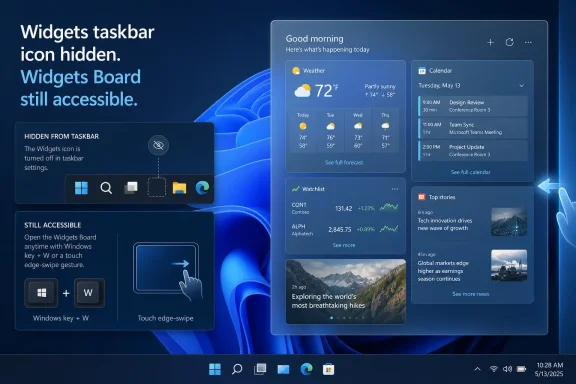
For users who simply want the weather tile and market movements off the taskbar, that distinction is academic. For IT teams, shared-PC administrators, or anyone trying to eliminate an unsolicited news surface, it is the difference between cleaning up the taskbar and removing access to the feature. Windows 11 exposes the former in ordinary Settings; Microsoft does not document the Taskbar toggle as an uninstall or a system-wide kill switch.
The setting hides the button, not the Widgets Board
PCWorld correctly directs users to Settings > Personalization > Taskbar and the Widgets control under Taskbar items. The same destination is available more quickly by right-clicking an empty area of the taskbar and choosing Taskbar settings.
Microsoft’s support documentation confirms that setting shows or hides the Widgets taskbar control. It also separately lists three ways to launch the board: selecting or hovering over the taskbar control, pressing Windows key + W, and swiping from the screen edge on supported touch configurations. Hiding the first path does not eliminate the other two.
That makes the wording consequential. A user who turns Widgets off and later hits Windows key + W—perhaps while intending another shortcut—will still be presented with the board. The expected “I disabled this” result is a missing weather badge on the taskbar, not the absence of the underlying Windows component.
Microsoft’s developer documentation describes the Widgets Board as a Windows 11 system component and currently the sole Windows widget host. That architecture helps explain why the taskbar setting is framed as a visibility control rather than a removal mechanism: the board also hosts installed app widgets and is meant to be available independently of its taskbar button.
Removing a card, hiding it, and disabling the feed are separate jobs
The terminology inside Widgets has changed enough that broad instructions can now produce the wrong result. Microsoft distinguishes between removing a widget from a dashboard, hiding a widget, and adjusting the news-oriented Discover dashboard.
To remove an installed widget—Weather, Outlook Calendar, Phone Link, a stock watchlist, or another supported app card—open Widgets, use the three-dot menu in the card’s upper corner, and select Remove widget. That takes the card off the current Widgets dashboard. The + control opens the widget picker, where Windows shows widgets available from apps installed on the PC; adding a widget is not the same as downloading a new provider.
Users who do not want editorial content should look beyond individual cards. Microsoft documents a separate option to turn the feed off from the Widgets settings experience. The board’s Discover area also has controls for following or blocking topics and publishers, hiding individual stories, and requesting more or fewer stories like a given item.
This is where the practical choice splits three ways:
- Removing a widget clears a specific app card from the dashboard.
- Turning off the feed addresses news and recommendation content without necessarily sacrificing useful app cards.
- Turning off the Taskbar item removes the visible taskbar launcher but leaves Windows key + W and touch access available.
The last option is the bluntest visual cleanup, but it does not deliver the clean, no-Widgets-at-all result that many people mean when they ask how to disable the feature.
The current board is more than the weather icon
The weather indicator is only the most visible entry point. Microsoft characterizes Widgets as dynamically refreshed cards supplied by apps and services, while its developer guidance says providers can be packaged Win32 apps or progressive web apps. Selecting a card may launch the associated application, webpage, or a deep link into a service.
That matters when troubleshooting a board that looks different from an older guide. Widget availability depends on the apps installed on a particular PC, and individual cards do not all support the same size or configuration options. Microsoft notes that some cards only offer one or two of the Small, Medium, and Large layouts; others expose settings such as the weather location or a market watchlist.
The newer design also separates local widgets from the Discover content area more clearly than early Windows 11 releases did. Windows Central reported on August 5 that Microsoft had made a local-widgets view the default on updated systems, moving MSN stories and sponsored content out of the initial view unless a user deliberately enters that section. Microsoft’s own support page still documents Discover-feed personalization and feed controls, so organizations and users should not assume the content feed is gone just because it no longer appears first.
In other words, a taskbar weather icon may open a compact personal dashboard, a dashboard paired with a content feed, or a different arrangement depending on the Windows and Web Experience component updates installed on that device. PCWorld’s screenshot-led instructions remain useful for the mainstream interface, but the board is a serviced Windows experience rather than a static Control Panel-era feature.
Privacy and notification settings deserve a separate pass
Removing the icon also does not answer every concern associated with Widgets. Microsoft says the board can display notification badges and announcements on the taskbar, including persistent alerts such as severe weather and breaking news. Those can be disabled in the Widgets settings under Notifications without hiding the taskbar button or dismantling a user’s selected dashboard.
Microsoft further says Widgets activity is subject to Windows diagnostic-data settings, while each card can have its own app or service data practices. The provider is identified through the card’s More menu under a “Powered by” entry. Location-sensitive cards may use the Windows Location service when permitted, or fall back to an estimate based on the internet connection’s IP address.
For a personal PC, that means the cleanest setup may be to keep only useful cards, turn off taskbar announcements, disable the Discover feed if it is unwanted, and review the services behind any remaining cards. That is more targeted than deleting weather or hiding the icon and discovering later that a shortcut still opens a board populated by services the user did not intend to retain.
For managed endpoints, the key point is simpler: the consumer-facing Taskbar setting is a user-interface preference, not a documented governance control. Administrators seeking a policy-enforced restriction should validate it against their supported Windows edition, management tooling, and the organization’s desired outcome rather than treating a personalized Taskbar switch as a security boundary.
What to do on a Windows 11 PC today
For readers following PCWorld’s advice, the reliable sequence is straightforward. First decide whether the goal is to declutter the taskbar, reduce the board’s content, or prevent casual access to the board.
If the goal is taskbar space, switch Widgets off in Settings > Personalization > Taskbar. If the goal is a less noisy board, open Widgets with Windows key + W, remove unwanted cards through their three-dot menus, and use the board’s settings to turn off announcements or the Discover feed. If the goal is to ensure the feature cannot be opened at all, do not stop at the taskbar switch: Microsoft’s own documentation confirms that shortcut and gesture access remain.
The immediate consequence is clear: hiding Widgets from the Windows 11 taskbar removes the visible prompt, while a genuinely minimal setup requires changing the board’s feed, notifications, and installed cards as well.