

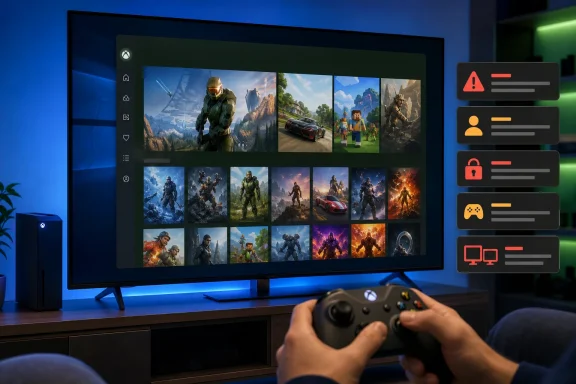
Microsoft calls the feature Xbox Mode in current documentation, after introducing it as the Xbox full-screen experience. It is a controller-first interface that starts a chosen gaming home app, keeps games full screen where possible, and makes Task View the escape hatch back to the conventional Windows desktop. Microsoft’s support documentation confirms that it works on Windows 11 24H2 and 25H2 in supported markets, with entry through Game Bar, Task View, or the Win + F11 shortcut.
The distinction is in what Microsoft enables on which hardware. On ordinary desktops, laptops, and 2-in-1 PCs, the documented controls are simply enabling the mode and optionally showing it in Task View. On gaming handhelds, users can choose a home app and turn on “Enter Xbox mode on startup.” Microsoft also says that, on those handhelds, Windows limits background processes when the startup option is enabled.
That means the appealing part of XDA’s setup—the PC powering on and landing in a controller-ready game library while reducing normal desktop activity—is not the standard desktop deployment Microsoft documents. It is effectively the handheld configuration being exposed on a desktop with a feature flag. That can work, but it is a preview-style workaround rather than evidence that Microsoft has delivered a complete living-room Windows mode for every gaming PC.
Xbox Mode solves a presentation problem, not a Windows performance problem
XDA is right about the most tangible gain. A gaming PC can be technically fast, well maintained, and still feel like a work machine the moment it reaches a desktop full of browser windows, chat clients, file shortcuts, update prompts, and notification badges. Booting to an Xbox app library changes the first decision from “what do I need to deal with?” to “what do I want to play?”
That is a meaningful change for a PC attached to a television, a desk setup shared between work and games, or a dedicated machine in a bedroom or living room. Steam Big Picture Mode has addressed the same use case for years, while launchers such as Playnite have offered a more storefront-neutral full-screen approach. Microsoft’s advantage is that Xbox Mode is built into the Windows shell and connected to Game Bar, Task View, the Xbox app, Game Pass, and the operating system’s controller navigation.
But readers should avoid translating “less Windows in sight” into “more frames per second.” XDA’s own tests—showing only marginal differences between a normal optimized Windows desktop and Xbox Mode—are consistent with the feature’s actual design. The mode itself does not change the CPU, GPU, game engine, graphics driver, shader cache, resolution, ray-tracing settings, or render pipeline that determine most game performance.
Microsoft has made performance claims around the full-screen experience, but those are primarily linked to handhelds, where each watt of power, each background process, and each megabyte of memory can influence frame pacing and battery life. A desktop with a Ryzen 5 7600X, GeForce RTX 4070 Ti, and 32GB of DDR5 memory is not operating under the same constraints. On that kind of system, a few deferred startup applications are unlikely to produce a benchmark result large enough to matter.
The actual win is focus. Xbox Mode is a better launcher surface than the Windows desktop for someone who wants the machine to behave like a console during gaming hours. It is not a substitute for fixing bloated startup software, disabling unwanted overlays, resolving driver problems, or tuning a genuinely poorly performing Windows installation.
The startup toggle is the feature Microsoft has not broadly committed to on desktops
Microsoft’s own support page draws a clear line. A handheld can be set to enter Xbox Mode automatically after sign-in. A non-handheld PC can enable the mode and enter it manually through Game Bar, Task View, or Win + F11. Microsoft’s November 2025 Windows Insider announcement was similarly specific: the expansion to desktops, laptops, and tablets centered on entering and leaving the full-screen experience cleanly, not turning every PC into an Xbox-style appliance at boot.
The XDA configuration bypasses that product boundary with Feature ID 59765208, enabled through a third-party front end for ViVeTool or through an elevated command-line tool. ViVeTool changes Windows Feature Store states: switches Microsoft uses for staged rollouts, experiments, and controlled releases. It does not install a separately supported desktop product, and a feature flag being present in a build is not a support promise.
This is more than semantics. A Windows update can alter, ignore, or revert a manually enabled feature configuration. Microsoft can also change the conditions tied to the flag, including regional availability, app versions, form-factor checks, and the underlying Xbox or Game Bar dependencies. Users who choose this route should assume it may need to be undone before troubleshooting a Windows issue or after a future cumulative update changes behavior.
There is also a naming issue in the XDA walkthrough. The article refers to “Xiyi ViveTool,” while the commonly used utility is ViVeTool or a third-party graphical interface built around it, often listed as ViVeTool GUI. Readers should verify both the name and publisher of anything installed from the Microsoft Store or downloaded elsewhere. A feature-flipping utility necessarily requests elevated privileges; that is not software to select casually from a search result.
For Windows enthusiasts, the practical rule is simple: manually enabling Xbox Mode on a desktop is experimentation. It can be worthwhile on a dedicated machine, but it should not be treated like a normal Settings toggle that Microsoft guarantees will remain available and stable.
Auto-logon is the larger security trade-off in the “console boot” recipe
XDA does include a warning about configuring netplwiz to sign in automatically, but the security consequence deserves more weight than a passing caution. Xbox Mode cannot launch at startup until Windows has signed in to a user account. Removing that sign-in step is what makes the machine feel console-like, and it is also what gives anyone with physical access to the machine immediate access to that Windows account.
Microsoft’s guidance on automatic logon is blunt: it is a convenience feature with security risks. Windows can store automatic sign-in credentials in the Registry, and Microsoft warns that people with physical access can use the configured account and its accessible content. For the traditional AutoAdminLogon configuration, Microsoft also notes that the password can be exposed in a form accessible to authenticated users under certain conditions.
Microsoft’s Sysinternals Autologon tool improves the storage mechanism by using a Local Security Authority secret rather than the ordinary Winlogon password value. It does not solve the primary problem for a household PC, laptop, dorm room setup, or shared living-room system: after boot, the selected account is open. Encryption protects a powered-off drive; automatic logon removes the lock screen protection once the system starts.
A dedicated gaming desktop in a locked office may be a defensible case. A laptop, a system used for work, or a PC connected to company resources is not. The moment the automatically signed-in profile includes a browser session, password manager, personal files, cloud-storage client, remote desktop credential, or network share, Xbox Mode is no longer merely a gaming preference.
A safer compromise is to leave Windows sign-in intact and invoke Xbox Mode immediately after sign-in with Win + F11, Game Bar, or Task View. It preserves the first-screen benefit without converting the device into an unattended account session. It is one extra action, but it avoids the most consequential compromise in the experiment.
The Xbox library remains an aggregator, not a universal console shell
Microsoft says the Xbox PC app can aggregate installed games from Xbox, Game Pass, Battle.net, and other popular PC storefronts. That is useful, and it explains why Xbox Mode can feel like more than a redesigned Xbox app. A player can see more of their installed library without separately opening Steam, Battle.net, or other launchers.
The word installed is doing considerable work. An aggregated library is not the same thing as a universal entitlement library. Steam can show a large collection that is owned but not downloaded. The Xbox app’s value is strongest when it has detected installed titles it can launch; gaps in discovery, manually added titles, nonstandard executable paths, games that require a launcher update, and titles that trigger elevated prompts can still interrupt the controller-first flow.
XDA’s report that several non-Steam games needed to be manually re-added is therefore not a minor UI blemish. It identifies the difference between a real console dashboard and a Windows launcher collection. Consoles own the software distribution path end to end. A Windows gaming PC has competing stores, varied DRM systems, overlay requirements, anti-cheat components, multiple account prompts, and launchers that may appear over the top of the experience.
The Xbox app can reduce that friction; it cannot erase it. If a game launch hands control to another storefront, a controller-friendly Xbox Mode interface does not guarantee that the next dialog, login field, update window, or privacy notice will be equally controller-friendly.
The same limitation appears with multi-monitor use. Microsoft documents Xbox Mode as a single-window, full-screen environment: only one window is displayed at a time where possible, and apps that do not support full screen can appear against a black background. Community reports of second displays going blank are consistent with that design. For a television-focused setup, blanking auxiliary displays may even reinforce the appliance feel. For a desktop player who uses Discord, a browser guide, OBS, hardware monitoring, or voice-chat controls on a second screen, it is a regression.
Microsoft has delivered the entry point, not the finished desktop console
XDA’s central observation holds up: the screen Windows shows first can reshape how a gaming PC feels. Xbox Mode makes a strong case for separating a machine’s work identity from its play identity without requiring a second operating system or a permanent switch to SteamOS. For a controller-driven PC connected to one display, the feature has obvious appeal even before it produces any measurable performance gain.
But the desktop version is still caught between official support and enthusiast improvisation. Microsoft has publicly expanded the full-screen experience beyond handhelds, and its current documentation supports Xbox Mode on standard Windows 11 PCs. Yet the company still reserves startup behavior and explicit background-process limits for gaming handhelds, while desktop users who want the full console illusion are turning to feature flags and auto-logon.
That leaves Xbox Mode best suited today to a secondary or dedicated gaming PC where the owner accepts the trade-offs: one display, controller-first navigation, occasional launcher friction, and a willingness to revert an unsupported configuration after an update. For everyone else, enabling Xbox Mode normally and entering it when it is time to play delivers most of the benefit without making Windows sign itself in or pretending Microsoft’s handheld implementation has already become a fully supported desktop shell.