
Fast Startup does not perform a conventional shutdown. Windows signs out users, saves a portion of the operating system state to the hibernation file, and restores that state at the next power-on. Microsoft documents that design as a hibernation-based startup mode, which means trouble with the hibernation file, drivers, attached storage, or the shutdown sequence can surface during a later boot.
Event Viewer may also show Event ID 6008 after the incident. Microsoft describes that event as confirmation that the prior shutdown was unexpected—not as proof that Fast Startup, a specific driver, or a disk was the original cause.
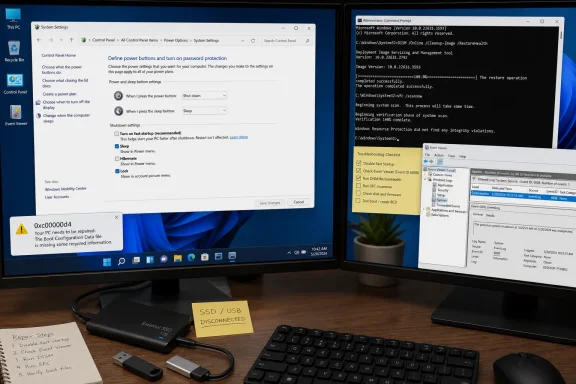 Disable the feature before chasing secondary symptoms
For affected PCs, the most direct isolation step is to turn off Fast Startup in Control Panel:
- Open Control Panel and select Power Options.
- Choose “Choose what the power buttons do.”
- Select “Change settings that are currently unavailable.”
- Clear “Turn on fast startup (recommended),” save the change, and shut down the PC.
- Power it back on and test several normal shutdown-and-start cycles.
This is a particularly practical test on SSD-equipped systems, where the real-world boot-time benefit of Fast Startup may be modest. A normal restart already bypasses the hybrid shutdown mechanism, so administrators should test an actual Shut down followed by power-on after changing the setting.
powercfg /h off has a larger trade-off
Guiding Tech also suggests the elevated command:
powercfg /h off
That command disables hibernation, which in turn removes Fast Startup because the feature depends on the hibernation file. Microsoft’s PowerCfg documentation confirms that hibernation can be controlled with the /hibernate off option.
It is a clean diagnostic and potentially a durable workaround, but it is not identical to merely unchecking Fast Startup. On laptops especially, it removes the Hibernate option and can affect hybrid-sleep behavior. Organizations that rely on hibernation for mobile devices should prefer the Control Panel toggle first, then escalate only if the problem persists.
External storage and Windows image repairs are sensible next checks
Before changing drivers or reinstalling Windows, disconnect nonessential USB devices and external SSDs, then test a cold boot. This eliminates removable storage, docks, and their drivers from the early startup path—an inexpensive check where the issue began after new hardware was connected.
If the failure continues with Fast Startup disabled and peripherals removed, Microsoft-supported repair commands are the appropriate next step from an elevated Command Prompt:
DISM.exe /Online /Cleanup-image /RestoreHealth
sfc /scannow
DISM repairs the local Windows component image, while System File Checker validates and replaces protected system files. They are not a targeted cure for status 0xc00000d4, but they can rule out corruption that would make startup failures harder to diagnose.
The useful dividing line is simple: if disabling Fast Startup ends the crashes, the priority becomes assessing firmware, storage, and driver changes around the hybrid shutdown path. If crashes continue even after a full shutdown mode and a minimal peripheral configuration, Event ID 6008 should be treated as evidence of the abrupt shutdown—not the endpoint of the investigation.
